
1. Product Overview
The ZHIYUN Smooth 5 is a 3-axis handheld smartphone stabilizer designed to provide smooth and stable video footage for mobile filmmakers. It features a robust motor, intuitive controls, and integration with dedicated mobile applications for enhanced functionality.

Figure 1: ZHIYUN Smooth 5 Combo Phone Gimbal with a smartphone mounted.
2. Setup
2.1 Unboxing and Initial Inspection
Upon receiving your ZHIYUN Smooth 5 Combo, carefully unbox all components. The combo typically includes the gimbal, a grip tripod, a magnetic fill light, and various cables and documentation. Ensure all items are present and undamaged.
Video 1: Unboxing the ZHIYUN Smooth 5 Combo Gimbal Stabilizer. This video demonstrates the contents of the package and initial handling of the gimbal.
2.2 Mounting and Balancing Your Smartphone
- Attach the Grip Tripod: Screw the grip tripod onto the 1/4-inch thread at the bottom of the gimbal handle for stable placement.
- Mount Your Smartphone: Extend the phone clamp and securely place your smartphone in it. Ensure the phone is centered and snug.
- Balance the Gimbal: Unlock the gimbal axes. Adjust the phone's position within the clamp and slide the horizontal arm until the phone remains level when released. This mechanical balancing is crucial for optimal performance and battery life.

Figure 2: Proper smartphone mounting on the ZHIYUN Smooth 5 Gimbal.
2.3 Attaching the Magnetic Fill Light
The magnetic fill light can be attached to either side of the phone clamp. It provides 5500K step-less dimming and can be used with multiple colors of light filters. Simply align the magnetic light with the designated magnetic points on the phone clamp until it snaps into place.
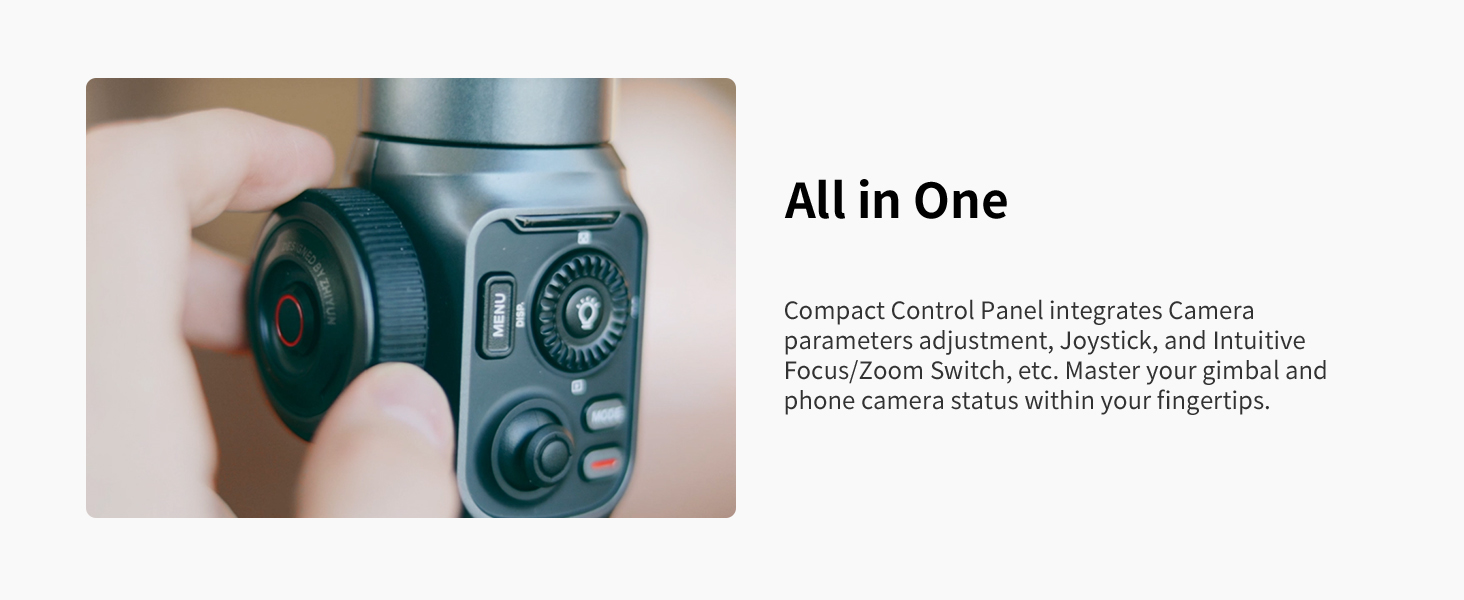
Figure 3: Magnetic fill lights attached to the ZHIYUN Smooth 5 for 360° illumination.
2.4 App Download and Connection
Download the official ZY Cami app from your smartphone's app store. Power on the gimbal and enable Bluetooth on your phone. Open the ZY Cami app and follow the on-screen instructions to connect to your Smooth 5 gimbal.
3. Operating the Gimbal
3.1 Power On/Off
Press and hold the power button located on the side of the control panel to power the gimbal on or off.
3.2 Control Panel Overview
The ZHIYUN Smooth 5 features an optimized control panel for easy access to various functions.

Figure 4: Detailed view of the ZHIYUN Smooth 5 control panel.
- Joystick: Controls the pan and tilt movements of the gimbal.
- Mode Button: Cycles through different gimbal modes (PF, L, F, POV, V).
- Control Wheel: Adjusts focus and focal length. Press the center button to switch between focus and zoom control.
- Fill Light Button: Activates and adjusts the brightness of the magnetic fill light.
- Menu Button: Accesses gimbal settings and app features.
- Record Button: Starts and stops video recording.
Video 2: Demonstration of ZHIYUN Smooth 5 functions and controls.
3.3 Gimbal Modes
The Smooth 5 offers several modes to suit different shooting scenarios:
- PF (Pan Follow): The camera pans left/right following your hand movements, while tilt and roll axes are locked. Ideal for horizontal tracking shots.
- L (Lock Mode): All three axes (pan, tilt, roll) are locked, keeping the camera pointing in a fixed direction. Useful for stable, static shots.
- F (Follow Mode): All three axes follow your hand movements. Provides dynamic and immersive footage.
- POV (Point of View): All three axes follow your hand movements, allowing for a first-person perspective.
- V (Vortex Mode): The camera rotates 360° along the roll axis, creating a unique


