
Rapoo M300G
Rapoo Multi-Device Silent Wireless Mouse User Manual
Model: M300G
Product Overview
This manual provides detailed instructions for the Rapoo Multi-Device Silent Wireless Mouse. This mouse is designed for versatile use across multiple devices, offering silent clicks, adjustable DPI, and an ergonomic design for comfortable, extended use.
Key features include:
- Multi-device connectivity (USB receiver or Bluetooth) for up to 3 devices.
- Silent click design for a quiet working environment.
- 4 adjustable DPI levels (600/1000/1300/1600) for precise control.
- Ergonomic design for right-hand comfort.
- High precision optical engine for use on various surfaces.
- Extended battery life with low-power technology.
Product Demonstration Video
Video: An official product video demonstrating the features and usage of the Rapoo Multi-Device Bluetooth Mouse, including its silent clicks and multi-mode connectivity.
Setup Guide
1. Package Contents
Ensure all items are present in the package:
- Rapoo Multi-Device Silent Wireless Mouse
- USB Receiver (usually stored inside the mouse)
- User Manual
2. Battery Installation
The mouse uses one AA battery (not included). Open the battery compartment on the bottom of the mouse and insert the battery, ensuring correct polarity.
3. Connecting the Mouse
The Rapoo Multi-Device Mouse supports three connection modes: Bluetooth 3.0, Bluetooth 4.0, and 2.4G Wireless (via USB receiver). You can switch between these modes using the button on the bottom of the mouse.
3.1. 2.4G Wireless Connection (USB Receiver)
- Locate the USB receiver, typically stored in a slot on the bottom of the mouse.
- Plug the USB receiver into an available USB port on your computer.
- Turn on the mouse using the power switch on the bottom.
- The mouse should automatically connect. No driver installation is usually required.

Image: The Rapoo mouse connected to a laptop via its 2.4G USB receiver, illustrating the wireless connection.
3.2. Bluetooth Connection (Bluetooth 3.0 / Bluetooth 4.0)
- Turn on the mouse power switch.
- Press the Bluetooth connection switch button on the bottom of the mouse to select either Bluetooth 1 or Bluetooth 2 channel. The corresponding indicator light (blue or green) will flash slowly.
- Long press the Bluetooth button for more than 3 seconds to start pairing. The indicator light will flash rapidly.
- On your device (laptop, tablet, or smartphone), go to Bluetooth settings and search for new devices.
- Select "RAPOO BT3.0 Mouse" or "RAPOO BleMouse" (Bluetooth 4.0) from the list of available devices to pair.
- Once connected, the indicator light will stop flashing.

Image: A diagram illustrating the steps to connect the Rapoo mouse via Bluetooth 3.0 or 4.0, showing the pairing process with indicator lights.
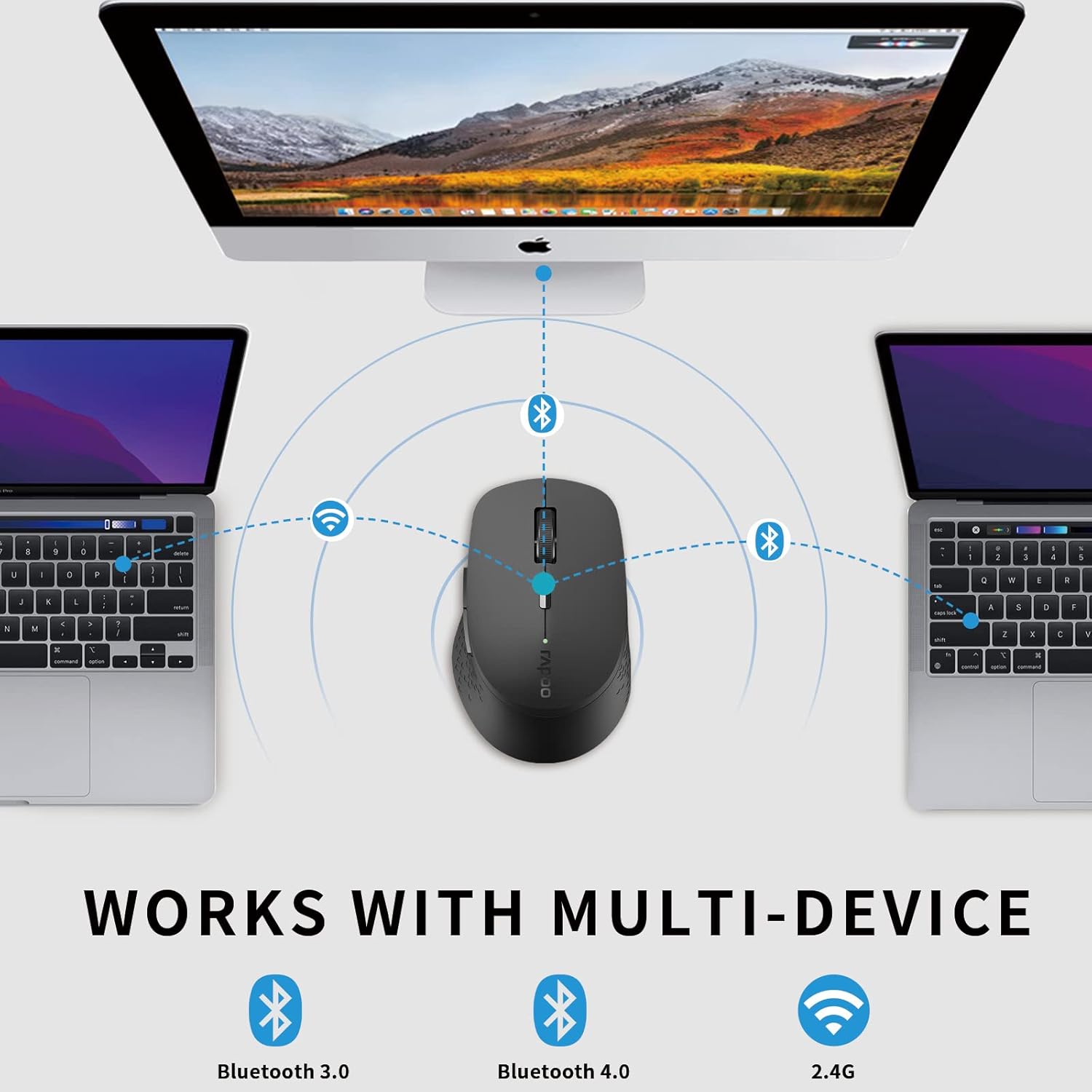
Image: An illustration demonstrating the multi-device capability of the Rapoo mouse, connecting to two laptops via Bluetooth and a desktop via 2.4G wireless.
Operating Instructions
1. Button Functions

Image: A labeled diagram showing the functions of each button on the Rapoo mouse, including left/right click, scroll wheel, DPI switch, multi-device indicator, and forward/backward buttons.
- Left Click Button: Standard selection and activation.
- Right Click Button: Opens context menus.
- Scroll Wheel: Scrolls through documents and web pages. Can also be pressed for middle-click functionality.
- DPI Switch Button: Cycles through DPI settings (600/1000/1300/1600).
- Multi-device Conversion Indicator: Shows the currently active device channel.
- Forward Button: Navigates forward in web browsers or file explorers.
- Backward Button: Navigates backward in web browsers or file explorers.
2. Switching Between Devices
To switch between connected devices (up to 3), short press the Bluetooth connection switch button on the bottom of the mouse. The indicator light will change to reflect the active channel (Bluetooth 1, Bluetooth 2, or 2.4G wireless).
3. Adjusting DPI (Sensitivity)
Press the DPI switch button located behind the scroll wheel to cycle through the four available DPI settings: 600, 1000, 1300, and 1600. Choose the sensitivity that best suits your task and screen resolution.

Image: A visual representation of the adjustable DPI settings (600, 1000, 1300, 1600) for the Rapoo mouse, indicating how cursor sensitivity can be changed.
4. Silent Click Feature
The mouse features a silent click design, reducing click noise by 90%. This allows for a quiet working environment, ideal for offices, libraries, or late-night use.

Image: The Rapoo mouse highlighting its noiseless and durable click feature, with a sleeping baby in the background to emphasize the quiet operation.
5. Ergonomic Design
The mouse is ergonomically designed for right-hand users, with a flat radian that fits the curve of the hand, reducing fatigue during prolonged use.

Image: A top-down view of the black Rapoo Bluetooth mouse, showcasing its ergonomic shape.
Maintenance
1. Cleaning
To clean the mouse, use a soft, dry cloth. For stubborn dirt, slightly dampen the cloth with water or a mild cleaning solution. Avoid using harsh chemicals or abrasive materials.
2. Battery Replacement
When the mouse's performance degrades or the low battery indicator (if present) activates, replace the AA battery. Ensure the power switch is off before replacing the battery.

Image: The Rapoo mouse illustrating its low power consumption, indicating an extended battery life of up to 12 months.
3. Storage
When not in use for extended periods, turn off the mouse to conserve battery life. Store the USB receiver inside the mouse's dedicated slot to prevent loss.
Troubleshooting
| Problem | Possible Cause | Solution |
|---|---|---|
| Mouse not responding | Low battery; Power switch off; USB receiver disconnected; Bluetooth not paired. | Replace battery; Turn on power switch; Re-insert USB receiver; Re-pair Bluetooth. |
| Lagging or erratic cursor movement | Interference; Dirty optical sensor; Mouse used on unsuitable surface. | Move closer to receiver/device; Clean optical sensor; Use on a flat, non-reflective surface or mouse pad. |
| Cannot switch between devices | Incorrect button press; Device not properly paired. | Ensure short press of the multi-device switch button; Verify all devices are paired correctly. |
| Bluetooth pairing fails | Mouse not in pairing mode; Device Bluetooth off; Interference. | Long press Bluetooth button for 3 seconds; Enable Bluetooth on device; Move away from other wireless devices. |
Specifications
- Brand: Rapoo
- Model: M300G
- Connectivity Technology: Bluetooth (3.0/4.0), 2.4G Wireless (USB)
- Movement Detection Technology: Optical
- DPI: 600/1000/1300/1600 adjustable
- Silent Click: Yes (90% noise reduction)
- Ergonomic Design: Right-hand specific
- Battery Life: Up to 9-12 months (depending on usage)
- Product Dimensions: 3.94 x 2.76 x 1.57 inches (10.0 x 7.0 x 4.0 cm approx.)
- Item Weight: 3.84 ounces (108.87 grams approx.)
- Color: Black
- Manufacturer: RAPOO
- First Available: April 15, 2021

Image: The underside of the Rapoo mouse, detailing its dimensions (10.39 cm / 4.09 in length, 6.54 cm / 2.57 in width), weight (83.2g), power switch, Bluetooth connection switch, and invisible optical sensor.
Warranty and Support
Rapoo provides a one-year warranty for this product. In case of any issues, please contact Rapoo customer support for assistance. The product also comes with a hassle-free 30-day return and refund or replacement policy.
For further support, visit the official Rapoo website or contact their customer service channels.
Related documentsM300G


Ask a question about this manual
Ask about setup, troubleshooting, compatibility, parts, safety, or missing instructions. Manuals+ will review the question and use this page’s manual context to help answer it.