
1. Introduction and Overview
Welcome to the EKSA EM200 Gaming Mouse user manual. This guide provides comprehensive instructions for setting up, operating, and maintaining your new gaming mouse. The EM200 is designed for gamers seeking an ergonomic, customizable, and high-performance wired mouse experience.

Figure 1: The EKSA EM200 Gaming Mouse, showcasing its interchangeable back cover and tunable weight system.
2. Setup
The EKSA EM200 Gaming Mouse is a plug-and-play device, requiring no additional drivers for basic functionality on most operating systems. Simply connect the USB cable to an available USB port on your computer.
2.1 Connecting the Mouse
- Unpack the EKSA EM200 Gaming Mouse from its packaging.
- Locate an available USB port on your Windows PC, Mac, or Laptop.
- Insert the USB connector of the mouse cable firmly into the USB port.
- The mouse's RGB lighting will illuminate, indicating a successful connection. Your computer should automatically detect the device.
Video 1: An official EKSA video demonstrating the unboxing and initial setup of the EM200 Gaming Mouse, including connecting it to a laptop and showcasing its RGB lighting.
3. Features and Customization
3.1 Adjustable DPI (Dots Per Inch)
The EM200 features a 12,000 DPI optical sensor with 6 adjustable DPI settings: 1000/2000/3200/4800/6400/12000. This allows for on-the-fly sensitivity adjustments to match different gaming scenarios or work tasks.
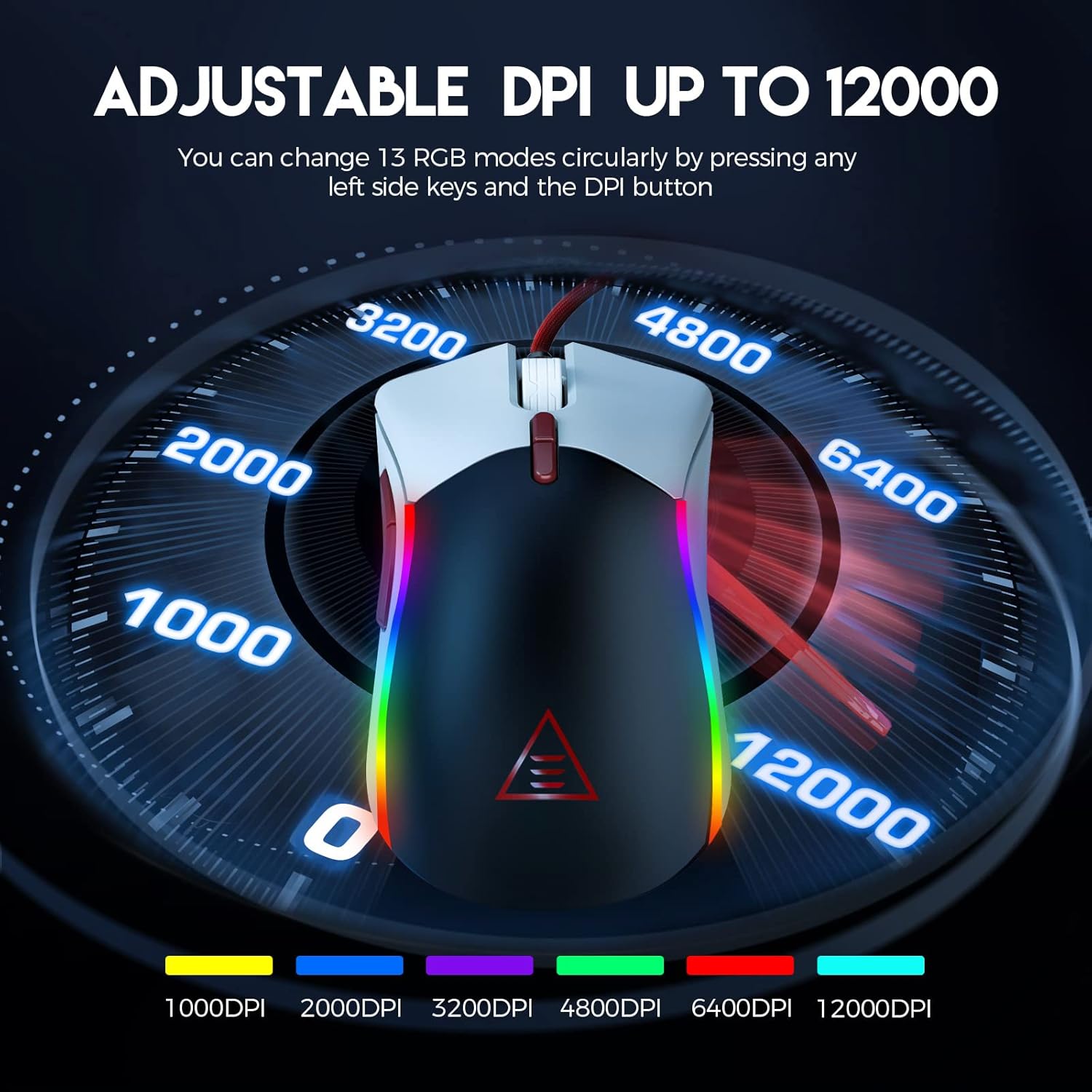
Figure 2: Visual representation of the adjustable DPI settings on the EKSA EM200 Gaming Mouse, highlighting the range from 1000 to 12000 DPI.
3.2 Customizable RGB Lighting
Personalize your gaming atmosphere with 13 customizable RGB lighting modes, offering 16.8 million color combinations. These modes can be cycled through using the dedicated buttons.
3.3 Tunable Weight System
Adjust the mouse's weight from 91.8g to 108g using the 6 included 2.7g weights. This allows for personalized weight and balance tuning, enabling lightning-fast reactions or precise control depending on your gameplay style.

Figure 3: The tunable weight system of the EKSA EM200, illustrating the compartment for six 2.7g weights.
3.4 7 Programmable Buttons
The EM200 features 7 programmable buttons, allowing you to assign macros and secondary functions for superior productivity and efficiency in various gaming and application scenarios.

Figure 4: A detailed diagram labeling the 7 programmable buttons on the EKSA EM200 Gaming Mouse, including left, right, scroll, forward, backward, DPI+, and DPI- buttons.
3.5 Interchangeable Back Covers
Customize the aesthetic of your mouse with two removable magnetic back covers (black & white), allowing you to switch styles effortlessly.
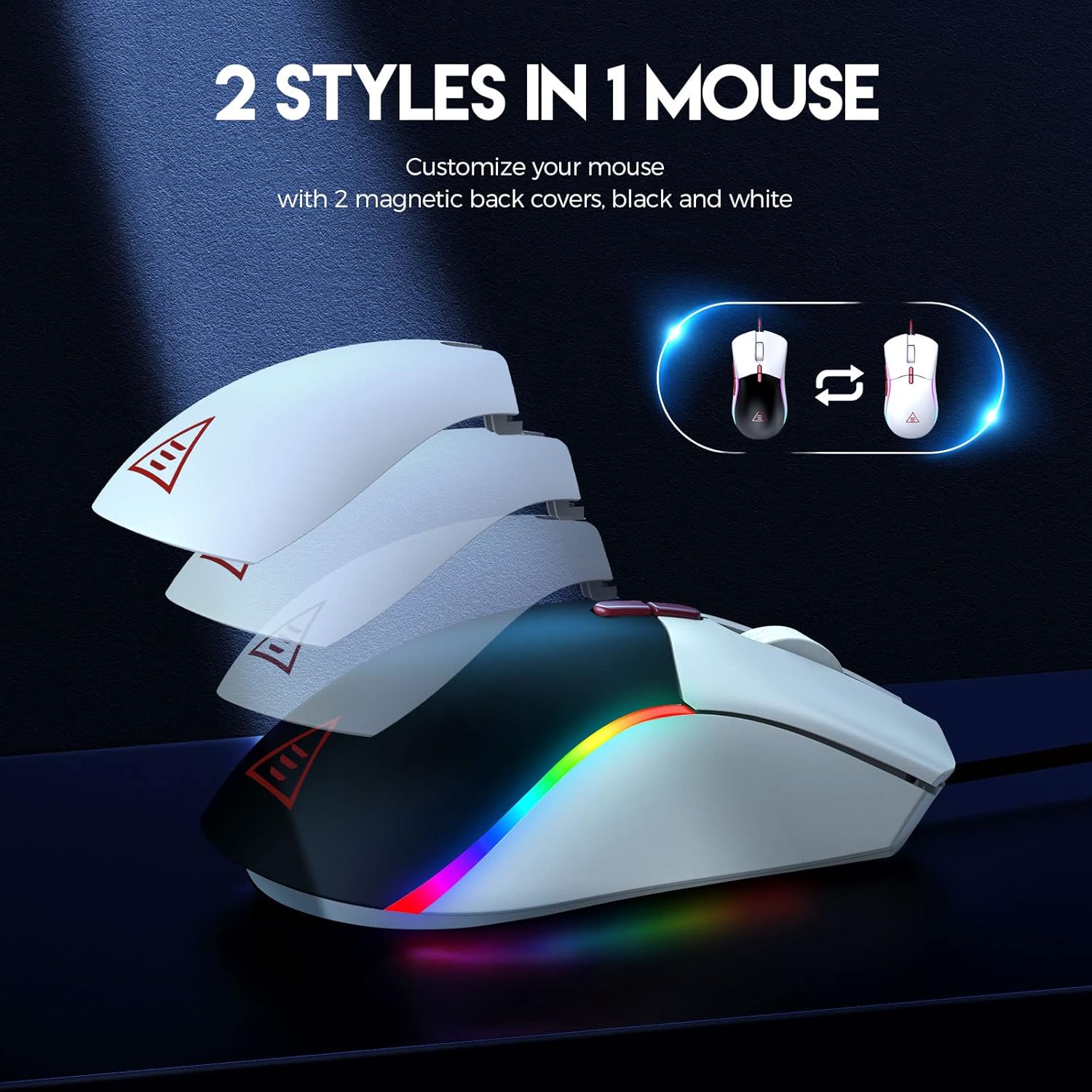
Figure 5: The EKSA EM200 Gaming Mouse demonstrating its two interchangeable magnetic back covers, offering different aesthetic options.
3.6 Ergonomic Design
The mouse features a comfortable contoured shape with high-performance rubber grips, designed to naturally fit your hand and reduce fatigue during extended use. Its universal symmetrical design is suitable for both left and right-handed users.

Figure 6: An illustration highlighting the ergonomic design of the EKSA EM200 Gaming Mouse, emphasizing its comfortable fit for prolonged use.
4. Operating Instructions
4.1 Adjusting DPI
Use the DPI+ and DPI- buttons (located below the scroll wheel) to cycle through the available DPI settings (1000/2000/3200/4800/6400/12000). Each setting may correspond to a different LED color for easy identification.
4.2 Changing RGB Modes
The EM200 offers 13 RGB modes. You can customize these modes by pressing any left side keys and the DPI button simultaneously, or through dedicated software if available (refer to manufacturer's website for software availability).
4.3 Customizing Weight
- Gently remove the magnetic back cover of the mouse.
- Locate the weight compartment.
- Add or remove the 2.7g weights as desired to achieve your preferred mouse feel.
- Securely reattach the magnetic back cover.
4.4 Using Programmable Buttons
The 7 programmable buttons can be assigned specific functions or macros. For advanced customization and macro programming, please download the official EKSA software from the manufacturer's website. The software interface allows you to reassign button functions to suit your gaming or productivity needs.

Figure 7: The EKSA software interface, demonstrating how to program the 7 buttons for different gaming needs.
5. Maintenance
To ensure the longevity and optimal performance of your EKSA EM200 Gaming Mouse, follow these maintenance guidelines:
- Cleaning: Use a soft, dry cloth to wipe down the mouse regularly. For stubborn dirt, a slightly damp cloth can be used, but ensure no moisture enters the internal components. Avoid harsh chemicals or abrasive cleaners.
- Sensor Care: Keep the optical sensor on the underside of the mouse clean and free from dust or debris to ensure accurate tracking.
- Cable Management: Avoid sharp bends or excessive pulling on the braided USB cable to prevent damage. Use the included cable tie to keep it neatly organized when not in use.
- Storage: When not in use, store the mouse in a clean, dry environment away from extreme temperatures.
6. Troubleshooting
If you encounter any issues with your EKSA EM200 Gaming Mouse, please try the following steps:
- Mouse Not Responding:
- Ensure the USB cable is securely plugged into the computer's USB port.
- Try plugging the mouse into a different USB port.
- Restart your computer.
- Inaccurate Tracking:
- Clean the optical sensor on the underside of the mouse.
- Ensure you are using the mouse on a clean, non-reflective surface or a mouse pad.
- Adjust the DPI setting to a different level.
- RGB Lights Not Working/Incorrect:
- Ensure the mouse is properly connected.
- Cycle through the RGB modes using the designated buttons.
- If using software, ensure it is up-to-date and configured correctly.
If these steps do not resolve the issue, please refer to the Warranty & Support section for further assistance.
7. Specifications
| Feature | Detail |
|---|---|
| Product Dimensions | 5 x 2.6 x 1.6 inches |
| Item Weight | 7.4 ounces |
| Item Model Number | EM200 |
| Brand | EKSA |
| Color | EM200 White |
| Connectivity Technology | USB |
| Special Feature | Ergonomic Design |
| Movement Detection Technology | Optical |
8. Warranty and Support
The EKSA EM200 Gaming Mouse comes with a standard manufacturer's warranty. For detailed warranty information, product registration, and technical support, please visit the official EKSA website or contact their customer service directly. Keep your purchase receipt as proof of purchase for warranty claims.
For the latest drivers, software, and FAQs, please visit the EKSA Official Store on Amazon.
