
Introduction
This manual provides essential information for the HP 17 Laptop PC, Model 17-cn1020nr. It covers initial setup, operational guidelines, maintenance procedures, troubleshooting common issues, and detailed product specifications. Please read this manual thoroughly to ensure proper use and longevity of your device.
1. Initial Setup
1.1 Unpacking and First Power On
Carefully remove the laptop and all accessories from the packaging. Connect the AC adapter to the laptop's power port and then to a power outlet. The laptop is designed with a lift-hinge for comfortable typing.

Image: The HP 17 Laptop PC, showcasing its 17.3-inch display and full-size keyboard. This image illustrates the overall design and form factor of the laptop.
1.2 Operating System Setup (Windows 11 Home)
Upon first power-on, the laptop will guide you through the Windows 11 Home setup process. Follow the on-screen instructions to configure language, region, network connection, and user accounts. An internet connection is required for initial setup and updates.

Image: A close-up of the HP 17 Laptop PC screen, showing the Windows 11 desktop environment. This highlights the operating system in use.
2. Operating Instructions
2.1 Keyboard and Touchpad
The laptop features a full-size, natural silver keyboard with a numeric keypad and a large click pad. The lift-hinge design elevates the keyboard for a more ergonomic typing experience. The touchpad supports multi-touch gestures for navigation.
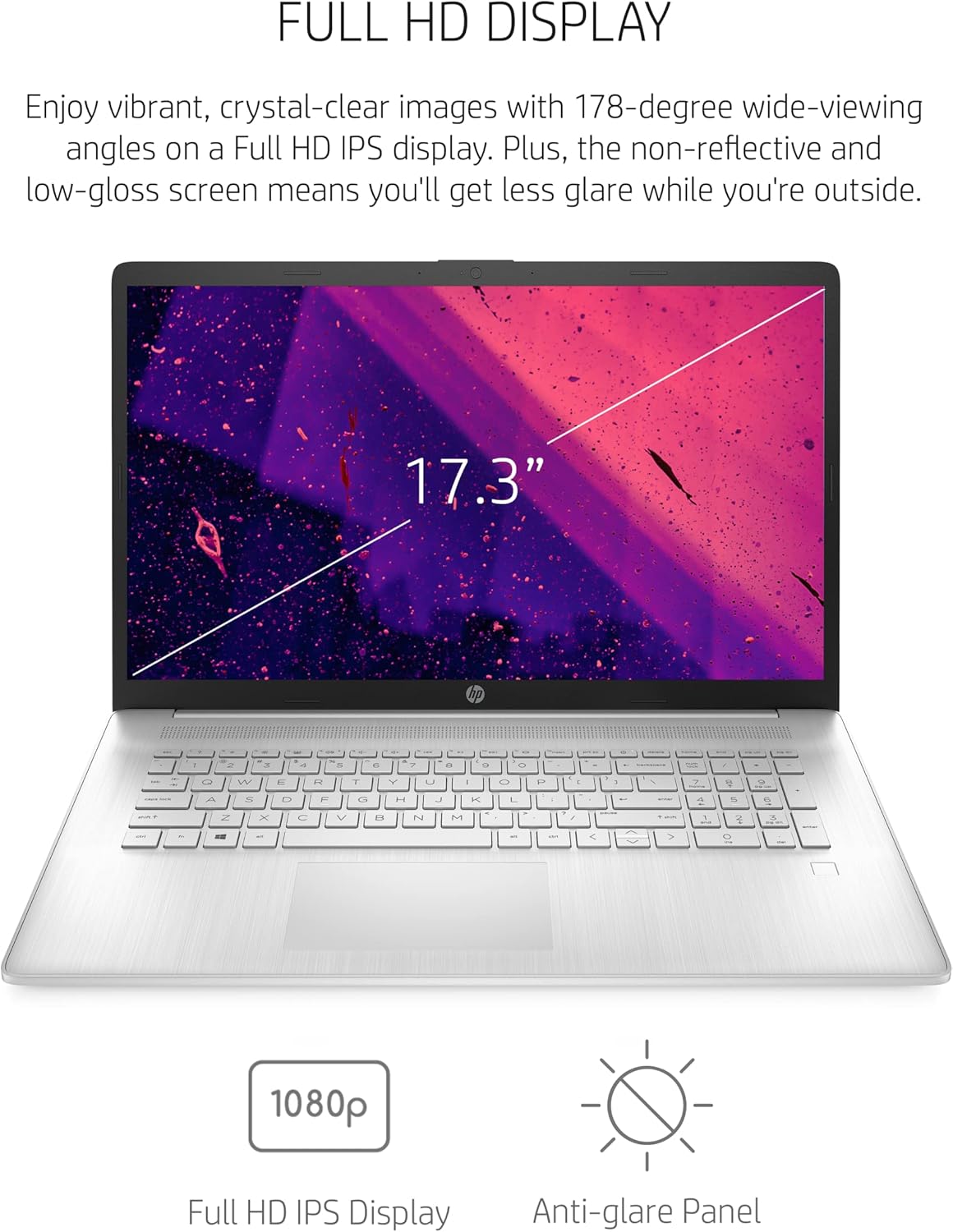
Image: A detailed view of the HP 17 Laptop PC's keyboard and enlarged touchpad, emphasizing the ergonomic design.
2.2 Display Features
The 17.3-inch Full HD (1920 x 1080) IPS display offers 178-degree wide-viewing angles and an anti-glare screen to reduce reflections, enhancing visual comfort.

Image: The HP 17 Laptop PC screen with a visual overlay indicating its 17.3-inch size and Full HD resolution.
2.3 Ports and Connectivity
The laptop includes various ports for connecting peripherals and external displays. It supports Wi-Fi 6 (1x2) and Bluetooth 5.2 for wireless connectivity.
- SuperSpeed USB Type-C®
- SuperSpeed USB Type-A
- HDMI 1.4b
- Headphone/Microphone Combo Jack
- AC Smart Pin

Image: Side profile views of the HP 17 Laptop PC, highlighting the various input/output ports available on the device.
2.4 Webcam and Audio
The HP TrueVision HD camera and dual microphones enable clear video calls. The custom-tuned dual stereo speakers provide enhanced audio quality.

Image: The HP 17 Laptop PC screen displaying a video call and a music application, illustrating the webcam and audio capabilities.
3. Maintenance
3.1 Battery Care
The laptop features a built-in rechargeable battery with up to 8 hours and 15 minutes of life. To prolong battery lifespan, avoid extreme temperatures and fully discharging the battery frequently. HP Fast Charge technology allows recharging up to 50% in approximately 45 minutes when the system is off.

Image: The HP 17 Laptop PC from a rear-side angle, with an overlay indicating its long battery life.
3.2 Cleaning Your Laptop
Use a soft, lint-free cloth to clean the screen and exterior surfaces. For stubborn smudges, dampen the cloth with water or a screen cleaner specifically designed for electronics. Avoid harsh chemicals or abrasive materials.
3.3 Software Updates
Regularly check for and install Windows updates to ensure optimal performance and security. HP Support Assistant can help manage driver and software updates specific to your HP hardware.
4. Troubleshooting Common Issues
- No Power: Ensure the AC adapter is securely connected to both the laptop and a working power outlet. Check the power indicator light.
- Blank Screen: Connect an external monitor to verify if the issue is with the laptop's display. Try adjusting screen brightness.
- Wi-Fi Connectivity Issues: Verify Wi-Fi is enabled in Windows settings. Restart your router and the laptop. Ensure drivers are up to date.
- Slow Performance: Close unnecessary applications. Check for background processes. Ensure sufficient free storage space on the SSD.
- Fingerprint Reader Not Working: Ensure your finger is clean and dry. Re-register your fingerprint in Windows settings if issues persist.
5. Specifications
| Brand | HP |
| Model Name | HP Laptop 17-cn1020nr |
| Screen Size | 17.3 Inches |
| Display Resolution | Full HD (1920 x 1080) IPS, Anti-Glare |
| Processor | 11th Generation Intel Core i5-1155G7 (up to 4.5 GHz) |
| Graphics | Intel Iris Xe Graphics (Integrated) |
| RAM Memory | 8 GB DDR4-3200 MHz |
| Storage | 512 GB PCIe NVMe M.2 SSD |
| Operating System | Windows 11 Home |
| Wireless Connectivity | Wi-Fi 6 (1x2), Bluetooth 5.2 |
| Ports | SuperSpeed USB Type-C, SuperSpeed USB Type-A, HDMI 1.4b, Headphone/Microphone Combo, AC Smart Pin |
| Battery Life | Up to 8 hours and 15 minutes |
| Weight | 4.53 Pounds |
| Dimensions (L x W x Th) | 15.78" x 10.15" x 0.78" |
| Webcam | HP TrueVision HD Camera |
| Security Features | Fingerprint Recognition |
6. Warranty and Support
6.1 Product Warranty
Your HP 17 Laptop PC comes with a 1-year limited hardware warranty. Additionally, 90 days of limited technical support for software and initial setup are provided from the date of purchase. For detailed terms and conditions, please refer to the warranty documentation included with your product or visit the official HP support website.
6.2 Customer Support
For further assistance, technical support, or service inquiries, please visit the official HP support website or contact HP customer service. Keep your product model number (17-cn1020nr) and serial number ready when contacting support.
Online Support: https://support.hp.com
7. Product Videos
HP Laptop 17 inch Overview
Video: An official overview video from HP showcasing the features and design of the HP 17-inch laptop. This video provides a visual summary of the product's capabilities and aesthetics.


