
1. Introduction
The YARBO SML-GTW Tuya Bluetooth Gateway Hub is designed to extend the control capabilities of your YARBO smart lighting products. By connecting your Bluetooth-enabled smart lights to your 2.4 GHz Wi-Fi network, this gateway enables remote control via the Smart Life or Tuya Smart app, as well as voice control through Amazon Alexa and Google Assistant. This manual provides detailed instructions for setup, operation, and troubleshooting to ensure optimal performance of your smart lighting system.

The YARBO SML-GTW Gateway seamlessly integrates into a smart home environment, enabling control of smart lighting.
2. Package Contents
Please verify that all items listed below are included in your package:
- YARBO SML-GTW Bluetooth Gateway Hub
- Power Adapter
- USB Cable
- User Manual

This image displays the YARBO SML-GTW Gateway, its power adapter, USB cable, and the instruction manual included in the package.
3. Product Overview
The YARBO SML-GTW Gateway is a compact device designed for seamless integration with your smart lighting system. It features indicator lights for status feedback and a reset button for easy configuration.
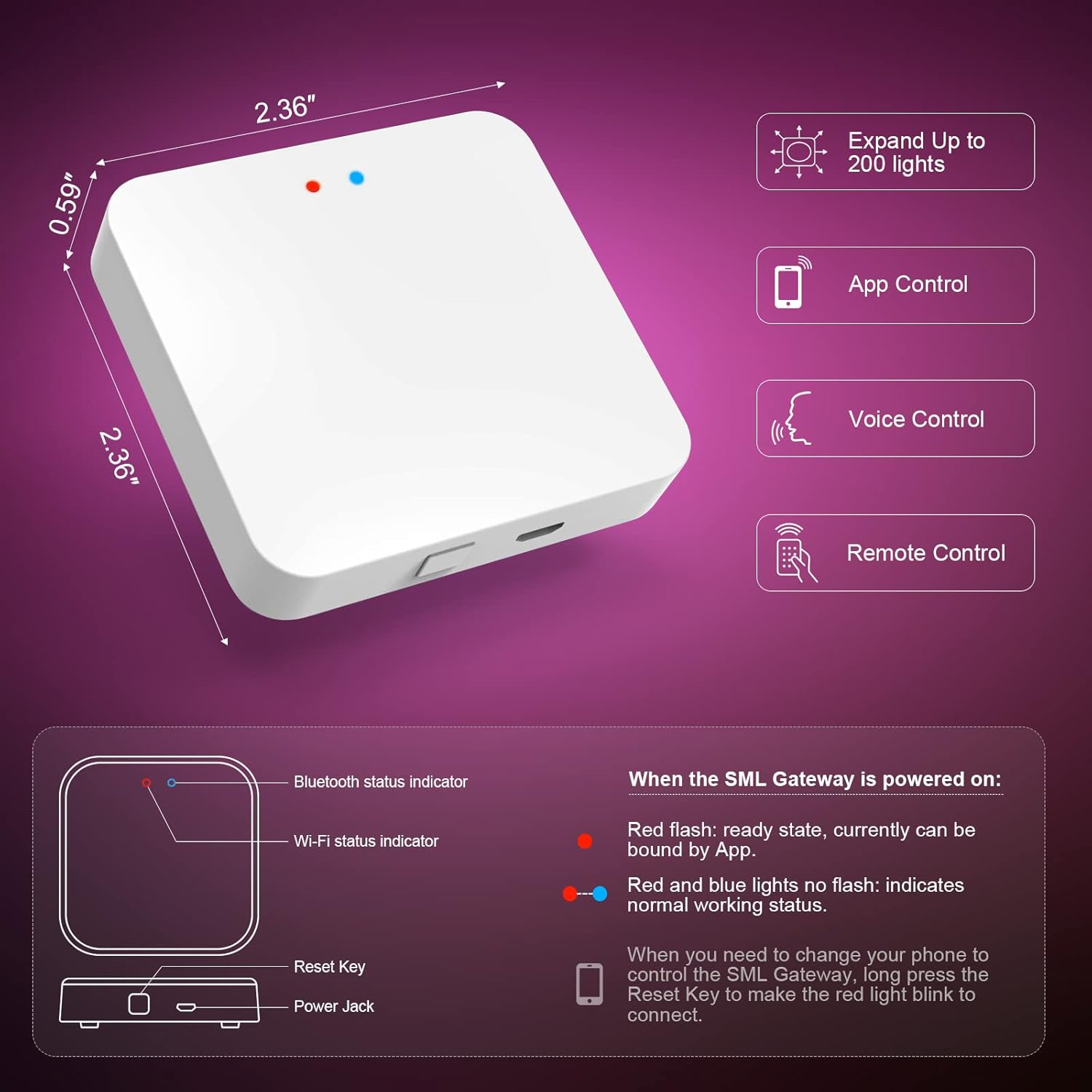
A detailed view of the YARBO SML-GTW Gateway, showing its compact dimensions (2.36" x 2.36" x 0.59"), Bluetooth status indicator (blue), Wi-Fi status indicator (red), reset key, and power jack.
Indicator Lights:
- Red Light: Wi-Fi status indicator.
- Blue Light: Bluetooth status indicator.
Buttons and Ports:
- Reset Key: Used for resetting the device.
- Power Jack: For connecting the USB power cable.
4. Setup Guide
Follow these steps to set up your YARBO SML-GTW Gateway and connect it to your smart lighting system.
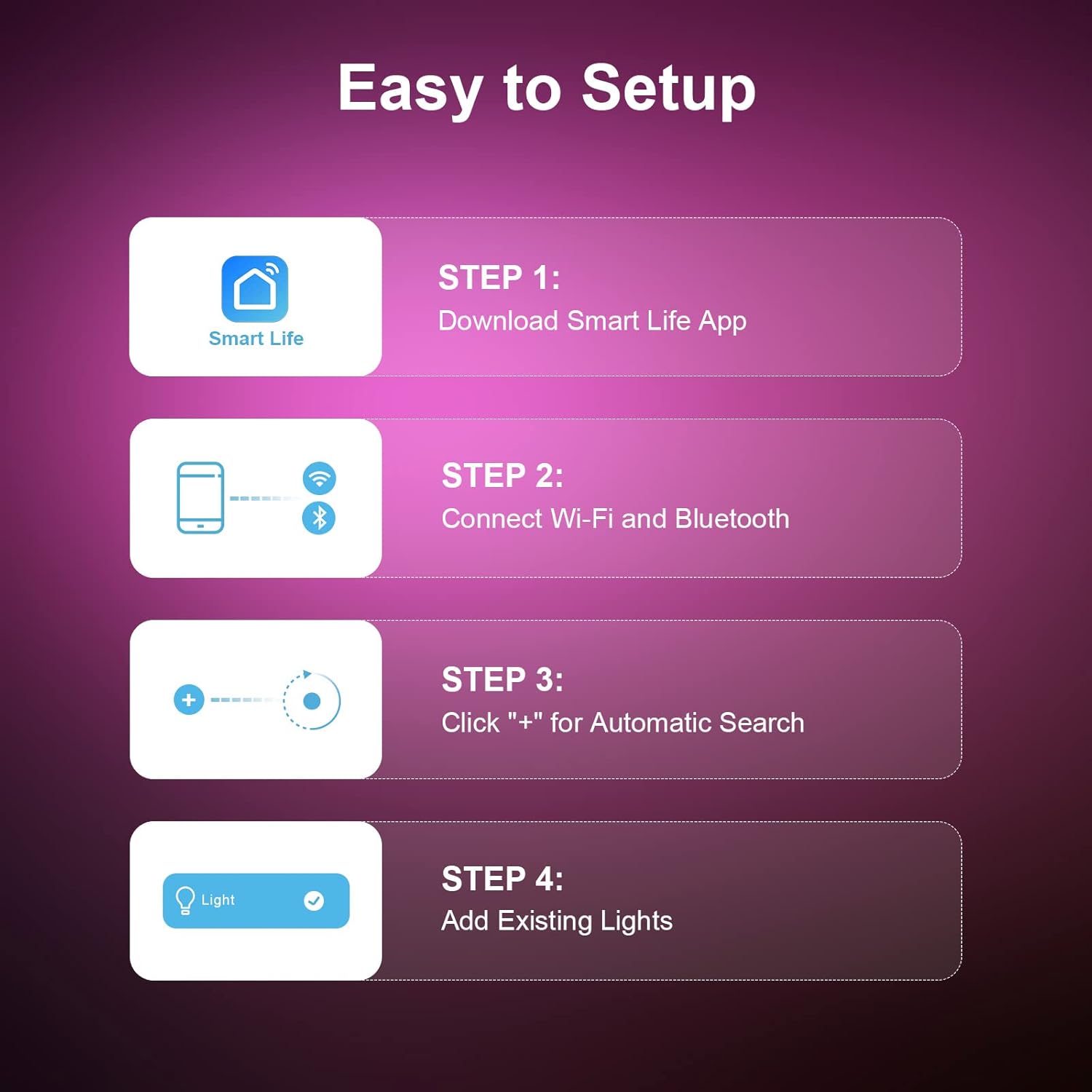
This graphic illustrates the four easy steps for setting up the gateway: 1) Download Smart Life App, 2) Connect Wi-Fi and Bluetooth, 3) Click "+" for Automatic Search, and 4) Add Existing Lights.
4.1 Powering On
- Connect the provided USB cable to the gateway's power jack.
- Plug the USB cable into the power adapter, then plug the adapter into a standard electrical outlet.
- Confirm that the Wi-Fi indicator (red light) on the gateway flashes, indicating it is in a ready state for connection.
4.2 App Installation
Download the Smart Life or Tuya Smart app from your mobile device's app store (App Store for iOS, Google Play Store for Android). Register or log in to your account.
4.3 Connecting the Gateway to the App
- Ensure your mobile device's Bluetooth and Wi-Fi are enabled. The gateway requires a 2.4 GHz Wi-Fi network.
- Open the Smart Life or Tuya Smart app. The app should automatically discover the gateway.
- Tap "Add" when the gateway appears in the app to complete the connection.
- If the gateway does not appear automatically or the red light is not flashing, long press the Reset Key on the gateway for 5 seconds until the red light flashes to enter pairing mode.
4.4 Adding Smart Lights to the Gateway
Once the gateway is connected to the app, you can add your YARBO smart lighting products.
- In the Smart Life app, navigate to the gateway's control interface.
- Tap on "Add existing devices" or a similar option to search for nearby YARBO smart lights.
- Select the lights you wish to add and confirm. The gateway can expand to control up to 200 lights.

A diagram illustrating the connectivity of the SML Gateway, showing how it connects to a Wi-Fi 2.4GHz router and uses Bluetooth Mesh to control YARBO smart lights, extending control up to 200 lights.
This video demonstrates the step-by-step process of connecting the YARBO SML-GTW Gateway and setting up voice and remote control features.
5. Operation
5.1 Remote Control via App
The YARBO SML-GTW Gateway allows you to control your YARBO smart lights from anywhere in the world using the Smart Life or Tuya Smart app, provided the gateway is connected to your home Wi-Fi network.
- Open the Smart Life app and select the desired smart light.
- Adjust brightness, change colors, set scenes, or schedule on/off times.

A smartphone screen displaying the Smart Life app interface, showing controls for smart lighting, including color selection, brightness adjustment, and signal stability, demonstrating remote control capabilities.
5.2 Voice Control (Alexa/Google Assistant Integration)
The gateway enables voice control for your YARBO smart lights through Amazon Alexa and Google Assistant. This requires linking your Smart Life account with your voice assistant account.

This image shows the YARBO SML-GTW Gateway alongside an Amazon Echo device, illustrating voice control functionality for smart lights through Alexa and Google Assistant.
Linking with Amazon Alexa:
- Open the Amazon Alexa app.
- Go to "Skills & Games" and search for "Smart Life".
- Enable the Smart Life skill and link your Smart Life account using your credentials.
- Once linked, Alexa will discover your smart lights, allowing you to control them with voice commands (e.g., "Alexa, turn on the garden lights").
Linking with Google Assistant:
- Open the Google Home app.
- Tap "+" to add a device, then select "Set up device" > "Works with Google".
- Search for "Smart Life" and link your Smart Life account.
- Google Assistant will then discover your smart lights for voice control.
5.3 Advanced Features
The Smart Life app offers various features for enhanced control of your YARBO smart lights:
- Tunable White: Adjust the color temperature from warm to cool white.
- 16 Million Colors: Select from a wide spectrum of colors to create different ambiances.
- Countdown Setting: Set a timer for lights to turn on or off after a specified duration.
- Music Mode: Synchronize your lights with music for dynamic lighting effects.
This video showcases the various features of YARBO smart lights when controlled via the gateway, including tunable white, 16 million colors, countdown settings, and music mode, in a garden setting.
6. Maintenance
To ensure the longevity and optimal performance of your YARBO SML-GTW Gateway, follow these maintenance guidelines:
- Keep the device in a dry environment, away from moisture and extreme temperatures.
- Clean the exterior with a soft, dry cloth. Avoid using harsh chemicals or abrasive cleaners.
- Ensure proper ventilation around the device to prevent overheating.
- Regularly check for firmware updates through the Smart Life app to benefit from the latest features and security enhancements.
7. Troubleshooting
If you encounter issues with your YARBO SML-GTW Gateway, refer to the following common problems and solutions:
| Problem | Solution |
|---|---|
| Gateway not appearing in Smart Life app. | Ensure the gateway is powered on and its red Wi-Fi indicator is flashing. If not, long press the Reset Key for 5 seconds to enter pairing mode. Confirm your phone's Bluetooth is on. |
| Smart lights not responding to app/voice commands. | Verify that the gateway is connected to your 2.4 GHz Wi-Fi network (not 5 GHz). Ensure the smart lights are within the Bluetooth range of the gateway. Check if the Smart Life account is correctly linked with Alexa/Google Assistant. |
| Voice control not working. | Confirm that your Smart Life account is successfully linked to your Amazon Alexa or Google Assistant account. Ensure your voice assistant device is online and properly configured. |
| Gateway indicator lights are off or solid. | If lights are off, check power connection. If solid red and blue, it indicates normal working status. If red is solid and blue is off, it might indicate a Wi-Fi issue. Refer to the indicator states below. |
7.1 Indicator States and Reset Method

This image explains the gateway's indicator lights: red flash for ready state (bindable by App), and red and blue lights no flash for normal working status. It also shows how to reset the device by pressing the reset button for 5 seconds.
- Red flash: Ready state, currently can be bound by App.
- Red and blue lights no flash: Indicates normal working status.
Reset Method:
When you need to change your phone to control the SML Gateway, or if you are experiencing persistent connection issues, long press the Reset Key for 5 seconds. The red indicator light will flash several times, indicating a successful reset. The gateway will then be ready for a new connection.
8. Specifications
| Feature | Detail |
|---|---|
| Brand | YARBO |
| Model Number | SML-GTW |
| Connectivity Protocol | Bluetooth, Wi-Fi (2.4 GHz) |
| Control Method | App, Remote, Voice (Amazon Alexa, Google Assistant) |
| Voltage Input | 100-240 Volts, 50-60 Hertz |
| Power Source | AC Powered (via USB adapter) |
| Indoor/Outdoor Usage | Indoor |
| Max Connected Devices | Up to 200 YARBO smart lights |
| Dimensions (approx.) | 2.36" x 2.36" x 0.59" |
| Material | Plastic |
9. Warranty & Support
YARBO products are designed for reliability and performance. This product is covered by a standard manufacturer's warranty against defects in materials and workmanship under normal use.
Customer Support:
If you have any questions about the YARBO SML-GTW Gateway, its setup, operation, or any other inquiries, please contact YARBO customer service via Amazon Message. We aim to reply within 24 hours to assist you.