
1. Introduction
This manual provides essential information for setting up, operating, maintaining, and troubleshooting your Google Pixel 6 Pro smartphone. The Pixel 6 Pro is a powerful 5G Android device featuring the custom Google Tensor processor, an advanced camera system, and enhanced security features, designed to deliver a smart and fast mobile experience.
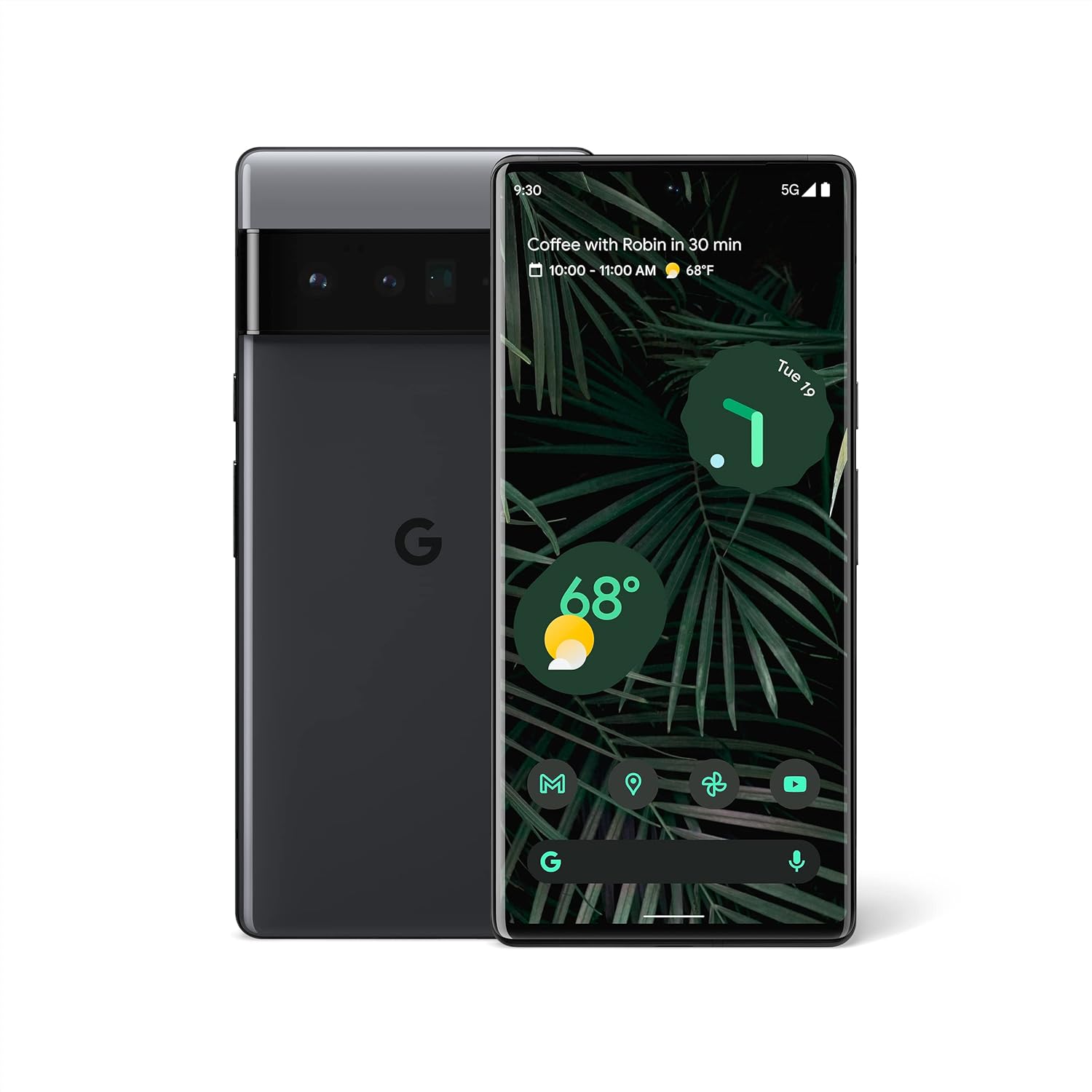
Figure 1.1: Front and back view of the Google Pixel 6 Pro in Stormy Black. The front displays the home screen with time, weather, and app icons, while the back shows the distinctive camera bar and Google logo.
2. Setup Guide
2.1 Unboxing and Initial Inspection
Upon opening the package, ensure all components are present:
- Google Pixel 6 Pro Cell Phone
- USB-C to USB-C Cable
Inspect the device for any physical damage before proceeding.
2.2 Inserting the SIM Card
- Locate the SIM card tray on the side of your Pixel 6 Pro.
- Insert the SIM ejector tool (or a small paperclip) into the small hole on the tray and push gently until the tray pops out.
- Place your Nano-SIM card into the tray with the gold contacts facing down and the notched corner aligned.
- Carefully push the tray back into the slot until it clicks into place.
2.3 Powering On and Initial Configuration
- Press and hold the Power button (located on the right side) until the Google logo appears on the screen.
- Follow the on-screen prompts to select your language, connect to a Wi-Fi network, and sign in with your Google Account.
- You will be guided through setting up security features like fingerprint unlock and screen lock.
2.4 Transferring Data from Your Old Phone
The Pixel 6 Pro offers a seamless way to transfer your messages, contacts, photos, and other data from your previous device during the initial setup process. Use the provided USB-C cable and follow the on-screen instructions.

Figure 2.1: A Google Pixel 6 Pro connected via USB-C cable to another smartphone, illustrating the data transfer process. The Pixel's screen shows options to copy messages, contacts, photos, and other data.
3. Operating Your Pixel 6 Pro
3.1 Display Features
The Pixel 6 Pro features a 6.7-inch LTPO QHD+ Smooth Display with a resolution of 1080 x 2340 pixels and a 120Hz refresh rate for fluid scrolling and responsiveness. The display is protected by Corning Gorilla Glass Victus for enhanced durability.
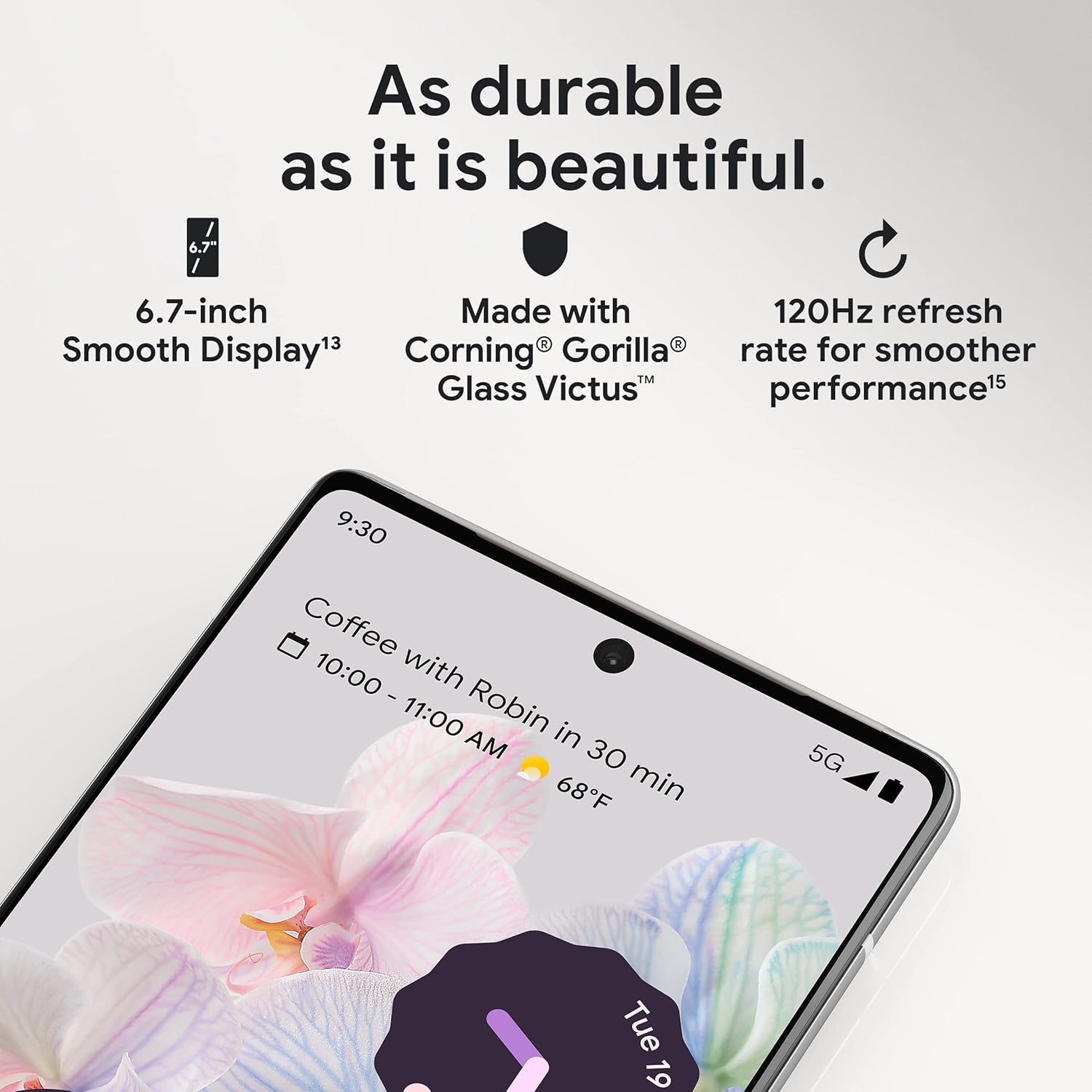
Figure 3.1: A close-up view of the Pixel 6 Pro's display, highlighting its durability with Corning Gorilla Glass Victus and the smooth performance enabled by its 120Hz refresh rate.
3.2 Camera System
The Pixel 6 Pro is equipped with an advanced camera system:
- 50 MP Wide Camera: Captures 150% more light for detailed photos.
- 48 MP Telephoto Camera: Offers 4x optical zoom for distant subjects.
- 12 MP Ultrawide Camera: For expansive landscape and group shots.
- Front Camera: For high-quality selfies and video calls.
Key camera features include:
- Magic Eraser: Removes unwanted objects or people from your photos.
- Motion Mode: Creates dynamic long-exposure shots.
- Portrait Mode: Artfully blurs backgrounds for professional-looking portraits.

Figure 3.2: An internal view of the Pixel 6 Pro's camera array, detailing the 50 MP wide camera, 48 MP telephoto camera with 4x optical zoom, and 12 MP ultrawide camera.

Figure 3.3: Visual demonstrations of the Pixel 6 Pro's advanced camera tools: Magic Eraser removing background elements, Motion Mode capturing light trails, and Portrait Mode creating a blurred background effect.
3.3 Performance
The Pixel 6 Pro is powered by the custom-built Google Tensor processor, which provides a significant boost in performance compared to previous Pixel models. This chip enables advanced on-device AI capabilities and contributes to maximum battery efficiency.
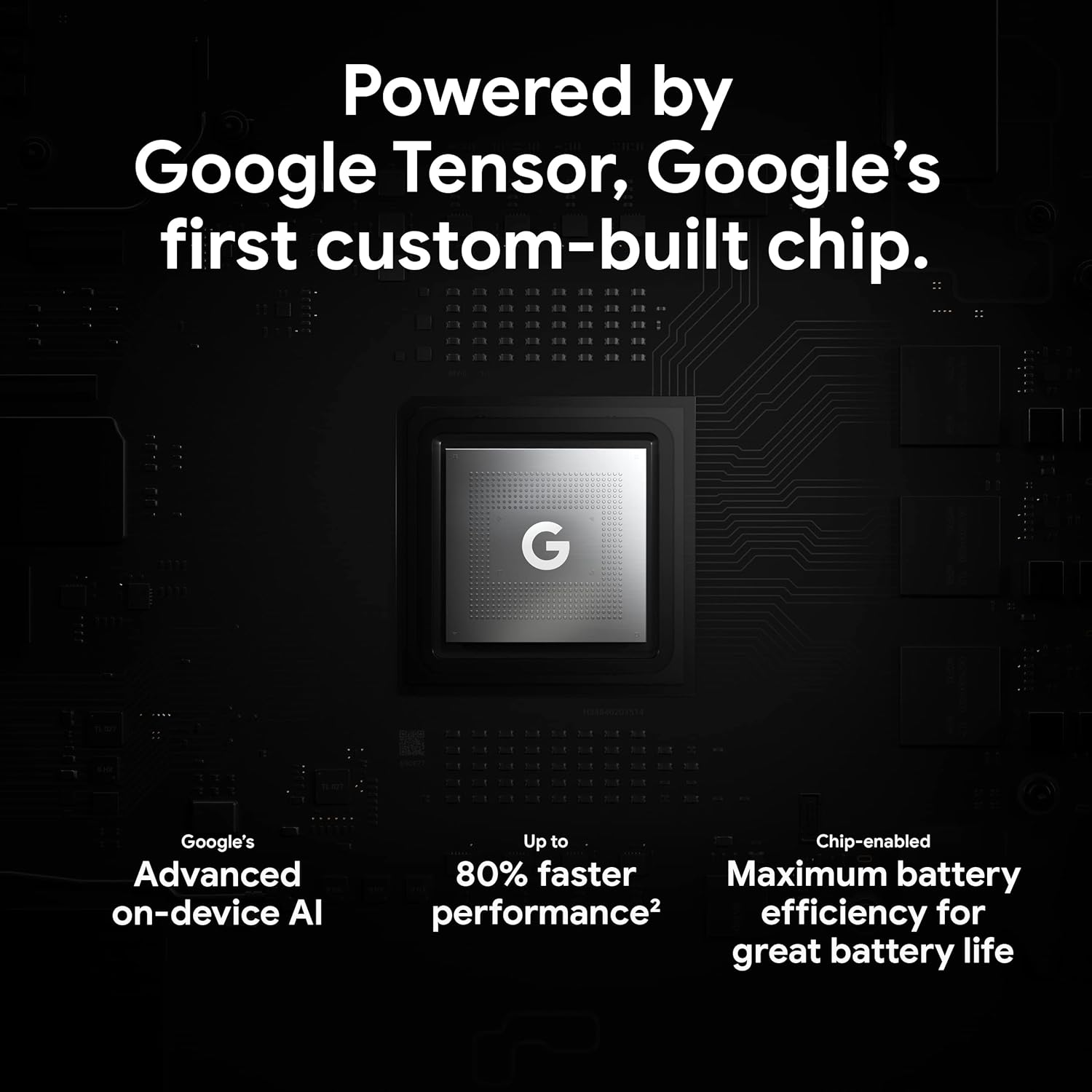
Figure 3.4: An illustration of the Google Tensor chip, highlighting its role in providing advanced on-device AI and up to 80% faster performance for improved battery efficiency.
3.4 Security Features
Your Pixel 6 Pro is built with robust security:
- Titan M2™ chip: Provides next-generation hardware security.
- Security Updates: Guaranteed 5 years of security updates to protect against threats.
- IP68 Water and Dust Protection: Offers resistance against water and dust ingress.
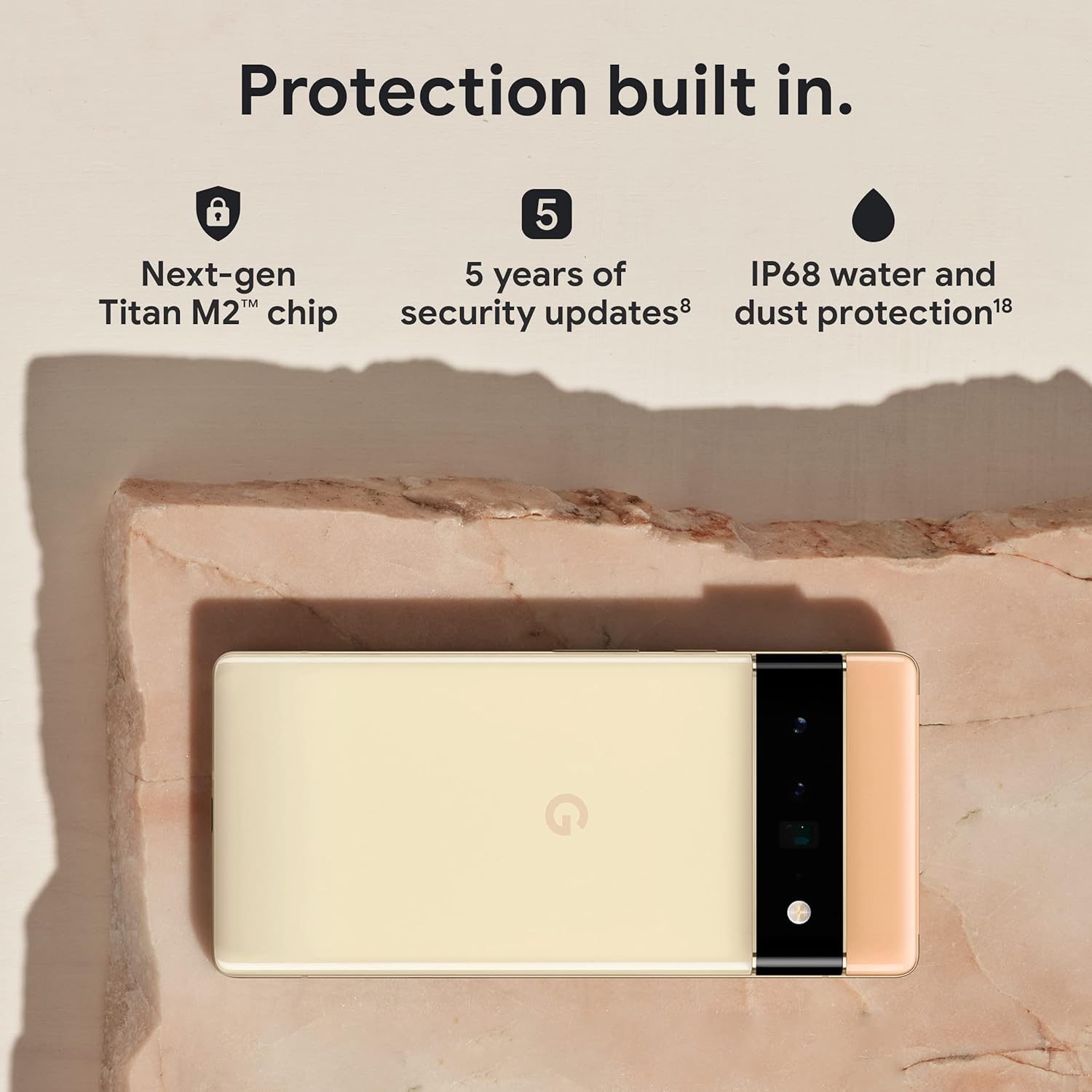
Figure 3.5: The Pixel 6 Pro shown alongside icons representing its built-in security features: the Titan M2 chip, 5 years of security updates, and IP68 water and dust protection.
3.5 Battery and Charging
The device is equipped with a large 5003 mAh battery. It supports fast wired charging (with a compatible 30W USB-C charger, sold separately) and adapts to your usage patterns to save power for frequently used applications, extending battery life beyond 24 hours.

Figure 3.6: An overhead view of a person using the Pixel 6 Pro, with icons illustrating the phone's battery capabilities: super-fast charging, power saving for frequently used apps, and extended battery life.
3.6 Software and User Interface
The Pixel 6 Pro runs on the Android 12 operating system, offering a modern and intuitive user interface. It includes features like Material You for personalized themes and enhanced privacy controls.
3.7 Translation Capabilities
The device comes with Google Translate pre-installed, allowing you to translate private chats, messages, and live video captions in up to 55 languages directly on your phone.

Figure 3.7: A user holding the Pixel 6 Pro, which displays a live translation of text on its screen, demonstrating the device's automatic translation capabilities for chats, signs, and live video captions.
3.8 Connectivity
The Pixel 6 Pro supports various connectivity options for seamless integration with other devices and services:
- USB: For charging and data transfer.
- Wi-Fi: For wireless internet access.
- Bluetooth: For connecting wireless accessories.
- NFC: For contactless payments and quick pairing.
4. Maintenance
4.1 General Care
- Keep your device away from extreme temperatures, direct sunlight, and excessive moisture.
- Avoid dropping the phone or exposing it to strong impacts.
- Use a screen protector and a protective case to minimize damage from drops and scratches.
4.2 Cleaning Your Device
To clean your Pixel 6 Pro:
- Power off the device before cleaning.
- Use a soft, lint-free cloth (e.g., microfiber cloth) to gently wipe the screen and body.
- For stubborn smudges, slightly dampen the cloth with water or a screen cleaner specifically designed for electronics. Avoid harsh chemicals or abrasive materials.
4.3 Software Updates
Regularly check for and install software updates. These updates often include performance improvements, new features, and critical security patches that keep your device running optimally and securely.
5. Troubleshooting
5.1 Device Not Turning On
- Check Battery: Ensure the battery is charged. Connect the phone to a charger for at least 15-30 minutes.
- Force Restart: Press and hold the Power button for about 30 seconds.
- Check Charger/Cable: Try a different charger and USB-C cable to rule out faulty accessories.
5.2 Network Connectivity Issues
- Restart Phone: A simple restart can often resolve temporary network glitches.
- Toggle Airplane Mode: Turn Airplane Mode on for a few seconds, then turn it off.
- Check SIM Card: Ensure the SIM card is properly inserted.
- Reset Network Settings: Go to Settings > System > Reset options > Reset Wi-Fi, mobile & Bluetooth. Note: This will erase saved Wi-Fi passwords.
5.3 Apps Crashing or Freezing
- Force Close App: Swipe up from the bottom of the screen, find the problematic app, and swipe it away to close.
- Clear Cache/Data: Go to Settings > Apps > See all apps, select the app, then Storage & cache > Clear cache. If the issue persists, try Clear storage (this will delete app data).
- Update App: Ensure the app is updated to its latest version from the Google Play Store.
- Restart Phone: A full device restart can often resolve app-related issues.
5.4 Battery Draining Quickly
- Identify Usage: Go to Settings > Battery > Battery usage to see which apps are consuming the most power.
- Adjust Screen Brightness: Lower screen brightness or enable adaptive brightness.
- Disable Unused Features: Turn off Wi-Fi, Bluetooth, GPS, or NFC when not in use.
- Background App Refresh: Limit apps running in the background.
6. Specifications
| Feature | Specification |
|---|---|
| Product Dimensions | 6.45 x 2.98 x 0.35 inches |
| Item Weight | 7.4 ounces |
| Item Model Number | GA03149 |
| Operating System | Android 12.0 |
| RAM | 12 GB |
| Memory Storage Capacity | 128 GB |
| Screen Size | 6.7 Inches |
| Resolution | 1080 x 2340 |
| Refresh Rate | 120 Hz |
| Battery Capacity | 5003 mAh |
| Phone Talk Time | 25.5 Hours |
| Charging Time | 119 minutes (with compatible 30W charger) |
| Wireless Communication Technologies | Bluetooth, NFC, Wi-Fi |
| Connectivity Technologies | Bluetooth, NFC, USB, Wi-Fi |
| Special Features | High-Refresh-Rate Screen, Wireless Charging, Fast Charging, Powerful Camera System with Magic Eraser and Deblurring, Custom Google Tensor Processor |
| Color | Stormy Black |
| What's in the box | Cell Phone, USB Cable |
7. Warranty and Support
For detailed warranty information and customer support, please refer to the official Google support website or the warranty card included with your purchase. Google provides comprehensive support resources, including FAQs, troubleshooting guides, and contact options for technical assistance.
Visit the official Google Support page: support.google.com/pixelphone


