
1. Product Overview
The TQQ Keyboard Case is designed to enhance the functionality and protection of your compatible iPad. It features a detachable Bluetooth keyboard, multiple viewing angles, and a dedicated pencil holder.
1.1 Compatibility
This keyboard case is compatible with the following iPad models:
- iPad Air 13-inch (M3/M2, 2025/2024): Models A3268, A3269, A3271, A2900, A2899, A2898
- iPad Pro 12.9-inch 6th Generation (2022): Models A2437, A2764, A2766
- iPad Pro 12.9-inch 5th Generation (2021): Models A2378, A2379, A2461, A2462
Note: This case is not compatible with iPad Pro 12.9-inch 1st, 2nd, 3rd, 4th Generations, or iPad Pro 13-inch M4. Please verify your iPad model number before installation.

Image: Visual guide for identifying compatible iPad models.
1.2 What's in the Box
- 1 x TQQ Keyboard Case
- 1 x Bluetooth Keyboard
- 1 x USB Charging Cable
- 1 x User Guide (this document)
2. Setup Instructions
2.1 Installing Your iPad
- Gently align your iPad with the soft TPU interior shell of the case.
- Press the iPad firmly into the case, ensuring all edges are securely seated. The soft TPU material allows for easy installation and removal while providing protection.
- Ensure all ports, buttons, and the camera are accessible and unobstructed.

Image: The TQQ Keyboard Case with an iPad and keyboard.
2.2 Connecting the Bluetooth Keyboard
- Ensure the keyboard is charged. Connect the provided USB charging cable to the keyboard's charging port and a power source. The 'Charge' indicator light will illuminate.
- Turn on the keyboard by sliding the power switch to the 'ON' position. The 'Power' indicator light will turn on briefly.
- Press the 'CONNECT' button on the keyboard. The 'BT' (Bluetooth) indicator light will start blinking, indicating it is in pairing mode.
- On your iPad, go to Settings > Bluetooth.
- Turn on Bluetooth. Your iPad will search for available devices.
- Select the keyboard (usually named 'Bluetooth Keyboard' or similar) from the list of devices.
- If prompted, enter the pairing code displayed on your iPad screen using the keyboard and press Enter.
- Once paired, the 'BT' indicator light on the keyboard will stop blinking and remain solid, and your iPad will show the keyboard as 'Connected'.

Image: Demonstrating the Bluetooth connection process for the keyboard.
3. Operating Instructions
3.1 Multi-Angle Adjustment
The case features built-in grooves that allow for multiple viewing angles (110°, 120°, 130°). Adjust the iPad to your preferred angle for typing, reading, or watching videos.
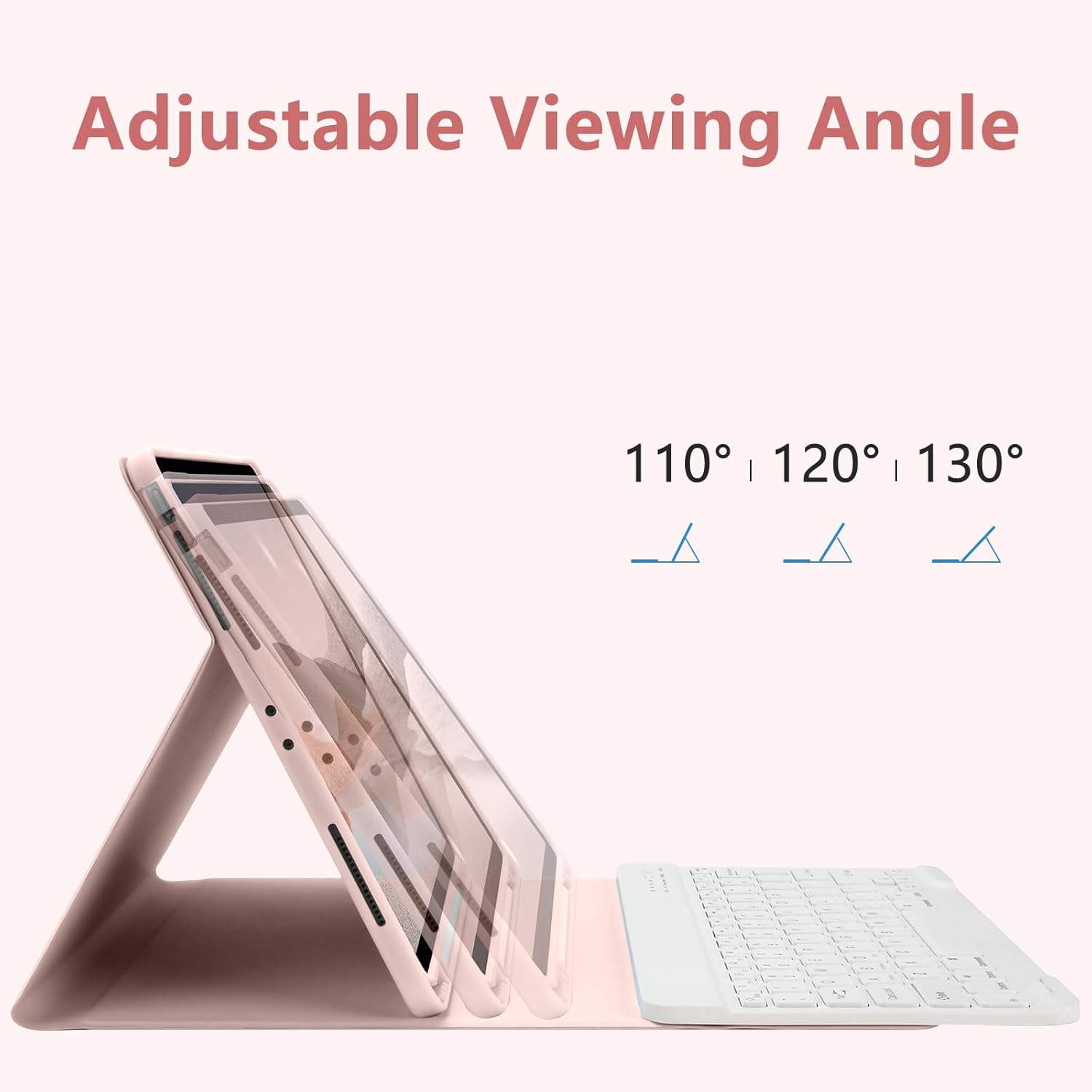
Image: The case adjusted to various viewing angles.
3.2 Detachable Keyboard
The keyboard is magnetically attached to the case, allowing it to be easily detached for flexible use. This feature enables you to use the iPad in tablet mode without the keyboard or position the keyboard more comfortably.

Image: Illustration of the magnetic detachable keyboard.
3.3 Auto Wake/Sleep Function
The case supports the iPad's automatic wake/sleep function. Closing the case will put your iPad into sleep mode, and opening it will wake it up, helping to conserve battery life.

Image: Depiction of the auto wake/sleep feature.
3.4 Keyboard Layout and Shortcuts
The keyboard features a 78-key layout with dedicated iOS shortcuts for quick access to common functions such as volume control, media playback, and screen lock.

Image: User interacting with the keyboard and iPad, demonstrating iOS shortcuts.
3.5 Pencil Holder
A specific slot is integrated into the case to securely hold your Apple Pencil when not in use, preventing loss and ensuring it is readily available.

Image: Detail of the integrated pencil holder.
4. Maintenance
4.1 Charging the Keyboard
The keyboard has a built-in rechargeable Lithium-ion battery. When the battery is low, the 'Charge' indicator light may blink or turn off. Connect the provided USB charging cable to the keyboard and a power source to recharge. Charging typically takes 2-3 hours and provides over 80 hours of working time.

Image: Charging the keyboard via USB cable.
4.2 Cleaning
To clean the case and keyboard, use a soft, damp cloth. Avoid using harsh chemicals or abrasive materials, as these may damage the surfaces.
4.3 Storage
When not in use for extended periods, store the keyboard case in a cool, dry place. Ensure the keyboard is turned off to preserve battery life.
5. Troubleshooting
5.1 Keyboard Not Connecting
- Ensure the keyboard is charged and turned on.
- Verify that Bluetooth is enabled on your iPad.
- Make sure the keyboard is in pairing mode (BT indicator blinking).
- Forget the device from your iPad's Bluetooth settings and attempt to re-pair.
- Restart both your iPad and the keyboard.
5.2 Keys Not Responding
- Check the keyboard's battery level and charge if necessary.
- Ensure the keyboard is properly connected via Bluetooth.
- Clean any debris from around the keys.
5.3 Auto Wake/Sleep Not Working
- Ensure your iPad is correctly seated in the case.
- Check your iPad's settings to ensure 'Lock/Unlock' is enabled for covers.
6. Specifications
- Product Dimensions: 11.22 x 9.45 x 0.59 inches
- Item Weight: 2.59 pounds
- Manufacturer: TQQ
- Connectivity Technology: Bluetooth
- Keyboard Description: Multi Functional, 78-key layout
- Special Features: Ergonomic, Magnetic, Wireless Detachable, Pencil Holder, Auto Wake/Sleep
- Battery: 1 Lithium Ion battery (included)
- Charging Time: 2-3 hours
- Working Time: More than 80 hours
7. Product Video
Watch this video for a visual guide on the TQQ Keyboard Case features and installation.
Video: Overview of the TQQ iPad Pro 12.9-inch keyboard case, demonstrating installation, multi-angle adjustment, Bluetooth connection, and keyboard features.
8. Warranty and Support
TQQ products are designed for quality and reliability. For any questions regarding your TQQ Keyboard Case, including product model or function, please contact our customer service team. Refer to your purchase documentation for specific warranty details and contact information.