1. Introduction
The ASUS Notebook E210 is a compact and lightweight 11.6-inch laptop designed for productivity and portability. It features an Intel Celeron N4020 Processor, 4GB RAM, and 64GB eMMC storage, running Windows 10 in S mode. This manual provides essential information for setting up, operating, and maintaining your device.

Figure 1: ASUS Notebook E210, showcasing its compact design with the screen displaying a colorful desktop background.
2. Setup
2.1 Unboxing and Initial Inspection
Carefully remove all components from the packaging. Verify that the following items are included:
- ASUS Notebook E210 (Model: E210MA-DB02)
- Power Adapter & Cord
- User Guide
- Warranty Card
Inspect the laptop for any physical damage. If any components are missing or damaged, contact your retailer or ASUS support.
2.2 Powering On and Initial Configuration
- Connect the power adapter to the laptop's charging port and then to a power outlet.
- Open the laptop lid. The laptop may power on automatically, or you may need to press the power button.
- Follow the on-screen instructions to complete the Windows 10 Home in S Mode setup, including language selection, network connection, and user account creation.
- Ensure the laptop is fully charged before its first use.
3. Operating Instructions
3.1 Basic Usage
- Power On/Off: Press the power button to turn on. To shut down, click the Start button, then Power > Shut down.
- Sleep Mode: Close the lid or click the Start button, then Power > Sleep.
- Keyboard: The full-size keyboard offers comfortable typing with 1.4mm key travel.
- Touchpad: The touchpad supports multi-gesture input for navigation and control.
3.2 Windows 10 in S Mode
Windows 10 in S mode is a version of Windows 10 that is streamlined for security and performance, exclusively using apps from the Microsoft Store. If you require apps outside the Microsoft Store, you can switch out of S mode. This is a one-way switch and cannot be undone.
- Open the Start Menu and select Settings.
- Go to Update & Security > Activation.
- In the "Switch to Windows 10 Home" or "Switch to Windows 10 Pro" section, select Go to the Store.
- On the "Switch out of S mode" (or similar) page that appears in the Microsoft Store, click the Get button.
- After confirming, you will be switched out of S mode.
4. Features Overview
- Efficient Performance: Powered by the Intel Celeron N4020 Processor for daily computing tasks.
- Compact and Lightweight: Designed for portability, measuring 0.7 inches thin and weighing 2.31 lbs.
- 11.6” HD Display: A clear 1366 x 768 resolution display suitable for productivity and media consumption.
- Integrated NumberPad: The touchpad features an illuminated NumberPad for efficient data entry.
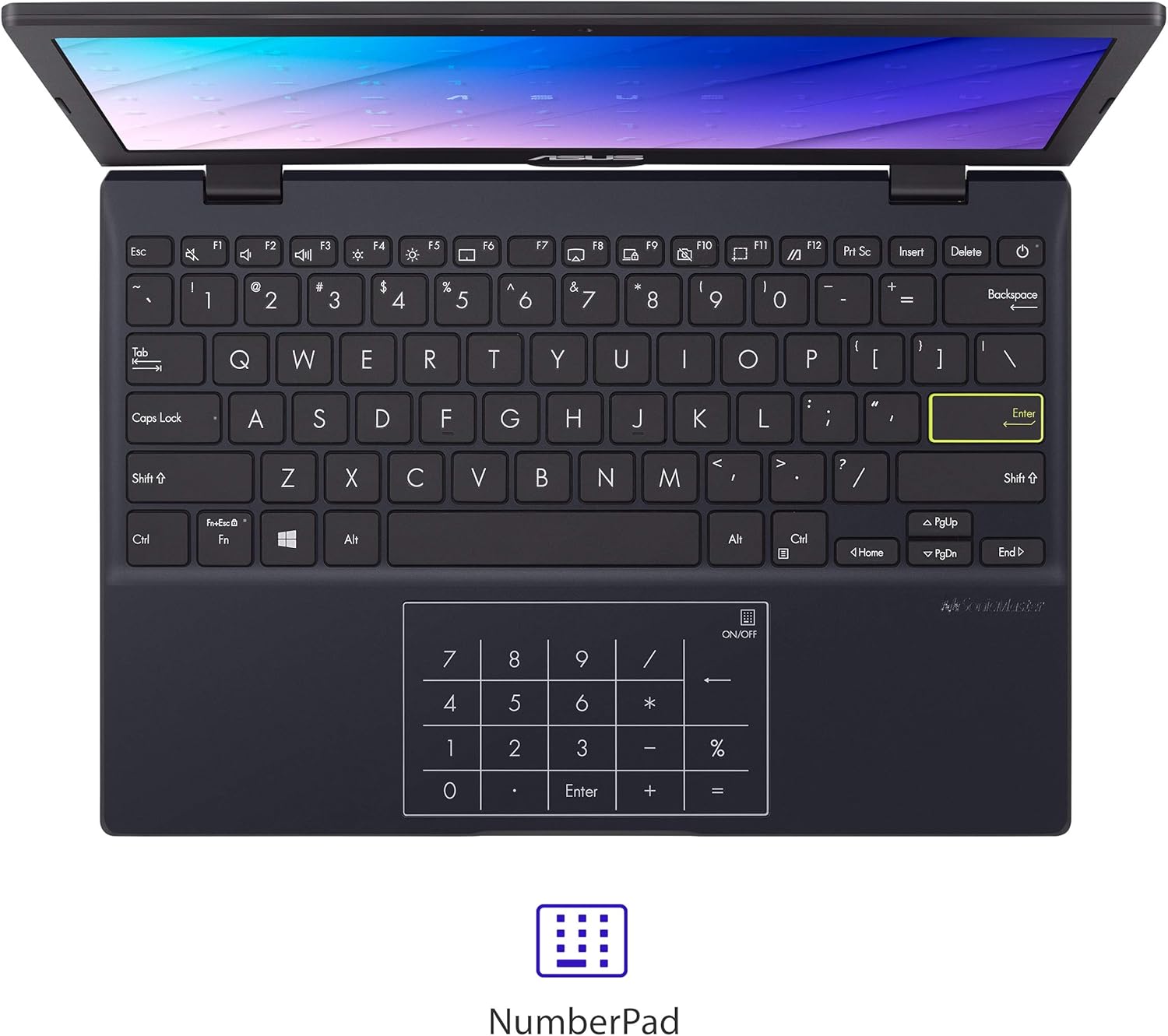
Figure 2: The touchpad with integrated NumberPad for quick numerical input.
- 180° Lay-Flat Hinge: Allows the laptop to open completely flat for easy sharing and collaboration.

Figure 3: The laptop's 180-degree lay-flat hinge allows for versatile viewing and sharing.
- Long Battery Life: Provides up to 12 hours of battery life for extended use on the go.
5. Ports and Connectivity
The ASUS Notebook E210 offers a variety of ports for connecting peripherals and external displays:
- 1x USB 2.0 Type-A
- 1x USB 3.2 Gen 1 Type-A
- 1x USB 3.2 Gen 1 Type-C
- 1x HDMI 1.4
- 1x 3.5mm Combo Audio Jack
- Wi-Fi 802.11ac
- Bluetooth
6. Maintenance
- Cleaning: Use a soft, lint-free cloth to clean the screen and chassis. Avoid harsh chemicals.
- Battery Care: To prolong battery life, avoid fully discharging the battery frequently. Store the laptop in a cool, dry place.
- Software Updates: Regularly update Windows and drivers to ensure optimal performance and security.
- Storage Management: Periodically clear unnecessary files and applications to maintain adequate storage space.
7. Troubleshooting
- Laptop not powering on: Ensure the power adapter is securely connected and the battery has sufficient charge. Try a different power outlet.
- Slow performance: Close unnecessary applications, check for background updates, and ensure sufficient free storage space.
- Wi-Fi connectivity issues: Restart the laptop and your Wi-Fi router. Check network settings and ensure Wi-Fi is enabled.
- Screen issues: If the screen is blank or flickering, try restarting the laptop. Connect to an external monitor to check if the issue is with the laptop's display or graphics.
8. Specifications
| Feature | Detail |
|---|---|
| Brand | ASUS |
| Model Name | L210 |
| Item Model Number | E210MA-DB02 |
| Screen Size | 11.6 Inches |
| Screen Resolution | 1366 x 768 pixels |
| Processor | Intel Celeron N4020 (1.1 GHz, up to 2.8 GHz) |
| RAM | 4 GB LPDDR4 |
| Hard Drive | 64 GB eMMC Flash Storage |
| Graphics Coprocessor | Intel UHD Graphics 600 |
| Operating System | Windows 10 Home in S Mode |
| Wireless Type | 802.11ac, Bluetooth |
| USB 2.0 Ports | 1 |
| USB 3.0 Ports | 2 |
| Item Weight | 2.31 lbs |
| Product Dimensions | 10.98 x 7.52 x 0.67 inches |
| Color | Star Black |
| Batteries | 1 Lithium Ion battery (included) |
9. Warranty and Support
9.1 Warranty Information
This ASUS Notebook E210 is covered by a manufacturer's warranty. Please refer to the included Warranty Card for specific terms, conditions, and duration of coverage. Keep your proof of purchase for warranty claims.
9.2 Customer Support
For technical assistance, troubleshooting, or service inquiries, please visit the official ASUS support website or contact their customer service. Details can be found on the ASUS website or in your product documentation.


