
Introduction
This manual provides detailed instructions for the installation, operation, and maintenance of your AILBTON 100ft RGB LED Strip Lights. Please read this manual thoroughly before use to ensure proper functionality and safety. These LED strip lights are designed to enhance your indoor environment with customizable lighting effects, including music synchronization and smart app control.

Image: A room illuminated by AILBTON 100ft LED Strip Lights, showcasing various color options.
Safety Information
- Ensure the power supply voltage matches the product specifications (12V).
- Do not immerse the LED strip or power adapter in water. This product is not waterproof.
- Avoid bending the LED strip at sharp angles to prevent damage to the circuit board.
- Keep out of reach of children.
- Disconnect power before cleaning or performing any maintenance.
- Do not cover the LED strip with materials that could impede heat dissipation.
Package Contents
Verify that all items are present in the package:
- 2 x 50ft LED Strip Lights (Total 100ft)
- 1 x Power Adapter
- 1 x Button Control Box
- 1 x IR Remote Controller
- 1 x Adhesive for Controller
- 1 x User Manual
Setup
1. Preparation
- Choose a clean, dry, and smooth surface for installation.
- Plan the route of your LED strip before peeling the adhesive backing.
2. Connecting the Components
- Connect the LED strip lights to the control box. Ensure the arrows on the connectors align.
- Connect the power adapter to the control box.
- Plug the power adapter into a standard electrical outlet.
Image: Visual guide for connecting the LED strip components.
3. Mounting the Strip
- Unspool the LED strips completely before use to prevent overheating.
- Peel off the protective backing from the 3M adhesive tape on the back of the LED strip.
- Carefully press the strip onto the desired surface, ensuring firm contact.
- The LED strip can be cut every 3 LEDs along the designated cutting marks if a shorter length is required. Ensure to cut only at these marks.

Image: Demonstrating how to peel the adhesive backing for mounting.
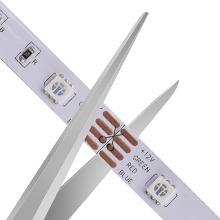
Image: LED strip showing cutting points for length adjustment.
4. App Download and Connection
- Scan the QR code on the control box or in the manual to download the "HiLighting" app from Google Play or the iOS App Store. Alternatively, visit www.lixingzhaoming.com/downloads/ or www.easytrack.net.cn/download/179RUIFANG for app download.
- Enable Bluetooth on your smartphone.
- Open the "HiLighting" app. The app will automatically search for and connect to the LED strip lights.

Image: Control box displaying a QR code for app download.
Video: Official AILBTON video demonstrating the features and smart control of the LED strip lights.
Operating Instructions
1. App Control (HiLighting App)
The "HiLighting" app offers comprehensive control over your LED strip lights:
- Color Adjustment: Select from a wide spectrum of RGB colors and adjust brightness levels.
- Dynamic Modes: Choose from various preset dynamic modes like jumping, fading, and strobing effects.
- Music Mode: The lights will pulsate and change colors in sync with music played through your mobile phone.
- Microphone Mode: The lights respond to ambient sounds or your voice picked up by the phone's microphone.
- Timing ON/OFF: Set schedules for the lights to automatically turn on or off at specific times.
- Group Management: Control multiple AILBTON LED light strips simultaneously or individually by creating groups within the app.

Image: HiLighting app interface for color and mode selection.

Image: HiLighting app interface for setting timing schedules.
2. IR Remote Control
The included IR remote control provides quick access to essential functions:
- ON/OFF: Power the lights on or off.
- Brightness/Speed: Adjust the brightness of static colors or the speed of dynamic modes.
- Color Selection: Direct selection of various static colors (Red, Green, Blue, White, Orange, Yellow, Cyan, Purple).
- Dynamic Modes: Activate preset modes like JUMP, FADE, STROBE, SMOOTH.
- Music Modes: Four dedicated buttons for different music-reactive modes.

Image: IR Remote Control layout and functions.
3. 3-Button Controller Control
The inline 3-button controller on the strip provides basic control without the app or remote:
- Power Button: Turns the lights ON/OFF.
- Mode Button: Cycles through various static colors and dynamic lighting modes.
- Mic Button: Activates microphone mode for sound-reactive lighting.
Maintenance
- Cleaning: Gently wipe the LED strips with a dry, soft cloth to remove dust. Do not use liquid cleaners.
- Storage: If storing the lights, ensure they are clean and dry. Roll them loosely to avoid damaging the strip.
- Adhesive: The 3M adhesive is strong. If re-positioning is necessary, do so carefully to avoid damaging the strip or surface.
Troubleshooting
- Lights not turning on:
- Check all connections, ensuring they are secure and the arrows on the connectors are aligned.
- Verify the power adapter is plugged into a working outlet.
- Ensure the remote control battery is functional and pointed directly at the control box.
- Remote control not working:
- Replace the remote control battery.
- Ensure there are no obstructions between the remote and the IR receiver on the control box.
- App not connecting via Bluetooth:
- Ensure Bluetooth is enabled on your device.
- Restart the app and try connecting again.
- Ensure the LED strip lights are powered on.
- Try restarting your phone.
- Colors are incorrect or incomplete:
- Check the connection between the LED strip and the control box for proper alignment (arrow to arrow).
- Ensure the strip is not damaged or bent sharply.
Specifications
| Feature | Specification |
|---|---|
| Model Number | DT2-60 |
| Length | 100 Feet (2 x 50ft) |
| LED Type | 5050 RGB |
| Control Methods | Bluetooth App (HiLighting), IR Remote, 3-Button Control Box |
| Special Features | Color Changing, Dimmable, Music Sync, Built-in Mic, Timing ON/OFF |
| Voltage | 12 Volts |
| Wattage | 12 Watts |
| Connectivity | Bluetooth |
| Water Resistance Level | Not Water Resistant (Indoor Use Only) |
Warranty and Support
AILBTON products come with a standard manufacturer's warranty. For specific warranty details, please refer to the product packaging or contact AILBTON customer support. If you encounter any issues or have questions regarding your LED strip lights, please contact our customer service team for assistance. We aim to resolve any problems within 24 hours.
Contact information can typically be found on the product packaging or the official AILBTON website.