1. Introduction
This manual provides essential instructions for the installation, operation, and maintenance of your Power Acoustik CPAA-70D 7-inch Double-DIN In-Dash DVD Receiver. This unit features a high-definition LCD touchscreen, Bluetooth 4.0 connectivity, Apple CarPlay, and Android Auto for enhanced in-car entertainment and communication. Please read this manual thoroughly before using the product to ensure proper function and safety.
2. Safety Information
Observe the following safety guidelines to prevent injury or damage to the unit:
- Do not operate the unit in a manner that distracts you from driving. Always prioritize road safety.
- Ensure all wiring is correctly connected to prevent short circuits or electrical hazards. Consult a professional for installation if you are unsure.
- Avoid exposing the unit to extreme temperatures, direct sunlight for prolonged periods, or excessive moisture.
- Do not attempt to disassemble or modify the unit. This may void the warranty and cause damage.
- Keep the volume at a level that allows you to hear outside traffic sounds.
3. Package Contents
Verify that your package contains the following items:
- Power Acoustik CPAA-70D Receiver Unit
- Instruction Manual
4. Setup and Installation
The CPAA-70D is a Double-DIN unit designed for in-dash installation. Proper installation is crucial for optimal performance and safety. It is recommended that installation be performed by a qualified professional.
4.1. Wiring Connections
Before making any connections, ensure the vehicle's battery is disconnected. Refer to your vehicle's wiring diagram and the unit's wiring harness for specific connections. Key connections typically include:
- Power: Constant 12V (yellow), Accessory 12V (red), Ground (black).
- Speakers: Connect to appropriate speaker outputs (e.g., front left, front right, rear left, rear right).
- Antenna: Connect the vehicle's radio antenna.
- Parking Brake: Connect to the parking brake wire for video playback safety.
- Reverse Gear: Connect for automatic rear camera display (if applicable).
- USB: Connect external USB devices.

Figure 4.1: Front view of the Power Acoustik CPAA-70D receiver unit. This image shows the general appearance of the unit, including the screen and physical controls, which is helpful for identifying the device during installation.
4.2. Initial Power-On
After all connections are secure and the unit is mounted, reconnect the vehicle's battery. Turn on the vehicle's ignition. The unit should power on and display the initial setup screen or main menu.
5. Operating Instructions
5.1. Basic Controls and Touchscreen
The CPAA-70D features a 7-inch HD 1024 x 600 LCD with a clear glass capacitive touchscreen. Navigate menus and control functions by touching the screen. Physical buttons and a rotary knob are located on the left side for quick access to volume, home, and other common functions.
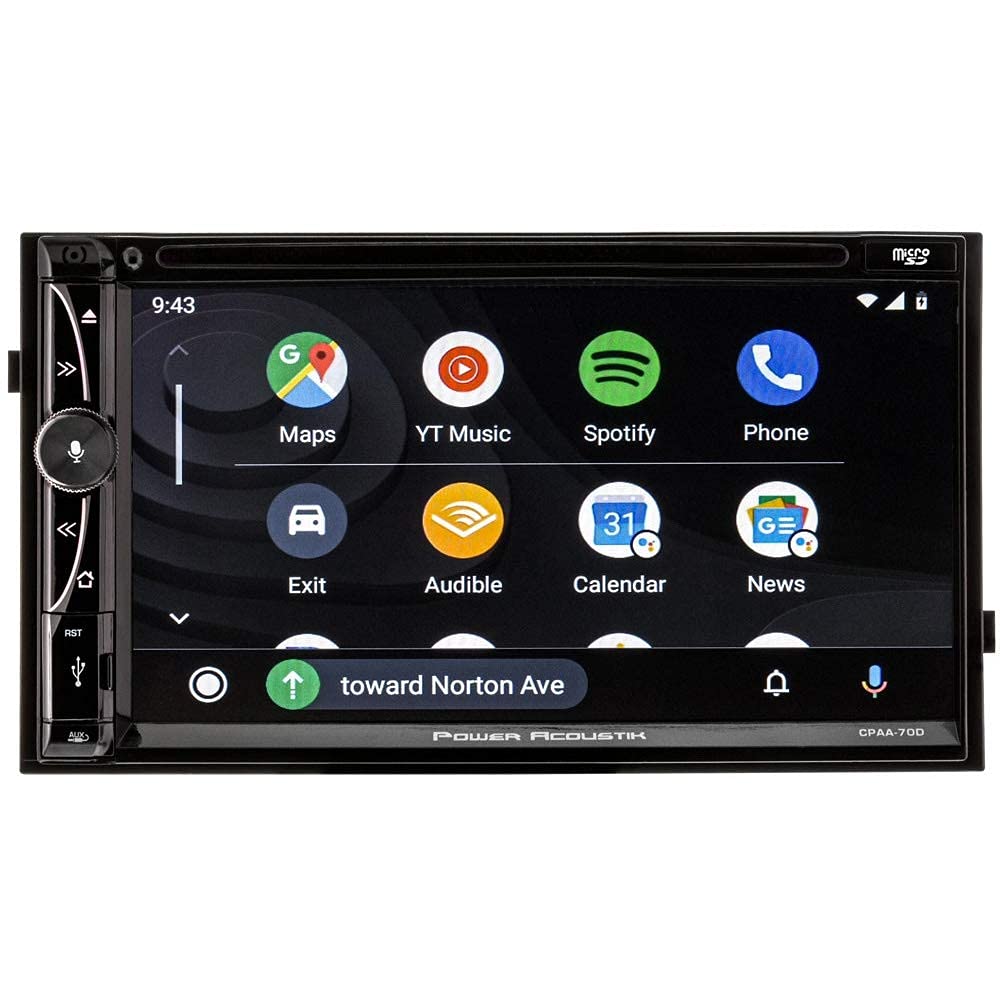
Figure 5.1: The CPAA-70D screen displaying the Apple CarPlay interface. This shows the typical layout of applications like Phone, Music, Maps, and Messages when connected via Apple CarPlay.
5.2. Bluetooth Connectivity
The unit supports Bluetooth 4.0 for phone calling and A2DP audio streaming.
- Pairing: On the unit, navigate to the Bluetooth menu. Enable Bluetooth on your mobile device and search for available devices. Select "CPAA-70D" from the list and confirm the pairing code if prompted.
- Phone Calls: Once paired, you can make and receive calls directly through the unit's interface.
- Audio Streaming: Play music from your paired device wirelessly through the car's speakers.
5.3. Apple CarPlay and Android Auto
Connect your compatible iPhone or Android smartphone via USB to access Apple CarPlay or Android Auto. This allows you to use navigation, make calls, send messages, and listen to music through the unit's interface, optimized for driving.
- Apple CarPlay: Connect your iPhone using a certified USB cable to the unit's USB port. The CarPlay interface will automatically launch.
- Android Auto: Connect your Android phone using a certified USB cable. Ensure the Android Auto app is installed on your phone. The Android Auto interface will launch automatically.
5.4. Radio Operation
Access the radio function from the main menu. The unit supports AM/FM bands.
- Tuning: Use the on-screen controls to manually tune or scan for stations.
- Presets: Save your favorite stations to preset buttons for quick access.

Figure 5.2: The CPAA-70D screen displaying the radio interface. This image shows the frequency display, band selection (FM1, FM2, AM1, AM2), and various radio control options.
5.5. DVD and Media Playback
The unit includes a DVD receiver and supports media playback from SD cards.
- DVD: Insert a DVD into the disc slot. Playback will begin automatically or can be selected from the media menu.
- SD Card: Insert an SD card containing compatible media files into the SD card slot. Select the SD source from the media menu to browse and play files.
5.6. Remote Control
The included remote control provides convenient access to various functions from a distance.

Figure 5.3: Remote control for the Power Acoustik CPAA-70D. This image displays the layout of buttons for power, source selection (CP/AA, SXM, Radio, Disc, BT, USB), navigation, volume, and numeric input.
6. Maintenance
To ensure the longevity and optimal performance of your CPAA-70D unit:
- Cleaning the Screen: Use a soft, lint-free cloth to gently wipe the touchscreen. For stubborn smudges, slightly dampen the cloth with water or a screen cleaner designed for electronics. Do not use abrasive cleaners or solvents.
- General Cleaning: Keep the unit's exterior free from dust and debris. Use a soft, dry cloth.
- Disc Slot: Avoid inserting foreign objects into the disc slot.
7. Troubleshooting
If you encounter issues with your CPAA-70D, refer to the following common problems and solutions:
| Problem | Possible Cause | Solution |
|---|---|---|
| Unit does not power on. | Incorrect wiring, blown fuse, power supply issue. | Check power and ground connections. Inspect vehicle's fuse box and the unit's fuse. Ensure accessory wire is receiving power. |
| No audio output. | Volume too low, mute activated, incorrect speaker wiring, source not selected. | Increase volume. Check if mute is active. Verify speaker connections. Select the correct audio source. |
| Bluetooth connection issues. | Device not paired, Bluetooth off, interference. | Ensure Bluetooth is enabled on both devices. Re-pair the device. Move closer to the unit. |
| Apple CarPlay/Android Auto not launching. | Faulty USB cable, incompatible phone, app not installed (Android Auto). | Use a certified USB cable. Ensure your phone is compatible. Install Android Auto app if using an Android device. |
| Touchscreen unresponsive. | Temporary software glitch, physical damage. | Perform a soft reset (refer to unit's specific reset procedure if available). If issue persists, contact support. |
If these solutions do not resolve the issue, contact customer support for further assistance.
8. Specifications
- Model: CPAA-70D
- Screen Size: 7 Inches
- Display Type: LCD, LED (HD 1024 x 600)
- Connectivity Technology: Bluetooth 4.0
- Features: Apple CarPlay, Android Auto, A2DP Audio Streaming
- Media Type: DVD, SD
- Product Dimensions: 7 x 7 x 4 inches
- Manufacturer: POWER ACOUSTIK
9. Warranty and Support
This Power Acoustik product is covered by a limited warranty. Please refer to the warranty card included with your purchase for specific terms, conditions, and duration. For technical support, service, or warranty claims, please contact Power Acoustik customer service through their official website or the contact information provided in your warranty documentation.


