
1. Introduction
The ScanSnap iX1300 is a compact and efficient automatic document scanner designed for both home and office environments. It offers versatile scanning capabilities, including duplex scanning, Wi-Fi connectivity, and direct scanning to cloud services. This manual provides essential information for the proper setup, operation, maintenance, and troubleshooting of your ScanSnap iX1300 scanner.

Figure 1: ScanSnap iX1300 Scanner (Closed)
2. Setup
2.1 Unpacking and Initial Inspection
Carefully remove all components from the packaging. Verify that all items listed in the 'What's in the Box' section are present. Inspect the scanner for any visible damage. If any components are missing or damaged, contact customer support.
2.2 Software Installation
The ScanSnap iX1300 requires the ScanSnap Home software for full functionality. Insert the provided installation media or download the latest software from the official ScanSnap website. Follow the on-screen instructions to complete the installation.
2.3 Connecting the Scanner
The iX1300 offers both USB 3.2 and Wi-Fi connectivity.
- USB Connection: Connect the scanner to your computer using the supplied USB cable.
- Wi-Fi Connection: The scanner can connect to your wireless network (Access Point Connect Mode) or directly to a device (Direct Connect Mode). Refer to the ScanSnap Home software for detailed Wi-Fi setup instructions.

Figure 2: Wi-Fi Connectivity Options
2.4 Powering On
Connect the AC adapter to the scanner and a power outlet. Press the power button to turn on the device. The scanner will be ready for use in a few seconds.
3. Operating the Scanner
3.1 Loading Documents
The iX1300 supports two scanning paths: U-turn Scan for multi-page documents and Return Scan for thicker or single-sheet items.
- U-turn Scan: Open the document feeder cover. Load up to 20 pages into the Automatic Document Feeder (ADF). The scanner will feed and eject documents from the top. This mode is ideal for standard paper sizes from business cards to A4.

Figure 3: U-turn Scan Mode (ADF)
- Return Scan: For single sheets, folded documents, or items up to 2mm thick (e.g., postcards, plastic cards), insert the document into the front slot. The document will be scanned and returned from the same slot.
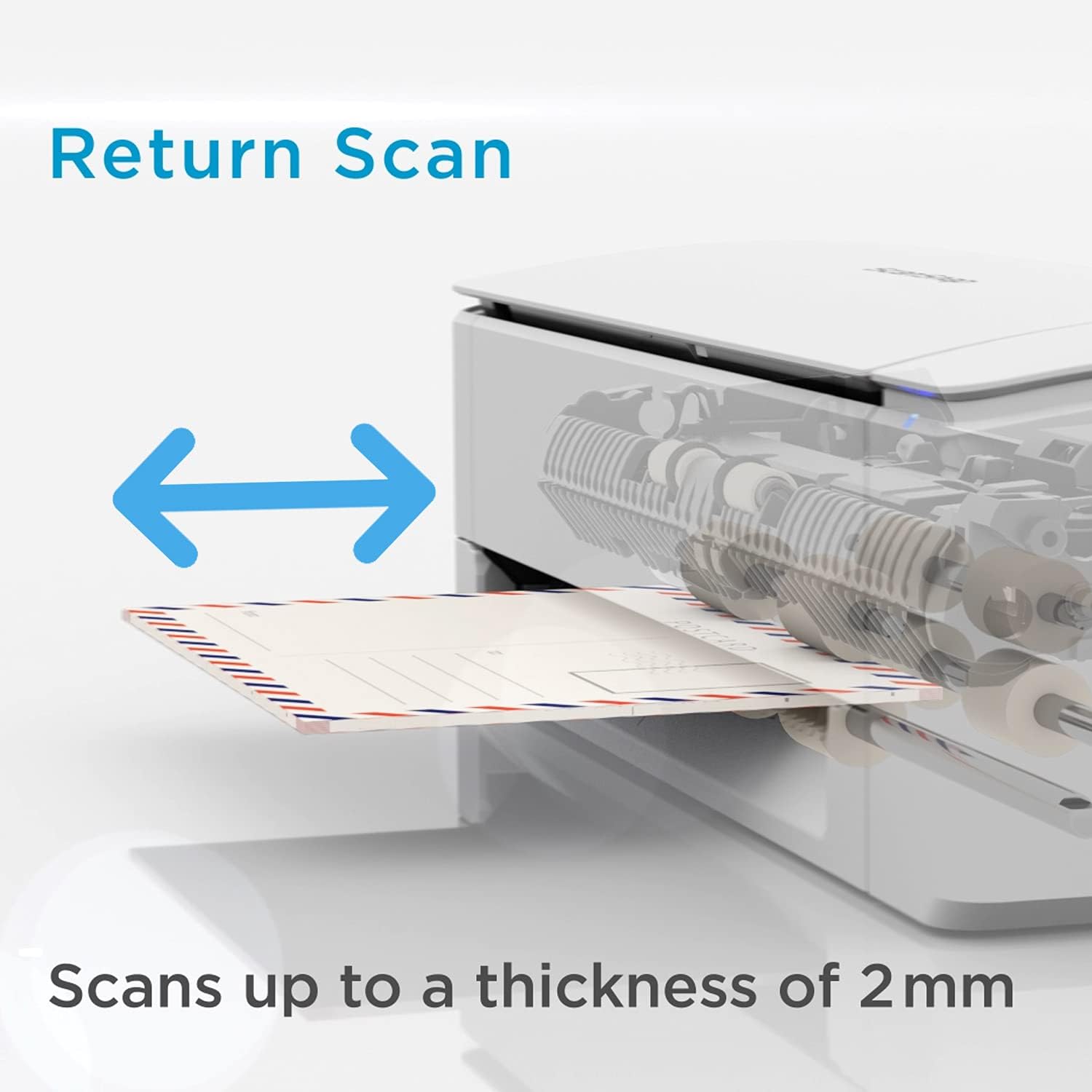
Figure 4: Return Scan Mode
3.2 Initiating a Scan
Once documents are loaded, press the Scan button on the scanner or initiate a scan from the ScanSnap Home software. The scanner will automatically detect document size, color, and orientation, and perform duplex scanning.
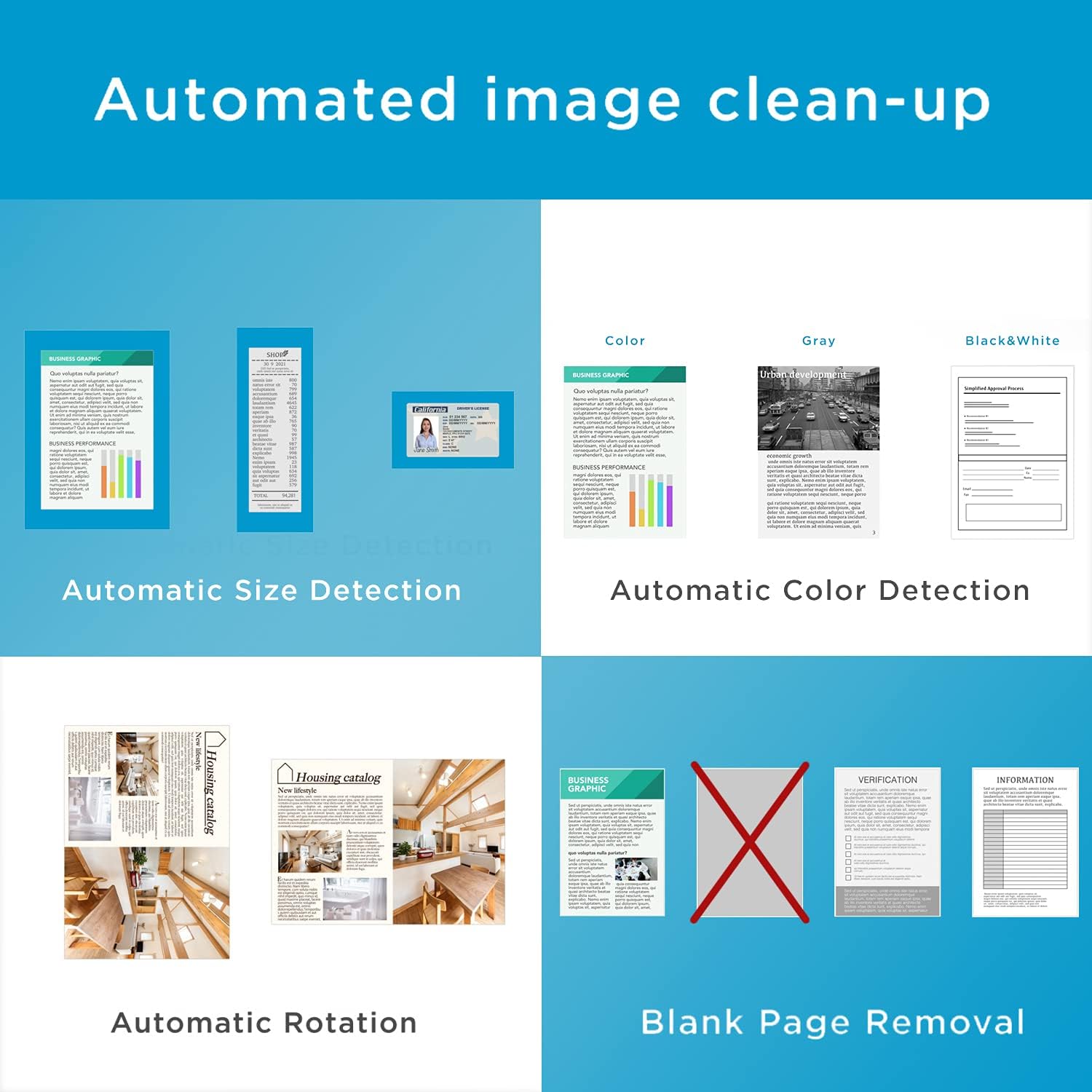
Figure 5: Automated Image Processing
3.3 Saving Scanned Documents
Scanned images can be saved in various formats, including PDF, searchable PDF, and JPEG. The ScanSnap Home software also allows conversion to editable Microsoft Word, Excel, and PowerPoint formats.

Figure 6: Supported Output Formats
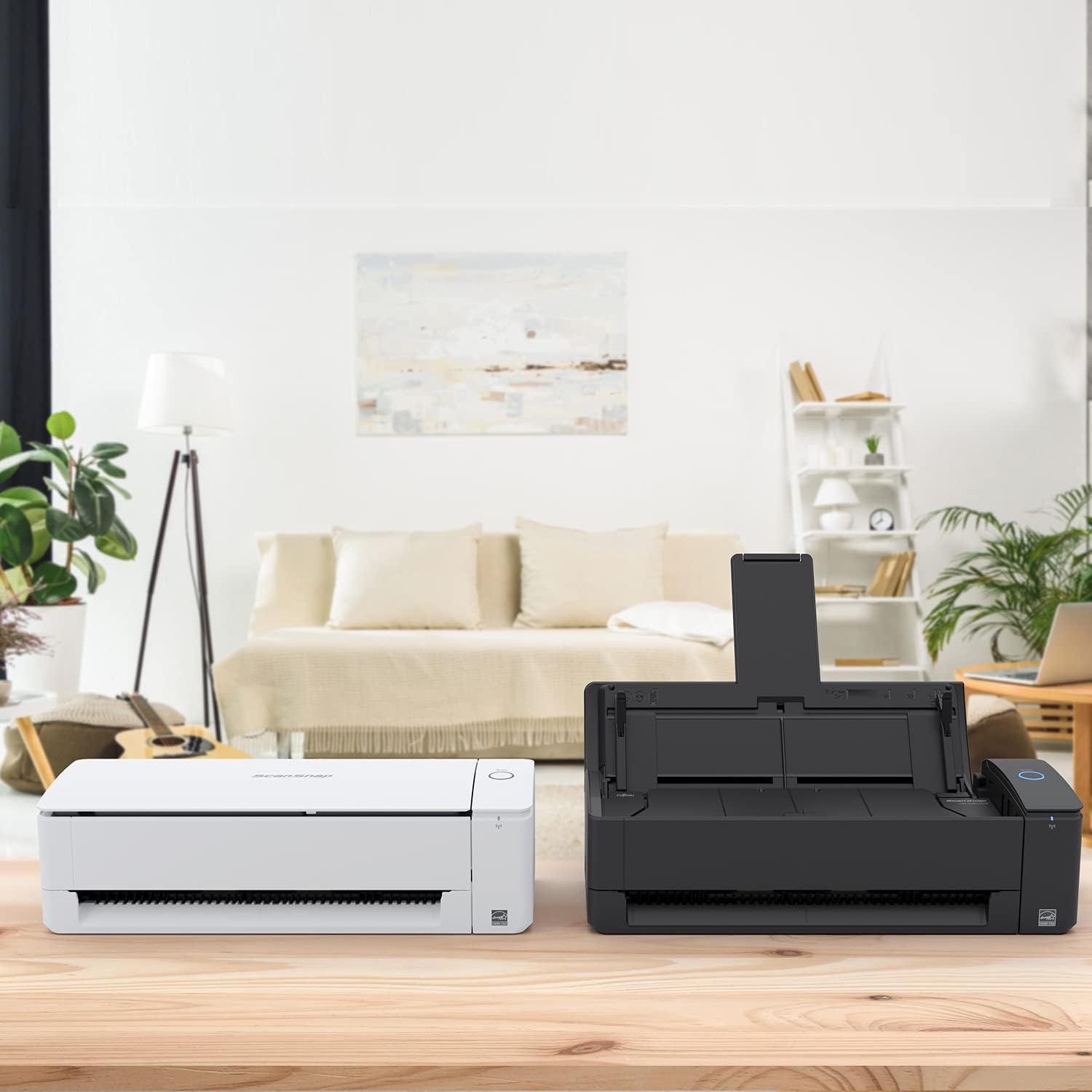
Figure 7: Scanner in Operation
4. Maintenance
4.1 Cleaning the Scanner
Regular cleaning ensures optimal scanning performance. Use a soft, lint-free cloth to wipe the exterior of the scanner. For internal components like rollers and glass, refer to the ScanSnap Home software's maintenance section for detailed instructions and recommended cleaning kits.
4.2 Consumables
Over time, certain parts like rollers may wear out. The ScanSnap Home software can alert you when maintenance or replacement of consumables is recommended. Use only genuine ScanSnap replacement parts.
5. Troubleshooting
If you encounter issues with your ScanSnap iX1300, refer to the following common troubleshooting steps:
- Scanner Not Detected: Ensure the USB cable is securely connected or that the Wi-Fi connection is active and stable. Restart the scanner and your computer.
- Paper Jams: Open the document feeder cover and carefully remove any jammed paper. Ensure documents are loaded correctly and are free from staples or clips.
- Poor Scan Quality: Clean the scanner's rollers and glass surfaces. Ensure documents are flat and free from wrinkles. Adjust scan settings in ScanSnap Home if necessary.
- Software Issues: Ensure ScanSnap Home is updated to the latest version. Reinstall the software if problems persist.
For more detailed troubleshooting guides and solutions, visit the official ScanSnap support website.
6. Specifications
| Feature | Specification |
|---|---|
| Model Name | iX1300 |
| Scanner Type | Document, Business Card |
| Maximum Media Size | A4 |
| Duplex Printing | Yes |
| Maximum Sheet Capacity | 20 sheets (ADF) |
| Scanning Speed (B&W/Color) | 30 pages per minute |
| Maximum Resolution | 600 dots per inch |
| Connectivity Technology | Wi-Fi, USB 3.2 |
| Dimensions (L x W x H) | 29.5 x 15.2 x 16.2 cm |
| Weight | 2000 Grams |
| Included Components | 20-sheet Automatic Document Feeder, ScanSnap Home Software |
7. Warranty and Support
7.1 Warranty Information
The ScanSnap iX1300 comes with a 3-year warranty. Please retain your proof of purchase for warranty claims. The warranty covers manufacturing defects and malfunctions under normal use. It does not cover damage caused by misuse, accidents, or unauthorized repairs.
7.2 Customer Support
For technical assistance, warranty service, or general inquiries, please visit the official ScanSnap support website or contact your local ScanSnap service center. Up-to-date contact information and support resources can be found online.


