Introduction
This manual provides comprehensive instructions for the installation, operation, and maintenance of the Fortinet FortiSwitch 100 FS-148F-POE Ethernet Switch. Designed for secure access, this switch delivers outstanding security, performance, and manageability. It is a secure, simple, and scalable solution suitable for businesses of all sizes. The FortiSwitch integrates tightly into the Fortinet Security Fabric via FortiLink, allowing direct management from the familiar FortiGate interface, providing complete visibility and control over users and devices.
Product Overview
The FortiSwitch 100 FS-148F-POE is a high-performance Ethernet switch featuring 48 ports, designed for robust network connectivity and Power over Ethernet (PoE) capabilities. It supports Layer 2 functionality and is manageable, making it ideal for various network environments requiring secure and efficient data transmission.

Figure 1: Front view of the Fortinet FortiSwitch 100 FS-148F-POE, showing 48 Ethernet ports and status indicators.
Key Features:
- 48 Ethernet Ports: Provides extensive connectivity for multiple devices.
- Power over Ethernet (PoE): Delivers power and data over a single Ethernet cable, simplifying deployment of PoE-enabled devices.
- Manageable Layer 2 Switch: Offers advanced network management capabilities and supports Layer 2 protocols for efficient data forwarding.
- FortiLink Integration: Seamlessly integrates with FortiGate for centralized management and enhanced security.
- Robust Design: Metal casing ensures durability and reliable operation.
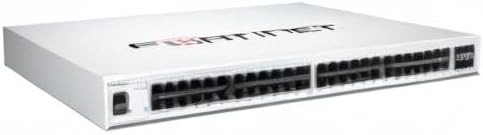
Figure 2: Angled view of the Fortinet FortiSwitch 100 FS-148F-POE, highlighting its compact design and port layout.
Setup and Installation
Follow these steps to properly set up your FortiSwitch 100 FS-148F-POE.
- Unpack the Switch: Carefully remove the switch and all accessories from the packaging. Verify that all components listed in the packing list are present.
- Mounting (Optional): The switch can be placed on a flat surface or mounted in a standard 19-inch rack. Use appropriate rack-mount brackets if rack mounting. Ensure adequate ventilation around the device.
- Connect Power: Connect the provided power cord to the switch's power input and then to a grounded electrical outlet.
- Connect Network Cables: Connect your network devices (computers, access points, IP cameras, etc.) to the Ethernet ports on the front panel using standard RJ45 Ethernet cables. For PoE devices, ensure they are connected to PoE-enabled ports.
- Initial Configuration: For initial setup and management, connect a management workstation to one of the switch's Ethernet ports. Refer to the FortiSwitch documentation for detailed instructions on accessing the management interface (CLI or web-based GUI) and configuring basic network settings, VLANs, and FortiLink integration.
Note: For detailed FortiLink integration and advanced configurations, consult the official Fortinet documentation and FortiGate administration guides.
Operating Instructions
Once the FortiSwitch is powered on and connected, it will begin operating. The switch functions as a Layer 2 device, forwarding Ethernet frames between connected devices.
Status Indicators:
Observe the LED indicators on the front panel for operational status:
- Power LED: Indicates power status (On: Powered, Off: No power).
- System LED: Indicates system health (e.g., Green: Normal operation, Amber: Warning, Red: Error). Refer to the full manual for specific blink patterns.
- Port LEDs: Each Ethernet port has LEDs indicating link status and activity (e.g., Green: Link established, Blinking Green: Activity, Amber: PoE status).
Management Access:
The FortiSwitch is primarily managed through a FortiGate firewall when integrated via FortiLink. Alternatively, it can be managed directly via its command-line interface (CLI) accessible through a console port or SSH, or via a web-based graphical user interface (GUI) if enabled and configured.
- FortiLink Management: For most deployments, the FortiSwitch will be managed as a FortiLink-enabled device from the FortiGate interface, providing a single pane of glass for network and security management.
- Direct Management: For standalone operation or initial setup, access the switch's IP address via a web browser or use an SSH client to connect to the CLI. Default IP addresses and login credentials should be changed immediately after initial access for security purposes.
Maintenance
Regular maintenance ensures optimal performance and longevity of your FortiSwitch.
- Environmental Control: Ensure the switch operates within its specified temperature and humidity ranges. Maintain proper airflow around the device to prevent overheating.
- Cleaning: Periodically clean the exterior of the switch with a soft, dry cloth. Do not use liquid or aerosol cleaners directly on the device. Ensure ventilation openings are free from dust and obstructions.
- Firmware Updates: Regularly check the Fortinet support website for the latest firmware updates. Applying updates can improve performance, add new features, and address security vulnerabilities. Follow Fortinet's recommended update procedures.
- Cable Management: Ensure all network cables are securely connected and properly routed to prevent accidental disconnections or damage.
- Backup Configuration: Periodically back up the switch's configuration to an external storage device. This allows for quick restoration in case of a system reset or failure.
Troubleshooting
This section provides solutions to common issues you might encounter with your FortiSwitch.
| Problem | Possible Cause | Solution |
|---|---|---|
| Switch does not power on. | No power supply; faulty power cord/outlet. | Check power cord connection; try a different power outlet; ensure power source is active. |
| No link light on a connected port. | Incorrect cable; faulty cable; device not powered on; port disabled. | Verify cable type (Ethernet); replace cable; ensure connected device is powered on; check switch port status in management interface. |
| PoE device not receiving power. | Device not PoE-compatible; insufficient PoE budget; faulty cable; port not configured for PoE. | Confirm device PoE compatibility; check switch's PoE budget and power consumption of devices; use a known good Ethernet cable; verify PoE settings for the port in the management interface. |
| Cannot access management interface. | Incorrect IP address; network connectivity issue; firewall blocking access. | Verify switch IP address; ensure management workstation is on the same subnet; check network cables; temporarily disable firewalls for testing. |
For more advanced troubleshooting or persistent issues, refer to the comprehensive Fortinet FortiSwitch documentation or contact Fortinet technical support.
Specifications
| Attribute | Detail |
|---|---|
| Brand | FORTINET |
| Model | FS-148F-POE |
| Number of Ports | 48 |
| Switch Type | Managed Layer 2 |
| Interface Type | PoE (Power over Ethernet) |
| PoE Budget | 370 W |
| Power Consumption | 476.30 W |
| Voltage | 48 Volts (DC) |
| Case Material | Metal |
| Product Dimensions | 12 x 17 x 2 inches |
| Item Weight | 13.22 pounds |
| UPC | 842382199824 |
| Date First Available | October 13, 2021 |
Warranty and Support
Fortinet products typically come with a standard limited hardware warranty. For specific warranty terms and conditions applicable to your FortiSwitch 100 FS-148F-POE, please refer to the warranty information included with your product or visit the official Fortinet website.
Technical Support:
For technical assistance, product registration, and access to documentation, knowledge base articles, and software downloads, please visit the Fortinet Support Portal:
It is recommended to register your product upon purchase to ensure access to full support services and warranty benefits.


