
1. Product Overview
The Oversteel Kyanite is a gaming PC case designed to house ATX, Micro ATX, and Mini ITX motherboards. It features a mesh front panel for optimized airflow, a tempered glass side panel to showcase internal components, and four pre-installed 120mm A-RGB fans for effective cooling and customizable lighting. This case is engineered for quality and performance, providing a robust foundation for your gaming PC build.

Image 1.1: Front-side view of the Oversteel Kyanite Gaming PC Case, highlighting its mesh front and tempered glass side panel.

Image 1.2: Front view of the Oversteel Kyanite PC case, showcasing the mesh design for airflow.
2. Setup and Installation
Before beginning installation, ensure you have all necessary components and tools. Work on a clean, static-free surface.
2.1 Opening the Case
Carefully remove the tempered glass side panel by unscrewing the thumb screws located at the rear of the case. Place the panel on a soft, flat surface to prevent scratches.
2.2 Motherboard Installation
The Kyanite case supports ATX, Micro ATX, and Mini ITX motherboards. Install the necessary standoffs for your motherboard form factor. Carefully align your motherboard with the standoffs and I/O shield, then secure it with screws. Ensure all screws are tightened appropriately, but do not overtighten.
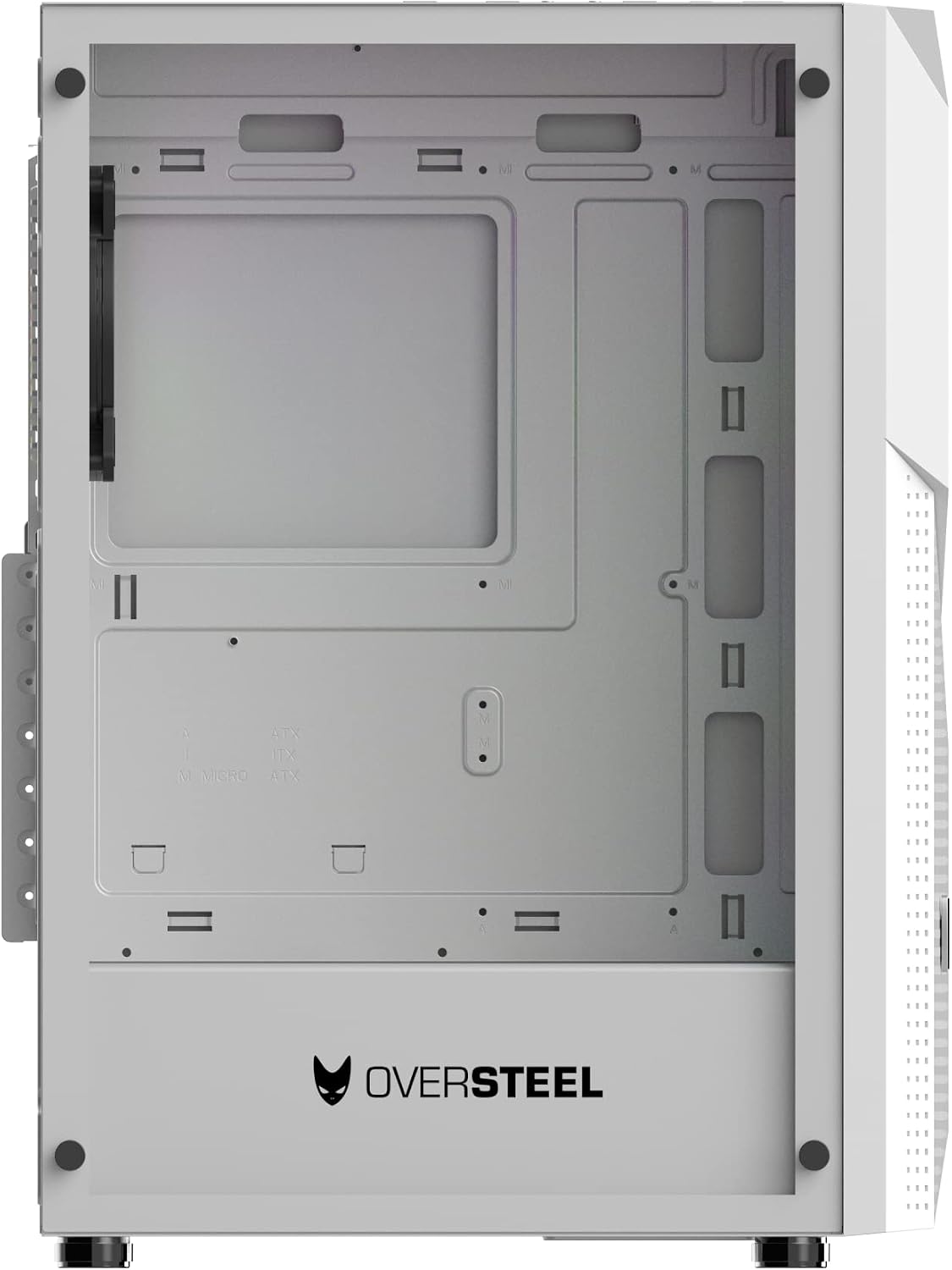
Image 2.1: Internal view of the PC case, illustrating the motherboard mounting area with ATX, Micro ATX, and ITX markings.
2.3 Power Supply Unit (PSU) Installation
The case features a bottom-mount PSU design. Slide your ATX power supply into the designated compartment at the bottom rear of the case and secure it with screws from the exterior. Ensure the PSU fan faces downwards for optimal cooling if the case has a bottom vent.
2.4 Storage Drive Installation
The Kyanite case provides 4 internal bays compatible with 2.5" and 3.5" storage drives. Mount your SSDs or HDDs into the drive cages or designated mounting points and secure them with the appropriate screws.
2.5 Graphics Card (VGA) and Expansion Card Installation
Remove the necessary expansion slot covers at the rear of the case. Insert your graphics card (VGA) or other expansion cards into the PCIe slots on your motherboard and secure them with screws. The case supports VGA cards up to 295mm in length.
2.6 CPU Cooler Installation
Install your CPU cooler according to its specific instructions. The case accommodates CPU coolers up to 160mm in height.
2.7 Cable Management
Utilize the cable routing cutouts and tie-down points behind the motherboard tray to manage cables. This improves airflow and aesthetics. Connect all power cables from the PSU to your components and all data cables to your storage drives and motherboard.

Image 2.2: Rear-side view of the PC case, indicating space for cable management and expansion slots.
3. Operation
3.1 Front Panel Connections
The top panel of the Kyanite case provides convenient access to essential ports and controls:
- Power Button: Press to power on or off your system.
- Reset Button: Can also function as an A-RGB lighting control button.
- USB 3.0 Port: One port for high-speed data transfer.
- USB 2.0 Ports: Two ports for connecting peripherals.
- Audio Jacks: Headphone and microphone jacks.

Image 3.1: Top view of the PC case, detailing the front panel I/O ports and control buttons.
3.2 A-RGB Fan Control
The four pre-installed 120mm A-RGB fans are connected to a controller. You can cycle through various lighting modes and colors by pressing the dedicated A-RGB control button, which is often integrated with the reset button on the top panel. Refer to your motherboard's manual for potential software control options if it supports addressable RGB synchronization.
4. Maintenance
Regular maintenance ensures optimal performance and longevity of your PC components.
4.1 Dust Filter Cleaning
The Kyanite case is equipped with magnetic dust filters on the top and bottom. Periodically remove these filters and clean them with compressed air or a soft brush to prevent dust buildup and maintain optimal airflow.
4.2 Case Exterior Cleaning
Wipe the exterior surfaces of the case with a soft, damp cloth. Avoid abrasive cleaners or solvents that could damage the finish. For the tempered glass panel, use a glass cleaner and a microfiber cloth.
4.3 Fan Cleaning
Over time, dust can accumulate on fan blades. Use compressed air to gently clean the fan blades of the pre-installed A-RGB fans to ensure efficient cooling.
5. Troubleshooting
This section addresses common issues you might encounter during setup or operation.
5.1 System Does Not Power On
- Ensure the power supply is properly connected to the wall outlet and switched on.
- Verify all power cables from the PSU are securely connected to the motherboard, CPU, and graphics card.
- Check that the front panel power switch cable is correctly connected to the motherboard's front panel header.
5.2 A-RGB Fans or Lighting Not Working
- Confirm that the A-RGB controller is receiving power, typically via a SATA power connector from the PSU.
- Ensure all fan A-RGB cables are securely connected to the controller.
- Try pressing the A-RGB control button (often the reset button) on the top panel to cycle through modes.
- If connected to a motherboard A-RGB header, verify the connection and check motherboard software settings.
5.3 Component Fitment Issues
- Motherboard: Ensure correct standoffs are used for your motherboard form factor (ATX, Micro ATX, Mini ITX).
- Graphics Card: Verify your graphics card length does not exceed 295mm.
- CPU Cooler: Ensure your CPU cooler height does not exceed 160mm.
- Screws: Always use the correct type and size of screws for each component to avoid damage or improper fit.
6. Specifications
| Model Name | KYANITE |
| Model Number | NAT-OV-CS-KYANITE-W |
| Dimensions (L x W x H) | 51.59 x 24.51 x 40.59 cm (20.31 x 9.65 x 15.98 inches) |
| Weight | 5.55 kg (12.24 lbs) |
| Material | Tempered Glass |
| Motherboard Compatibility | ATX, Micro ATX, Mini ITX |
| Case Type | Mid Tower |
| Recommended Use | Gaming PC |
| Color | White |
| Cooling Method | Air |
| Fan Size | 120 Millimeters |
| Number of Fans | 4 (A-RGB) |
| PSU Mounting | Bottom Mount |
| USB 2.0 Ports | 2 |
| USB 3.0 Ports | 1 |
| Drive Bays (Internal) | 4 (compatible with 2.5" and 3.5" drives) |
| Max VGA Card Length | 295 mm |
| Max CPU Cooler Height | 160 mm |
| Product Features | Unique mesh design with 3D effect and A-RGB fans |
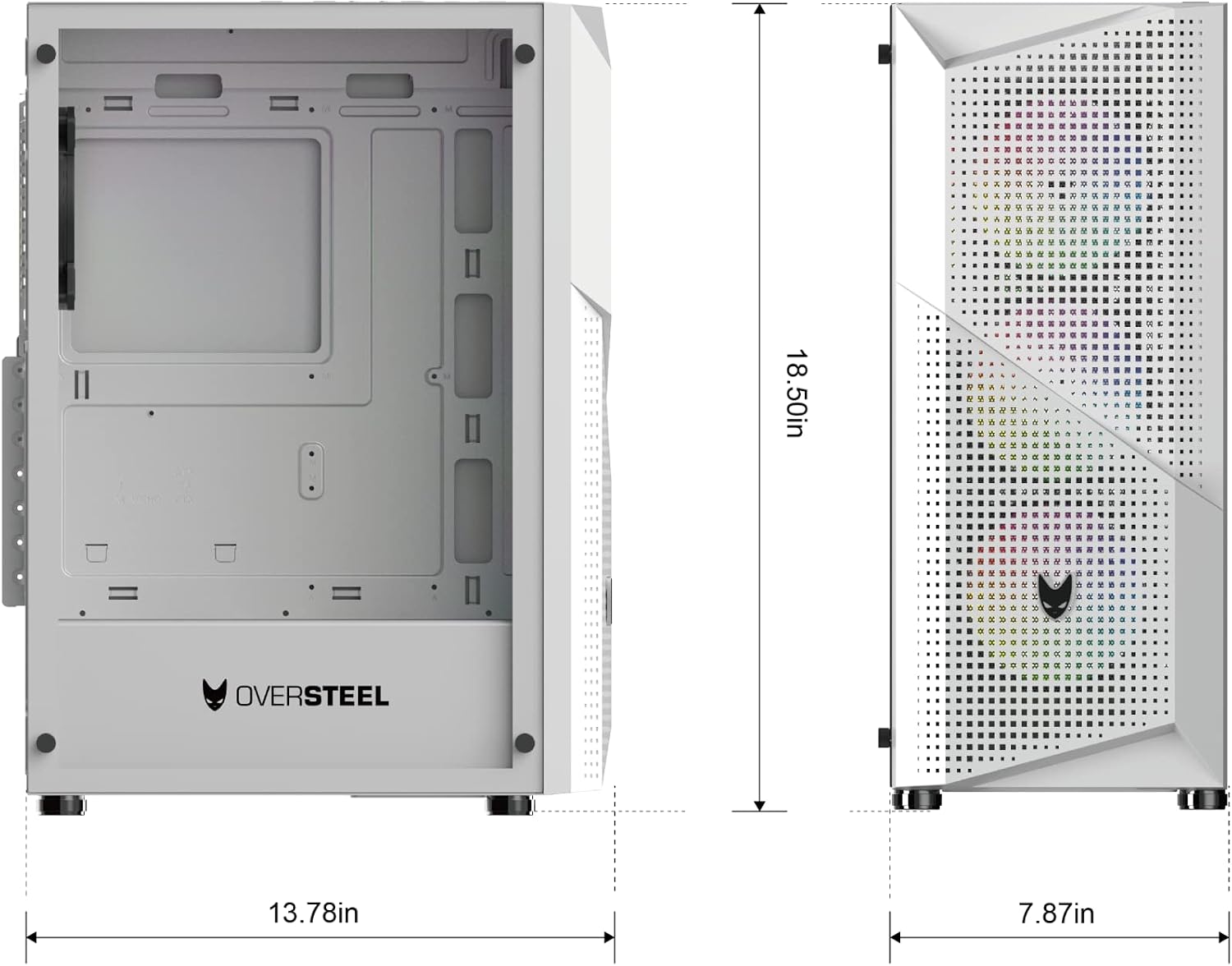
Image 6.1: Dimensional diagram of the Oversteel Kyanite PC case, showing key measurements.
7. Warranty Information
For detailed warranty terms and conditions, please refer to the official Oversteel website or contact your retailer. Keep your proof of purchase for warranty claims.
8. Technical Support
Should you require technical assistance or have questions not covered in this manual, please visit the official Oversteel website for support resources, FAQs, and contact information for customer service.


