
Kwikset Home Connect 620 (Model 98690-002)
Kwikset Home Connect 620 Smart Lock Deadbolt User Manual
Model: Home Connect 620 (98690-002)
Introduction
This manual provides detailed instructions for the installation, operation, maintenance, and troubleshooting of your Kwikset Home Connect 620 Smart Lock Deadbolt. This smart lock features Z-Wave technology for integration with compatible home automation systems, keyless entry, and Kwikset's SmartKey security. Please read these instructions carefully before installation and use to ensure proper function and security.
Package Contents
Verify that all components are present before beginning installation:
- HC-620 Smart Lock (Exterior Keypad and Interior Assembly)
- Battery Pack
- Latch
- Strike Plate
- Mounting Plate
- 2 Keys
- 4 AA Alkaline Batteries
- SmartKey Tool
- Screws
Setup and Installation
The Kwikset Home Connect 620 Smart Lock is designed for easy installation, typically requiring only a screwdriver. It fits standard doors between 1-3/8 inches and 1-3/4 inches thick.
1. Mechanical Installation
Follow the step-by-step instructions provided in the included installation guide for mounting the deadbolt, latch, and strike plate. Ensure all screws are tightened securely.

Exterior view of the Kwikset Home Connect 620 Smart Lock installed on a wooden door.
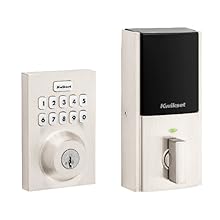
A person installing the Kwikset Home Connect 620 Smart Lock using a screwdriver.
2. Battery Installation
Insert the four (4) AA alkaline batteries into the battery pack. The batteries are included with your lock. These batteries typically last 12 months or longer depending on usage.
3. Door Handing Process
After installing the batteries, the lock will automatically perform a door handing process to determine the door's orientation (left or right-handed). During this process, the deadbolt will extend and retract. The indicator light on the interior unit will turn amber upon successful completion. If the light remains red or flashes, refer to the troubleshooting section.
4. Z-Wave Pairing
To integrate your smart lock with a home automation system (e.g., Ring Alarm, Samsung SmartThings), a compatible Z-Wave hub is required. Follow your Z-Wave hub's instructions to add a new device. Typically, this involves putting the hub into inclusion mode and then pressing the 'A' button on the interior unit of your Kwikset lock. Refer to your hub's manual for specific pairing steps.
Operation
Keyless Entry with Keypad
The exterior keypad allows for secure keyless entry. The keypad is illuminated for visibility in low light conditions.

The 10-digit backlit keypad for keyless entry.
- To Unlock: Enter your 4-8 digit user code, then press the Kwikset button.
- To Lock: Press the Kwikset button once. This provides one-touch locking.
Adding and Deleting User Codes
User codes can be managed directly through the keypad or via your connected Z-Wave hub's application (e.g., Ring app, SmartThings app). Refer to your Z-Wave hub's documentation for app-based code management.
To add a user code via the keypad:
- Ensure the door is unlocked and open.
- Press the Program button on the interior unit once.
- Enter a new 4-8 digit user code.
- Press the Lock button once.
- If successful, the keypad will flash green. If unsuccessful, it will flash red.
To delete a user code via the keypad:
- Ensure the door is unlocked and open.
- Press the Program button on the interior unit twice.
- Enter the user code you wish to delete.
- Press the Lock button once.
- If successful, the keypad will flash green. If unsuccessful, it will flash red.
Auto-Locking Feature
The lock can be configured to automatically lock after a set period of time (e.g., 30 seconds, 1 minute, 5 minutes). This feature enhances security by ensuring the door is always locked after entry or exit. Consult your Z-Wave hub's application for settings related to auto-locking, or refer to the full Kwikset manual for keypad-based configuration.
Manual Operation
The deadbolt can also be locked or unlocked using the physical key from the exterior or the turn button on the interior unit.
SmartKey Security
Your Kwikset Home Connect 620 features SmartKey Security, which protects against advanced break-in techniques and allows you to re-key your lock yourself in seconds to match an existing Kwikset key.

Overview of Kwikset SmartKey Security benefits.
Re-keying Instructions
To re-key your lock:
- Insert your functioning key and turn it 90 degrees clockwise.
- Insert the SmartKey tool fully and firmly into the SmartKey hole. Remove the SmartKey tool.
- Remove your functioning key.
- Insert your new key fully and slowly turn it 180 degrees counter-clockwise.
- Remove the new key. The lock is now re-keyed.

Visual guide for the SmartKey re-keying process.
Maintenance
Battery Replacement
When the batteries are low, the lock will provide an audible alert and the indicator light may flash red. Replace all four (4) AA alkaline batteries promptly to ensure continuous operation. Do not mix old and new batteries or different types of batteries.
Cleaning
Clean the lock's exterior surfaces with a soft, damp cloth. Avoid using abrasive cleaners, solvents, or chemical sprays, as these can damage the finish and electronic components.
Troubleshooting
- Lock does not respond or keypad is dark: Check battery levels. Replace batteries if necessary. Ensure the battery pack is correctly seated.
- Deadbolt does not extend/retract fully: Ensure the door frame strike plate is properly aligned with the deadbolt. Check for any obstructions in the door jamb. Re-run the door handing process.
- Door Handing Process (Amber Light): During the initial handing process, the indicator light turning amber signifies success, contrary to some older documentation that might suggest green. If the light is amber, proceed with setting user codes. If it flashes red or gives error beeps, ensure the lock is correctly installed and try the handing process again.
- Z-Wave connectivity issues: Ensure your Z-Wave hub is within range and in inclusion mode. Try moving the hub closer or adding a Z-Wave repeater. Perform a Z-Wave exclusion (removal) from your hub first, then re-attempt inclusion.
- User codes not working: Verify the codes are correctly programmed. Ensure the lock is not in a 'vacation' or 'privacy' mode if your Z-Wave system supports it.
Specifications
| Brand | Kwikset |
| Model Name | Home Connect 620 |
| Part Number | 98690-002 |
| Lock Type | Keypad Deadbolt |
| Special Features | Auto-Lock, Keyless Entry, SmartKey Security |
| Connectivity Protocol | Z-Wave |
| Controller Type | Google Assistant, Amazon Alexa, SmartThings (via Z-Wave hub) |
| Material | Metal |
| Color | Venetian Bronze |
| Product Dimensions | 2.8 x 1.25 x 4.6 inches |
| Item Weight | 1 Pound |
| Batteries | 4 AA batteries required (included) |
| Recommended Uses | Security, Front Door Lock |
Warranty and Support
Warranty Information
The Kwikset Home Connect 620 Smart Lock Deadbolt comes with a Lifetime mechanical and finish warranty, and a 1-year electronics warranty. Please retain your proof of purchase for warranty claims.
Customer Support
For further assistance, technical support, or warranty inquiries, please visit the official Kwikset website or contact Kwikset customer service. You can also find additional resources and FAQs on the Kwikset Brand Store on Amazon.
Ask a question about this manual
Ask about setup, troubleshooting, compatibility, parts, safety, or missing instructions. Manuals+ will review the question and use this page’s manual context to help answer it.