
Introduction
This manual provides detailed instructions for setting up, operating, and maintaining your Motorola MH7601 Advanced WiFi 6 Router and MB8611 Multi-Gig DOCSIS 3.1 Cable Modem bundle. This system is designed to deliver high-speed internet and robust WiFi coverage for your home or office network.
Package Contents
Before you begin, please verify that your package contains the following items:
- Motorola MH7601 Advanced WiFi 6 Router
- Motorola MB8611 Multi-Gig DOCSIS 3.1 Cable Modem
- Power Adapter for MH7601 Router
- Power Adapter for MB8611 Modem
- Ethernet Cable
- Quick Start Guide (if included)
Setup
Follow these steps to set up your Motorola router and modem bundle.
Step 1: Connect the MB8611 Cable Modem
- Connect the coaxial cable from your wall outlet to the Cable port on the MB8611 modem. Ensure the connection is finger-tight.
- Connect the power adapter to the Power port on the MB8611 modem and plug the other end into an electrical outlet.
- Wait for the modem to power on and establish a connection. The online indicator light should become solid green or blue. This may take several minutes.
Step 2: Activate the MB8611 Cable Modem with Your Internet Service Provider (ISP)
Contact your ISP (e.g., Comcast Xfinity, Cox, Spectrum) to activate your new MB8611 modem. You will need the modem's MAC address, which is typically found on a label on the bottom or back of the device. Your ISP will guide you through their activation process.
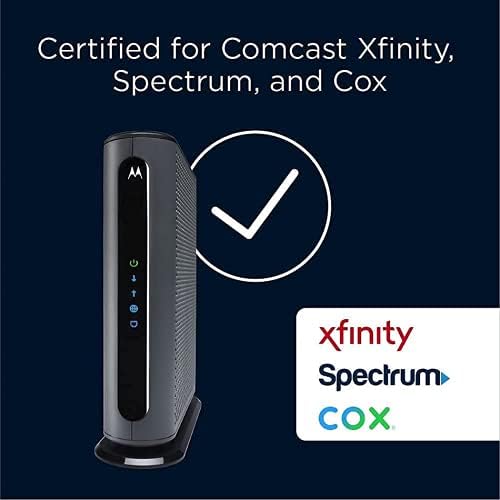
Image: The Motorola MB8611 modem is certified for use with major internet service providers including Comcast Xfinity, Spectrum, and Cox.
Step 3: Connect the MH7601 WiFi 6 Router
- Connect one end of the provided Ethernet cable to the LAN port on the MB8611 modem.
- Connect the other end of the Ethernet cable to the WAN/Internet port on the MH7601 router.
- Connect the power adapter to the Power port on the MH7601 router and plug the other end into an electrical outlet.
- Wait for the router to power on. The indicator lights should show that it is ready for operation.
Step 4: Set Up the MH7601 Router Using the Motosync App
The Motosync app simplifies the setup and management of your MH7601 router.
- Download the Motosync app from your mobile device's app store (available for iOS and Android).
- Open the app and follow the on-screen instructions to create an account and add your MH7601 router.
- The app will guide you through configuring your WiFi network name (SSID) and password.
- Once setup is complete, connect your devices (smartphones, computers, etc.) to your new WiFi network using the SSID and password you created.
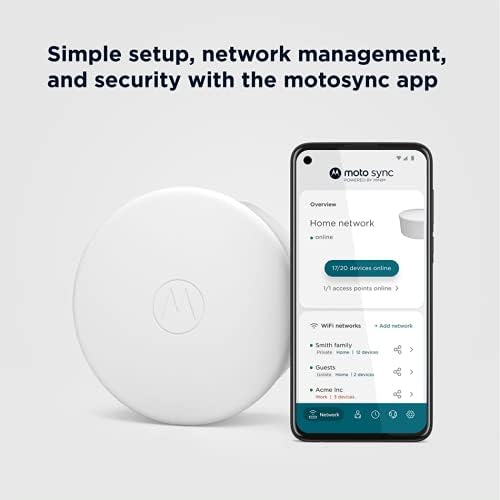
Image: The Motosync app provides simple setup, network management, and security features for the MH7601 router.
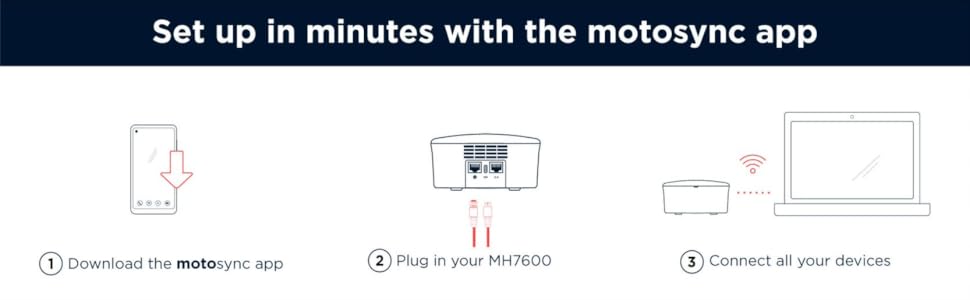
Image: Visual representation of the three-step setup process: 1) Download the Motosync app, 2) Plug in your MH7601, 3) Connect all your devices.
Operating Instructions
Motorola MH7601 Advanced WiFi 6 Router
The MH7601 router utilizes WiFi 6 (802.11ax) technology to provide fast and reliable wireless connectivity. It is designed to cover up to 2,000 square feet and support over 100 connected devices simultaneously, delivering streaming speeds up to 1 Gigabit.
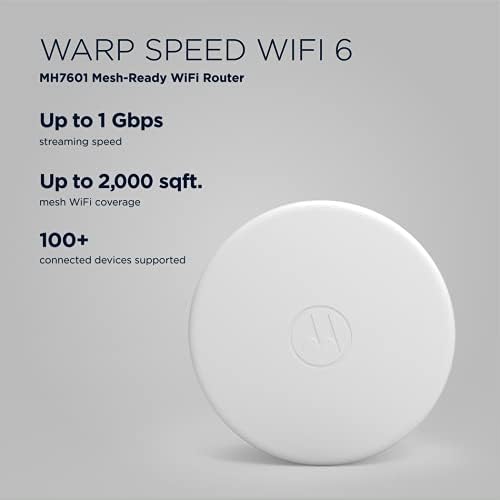
Image: The Motorola MH7601 router, highlighting its WiFi 6 capabilities, up to 1 Gbps streaming speed, up to 2,000 sq ft mesh WiFi coverage, and support for 100+ connected devices.
The MH7601 is mesh-ready, allowing you to expand your WiFi coverage by adding additional mesh units (sold separately) to eliminate dead zones and ensure consistent connectivity throughout your home.
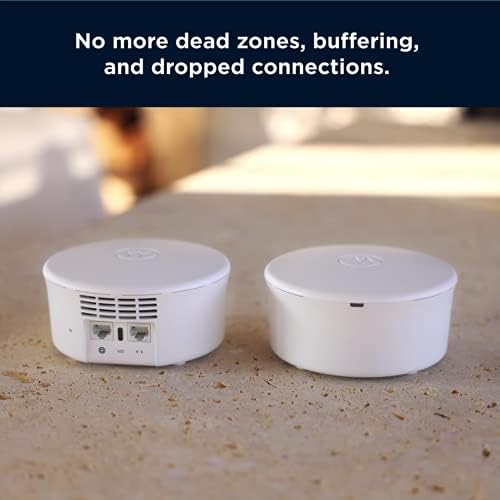
Image: Two MH7601 units, one showing the rear ports, demonstrating how they can be used together to eliminate dead zones and buffering.
Motorola MB8611 Multi-Gig DOCSIS 3.1 Cable Modem
The MB8611 modem supports DOCSIS 3.1 technology, enabling true Gigabit-plus internet speeds. It features a 2.5 Gigabit Ethernet port for connecting to your router or a high-speed device, ensuring you can take full advantage of fast internet plans.
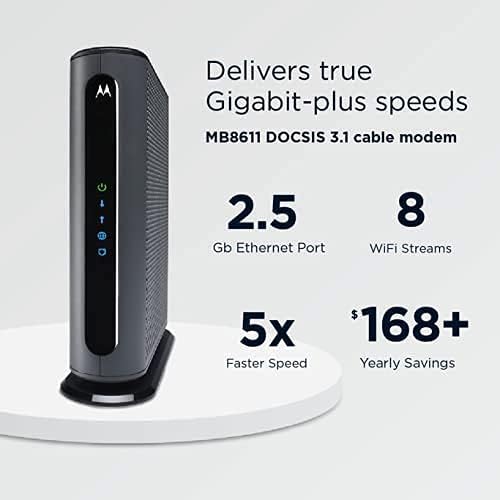
Image: The Motorola MB8611 modem, highlighting its 2.5 Gb Ethernet Port, 8 WiFi Streams, and ability to deliver Gigabit-plus speeds.
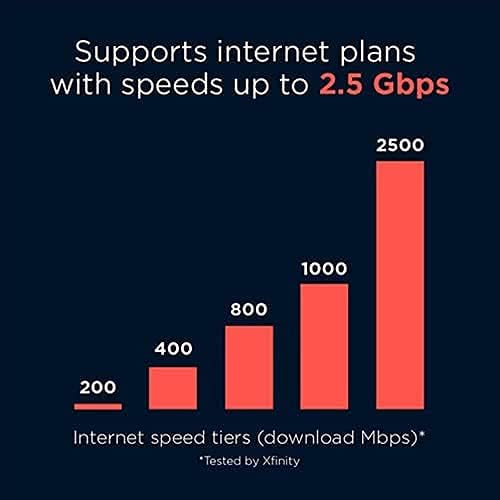
Image: A bar chart illustrating various internet speed tiers (200, 400, 800, 1000, 2500 Mbps) supported by the MB8611 modem, indicating support for plans up to 2.5 Gbps.
Motosync App Features
The Motosync app provides comprehensive control over your home network:
- Network Management: View connected devices, manage network settings, and monitor internet speed.
- Parental Controls: Set time limits, block inappropriate content, and manage internet access for specific devices or users.
- Security: Receive alerts for potential threats, manage network security settings, and protect against malware and intrusions.
- Guest Network: Easily set up a separate network for guests, keeping your main network secure.

Image: Multiple screenshots of the Motosync app interface, demonstrating features like network overview, internet speed tests, profile management, and security settings.
Maintenance
To ensure optimal performance and longevity of your Motorola networking equipment, consider the following maintenance tips:
- Placement: Position your MH7601 router in a central location, away from obstructions and other electronic devices that may cause interference.
- Ventilation: Ensure both the modem and router have adequate ventilation to prevent overheating. Do not cover ventilation openings.
- Firmware Updates: The Motosync app will typically manage firmware updates automatically. Ensure your devices are connected to the internet to receive these updates, which improve performance and security.
- Cleaning: Periodically clean the exterior of the devices with a soft, dry cloth. Avoid using liquid cleaners or solvents.
- Restart: If you experience network issues, a simple restart of both the modem and router can often resolve them. Unplug the power adapters, wait 10-15 seconds, then plug them back in, starting with the modem first.
Troubleshooting
If you encounter issues with your Motorola MH7601 router or MB8611 modem, refer to the following common troubleshooting steps:
| Problem | Possible Cause | Solution |
|---|---|---|
| No Internet Connection | Modem not activated, loose cables, ISP outage. | Verify all cables are securely connected. Check modem lights; if online light is off or blinking, contact your ISP. Restart modem and router. |
| Slow Internet Speed | Network congestion, outdated firmware, WiFi interference. | Restart devices. Check for firmware updates via Motosync app. Move router away from interference sources. Consider adding a mesh unit for better coverage. |
| WiFi Drops Frequently | Interference, weak signal, too many devices. | Adjust router placement. Ensure router is not obstructed. Reduce the number of active devices or consider a mesh system for extended coverage. |
| Cannot Access Motosync App | Incorrect login, app issue, router not connected. | Ensure your phone is connected to the MH7601 WiFi network. Verify login credentials. Try reinstalling the app. Ensure router has power and internet access. |
For further assistance, refer to the support section or contact Motorola customer support.
Specifications
Motorola MH7601 Advanced WiFi 6 Router
- Wireless Standard: 802.11ax (WiFi 6)
- Frequency Band Class: Dual-Band
- Speed: Up to AX1800 (1 Gigabit streaming speed)
- Coverage: Up to 2,000 sq ft (mesh-ready)
- Connected Devices: Supports over 100 devices
- Control Method: Motosync App
- Special Feature: WPS
Motorola MB8611 Multi-Gig DOCSIS 3.1 Cable Modem
- DOCSIS Standard: 3.1
- Ethernet Port: 1 x 2.5 Gigabit Ethernet Port
- ISP Compatibility: Certified for Comcast Xfinity, Cox, and Spectrum
- Connectivity Technology: Coaxial Cable
Warranty and Support
Motorola products typically come with a limited warranty. For specific warranty details, please refer to the warranty card included with your product or visit the official Motorola website. For technical support, product registration, or to access additional resources, please visit the Motorola support website or contact their customer service department.
Online Support: www.motorolanetwork.com/support


