
1. Introduction
This manual provides instructions for the GZCRDZ K20 Wired Gaming Headset. It covers setup, operation, maintenance, and troubleshooting to ensure optimal performance and longevity of your device. The K20 headset features a wired connection, an adjustable microphone, RGB lighting, and is designed for comfort during extended use.
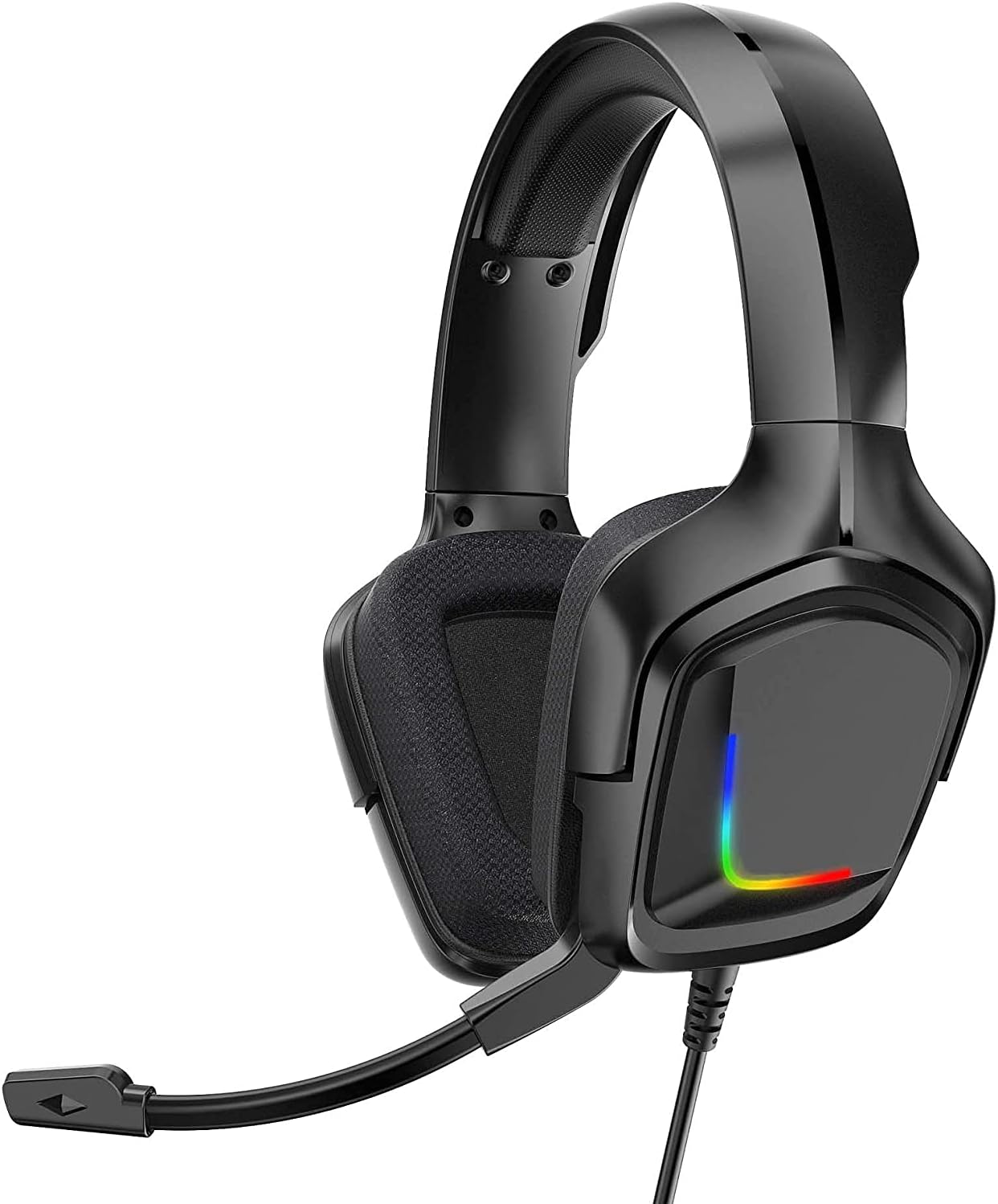
Image: GZCRDZ K20 Wired Gaming Headset. This image displays the overall design of the headset, highlighting the adjustable microphone and the RGB lighting on the earcups.
2. Product Features
- Adjustable Omnidirectional Microphone: Designed to reduce echo and background noise, providing clear voice communication for in-game chats.
- 40mm Magnetic Neodymium Drivers: Delivers clear audio with strong bass, enabling accurate sound positioning for an immersive gaming experience.
- Comfortable Earmuffs: Skin-soft, breathable earmuffs provide comfort for extended wear and offer good acoustic insulation.
- Adjustable Headband: Features a thickened sponge support and an adjustable head beam to fit various head sizes.
- RGB LED Lighting: Color-changing LED lights on the earcups enhance the gaming atmosphere.
- Wide Compatibility: Compatible with smartphones, laptops, PS4, Nintendo Switch, Xbox One (adapter may be required), and other audio devices with a 3.5mm port.

Image: Icons illustrating key features of the K20 headset, including HD Sound, Adjustable Microphone, Adjustable Volume, Durable Wire, and Comfortable design.
3. Package Contents
Verify that all items are present in the package:
- 1 x GZCRDZ K20 Wired Gaming Headset
- 1 x Audio Cable (integrated 3.5mm 4-pin jack and USB for LED power)
- 1 x User Manual
4. Setup Instructions
Follow these steps to connect your K20 Gaming Headset to your device.
4.1 Connecting to Smartphones, PS4, Nintendo Switch, iPad, or Xbox One (with adapter)
- Locate the 3.5mm 4-pin audio jack on your headset cable.
- Plug the 3.5mm audio jack directly into the corresponding port on your smartphone, PS4 controller, Nintendo Switch, iPad, or Xbox One controller (an adapter may be required for some Xbox One controllers, sold separately).
- The USB connector is for powering the RGB LED lights only and is not required for audio functionality. If your device has a USB port, you can connect it to activate the lights.

Image: Diagram showing the K20 headset's 3.5mm jack connecting to a smartphone, iPad, Nintendo Switch, PS4, and Xbox One (with adapter). The USB cable is shown separately for LED power.
4.2 Connecting to PC or Laptop
- For PC or laptop connections, you will typically need a 3.5mm audio splitter cable (not included) if your computer has separate ports for microphone and headphones.
- Plug the headset's 3.5mm 4-pin jack into the splitter.
- Connect the splitter's headphone jack (usually green) to your computer's headphone output.
- Connect the splitter's microphone jack (usually pink) to your computer's microphone input.
- Plug the USB connector into an available USB port on your PC or laptop to power the RGB LED lights.
- Adjust audio settings in your operating system to select the headset as the default playback and recording device.
Image: Diagram illustrating how to connect the K20 headset to a PC or laptop using a 3.5mm audio adapter (splitter) for separate audio and microphone inputs, and the USB for LED power.
5. Operating Instructions
5.1 Microphone Usage
- The K20 headset features an adjustable omnidirectional microphone.
- To position the microphone, gently rotate the microphone arm up or down to bring it closer to your mouth for optimal voice pickup. The microphone can rotate up to 120 degrees.
- Ensure the microphone is enabled in your device's audio settings.

Image: Close-up view of the K20 headset's adjustable omnidirectional microphone, demonstrating its 120-degree rotation capability.

Image: Illustration of the noise-canceling microphone, showing how it reduces background noise for clearer communication. Includes a visual representation of noise cancellation before and after processing.
5.2 Volume Control
The headset includes an in-line volume control wheel on the cable. Rotate the wheel up to increase volume and down to decrease volume.
5.3 RGB LED Lighting
The RGB LED lights on the earcups are powered via the USB connector. Plug the USB connector into an available USB port on your device to activate the lighting effect. The lights will cycle through colors automatically.

Image: The K20 headset displaying its colorful RGB LED lighting on the earcups, enhancing its aesthetic appeal.
6. Maintenance
Proper care and maintenance will extend the life of your headset.
- Cleaning: Use a soft, dry cloth to wipe down the headset. For earmuffs, a slightly damp cloth can be used, but ensure no moisture enters the speaker grilles. Do not use harsh chemicals or abrasive cleaners.
- Storage: Store the headset in a cool, dry place away from direct sunlight and extreme temperatures. Avoid placing heavy objects on the headset.
- Cable Care: Avoid sharp bends or excessive pulling on the cable to prevent damage.
- Microphone Care: When not in use, gently fold the microphone arm away from your face to prevent accidental damage.
7. Troubleshooting
If you encounter issues with your headset, refer to the following common problems and solutions:
7.1 No Sound from Headset
- Check Connections: Ensure the 3.5mm audio jack is fully inserted into the correct port on your device. For PC, verify the splitter cables are correctly connected.
- Volume Levels: Check the in-line volume control wheel on the headset cable and ensure it is turned up. Also, check your device's system volume.
- Audio Output Settings: Verify that the headset is selected as the default audio output device in your computer's or console's sound settings.
- Test on Another Device: Try connecting the headset to a different device to determine if the issue is with the headset or the original device.
7.2 Microphone Not Working
- Check Connections: Ensure the 3.5mm audio jack is fully inserted. For PC, confirm the microphone splitter cable is correctly connected to the microphone input.
- Microphone Position: Adjust the microphone arm to ensure it is positioned correctly near your mouth.
- Microphone Input Settings: In your device's sound settings, ensure the headset microphone is selected as the default input device and that its volume is not muted or set too low.
- Application Settings: Some applications (e.g., gaming clients, communication software) have their own microphone settings. Check these to ensure the correct microphone is selected and unmuted.
7.3 RGB LED Lights Not On
- USB Connection: Ensure the USB connector is securely plugged into a powered USB port on your device. The RGB lights require USB power to function.
- USB Port Functionality: Try plugging the USB connector into a different USB port or a different device to rule out a faulty USB port.
8. Specifications
Detailed technical specifications for the GZCRDZ K20 Gaming Headset:
| Model: | K20 |
| Speaker Diameter: | 40mm |
| Frequency Range: | 20-20KHz |
| Sensitivity: | 118±3dB |
| Impedance: | 32Ω±15% |
| Microphone Diameter: | 6.0 x 5.0mm |
| Microphone Sensitivity: | -38±3dB |
| Microphone Impedance: | 2.2KΩ |
| Directionality: | Omnidirectional |
| Working Current: | ≤100mA |
| Input Plug: | 3.5mm 4-Pin + USB (for LED) |
| Connectivity: | Wired |
| Color: | Black |
| Ear Placement: | Over Ear |
| Control Type: | Volume Control |
9. Warranty and Support
For warranty information or technical support, please contact the retailer or manufacturer directly. Keep your purchase receipt as proof of purchase for any warranty claims.
Manufacturer: GZCRDZ