
Solid Signal HYPERD/ST/DAHM
Blackmagic Design HyperDeck Studio HD Mini Recorder User Manual
Model: HYPERD/ST/DAHM
1. Product Overview
The Blackmagic Design HyperDeck Studio HD Mini is a compact and powerful broadcast deck designed for recording and playback of video. It supports various formats including H.264, ProRes, and DNxHD files onto SD/UHS-II cards or external USB disks in SD/HD formats up to 1080p60. Its modular design allows for flexible integration into professional setups, including rack mounting.
This device features 3G-SDI input and output, HDMI output, dual SD card media slots, built-in sync and timecode generators, and comprehensive front panel controls. It also includes both AC and DC power inputs for versatile power options. A unique feature is its ability to function as a webcam when connected via USB, making it compatible with popular video conferencing and streaming software.

Figure 1: Blackmagic Design HyperDeck Studio HD Mini Recorder with 6ft Power Cord and 5 Pack SolidSignal Cable Ties.
2. Key Features
- Compact Design: 1/3 rack-mountable form factor, ideal for space-constrained environments.
- Versatile Recording: Records H.264, ProRes, or DNxHD files onto SD/UHS-II cards or external USB disks.
- High Definition Support: Supports SD and HD formats up to 1080p60.
- Connectivity: Features 3G-SDI in/out, HDMI out, USB Type-C (for webcam or external recording), Timecode in/out, and Reference in/out.
- Integrated Controls: Front panel with 8 buttons for transport and device control, search dial, and a 2.2-inch color display.
- Webcam Functionality: USB Type-C port allows the device to function as a webcam, compatible with various video software like Zoom, Microsoft Teams, Skype, Open Broadcaster, and XSplit Broadcaster.
- Power Options: Supports both AC and DC power inputs.
3. Setup Guide
3.1 Unpacking and Inspection
Carefully remove all components from the packaging. Ensure the following items are present:
- Blackmagic Design HyperDeck Studio HD Mini Recorder (BMD-HYPERD/ST/DAHM)
- 6 ft Power Cord
- 5 Pack of Solid Signal Cable Ties
Inspect the unit for any signs of physical damage. If any components are missing or damaged, contact your vendor immediately.

Figure 2: Front panel of the HyperDeck Studio HD Mini, showing controls and display.
3.2 Connecting Power
- Connect the included 6 ft power cord to the AC power input on the rear of the HyperDeck Studio HD Mini.
- Plug the other end of the power cord into a standard electrical outlet.
- Alternatively, for DC power, connect a compatible +12V DC power source to the DC input.
3.3 Video and Audio Connections
The HyperDeck Studio HD Mini offers various input and output options:
- SDI Input: Connect your video source to the 3G-SDI IN BNC connector.
- SDI Output: Connect your monitor or downstream equipment to the 3G-SDI OUT BNC connector.
- HDMI Output: Connect an HDMI display to the HDMI Type A output.
- Timecode & Reference: Connect external timecode and reference signals to the respective BNC connectors (Timecode In/Out, Ref In/Out) for synchronization.
- USB Type-C: Connect to a computer for webcam functionality or external disk recording.
- Ethernet: Connect to a network for remote control and firmware updates.
- Remote In: For external remote control systems.
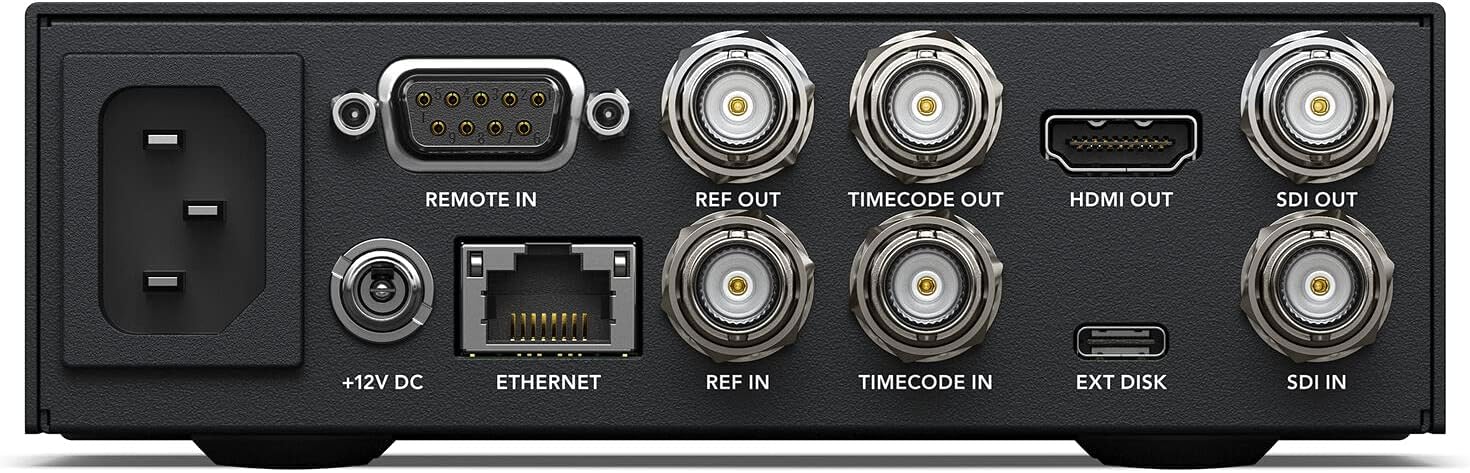
Figure 3: Rear panel connections including SDI, HDMI, USB-C, Ethernet, and power inputs.
3.4 Media Insertion
The HyperDeck Studio HD Mini features dual SD card slots. Insert compatible SD/UHS-II cards into the slots on the front panel. Ensure the cards are formatted correctly for recording (e.g., exFAT or HFS+).
For external disk recording, connect a USB disk to the USB Type-C port on the rear panel.
4. Operating Instructions
4.1 Front Panel Controls
The front panel provides intuitive controls for operation:
- Record Button (Red): Press to start recording. Press again to stop.
- Play Button: Initiates playback of the selected clip.
- Stop Button: Halts playback or recording.
- Fast Forward/Rewind: Navigates quickly through media.
- Previous/Next Clip: Jumps to the beginning of the previous or next clip.
- Search Dial: Allows for precise jogging and shuttling through footage.
- MENU Button: Accesses the on-screen menu for settings and configuration.
- SET Button: Confirms selections within the menu.
- Display Screen: Shows video preview, timecode, format, and menu options.
4.2 Recording Video
- Ensure a formatted SD card or external USB disk is inserted.
- Connect your video source to the SDI IN port.
- Use the MENU button to navigate to the record settings and select your desired file format (e.g., H.264, ProRes, DNxHD).
- Press the red Record button to begin recording. The display will show the recording status and timecode.
- Press the Stop button to end the recording.
4.3 Playback
- Navigate to the desired clip using the Previous/Next Clip buttons or the Search Dial.
- Press the Play button to start playback.
- Press the Stop button to pause or end playback.
4.4 Webcam Functionality
The HyperDeck Studio HD Mini can be used as a high-quality webcam for live streaming or video conferencing:
- Connect the USB Type-C port on the HyperDeck to a USB port on your computer.
- The computer should recognize the HyperDeck as a webcam.
- Open your preferred video software (e.g., Zoom, Microsoft Teams, Skype, OBS, XSplit) and select the HyperDeck Studio HD Mini as your video input device.
5. Maintenance
5.1 Cleaning
To maintain the longevity and performance of your HyperDeck Studio HD Mini, keep it clean and free of dust. Use a soft, dry cloth to wipe the exterior. For stubborn marks, a slightly damp cloth with a mild, non-abrasive cleaner can be used. Ensure the device is powered off and disconnected from all sources before cleaning.
Avoid using harsh chemicals, solvents, or abrasive materials, as these can damage the finish or internal components.
5.2 Firmware Updates
Blackmagic Design periodically releases firmware updates to improve performance, add new features, and fix bugs. It is recommended to keep your HyperDeck Studio HD Mini's firmware up to date.
- Visit the official Blackmagic Design support website to check for the latest firmware.
- Download the appropriate firmware update utility for your operating system.
- Follow the instructions provided with the firmware update utility to install the new firmware. Ensure the device remains powered during the update process.
6. Troubleshooting
This section addresses common issues you might encounter with your HyperDeck Studio HD Mini.
6.1 No Power
- Ensure the power cord is securely connected to both the HyperDeck and the power outlet.
- Verify that the power outlet is functional by plugging in another device.
- If using DC power, ensure the power supply is providing the correct voltage (+12V) and sufficient current.
6.2 No Video Input/Output
- Check all SDI and HDMI cable connections. Ensure they are securely plugged in.
- Verify that the video source is active and outputting a compatible signal format (SD or HD up to 1080p60).
- Ensure the monitor or receiving device is correctly configured to receive the signal from the HyperDeck.
- Check the HyperDeck's input settings via the MENU to ensure it's set to the correct input.
6.3 Recording Issues
- Ensure the SD card or external USB disk is properly inserted and recognized by the HyperDeck.
- Verify that the media has sufficient free space for recording.
- Check that the media is formatted correctly (exFAT or HFS+).
- Ensure the selected recording codec and resolution are supported by the media's write speed. Consider using faster media for higher quality or frame rate recordings.
- If recording stops unexpectedly, check for media errors or insufficient data rates.
6.4 Webcam Functionality Not Working
- Ensure the USB Type-C cable is securely connected between the HyperDeck and your computer.
- Verify that your computer's operating system recognizes the HyperDeck as a video device.
- In your video conferencing or streaming software, ensure the HyperDeck Studio HD Mini is selected as the camera source.
- Try restarting your computer and the HyperDeck.
7. Specifications
| Feature | Specification |
|---|---|
| Model Number | BMD-HYPERD/ST/DAHM |
| Brand | Solid Signal (Blackmagic Design Product) |
| Video Inputs | 1 x 3G-SDI (BNC) |
| Video Outputs | 1 x 3G-SDI (BNC), 1 x HDMI Type A |
| Audio Inputs | Embedded SDI/HDMI audio |
| Audio Outputs | Embedded SDI/HDMI audio |
| Timecode I/O | 1 x BNC In, 1 x BNC Out |
| Reference I/O | 1 x BNC In, 1 x BNC Out |
| Computer Interface | 1 x USB Type-C (Webcam or External Recording), 1 x Ethernet |
| Media Slots | 2 x SD/UHS-II Card Slots |
| Supported Codecs | H.264, ProRes, DNxHD |
| Supported Resolutions | SD, HD up to 1080p60 |
| Power | AC (IEC C14 inlet), +12V DC |
| Dimensions (Package) | 12.17 x 8.54 x 6.65 inches |
| Item Weight | 3.05 pounds (1.39 kg) |
8. Warranty and Support
This product is distributed by Solid Signal. For specific warranty information, please refer to the documentation included with your purchase or visit the official Solid Signal website. Blackmagic Design provides comprehensive support for their products, including software downloads, manuals, and technical assistance.
For technical support or service inquiries, please contact Solid Signal or Blackmagic Design directly through their official support channels.
Online Resources:
- Blackmagic Design Support: www.blackmagicdesign.com/support
- Solid Signal Store: Solid Signal Amazon Store
Related documentsHYPERD/ST/DAHM


Ask a question about this manual
Ask about setup, troubleshooting, compatibility, parts, safety, or missing instructions. Manuals+ will review the question and use this page’s manual context to help answer it.