
Introduction
Thank you for choosing the Nulea M501 Wireless Trackball Mouse. This ergonomic and versatile device is designed to enhance your computing experience by providing precise control and comfort. It supports connectivity with up to three devices via Bluetooth or a 2.4G USB receiver, making it ideal for various setups and environments. Please read this manual carefully to ensure proper setup and optimal performance.
Package Contents
Upon opening your Nulea M501 package, you should find the following items:
- Nulea M501 Wireless Trackball Mouse
- USB-C to USB-A Charging Cable
- 2.4G USB Receiver (stored in the mouse's bottom compartment)
- User Manual
Key Features
- Ergonomic Design: Features a comfortable shape with easy thumb control to reduce wrist and arm strain. The optimal angle promotes a natural hand position for extended use.
- Precise Tracking: Offers accurate cursor movement with adjustable DPI settings for enhanced control on various surfaces.
- Multi-Device Connectivity: Connects to up to three devices (two via Bluetooth, one via 2.4G USB receiver) with easy switching.
- Rechargeable Battery: Built-in rechargeable battery provides long-lasting power, eliminating the need for disposable batteries.
- Six Buttons: Includes standard left/right clicks, a scroll wheel, DPI adjustment, and back/forward buttons for improved productivity. Note: Buttons are not programmable.
Setup
1. Initial Charging
For the best experience, fully charge the trackball mouse before its first use. Connect the provided USB-C cable to the mouse's front port and the USB-A end to a computer USB port or a 5V charger. Do not use a fast charger.

Image: The Nulea M501 mouse connected to a laptop via its USB-C charging cable. The mouse features a red trackball and is shown in a charging state.
2. Power On
Locate the ON/OFF switch on the bottom of the mouse and slide it to the 'ON' position. An indicator light will illuminate.
3. Connectivity Options
The Nulea M501 offers three connection modes: two Bluetooth channels (BT1, BT2) and one 2.4G USB receiver channel. You can switch between these modes using the 'MODE' button on the bottom of the mouse.

Image: The underside of the Nulea M501 mouse, highlighting the ON/OFF switch, the 'MODE' button for switching between BT1, BT2, and USB connections, and the storage slot for the 2.4G USB receiver.
3.1. 2.4G USB Receiver Connection
- Remove the 2.4G USB receiver from its storage slot on the bottom of the mouse.
- Plug the USB receiver into an available USB port on your computer.
- Slide the 'MODE' button on the mouse's bottom until the 'USB' indicator light is active. The mouse should connect automatically.
3.2. Bluetooth Connection (BT1/BT2)
- Slide the 'MODE' button on the mouse's bottom to select either 'BT1' or 'BT2'. The corresponding indicator light will blink, indicating pairing mode.
- On your computer or device, open Bluetooth settings.
- Search for new Bluetooth devices and select "Nulea M501" from the list.
- Once paired, the indicator light on the mouse will stop blinking and remain solid.

Image: The Nulea M501 mouse positioned between a laptop and a tablet, illustrating its capability to connect to multiple devices wirelessly via Bluetooth or USB dongle.
Operating Instructions
1. Thumb Control Trackball
Instead of moving the entire mouse, use your thumb to control the red trackball for cursor movement. This ergonomic design reduces wrist and arm movement, promoting comfort.
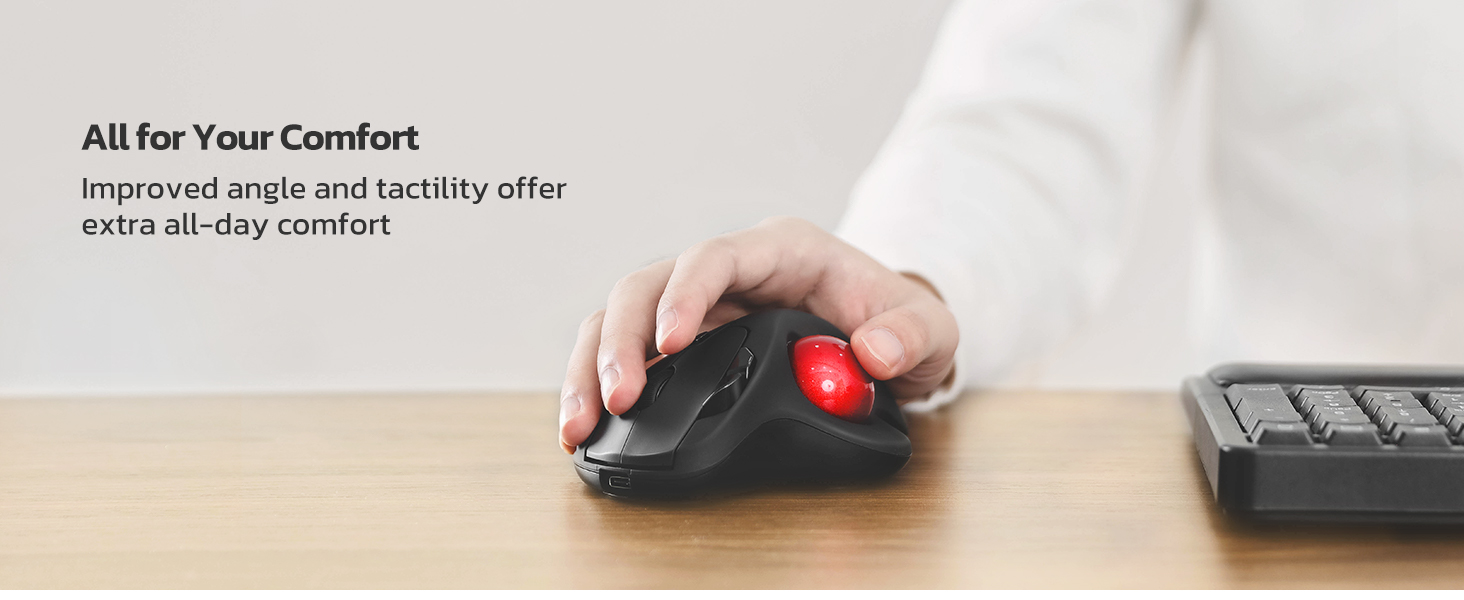
Image: A hand comfortably positioned on the Nulea M501 trackball mouse, with the thumb operating the red trackball to control the cursor, emphasizing wrist and arm relief.
2. DPI Adjustment
The mouse features an adjustable DPI button, typically located near the scroll wheel. Press this button to cycle through different DPI sensitivities (e.g., 400, 800, 1200, 1600, 2000) to match your preference for cursor speed and precision.
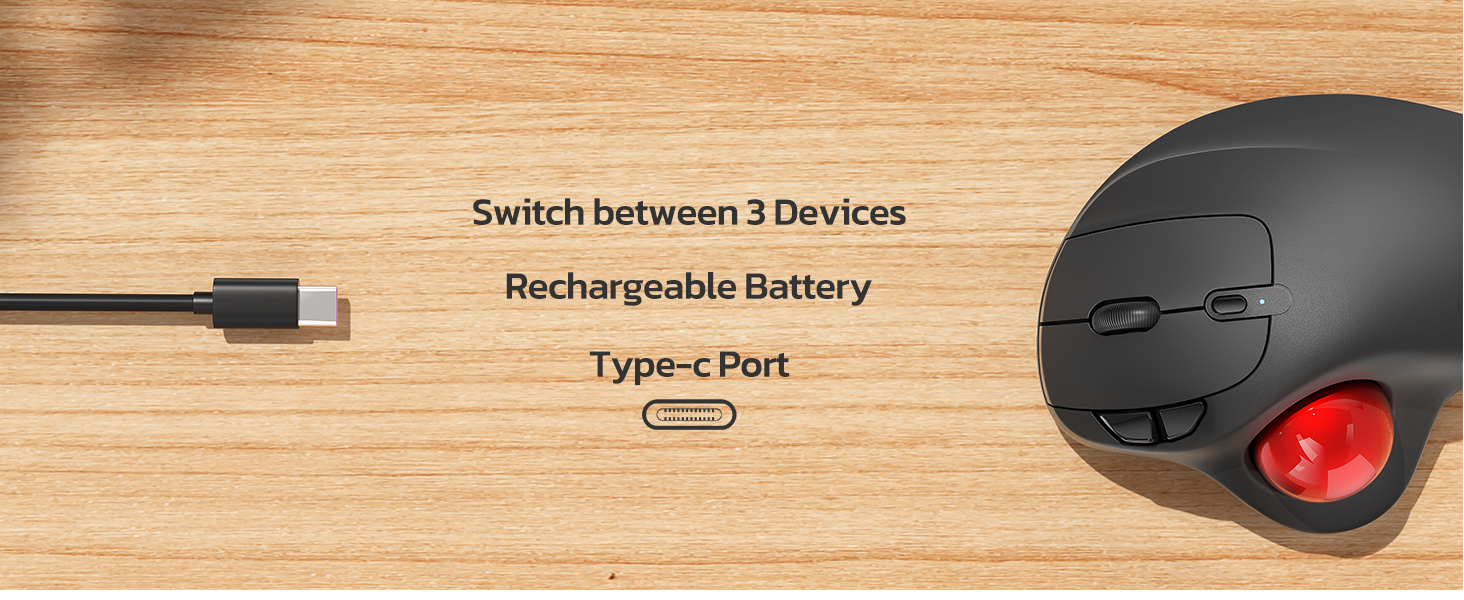
Image: A close-up of the Nulea M501 mouse, pointing out the DPI adjustment button located near the scroll wheel, used for customizing cursor sensitivity.
3. Back/Forward Buttons
Utilize the dedicated back and forward buttons, usually located on the side of the mouse, for quick navigation in web browsers or file explorers. These buttons are not programmable.

Image: A detailed top-down view of the Nulea M501 mouse, clearly indicating the positions of the back/forward buttons, the scroll wheel, and the DPI adjustment button.
Maintenance
Cleaning the Trackball
Over time, dust and debris may accumulate around the trackball, affecting its smoothness. The trackball can be easily removed for cleaning:
- Turn the mouse over.
- Locate the small hole on the bottom of the mouse, near the trackball.
- Use a pen or a similar thin object to gently push the trackball out from the bottom.
- Clean the trackball and the inside cavity with a soft, lint-free cloth.
- Insert the trackball back into its socket until it clicks into place.
Troubleshooting
1. Mouse Not Responding
- Ensure the mouse is powered on.
- Check battery level; recharge if low.
- Verify correct connection mode (Bluetooth or USB) is selected via the 'MODE' button.
- For USB connection, ensure the receiver is securely plugged into a working USB port.
- For Bluetooth, ensure your device's Bluetooth is enabled and the mouse is paired. Try re-pairing if necessary.
2. Cursor Movement is Erratic or Choppy
- Clean the trackball and its housing as described in the Maintenance section.
- Ensure the mouse is on a stable surface.
- Adjust DPI settings to a lower sensitivity if the cursor is too fast.
3. Connectivity Issues
- Move the mouse closer to your device to reduce interference.
- Avoid using the mouse near other wireless devices that might cause interference.
- If using Bluetooth, try forgetting the device on your computer and re-pairing.
Specifications
| Feature | Detail |
|---|---|
| Model Number | M501 |
| Connectivity Technology | Bluetooth, 2.4G Wireless (USB Receiver) |
| Movement Detection Technology | Trackball |
| DPI Levels | Adjustable (e.g., 400, 800, 1200, 1600, 2000) |
| Special Features | Ergonomic Design, Rechargeable, Multi-Device Support |
| Battery Type | 1 Lithium Ion battery required (built-in) |
| Item Weight | 4.5 ounces |
| Product Dimensions | 5.51 x 4.37 x 0.04 inches |
Warranty and Support
For warranty information, live chat support, or to send an email for support, please visit the official Nulea website or contact their customer service directly. Refer to the product packaging for specific contact details or visit www.nulea.com.
Product Videos
Nulea Wireless Trackball Mouse Overview
Video: An official overview of the Nulea Wireless Trackball Mouse, demonstrating its ergonomic design, features, and connectivity options. This video is provided by Nulea Direct.


