
Foneng X36
Foneng X36 USB C Cable User Manual
Model: X36
1. Product Overview
The Foneng X36 USB C Cable is a high-quality, durable charging and data transfer cable designed for modern smartphones and tablets. It features a robust construction and supports fast charging capabilities.
Key Features:
- Environment friendly high intensity material, soft and comfort touch feeling.
- 2.4A/12W quick charge for tablets and smartphones.
- OD 4.0 thicker cable for enhanced durability and steady speed.
- Cable with fragrance (smell dissipates over time).
- Longer SR design for steady and tough connection, preventing twists.
- High quality production standard for reliable performance.
2. Product Images
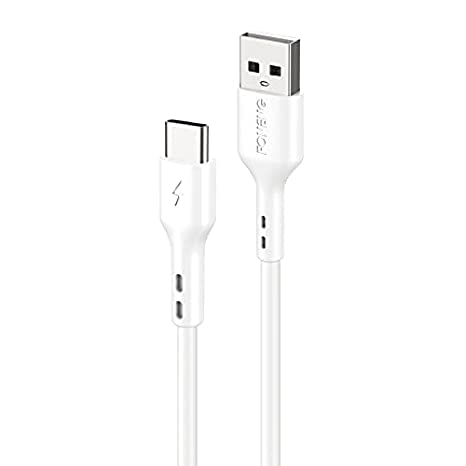
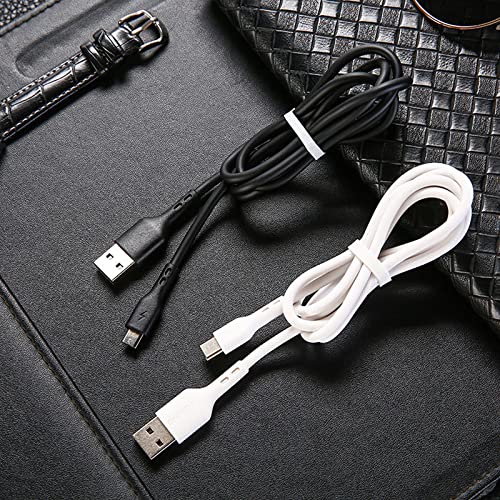

3. Setup
The Foneng X36 USB C Cable is designed for plug-and-play functionality. No complex setup or software installation is required.
- Identify Ports: Locate the USB-A port on your power adapter, computer, or power bank, and the USB-C port on your smartphone, tablet, or other compatible device.
- Connect to Power Source: Insert the USB-A end of the Foneng X36 cable into a compatible USB-A port on your charging brick, computer, or power bank.
- Connect to Device: Insert the USB-C end of the Foneng X36 cable into the USB-C port of your device (e.g., smartphone, tablet).
- Verify Connection: Ensure both ends are securely connected. Your device should indicate that it is charging or connected for data transfer.
4. Operating Instructions
4.1. Charging Your Device
To charge your device, connect the Foneng X36 cable as described in the "Setup" section. The cable supports 2.4A/12W quick charging, provided your power adapter and device also support these specifications.
- For optimal fast charging, use a power adapter that delivers at least 2.4A output.
- The charging speed may vary depending on your device's battery level and the power source.
4.2. Data Transfer
The Foneng X36 cable also facilitates data transfer between your device and a computer.
- Connect the USB-A end to your computer's USB port and the USB-C end to your device.
- On your device, you may be prompted to select the USB connection mode (e.g., "File Transfer," "PTP," "Charging Only"). Select "File Transfer" or "MTP" to access your device's storage.
- You can now transfer files between your device and computer at a data transfer rate of up to 480 Megabits Per Second.
5. Maintenance
Proper care and maintenance will extend the lifespan of your Foneng X36 USB C Cable.
- Storage: When not in use, coil the cable loosely. Avoid sharp bends or kinks, especially near the connectors, as this can damage internal wires.
- Cleaning: Use a soft, dry cloth to wipe the cable and connectors. Do not use harsh chemicals or abrasive materials.
- Handling: Always pull from the connector head, not the cable itself, when unplugging. This prevents strain on the cable's connection points.
- Environment: Keep the cable away from extreme temperatures, direct sunlight, and moisture.
6. Troubleshooting
| Problem | Possible Cause | Solution |
|---|---|---|
| Device not charging. | Loose connection, faulty power adapter, or damaged cable. | Ensure both ends of the cable are securely plugged in. Try a different power adapter or USB port. Inspect the cable for visible damage. |
| Slow charging. | Low-power USB port, non-fast charging adapter, or background apps on device. | Use a power adapter that supports 2.4A/12W output. Close unnecessary background applications on your device. |
| Data transfer not working. | Incorrect USB mode selected on device, driver issues on computer, or faulty port. | On your device, select "File Transfer" or "MTP" mode. Try a different USB port on your computer. Ensure computer drivers are up to date. |
| Cable feels loose in port. | Wear and tear on cable connector or device port. | Ensure the port is clean. If the issue persists, the cable or device port may be worn. |
7. Specifications
| Feature | Detail |
|---|---|
| Brand | Foneng |
| Model Number | X36 |
| Connector Type | USB Type C (to USB A) |
| Cable Type | USB |
| Compatible Devices | Smartphone, Tablet |
| Compatible Phone Models | Note 8, Samsung Galaxy S10, and other USB C devices |
| Color | Black |
| Data Transfer Rate | 480 Megabits Per Second |
| Charging Output | 2.4A/12W (Max) |
| Cable Length | 3 ft (approx. 1 meter) |
| Item Weight | 45 g |
| Certifications | CE, FCC |
8. Warranty and Support
For any product inquiries, technical support, or warranty claims, please contact Foneng customer service through their official website or the retailer from whom you purchased the product.
Please retain your proof of purchase for warranty purposes.
Ask a question about this manual
Ask about setup, troubleshooting, compatibility, parts, safety, or missing instructions. Manuals+ will review the question and use this page’s manual context to help answer it.