
AGM M6-DCD
AGM M6 4G Rugged Phone User Manual
Model: M6-DCD | Brand: AGM
Introduction
Welcome to the user manual for the AGM M6 4G Rugged Phone. This device is designed for durability and ease of use, featuring a robust build, large buttons, and a powerful speaker, making it ideal for seniors and those requiring a simple, resilient mobile solution. This manual provides essential information for setting up, operating, maintaining, and troubleshooting your AGM M6 phone.

Image: The AGM M6 4G Rugged Phone, shown with its included charging dock. The phone features a classic bar phone design with a numeric keypad and a color display. The back of the phone highlights its large speaker with an RGB ring.
Key Features:
- 4G LTE Dual SIM: Compatible with T-Mobile carriers only. Supports two Micro SIM cards (one for 4G, one for 2G).
- Powerful Speaker: Equipped with a 35mm speaker reaching 109dB, ensuring no missed calls. Features an LED RGB ring around the speaker.
- Simplified Operation: No GPS, Wi-Fi, or app store access. Runs on a smart OS with basic features like a 0.3MP camera and FM radio.
- User-Friendly Design: 2.4-inch screen with big fonts and large, tactile buttons for easy dialing and typing.
- Rugged Durability: IP68 waterproof and MIL-STD-810H certified, capable of withstanding extreme temperatures (-20℃ to 60℃), drops from up to 2m, and submersion in 1.5m of water for 30 minutes.
- Long-lasting Battery: 2500mAh battery providing extended standby and talk time.
- Convenient Charging: USB Type-C port and included charging dock for easy desktop charging.
- Integrated Flashlight: A powerful LED torch accessible via a customizable side-key.
Setup Guide
1. Installing SIM Card(s) and Battery
The AGM M6 supports dual Micro SIM cards. To install, you will need to remove the back cover and the battery. Please note that due to the phone's rugged design and waterproofing, the back cover and battery may be tight and require careful removal. A credit card or similar thin, non-metallic tool can assist in prying the battery loose if needed.
- Carefully remove the back protective cover of the phone.
- Locate the inner protective cover and remove it.
- Remove the battery, which may have a protective tape on its contacts. Remove this tape before re-inserting.
- Insert your Micro SIM card(s) into the designated slots. Note that SIM 1 supports 4G, while SIM 2 supports 2G.
- Insert a MicroSD memory card (up to 128GB, sold separately) into its slot if you wish to expand storage for multimedia.
- Re-insert the battery, ensuring the contacts align.
- Replace the inner protective cover and then the back cover, ensuring it is securely sealed for water and dust resistance.
2. Initial Charging
Before first use, fully charge your AGM M6 phone. The phone comes with a USB Type-C cable and a charging dock.
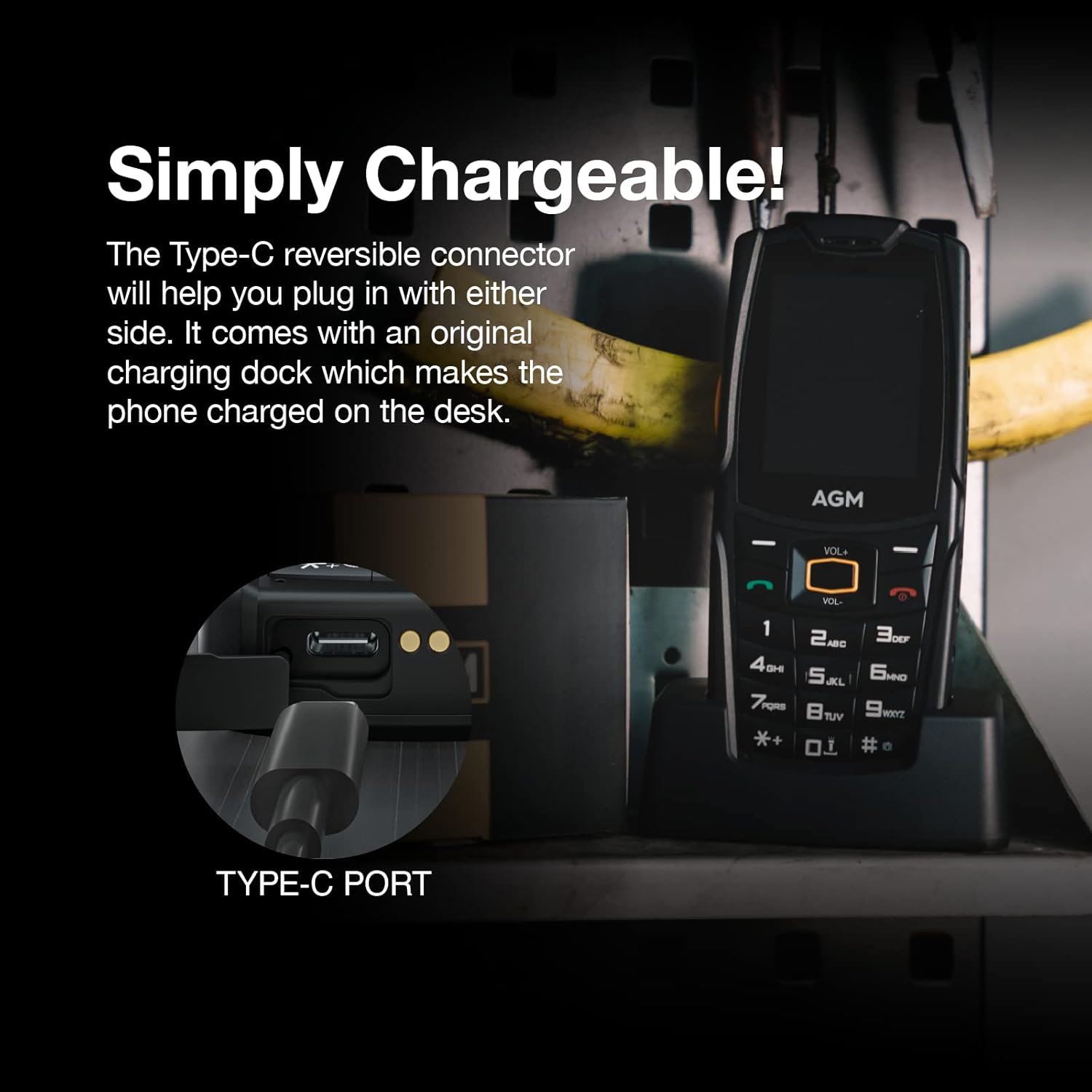
Image: A close-up view of the phone's Type-C charging port and the charging dock. The Type-C connector is reversible, allowing for easy connection.
- Connect the USB Type-C cable to the charging dock and then to a power adapter.
- Place the AGM M6 phone into the charging dock. Ensure it is seated correctly and the charging indicator appears on the screen.
- Alternatively, you can directly connect the USB Type-C cable to the phone's charging port.
- Allow the phone to charge until the battery indicator shows a full charge.
Operating Instructions
1. Power On/Off
- To power on, press and hold the Power/End Call button until the screen lights up.
- To power off, press and hold the Power/End Call button, then select 'Power off' from the options.
2. Making and Receiving Calls

Image: A person holding the AGM M6 phone, highlighting its large buttons and clear, big font on the 2.4-inch screen, designed for ease of use.
- Dialing: Use the large numeric keypad to enter the phone number. Press the green Call button to initiate the call.
- Answering: When a call comes in, press the green Call button to answer.
- Ending Call: Press the red End Call button to terminate a call.
- Volume Adjustment: Use the dedicated volume buttons on the side of the phone to adjust call volume. The phone features a very loud speaker (109dB) for clear audio.
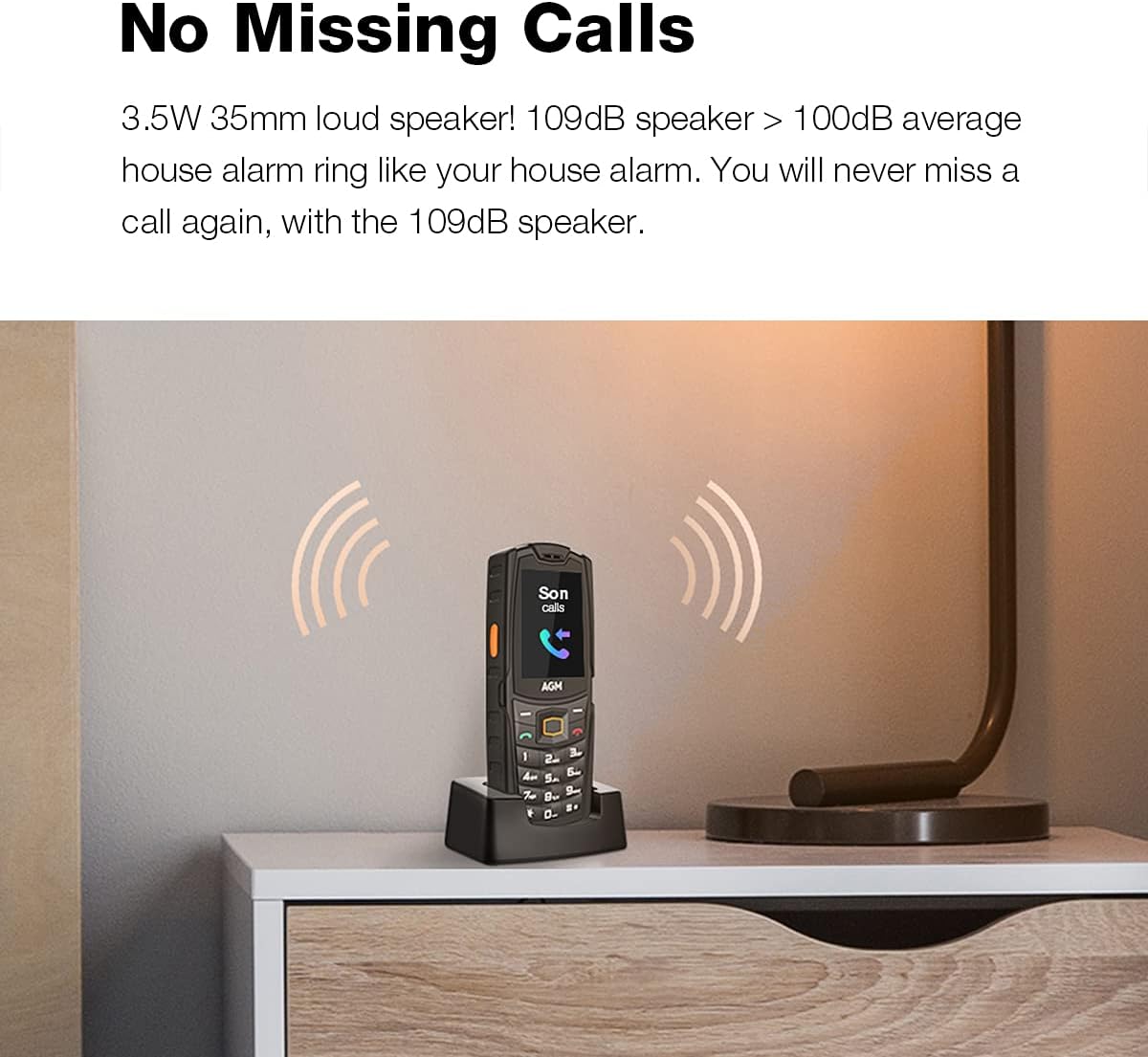
Image: The AGM M6 phone on a nightstand, emitting sound waves, illustrating its loud 109dB speaker designed to prevent missed calls.
3. Messaging (SMS)
- Navigate to the 'Messages' menu.
- Select 'New Message' to compose a text.
- Use the keypad to type your message. The smart typing keyboard assists with text entry.
- Enter the recipient's number or select from contacts, then send.
4. FM Radio
The AGM M6 has a built-in FM radio with an internal antenna, so no headphones are required for reception.

Image: A person holding the AGM M6 phone, indicating its FM radio functionality.
- Access the 'FM Radio' application from the main menu.
- Use the navigation keys to scan for stations or manually tune to a frequency.
5. LED Torch (Flashlight)
The phone features a powerful LED flashlight for illumination.

Image: A person using the AGM M6 phone's built-in flashlight, demonstrating its utility in dark environments.
- The side-key can be customized for quick access to the flashlight. A long press typically activates it.
- Refer to the phone's settings for customizing the side-key function.
6. Multimedia Playback
The AGM M6 supports basic multimedia playback for audio (MP3) and video (MP4, AVI, 3GP) files stored on a MicroSD card.

Image: A user interacting with the multimedia menu on the AGM M6 phone, showing icons for various functions like camera, music, and video.
- Transfer compatible media files to a MicroSD card.
- Insert the MicroSD card into the phone.
- Access the 'Multimedia' or 'My Files' application from the main menu to browse and play your files.
- The phone does not have a 3.5mm audio jack but includes a USB Type-C to 3.5mm adapter for wired headphones. Bluetooth connectivity is also available for wireless audio devices.
Maintenance and Care
The AGM M6 is built to be rugged, but proper care will ensure its longevity.
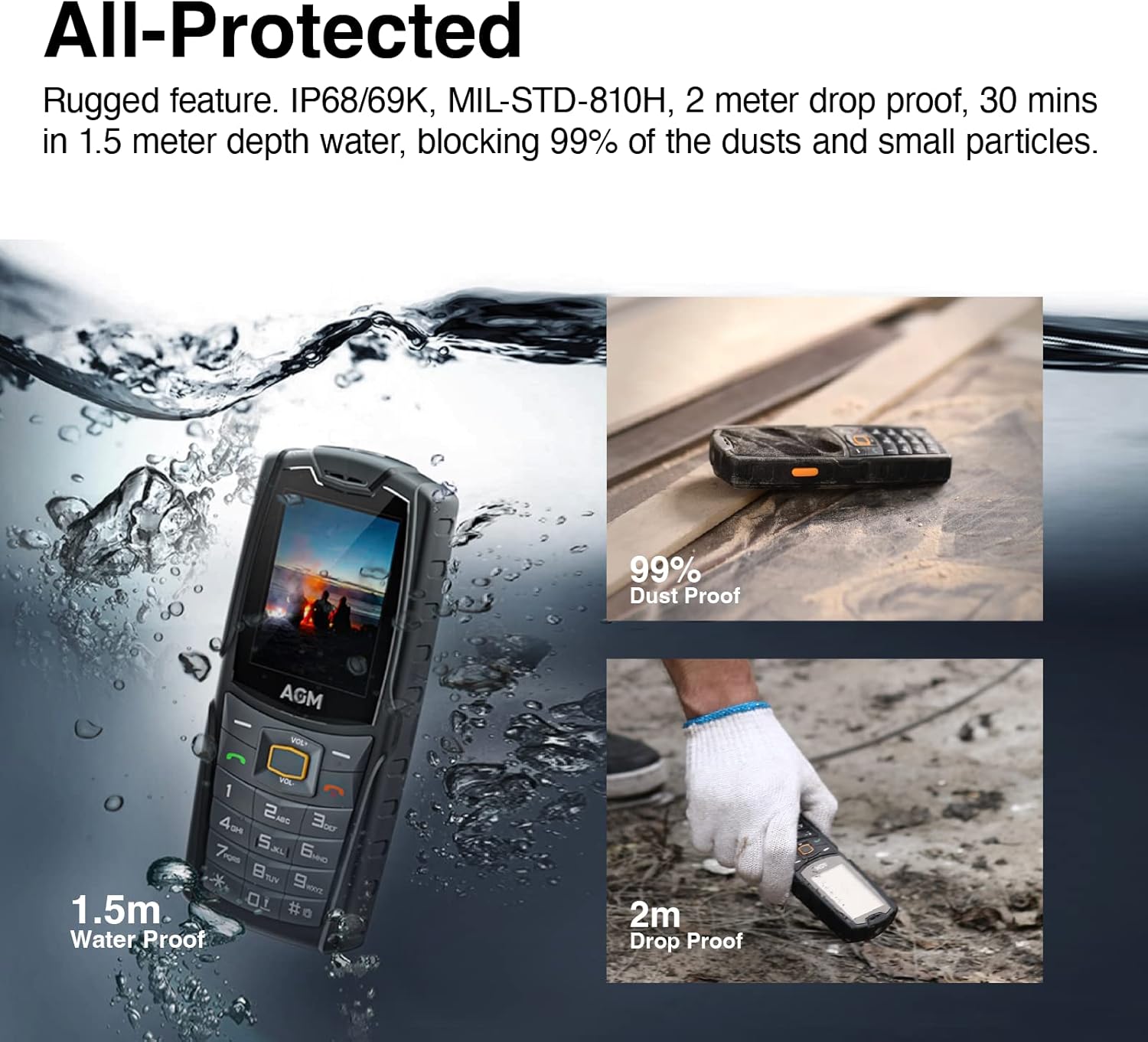
Image: A composite image demonstrating the AGM M6 phone's durability, showing it submerged in water, resistant to dust, and surviving a drop.
- Water and Dust Resistance (IP68): The phone is designed to be waterproof and dustproof. Ensure all port covers and the back cover are securely closed to maintain this protection. Avoid exposing the phone to high-pressure water jets or prolonged submersion beyond specified limits (1.5m for 30 minutes).
- Drop Resistance (MIL-STD-810H): The phone can withstand drops from up to 2 meters onto concrete. While durable, extreme impacts can still cause damage.
- Temperature Range: Operate the phone within its specified temperature range of -20℃ to 60℃. Extreme temperatures outside this range can affect performance and battery life.
- Cleaning: Use a soft, damp cloth to clean the phone. Avoid harsh chemicals or abrasive materials.
- Battery Care: To prolong battery life, avoid fully discharging the battery frequently. Store the phone in a cool, dry place when not in use for extended periods.
Troubleshooting
| Problem | Possible Cause | Solution |
|---|---|---|
| Phone does not power on. | Battery is depleted or not properly installed. | Charge the phone for at least 30 minutes. Ensure the battery is correctly inserted and its protective tape is removed. |
| Cannot make or receive calls. | No network signal; SIM card not installed correctly; incompatible carrier. | Check signal strength. Re-insert SIM card(s). Verify that your carrier is T-Mobile, as this phone is compatible with T-Mobile only. |
| Back cover is difficult to open. | Designed for tight seal for ruggedness. | Use a thin, non-metallic tool (e.g., credit card edge) to carefully pry open the cover. Apply even pressure. |
| Pocket dials 911 or emergency services. | SOS function or emergency key activated inadvertently. | Check phone settings for SOS or emergency call features and disable or reconfigure them if possible. Ensure keypad lock is active when not in use. |
| Cannot access internet or apps. | Phone is not designed for full internet browsing or app installation. | This phone has a basic OS with limited internet capabilities (basic text browsers only) and no app store. This is by design. |
| Poor call reception after some time. | Network issues; SIM card degradation; phone software issue. | Try restarting the phone. Re-insert the SIM card. If issues persist, contact your carrier or AGM support. |
Technical Specifications
| Feature | Specification |
|---|---|
| Model Name | M6-DCD |
| Product Dimensions | 4.5 x 3 x 0.5 inches |
| Item Weight | 13.4 ounces |
| Operating System | RTOS (Real-Time Operating System) |
| RAM | 48 MB |
| Memory Storage Capacity | 128 MB (Internal) |
| Expandable Memory | Up to 128GB via MicroSD card (not included) |
| Screen Size | 2.4 Inches |
| Display Technology | LED |
| Battery Capacity | 2500 mAh Lithium Ion |
| Phone Talk Time | 10 Hours |
| Standby Time | Up to 720 hours (30 days) |
| Cellular Technology | 4G LTE |
| Wireless Carrier Compatibility | T-Mobile only |
| Connectivity Technologies | Cellular, Wi-Fi (limited functionality), Bluetooth |
| Human Interface Input | Buttons, Keyboard |
| Camera | 0.3MP (Front) |
| Audio Jack | Type C (requires adapter for 3.5mm) |
| Special Features | Basic Phone, Bluetooth Enabled, Camera, Dual SIM, Text/Messaging, FM Radio, LED Torch |
| Waterproof Rating | IP68 |
| Military Standard | MIL-STD-810H |
| Color | Black |
| What's in the Box | USB Cable, Charging Dock |
Warranty and Support
For detailed warranty information, product registration, and technical support, please refer to the official AGM website or contact AGM customer service directly. Keep your purchase receipt as proof of purchase for warranty claims.
Online Resources: Visit the official AGM website for FAQs, software updates, and additional support materials.
Customer Service: Contact information for customer support can typically be found on the manufacturer's website or in the packaging materials included with your phone.
Ask a question about this manual
Ask about setup, troubleshooting, compatibility, parts, safety, or missing instructions. Manuals+ will review the question and use this page’s manual context to help answer it.