
1. Introduction
This manual provides essential instructions for the setup, operation, and maintenance of your Maketheone X-Bows Lite Ergonomic Mechanical Gaming Keyboard. Please read thoroughly to ensure optimal performance and longevity of your device.
2. Package Contents
Verify that all items are present in your package:
- Maketheone X-Bows Lite Ergonomic Mechanical Gaming Keyboard
- USB-C Cable
- Keycap Puller
- User Manual (this document)

Image: The Maketheone X-Bows Lite keyboard, its USB-C cable, and a keycap puller. The image also displays the keyboard's dimensions (34.5cm x 13.8cm) and labels for various function keys, including multimedia controls, backlight speed, and brightness adjustments.
3. Product Overview
The Maketheone X-Bows Lite is an 80% ergonomic mechanical gaming keyboard designed for comfort and performance. It features a unique butterfly layout, Gateron Black mechanical switches, and white backlighting.
Key Features:
- Ergonomic Butterfly Layout: Designed to reduce wrist strain and promote a natural typing posture.
- Premium Build Quality: Constructed with an aluminum alloy base and durable plastic keycaps.
- USB-C Wired Connectivity: Ensures a stable and responsive connection.
- Tactile Gateron Black Switches: Provide a smooth and responsive typing experience with a 50 million keystroke lifespan.
- White Backlighting: Features 16 movement effects for customizable illumination.

Image: The Maketheone X-Bows Lite keyboard, black in color, positioned on a white desk. A laptop and a computer monitor are visible in the background, indicating a typical desktop setup.
4. Setup
The Maketheone X-Bows Lite keyboard is designed for plug-and-play functionality, requiring no additional drivers for basic operation.
- Locate the USB-C port on the back of your keyboard.
- Connect one end of the provided USB-C cable to the keyboard's USB-C port.
- Connect the other end of the USB-C cable to an available USB port on your computer.
- Your operating system will automatically detect and install the necessary drivers. The keyboard is ready for use once detected.
5. Operating Instructions
5.1 Basic Key Functions
The keyboard features a standard 86-key layout with an ergonomic split design. All keys function as labeled for typing and command input.
5.2 Backlighting Control
The keyboard includes white backlighting with 16 movement effects. Use the following keys to adjust the backlighting:
- Brightness +: Increases backlight brightness.
- Brightness -: Decreases backlight brightness.
- Backlight Speed +: Increases the speed of backlight effects.
- Backlight Speed -: Decreases the speed of backlight effects.
Specific key combinations for changing backlight effects may be indicated on the keycaps or require referring to the keyboard's quick guide.
5.3 Multimedia Keys
Access multimedia and system functions using the Fn key in combination with the designated F-keys. Refer to the keycap legends for specific functions:
- Fn + F1: Media
- Fn + F2: Volume Down
- Fn + F3: Volume Up
- Fn + F4: Mute
- Fn + F5: Stop
- Fn + F6: Play Last Song
- Fn + F7: Play Next Song
- Fn + F8: Play/Pause
- Fn + F9: Launch Mail
- Fn + F10: Launch Homepage
- Fn + F11: Launch Search
- Fn + F12: Launch Calculator
- Fn + Home: Home
- Fn + End: End
6. Ergonomic Guidelines
The X-Bows Lite keyboard is designed with an ergonomic butterfly layout to promote a more natural hand and wrist position, reducing strain during extended use.
- Natural Hand Alignment: Position your hands so that your fingers naturally align with the split key layout. This helps minimize ulnar deviation (bending of the wrist sideways).
- Optimal Typing Angle: The keyboard features a built-in 6-degree tilt. Utilize this angle to maintain a neutral wrist posture, avoiding excessive wrist extension.
- Relaxed Shoulders and Arms: Ensure your shoulders are relaxed and your elbows are close to your body. Your forearms should be roughly parallel to the floor.
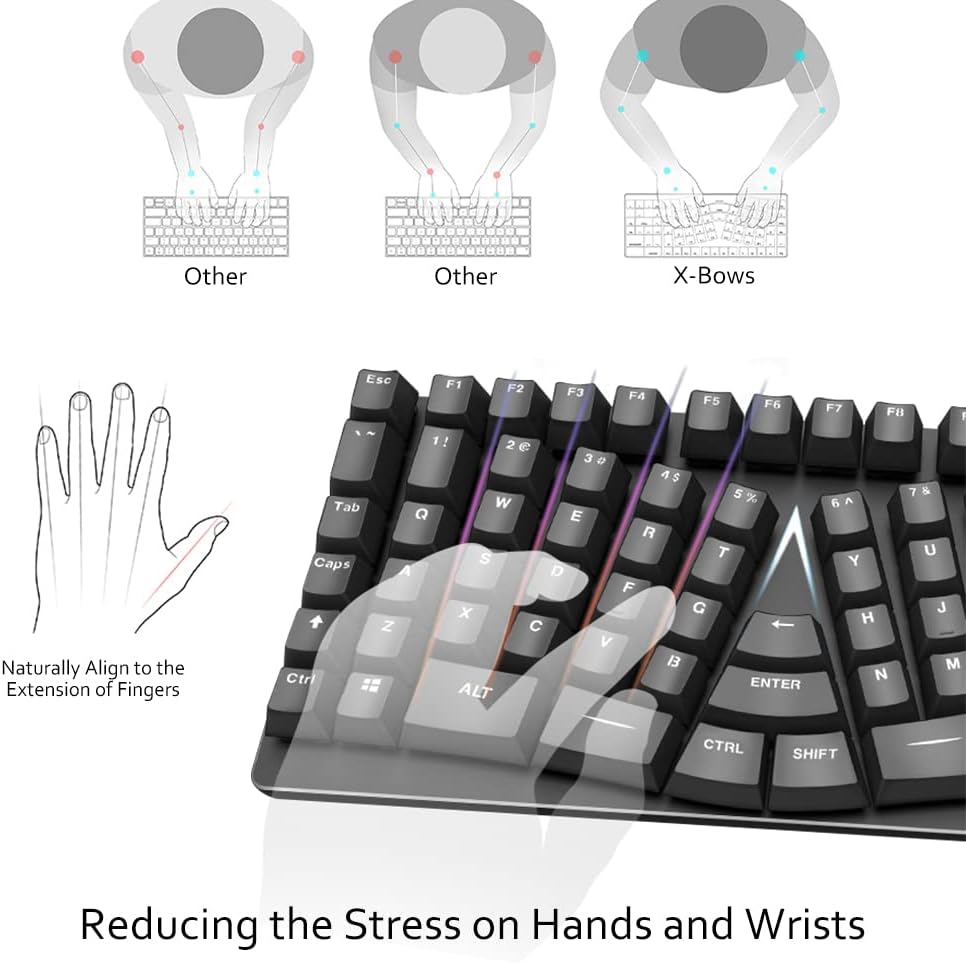
Image: A diagram illustrating the difference in hand and wrist alignment between standard keyboards and the X-Bows ergonomic design. The X-Bows layout shows a more natural, straight alignment of the wrists and forearms, reducing stress.

Image: A side profile of the X-Bows Lite keyboard, highlighting its 6-degree ergonomic tilt. Labels point to the 'Aluminum alloy base' and 'Premium plastics keycaps', demonstrating the keyboard's construction.
7. Maintenance
Proper maintenance ensures the longevity and optimal performance of your keyboard.
- Cleaning: Regularly dust the keyboard with a soft brush or use compressed air to remove debris from between keycaps. For deeper cleaning, gently wipe the keycaps with a slightly damp, lint-free cloth. Avoid using harsh chemicals or abrasive materials.
- USB-C Port Care: Ensure the USB-C port on the keyboard and cable remains free of dust and debris. Avoid applying excessive force when plugging or unplugging the cable to prevent damage to the port.
- Storage: When not in use for extended periods, store the keyboard in a clean, dry environment away from direct sunlight and extreme temperatures.
8. Troubleshooting
If you encounter issues with your keyboard, refer to the following troubleshooting steps:
- Keyboard Not Responding:
- Ensure the USB-C cable is securely connected to both the keyboard and your computer.
- Try connecting the keyboard to a different USB port on your computer.
- Test the keyboard on another computer to determine if the issue is with the keyboard or your system.
- Restart your computer.
- Backlighting Not Working or Dim:
- Press the 'Brightness +' key repeatedly to increase the backlight intensity.
- Verify that the keyboard is properly connected and receiving power.
- Intermittent Connection or Disconnections:
- Check the USB-C cable for any visible damage. A faulty cable can cause intermittent connections. Try using a different, known-good USB-C cable.
- Ensure the USB-C port on the keyboard is clean and free of debris.
- Avoid bending or stressing the USB-C cable at the connection points.
9. Specifications
| Feature | Detail |
|---|---|
| Brand | Maketheone |
| Model | X-Bows Lite |
| ASIN | B09HGG4M21 |
| UPC | 008574012214 |
| Compatible Devices | PC |
| Connectivity Technology | USB-C (Wired) |
| Keyboard Description | Gaming |
| Special Features | Backlit, Ergonomic |
| Color | Black |
| Backlighting Color Support | Single Color (White) |
| Style | Retro |
| Material | Plastic (Keycaps), Aluminum Alloy (Base) |
| Number of Keys | 86 |
| Switch Type | Tactile (Gateron Black Switches) |
| Hand Orientation | Ambidextrous |
| Manufacturer | MakeTheOne |
10. Warranty and Support
For detailed warranty information, technical support, or service inquiries, please visit the official Maketheone website or contact their customer support directly. Keep your purchase receipt as proof of purchase for any warranty claims.