
Introduction
The Orosound Tilde Pro headset is designed for professional use, offering advanced audio features for clear communication and focused work environments. It features patented selective noise-cancelling technology, a modular design with interchangeable ear pads, and a detachable boom microphone. This manual provides essential information for setting up, operating, and maintaining your Tilde Pro headset.

Image: The Orosound Tilde Pro headset, showcasing its on-ear design, integrated controls, and the accompanying USB dongle for connectivity.
Package Contents
Verify that all items are present in your package:
- Orosound Tilde Pro Headset (Pro-S Plus)
- Ear Cushions (On-ear, pre-installed)
- Detachable Boom Microphone
- USB-C to USB-A Cable
- USB Dongle

Image: The Tilde Pro headset disassembled, showing the main headset unit, the detachable boom microphone, and a pair of interchangeable ear cushions (L and R).
Setup
1. Initial Charging
Before first use, fully charge your Tilde Pro headset. Connect the supplied USB-C to USB-A cable to the headset's USB-C port and the other end to a powered USB-A port on your computer or a wall adapter. A full charge provides up to 28 hours of battery life (with ANC off).
2. Attaching the Detachable Microphone
The boom microphone attaches magnetically to the headset. Align the microphone connector with the port on the left earcup and it will snap into place. For optimal voice quality, bend the mic boom to position it close to your mouth without touching your face.
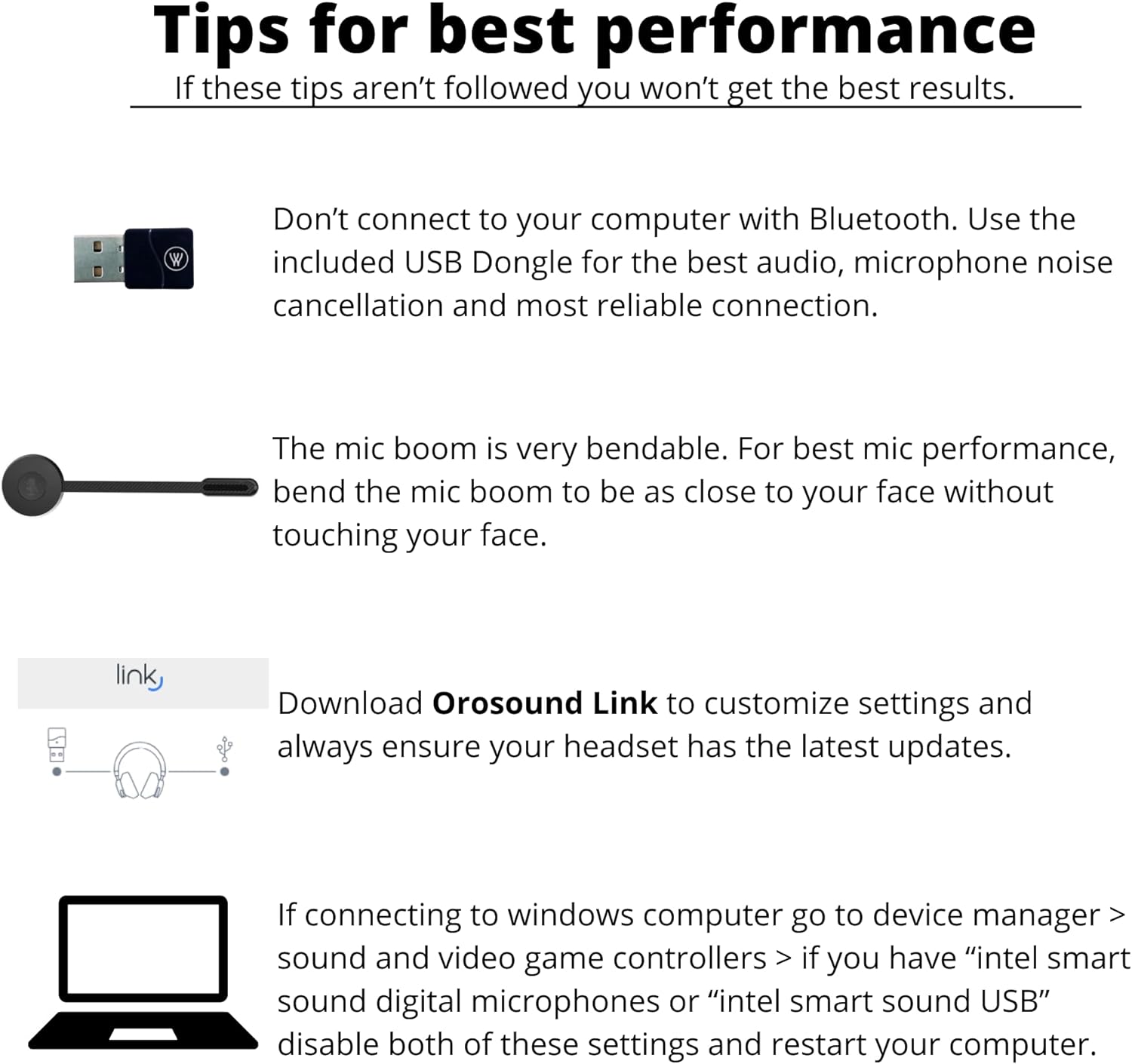
Image: Visual tips for optimal headset performance, including using the USB dongle, proper microphone boom positioning, and recommendations for Orosound Link software and Windows sound settings.
3. Connecting to Devices
The Tilde Pro offers both wireless (Bluetooth 5.0) and wired (USB-C) connectivity.
- Wireless Connection (Recommended for PC/Mac): For the best audio, microphone noise cancellation, and reliable connection, use the included USB Dongle. Plug the USB Dongle into an available USB port on your computer. The headset should automatically pair.
- Bluetooth Connection (Mobile Devices): Turn on the headset. Activate Bluetooth on your mobile device and search for "Orosound Tilde Pro" in the list of available devices. Select it to pair.
- Wired Connection: Connect the USB-C to USB-A cable from the headset to your computer. The headset will function as a wired headset and charge simultaneously.

Image: The Tilde Pro headset demonstrating its compatibility with various devices and communication platforms, including laptops, mobile phones, and applications like Zoom and Microsoft Teams.
4. Orosound Link Software
Download the Orosound Link software from the official Orosound website. This application allows you to customize settings, check battery status, and perform firmware updates for your headset, ensuring optimal performance and access to the latest features.
5. Windows Computer Settings
If connecting to a Windows computer, navigate to Device Manager > Sound, video and game controllers. If you have "Intel Smart Sound Digital Microphones" or "Intel Smart Sound USB" listed, disable both of these settings to prevent potential audio conflicts.
Operating Instructions
1. Basic Controls
The headset features intuitive controls on the earcups for managing calls and audio:
- Power On/Off: Press and hold the power button.
- Volume Adjustment: Use the dedicated volume buttons.
- Mute Microphone: Press the microphone mute button on the boom mic or earcup.
- Active Noise Cancellation (ANC) On/Off: Toggle the ANC button to activate or deactivate noise cancellation.
- Aware+ Mode (Hearthrough): Press the Tilde Voice First button to activate Aware+ mode, allowing you to hear your surroundings clearly without removing the headset.

Image: A detailed view of the headset's earcup, highlighting the accessible buttons for controlling mute, power, Active Noise Cancellation (ANC), volume, and the hearthrough function.
2. Active Noise Reduction (ANC)
The Tilde Pro features adjustable noise cancellation, allowing you to reduce ambient noise by up to -30dB for improved focus during calls and meetings. This technology is designed to provide a natural noise reduction experience.

Image: A user wearing the Tilde Pro headset in an office environment, illustrating its use for clear conversations facilitated by AI noise-canceling microphone and Active Noise Cancellation (ANC).
3. Tilde Voice First Technology & Aware+ Mode
The headset integrates TILDE VOICE FIRST technology, which uses a unique signal processing algorithm to separate voice from noise. With a simple press of the dedicated button, you can activate Aware+ Mode, which lowers ambient noise while allowing you to hear nearby conversations clearly, eliminating the need to remove your headset.
4. Adjustable Sidetone
The Tilde Pro offers an adjustable sidetone feature, allowing you to hear your own voice in the headset during calls. This can be adjusted up to 6dB via the Orosound Link software to provide a more natural speaking experience.

Image: A close-up of the Tilde Pro's microphone boom, highlighting the adjustable sidetone feature, which can be customized up to 6dB through the Orosound Link software.
5. Battery Life and Charging
The headset provides up to 28 hours of battery life with ANC off, and approximately 18 hours via Bluetooth. It supports quick charging, reaching 50% battery in just 30 minutes.
6. Voice Commands
The Tilde Pro is compatible with popular voice assistants such as Siri and Google Assistant, allowing for hands-free control of your device.

Image: A user wearing the Tilde Pro headset, accompanied by text detailing key features such as 28-hour battery life, wired mode functionality, HD music capabilities, and compatibility with voice commands.
Maintenance
1. Cleaning
Gently wipe the headset with a soft, dry cloth. For ear cushions, use a slightly damp cloth with mild soap if necessary, and allow them to air dry completely before reattaching. Avoid using harsh chemicals or abrasive materials.
2. Interchangeable Parts
The Tilde Pro features a modular design, allowing for the replacement of ear cushions and the detachable boom microphone. This extends the product's lifespan and allows for customization. Over-ear cushions are sold separately.
Troubleshooting
- No Audio/Microphone Not Working:
- Ensure the headset is powered on and fully charged.
- Verify the USB Dongle is securely plugged into your computer.
- For Bluetooth connections, ensure the headset is paired and selected as the audio output/input device on your device.
- Check the microphone mute status.
- If using Windows, ensure "Intel Smart Sound Digital Microphones" or "Intel Smart Sound USB" are disabled in Device Manager (Sound, video and game controllers).
- Ensure the detachable boom microphone is correctly attached.
- Poor Audio Quality/Background Noise:
- Ensure the microphone boom is positioned correctly, close to your mouth but not touching.
- Activate Active Noise Cancellation (ANC) if in a noisy environment.
- Ensure the headset firmware is up to date using the Orosound Link software.
- If using Bluetooth, try connecting via the USB Dongle for a more stable connection.
- Connectivity Issues:
- Restart the headset and the connected device.
- Unpair and re-pair the headset via Bluetooth.
- Try a different USB port for the dongle or wired connection.
- Headset Not Recognized by Orosound Link:
- Ensure the headset is connected to the computer via USB cable or the USB dongle.
- Restart the Orosound Link application.
- Check for updates to the Orosound Link software itself.
Specifications
| Model Name | Tilde Pro |
| Style | Pro-S Plus (On-Ear) |
| Connectivity Technology | Bluetooth 5.0, USB-C |
| Noise Control | Active Noise Cancellation (ANC) |
| Microphone | HD Detachable Noise Canceling Boom Mic |
| Battery Life | Up to 28 hours (ANC off), 18 hours (Bluetooth) |
| Quick Charge | 50% in 30 minutes |
| Frequency Range | 20 Hz to 20,000 Hz |
| Impedance | 32 Ohm |
| Item Weight | 0.5 Kilograms (1.1 pounds) |
| Product Dimensions | 8.27 x 8.27 x 2.76 inches |
| Material | Plastic |
| Included Components | Ear Cushions, Detachable boom-microphone, Cable |
Warranty Information
Specific warranty details for the Orosound Tilde Pro headset are typically provided with the product packaging or available on the official Orosound website. Please refer to these resources for comprehensive information regarding warranty coverage, terms, and conditions.
Support
For technical assistance, troubleshooting beyond this manual, or general inquiries, please visit the official Orosound support website or contact their customer service. Keep your product model number (Tilde Pro) and purchase details ready when seeking support.
Official Orosound Website: www.orosound.com

