Introduction
Welcome to the user manual for your T'nB iClick KBWIN Bluetooth Rechargeable Aluminum Keyboard. This guide provides essential information on setting up, operating, maintaining, and troubleshooting your new keyboard. Designed for Windows users, this slim and sleek wireless aluminum keyboard offers a comfortable typing experience and seamless connectivity.
Package Contents
- T'nB iClick KBWIN Bluetooth Rechargeable Aluminum Keyboard
- USB Charging Cable
- User Manual (this document)
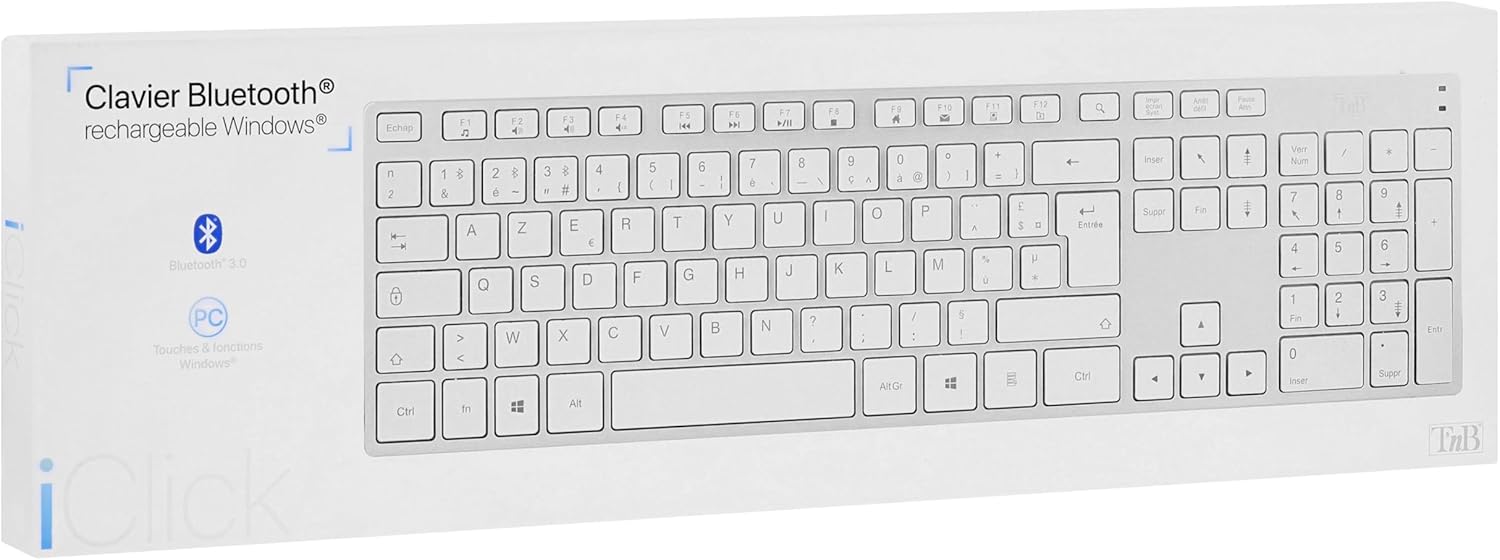
Product Overview
The T'nB iClick KBWIN keyboard features a slim, elegant aluminum design that complements any modern workspace. It is equipped with a full set of Windows function keys and 15 multimedia shortcuts to enhance your productivity. The integrated lithium battery provides up to 120 hours of continuous use, ensuring long-lasting performance.

Setup
Charging the Keyboard
Before first use, fully charge your keyboard. Connect the provided USB charging cable to the keyboard's charging port and plug the other end into a USB power source (e.g., computer USB port, USB wall adapter). The charging indicator light will illuminate during charging and turn off when fully charged. A full charge provides approximately 120 hours of continuous use.
Powering On/Off
Locate the power switch on the keyboard. Slide the switch to the 'ON' position to power on the keyboard. Slide it to the 'OFF' position when not in use to conserve battery life.
Operating Instructions
Bluetooth Connection
To connect your T'nB iClick KBWIN keyboard via Bluetooth:
- Ensure the keyboard is powered on.
- Activate Bluetooth on your device (computer, tablet, smartphone).
- Press the Connect button on the keyboard (refer to the keyboard layout for exact location, usually a small button or a function key combination). The Bluetooth indicator light will start blinking, indicating it is in pairing mode.
- On your device, search for available Bluetooth devices.
- Select "T'nB iClick KBWIN" or a similar name from the list of found devices.
- Follow any on-screen prompts to complete the pairing process. Once connected, the Bluetooth indicator light on the keyboard will stop blinking and remain solid or turn off.
System Compatibility
The T'nB iClick KBWIN keyboard is compatible with:
- Windows operating systems
- iOS devices
- Android devices
Using Function Keys and Shortcuts
The keyboard includes standard Windows function keys (F1-F12) and 15 dedicated multimedia shortcuts. These shortcuts allow quick access to functions like volume control, media playback, and more. Refer to the key labels for specific shortcut functions.
Maintenance
Cleaning
To clean your keyboard, gently wipe the surface with a soft, damp cloth. Avoid using harsh chemicals or abrasive cleaners, as these can damage the finish. Ensure the keyboard is powered off before cleaning.
Storage
When not in use for extended periods, store the keyboard in a cool, dry place. It is recommended to fully charge the keyboard before storing and to recharge it every few months to maintain battery health.
Troubleshooting
- Keyboard not connecting via Bluetooth:
Ensure the keyboard is charged and powered on. Make sure Bluetooth is enabled on your device and the keyboard is in pairing mode. Try restarting both the keyboard and your device. - Keys not responding:
Check if the keyboard is powered on and connected. If the battery is low, recharge the keyboard. If the issue persists, try re-pairing the keyboard with your device. - Short battery life:
Ensure the keyboard is fully charged before use. Battery life can vary based on usage patterns. If battery life significantly decreases, contact customer support.
Specifications
| Model Number | KBWIN |
| Connectivity | Bluetooth (Wireless) |
| Frequency Range | 2.4 GHz |
| Operating Range | Up to 10 meters |
| Power Source | Integrated Lithium Battery (3.7V - 350 mAh) |
| Battery Life | Approx. 120 hours of continuous use |
| Compatibility | Windows, iOS, Android |
| Material | Aluminum |
| Included Components | USB Cable |
Warranty and Support
Manufacturer Warranty
This T'nB product is covered by a manufacturer's warranty of 2 years from the date of purchase. Please retain your proof of purchase for warranty claims. The warranty covers defects in materials and workmanship under normal use.
Customer Support
For technical assistance, troubleshooting, or warranty inquiries, please contact T'nB customer support. Refer to the T'nB official website or product packaging for the most up-to-date contact information.


