
Geevon 208614C
Geevon Digital Atomic Wall Clock User Manual
Model: 208614C
Introduction
Thank you for choosing the Geevon Digital Atomic Wall Clock. This advanced clock provides accurate timekeeping through daily WWVB updates and features a large, easy-to-read display. It includes an indoor temperature sensor and a wireless outdoor sensor, moon phase display, calendar, and an alarm with snooze function. This manual will guide you through the setup, operation, and maintenance of your new clock.

Figure 1: Geevon Digital Atomic Wall Clock and Wireless Outdoor Sensor.
Package Contents
- 1 x Geevon Digital Atomic Wall Clock (Main Unit)
- 1 x Wireless Outdoor Temperature Sensor
- 1 x User Manual (this document)
Note: 5 AAA batteries are required for operation (3 for the main unit, 2 for the outdoor sensor) and are not included.
Product Overview
Familiarize yourself with the main display and components of your Geevon Atomic Wall Clock.

Figure 2: Main Display and Feature Labels.
- Alarm icon
- Symbol Radio Control RCC (Atomic Signal Indicator)
- Display low battery indicator (Main Unit)
- Snooze icon
- Weekday display
- Calendar display (Month/Day/Year)
- Outdoor temperature
- Outdoor sensor signal strength
- Tendency outdoor temperature (Temperature Trend Indicator)
- Moon phase
- Indoor temperature
- In/Outdoor temperature max/min record
- Sensor low battery indicator (Outdoor Sensor)
- Tendency indoor temperature (Temperature Trend Indicator)
Setup
1. Battery Installation
Install batteries into both the main clock unit and the wireless outdoor sensor.
- Main Unit: Open the battery compartment on the back of the clock. Insert 3 new AAA batteries, observing the correct polarity (+/-).
- Outdoor Sensor: Open the battery compartment on the back of the sensor. Insert 2 new AAA batteries, observing the correct polarity (+/-).


Figure 3: Battery installation for the main unit and low battery indicator.
2. Sensor Placement
Proper placement of the outdoor sensor ensures accurate temperature readings and optimal signal transmission.
- Place the sensor at 1.2 to 2.4 meters (4 to 8 feet) above the ground with permanent shade.
- Keep the sensor at least 1.5-2 meters (5-6.5 feet) away from electronic devices such as TVs, computers, microwaves, and radios to avoid interference.
- Place units away from any heat sources or vents.
- Place the outdoor sensor vertically.
- The wireless range is up to 200 feet (60 meters) in an open area.

Figure 4: Guidelines for optimal outdoor sensor placement.
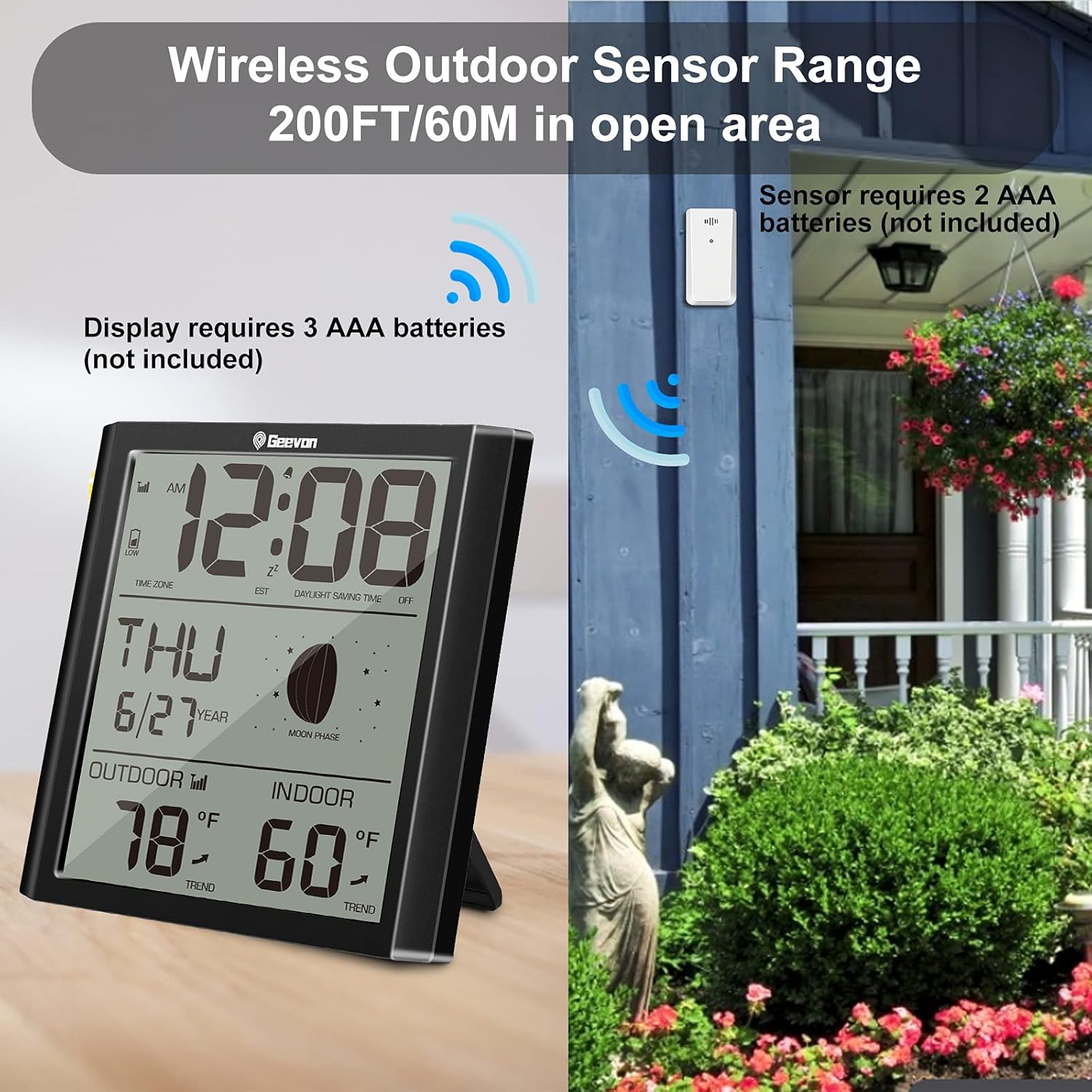
Figure 5: Wireless outdoor sensor range illustration.
3. Initial Setup and Atomic Time Synchronization
After battery installation, the clock will automatically begin searching for the WWVB atomic signal. The antenna symbol (2) on the display will flash during this process.
- Time Zone Selection: While the clock is searching for the atomic signal, or after it has successfully synchronized (antenna symbol is solid), you can set your time zone. Refer to the "Operating Instructions" section for button functions.
- Daylight Saving Time (DST): Ensure the DST setting is correct for your region. If your area observes DST, set it to "ON".
- Manual Setting (Optional): If the atomic signal is not received immediately, you can manually set the time and date. The clock will continue to attempt synchronization daily.

Figure 6: The atomic clock automatically updates for accurate time.
Operating Instructions
Display Information
The 8.8-inch LCD display provides comprehensive information at a glance.

Figure 7: All-in-one display showing time, date, temperature, and other features.
- Time: Displays current time in 12-hour (AM/PM) or 24-hour format.
- Date & Weekday: Shows the current month, day, and weekday.
- Indoor Temperature: Displays the temperature measured by the main unit's internal sensor.
- Outdoor Temperature: Displays the temperature transmitted by the wireless outdoor sensor.
- Temperature Trend: Arrows indicate if indoor or outdoor temperature is rising, falling, or stable.
- MIN/MAX Temperature: Records and displays the minimum and maximum indoor/outdoor temperatures for the day.
- Moon Phase: Shows the current phase of the moon.
Alarm and Snooze Function
The clock features a daily alarm with a snooze option.
- Setting the Alarm: Refer to the buttons on the back of the unit (e.g., "ALARM" button) to enter alarm setting mode. Use the UP/DOWN buttons to adjust the alarm time.
- Activating/Deactivating Alarm: Press the "ALARM" button to turn the alarm ON or OFF. The alarm icon (1) will appear when activated.
- Alarm Sound: When the alarm goes off, it will emit a gradually ascending "beeping" sound for 2 minutes.
- Snooze: Press the "SNOOZE" button (4) during an active alarm to get an extra 5 minutes of sleep. The snooze icon will flash.
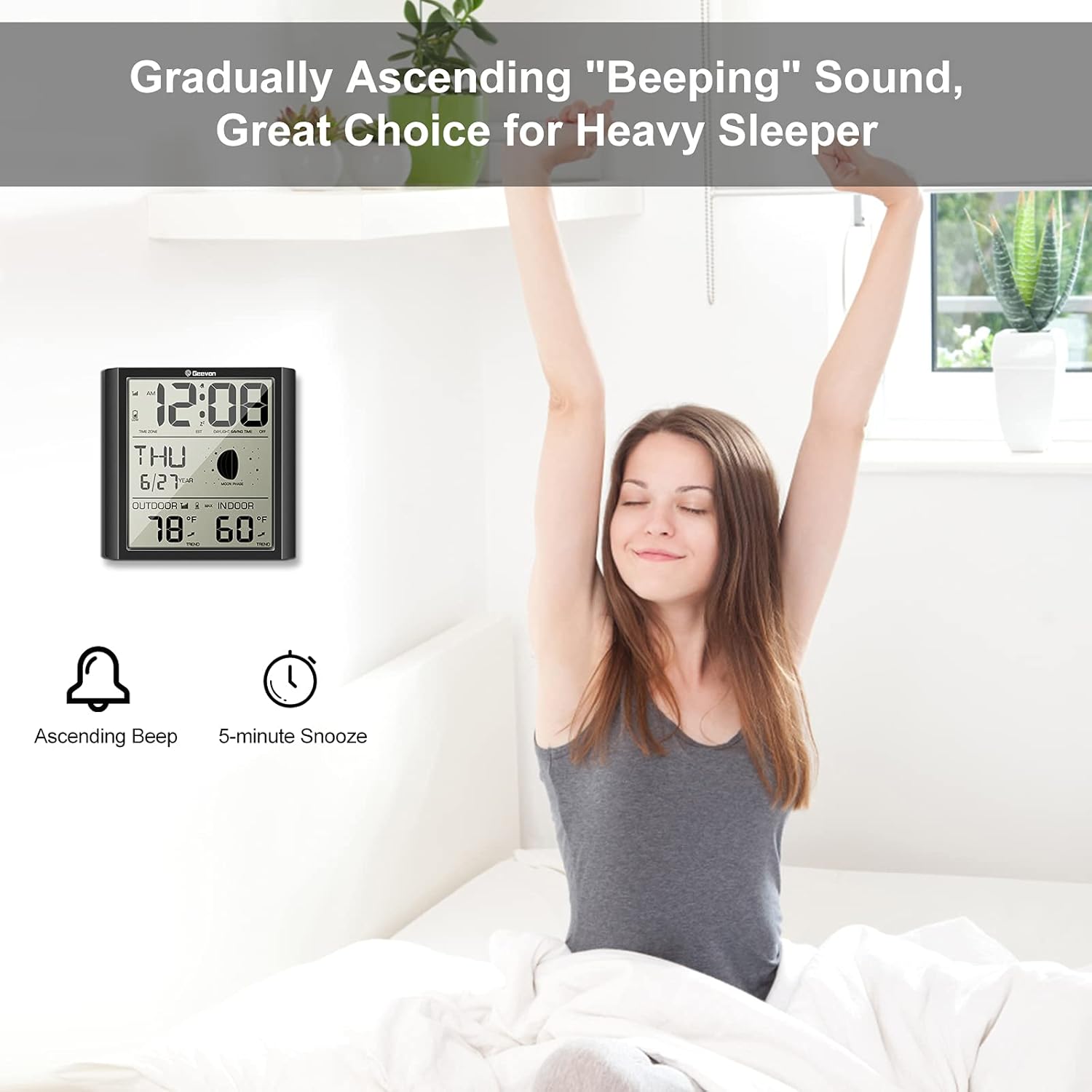
Figure 8: The alarm features a gradually ascending beep, suitable for heavy sleepers.

Figure 9: Alarm with snooze function.
Temperature Unit Selection (°C/°F)
You can switch between Celsius and Fahrenheit for temperature display. Locate the °C/°F button on the back of the unit and press it to toggle the unit.
Placement Methods
The Geevon clock offers versatile placement options.
- Desk Placement: Use the integrated kickstand on the back of the unit to place the clock on any flat surface, such as a desk, nightstand, or shelf.
- Wall Mounting: The clock features two hanging holes on the back for secure wall mounting. Ensure you use appropriate screws or nails for installation.

Figure 10: Two convenient placement methods: desktop and wall-mounted.
Maintenance
- Cleaning: Wipe the clock and sensor with a soft, dry cloth. Do not use abrasive cleaners or chemicals.
- Battery Replacement: Replace batteries promptly when the low battery indicator (3 for main unit, 13 for sensor) appears on the display to ensure continuous operation and accurate readings.
- Storage: If storing the clock for an extended period, remove all batteries to prevent leakage.
Troubleshooting
| Problem | Possible Cause | Solution |
|---|---|---|
| Clock not displaying or displaying faintly. | Low or dead batteries. Incorrect battery polarity. | Replace all batteries with new AAA batteries, ensuring correct polarity. |
| No outdoor temperature reading or "---" displayed. | Outdoor sensor out of range. Interference. Low sensor batteries. | Move sensor closer to the main unit. Ensure no large metal objects or electronics are between them. Replace sensor batteries. Re-establish connection by removing batteries from both units, then reinserting into sensor first, then main unit. |
| Atomic time (RCC) not synchronizing. | Weak signal due to location, interference, or time of day. | Place the clock near a window, away from electronic devices. The best reception is usually at night. Allow up to 24 hours for initial synchronization. Ensure time zone and DST settings are correct. |
| Time "jumps" back or is incorrect after setting. | Incorrect time zone or DST setting. Clock attempting to synchronize with an incorrect default. | Ensure you set the correct time zone and DST (ON/OFF) during setup. If manually setting, complete all settings before the clock attempts atomic synchronization. If the clock is searching for the atomic signal (flashing antenna icon), you cannot access settings; wait until it stops flashing or remove/reinsert batteries to restart. |
| Inaccurate temperature readings. | Sensor exposed to direct sunlight, heat sources, or poor ventilation. | Relocate the outdoor sensor to a shaded, well-ventilated area, away from direct sunlight or heat sources. Ensure the main unit is not near heat-emitting appliances. |
Specifications
| Model Number | 208614C |
| Product Dimensions | 7.87 x 0.98 x 7.75 inches (20 x 2.5 x 19.7 cm) |
| Weight | 1.23 Pounds (0.56 kg) |
| Main Unit Power | 3 x AAA batteries (not included) |
| Outdoor Sensor Power | 2 x AAA batteries (not included) |
| Material | Acrylonitrile Butadiene Styrene (ABS) |
| Color | Black |
| Wireless Range | Up to 200 feet (60 meters) in open area |
| Temperature Display | °C / °F selectable |
| Time Format | 12 / 24 Hour selectable |
Warranty and Support
Geevon is committed to providing high-quality products and excellent customer service. While specific warranty details are not provided in this manual, Geevon offers lifetime consulting services for their products.
If you encounter any issues or have questions regarding your Geevon Digital Atomic Wall Clock, please contact Geevon customer support through the retailer's platform or the official Geevon website for assistance.
Your satisfaction is our priority.
Related documents208614C


Ask a question about this manual
Ask about setup, troubleshooting, compatibility, parts, safety, or missing instructions. Manuals+ will review the question and use this page’s manual context to help answer it.