
1. Introduction
The DataLocker AlphaCam W is a high-definition video conferencing camera designed for clear and reliable communication. It provides crisp images with vivid color detail and a smooth video frame rate, making it ideal for video conferences and web-based education. This manual provides essential instructions for setting up, operating, and maintaining your AlphaCam W.
2. Package Contents
- DataLocker AlphaCam W Video Conferencing Camera
- USB Cable (integrated or separate, for connection)
- User Manual (this document)
3. Setup
The AlphaCam W is designed for easy setup without the need for additional software or drivers. Simply connect it to your computer via USB.
3.1 Connecting the Camera
- Unpack the Camera: Carefully remove the AlphaCam W from its packaging.
- Position the Camera: The AlphaCam W features a versatile clip that allows it to be securely mounted on top of your monitor or laptop screen. Alternatively, it can be placed on a flat desktop surface.
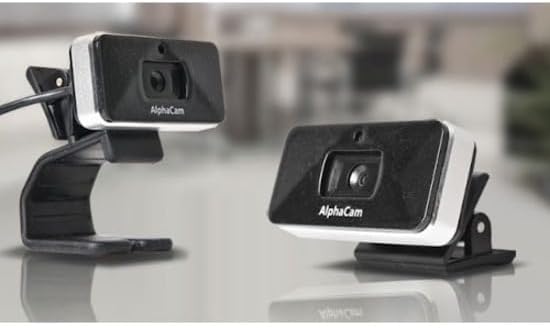
Image: The AlphaCam W can be clipped onto a monitor or placed on a flat surface.
- Connect to Computer: Plug the USB cable from the AlphaCam W into an available USB 2.0 port on your computer.
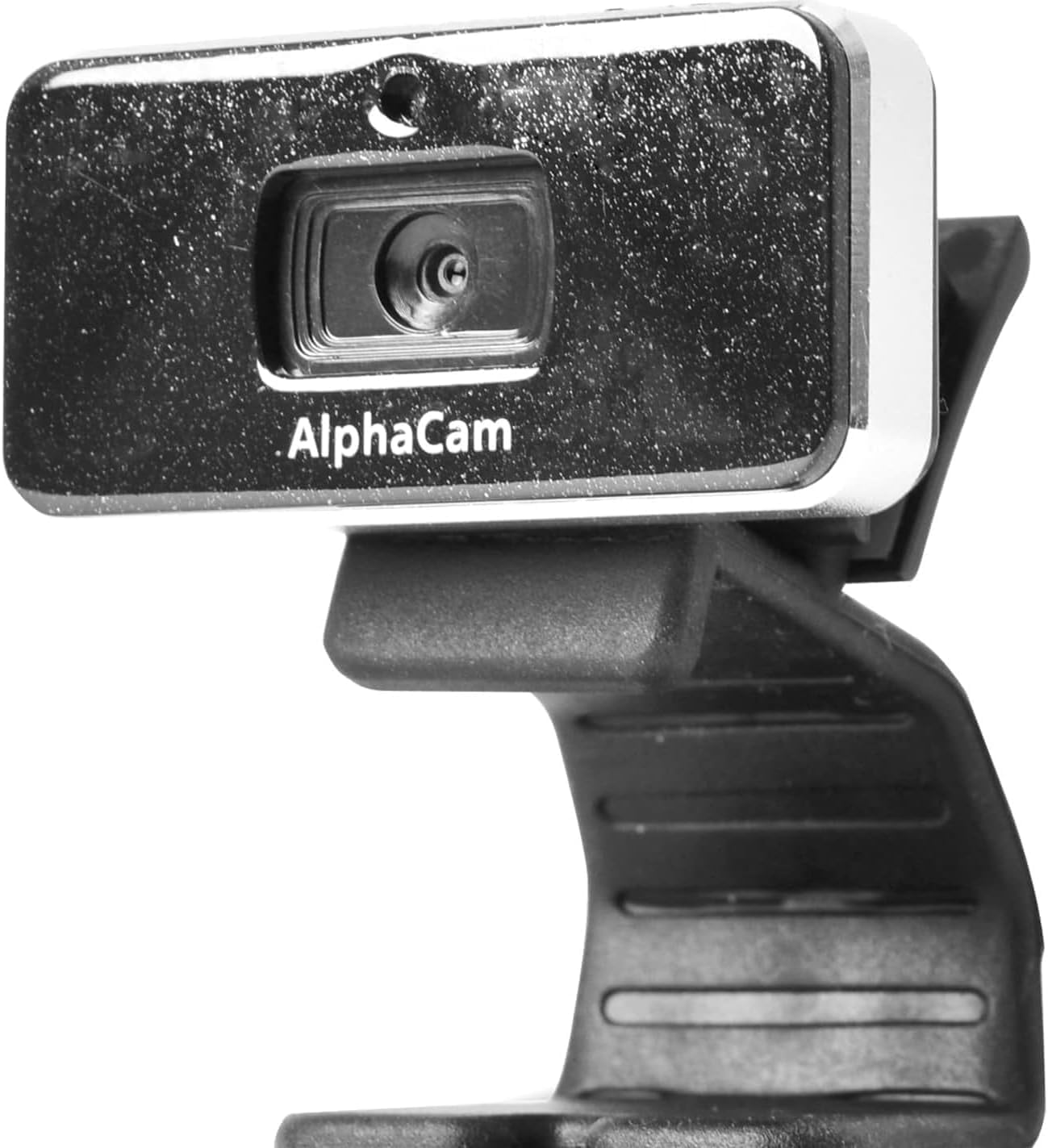
Image: Front view of the DataLocker AlphaCam W camera.
- Automatic Recognition: Your computer should automatically detect and install the necessary drivers for the camera. This process typically takes a few moments.
4. Operating Instructions
Once connected, the AlphaCam W is ready for use with your preferred video conferencing or streaming applications.
4.1 Using with Applications
- Select Camera: Open your video conferencing software (e.g., Zoom, Microsoft Teams, Google Meet, Skype). Navigate to the video settings or preferences within the application.
- Choose AlphaCam W: From the list of available cameras, select "DataLocker AlphaCam W" (or similar name) as your video input device.
- Start Video: Activate your video feed within the application. The AlphaCam W will begin transmitting high-definition video at up to 1280 x 720 resolution and 30 frames per second.
4.2 Important Considerations
- Microphone-Free Design: The AlphaCam W does not include an integrated microphone. This design choice helps prevent potential data leaks and eliminates conflicts with existing computer or headset microphones. You will need to use a separate microphone for audio input during calls.
- Lighting: For optimal video quality, ensure adequate lighting in your environment. Avoid strong backlighting that can silhouette your image.
5. Maintenance
To ensure the longevity and optimal performance of your AlphaCam W, follow these simple maintenance guidelines:
- Cleaning the Lens: Gently wipe the camera lens with a soft, lint-free cloth. For stubborn smudges, slightly dampen the cloth with water or a lens cleaning solution. Avoid abrasive materials or harsh chemicals.
- Cleaning the Body: Use a soft, dry cloth to clean the camera body.
- Storage: When not in use, store the camera in a clean, dry place away from extreme temperatures and direct sunlight.
- Avoid Drops: Handle the camera with care to prevent damage from drops or impacts.
6. Troubleshooting
If you encounter issues with your AlphaCam W, refer to the following troubleshooting tips:
6.1 No Image or Camera Not Detected
- Check USB Connection: Ensure the USB cable is securely plugged into both the camera and your computer. Try a different USB port.
- Restart Computer: Sometimes a simple restart can resolve detection issues.
- Check Device Manager (Windows) / System Information (macOS): Verify that the camera is listed under imaging devices or USB devices. If there's an error, try updating or reinstalling drivers (though typically not required for this plug-and-play device).
- Try Another Computer: If possible, test the camera on another computer to determine if the issue is with the camera or your original computer.
6.2 Poor Image Quality
- Clean Lens: Ensure the camera lens is clean and free of dust or smudges.
- Lighting Conditions: Improve the lighting in your environment. Ensure light sources are in front of you, not behind.
- Application Settings: Check the video settings within your conferencing application. Ensure the resolution is set to the highest available (e.g., 720p).
- Internet Connection: A poor internet connection can sometimes degrade video quality during live streams.
6.3 Camera Freezes or Disconnects
- USB Port Power: Ensure the USB port is providing sufficient power. Try connecting directly to a port on your computer rather than a USB hub.
- Cable Integrity: Inspect the USB cable for any signs of damage.
- Software Conflicts: Close any other applications that might be using the camera or consuming significant system resources.
7. Specifications
| Feature | Detail |
|---|---|
| Model Number | WCAM1000-G |
| Video Resolution | Up to 1280 x 720 (HD) |
| Frame Rate | Up to 30 fps |
| Connectivity | USB 2.0 |
| Microphone | Not included (Microphone-Free design) |
| Color | Black |
| Dimensions (LxWxH) | 4 x 2.75 x 5.62 inches |
| Item Weight | 0.35 ounces |
| Hardware Platform | PC |
| Photo Sensor Technology | CMOS |
8. Warranty and Support
For warranty information or technical support, please refer to the official DataLocker website or contact DataLocker customer service directly. Keep your purchase receipt as proof of purchase for warranty claims.
DataLocker Official Website: www.datalocker.com


