
Introduction
The Mercusys Halo H30G AC1300 Whole Home Mesh Wi-Fi System is designed to provide a powerful and stable Wi-Fi signal throughout your entire home, eliminating dead spots and ensuring a seamless online experience. This system works as a unified network, adapting to various home types and sizes to deliver consistent connectivity for all your devices.
What's in the Box
Your Mercusys Halo H30G package includes the following components:
- 3 x Halo H30G Units
- 1 x RJ45 Ethernet Cable
- 3 x Power Adapters
- 1 x Quick Installation Guide
Product Overview
The Mercusys Halo H30G units are compact, white cubes designed to blend seamlessly into your home environment. Each unit features essential ports for connectivity and power.


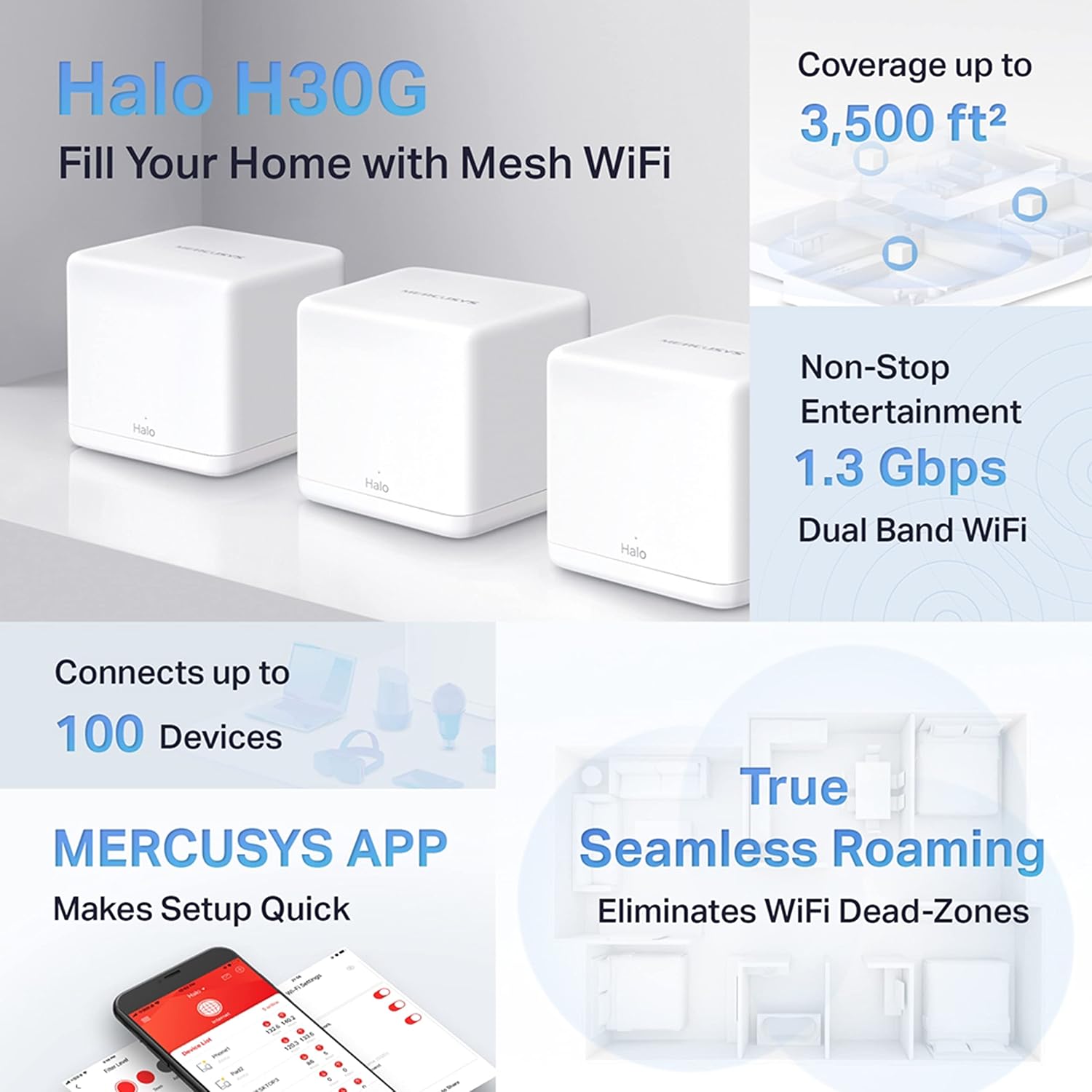
Key Features:
- 1.3Gb/s Dual Band WiFi: Provides high-speed wireless connectivity.
- Wide Coverage and Smooth Browsing: Creates a single, unified network across your home.
- Connect 100 Devices: Supports a large number of connected devices simultaneously.
- Easily Manage Your Home Network: Control and monitor your network via the Mercusys App.
- Full Gigabit Ports: Ensures fast wired connections for devices like PCs and gaming consoles.
Setup Instructions
Setting up your Mercusys Halo H30G Mesh Wi-Fi System is a straightforward process, primarily guided by the Mercusys App.
- Unpack the System: Remove all components from the box and ensure you have all items listed in the 'What's in the Box' section.
- Download the Mercusys App: Search for and download the 'Mercusys' app from your mobile device's app store (Google Play Store or Apple App Store).
- Identify the Main Unit: Choose one Halo H30G unit to be your main router.
- Connect the Main Unit:
- Connect one end of the provided Ethernet cable to a LAN port on your existing modem or router.
- Connect the other end of the Ethernet cable to either Gigabit Ethernet port (Port 1 or Port 2) on the back of the main Halo H30G unit.
- Connect the power adapter to the main Halo H30G unit and plug it into a power outlet.
- Power On and Wait: Wait for the LED indicator on the main unit to turn solid white, indicating it's ready for setup.
- Follow App Instructions: Open the Mercusys App on your mobile device. The app will guide you step-by-step through the initial setup, including creating your Wi-Fi network name (SSID) and password.
- Place Additional Units: Once the main unit is configured, place the other Halo H30G units in different areas of your home to extend coverage. Plug them into power outlets. The app will assist in optimizing their placement for the best signal.
- Connect to the Mesh Network: Your devices will automatically connect to the strongest Wi-Fi signal from any Halo unit, ensuring seamless roaming throughout your home.
For detailed visual instructions, refer to the Quick Installation Guide included in your package.
Operating Instructions
Once your Mercusys Halo H30G system is set up, it operates as a unified mesh network, providing seamless Wi-Fi coverage. Here's how to get the most out of your system:
Unified Network:
The Halo system creates a single Wi-Fi network name (SSID) and password for your entire home. Your devices will automatically switch between Halo units as you move, ensuring you always have the best connection without manual intervention.
Mercusys App Management:
The Mercusys App is your central hub for managing your home network. Through the app, you can:
- View Connected Devices: See all devices currently connected to your network.
- Parental Controls: Set time limits, block inappropriate content, and pause internet access for specific devices.
- Quality of Service (QoS): Prioritize bandwidth for certain devices or activities (e.g., gaming, streaming) to ensure smooth performance.
- Guest Network: Create a separate Wi-Fi network for guests, keeping your main network secure.
- Network Security: Monitor and manage your network's security settings.
- Firmware Updates: Check for and install the latest firmware to ensure optimal performance and security.
Regularly check the Mercusys App for new features and updates to enhance your network experience.
Maintenance
To ensure the longevity and optimal performance of your Mercusys Halo H30G system, follow these maintenance guidelines:
- Firmware Updates: Regularly check for and install firmware updates via the Mercusys App. Updates often include performance improvements, security patches, and new features.
- Cleaning: Gently wipe the exterior of the Halo units with a soft, dry cloth. Avoid using liquid cleaners or abrasive materials, as they can damage the device. Ensure no dust accumulates in the ventilation holes.
- Ventilation: Ensure the Halo units are placed in well-ventilated areas, away from direct sunlight, heat sources, and obstructions that could block airflow. Proper ventilation prevents overheating.
- Power Cycle: If you experience minor network issues, try power cycling your Halo units. Unplug them from the power outlet, wait for 10-15 seconds, and then plug them back in.
- Secure Placement: Place the units on a stable, flat surface where they are unlikely to be knocked over or damaged.
Troubleshooting
If you encounter issues with your Mercusys Halo H30G system, refer to the following common troubleshooting steps:
No Internet Connection:
- Check Cables: Ensure all Ethernet cables are securely connected to the main Halo unit and your modem/router.
- Modem/Router Status: Verify that your modem or existing router is working correctly and has an active internet connection.
- Power Cycle: Power cycle your modem/router and then your main Halo unit.
- ISP Check: Contact your Internet Service Provider (ISP) to confirm there are no service outages in your area.
Weak Wi-Fi Signal or Dead Spots:
- Unit Placement: Relocate the satellite Halo units closer to the main unit or to a more central location within the weak signal area. Avoid placing them near large metal objects, thick walls, or other electronic devices that may cause interference.
- Obstructions: Minimize physical obstructions between the Halo units.
- Interference: Other wireless devices (cordless phones, microwaves, Bluetooth devices) can cause interference. Try to move them away from your Halo units.
Mercusys App Issues:
- App Update: Ensure your Mercusys App is updated to the latest version.
- Mobile Device Connection: Make sure your mobile device is connected to the Halo Wi-Fi network during setup or management.
- Reinstall App: If issues persist, try uninstalling and reinstalling the Mercusys App.
Cannot Connect to Wi-Fi:
- Correct Password: Double-check that you are entering the correct Wi-Fi password.
- Device Compatibility: Ensure your device supports the Wi-Fi standards used by the Halo system (802.11ac/n/a/g/b).
- Restart Device: Restart the device you are trying to connect.
Resetting the System:
If all else fails, you may need to reset your Halo unit(s) to factory default settings. Locate the 'Reset' button on the back of the unit (often a small pinhole) and press and hold it for approximately 5-10 seconds until the LED behavior changes. This will erase all custom settings, and you will need to set up the system again via the Mercusys App.
Specifications
Below are the technical specifications for the Mercusys Halo H30G (3-pack) system:
| Product Dimensions | 1.5 x 1.5 x 3.9 inches |
| Item Weight | 1.1 pounds |
| Model Number | HaloH30G3-pack |
| Brand | MERCUSYS |
| Model Name | Halo H30G(3-pack) |
| Frequency Band Class | Dual-Band |
| Wireless Communication Standard | 802.11n, 802.11b, 802.11a, 802.11g, 802.11ac |
| Compatible Devices | Telephone, Television, Computer, IPTV, Tablet |
| Frequency | 5 GHz |
| Recommended Uses | Home |
| Connectivity Technology | Wi-Fi, Ethernet |
| Included Components | 3 Halo H30G Units, 1 RJ45 Ethernet Cable, 3 Power Adapters, 1 Quick Installation Guide |
Warranty and Support
Mercusys products typically come with a manufacturer's warranty. For specific warranty terms and conditions, please refer to the warranty card included in your product packaging or visit the official Mercusys website.
Manufacturer:
Mercusys
Online Resources:
- Product Page: For more information about the Halo H30G, visit the official product page: http://www.mercusys.com/product/details/Halo H30G(3-pack)_V1
- Support Page: For technical support, FAQs, and additional resources, please visit the Mercusys support website: http://www.mercusys.com/support
When contacting support, please have your product model number (HaloH30G3-pack) and serial number ready.