
1. Introduction
Thank you for choosing the XTREMTEC KB-K101 Wireless Keyboard and Mouse Combo. This product is designed to provide a comfortable, quiet, and efficient typing and navigation experience. Please read this manual carefully before use to ensure proper operation and to maximize the lifespan of your device.
2. Package Contents
Ensure all items are present in your package:
- Wireless Keyboard (Sakura Pink)
- Wireless Mouse (White with Pink Accents)
- Nano USB Receiver (stored inside the keyboard's battery compartment)
- USB-C Adapter
- Silicone Keyboard Cover
- Keyboard Cleaning Brush
- User Manual

3. Setup Guide
The XTREMTEC KB-K101 combo features a simple plug-and-play setup. No drivers are required.
- Install Batteries: The keyboard requires 2 AAA batteries and the mouse requires 1 AA battery (batteries not included). Open the battery compartments on the underside of both devices and insert the batteries, ensuring correct polarity.
- Locate USB Receiver: The Nano USB receiver is stored inside the keyboard's battery compartment for safekeeping. Carefully remove it.
- Connect Receiver: Insert the Nano USB receiver into an available USB port on your computer. If your computer only has USB-C ports, use the provided USB-C adapter.
- Power On: Turn on the keyboard and mouse using their respective ON/OFF switches. The devices should connect automatically within a few seconds.

4. Operating Instructions
4.1 Keyboard Functions
- Multimedia Shortcuts: The keyboard features 15 multimedia shortcut keys (F1-F12, Ins, PrtSc, Del) for quick access to functions like volume control, media playback, email, and calculator. Press the 'Fn' key simultaneously with the desired F-key to activate.
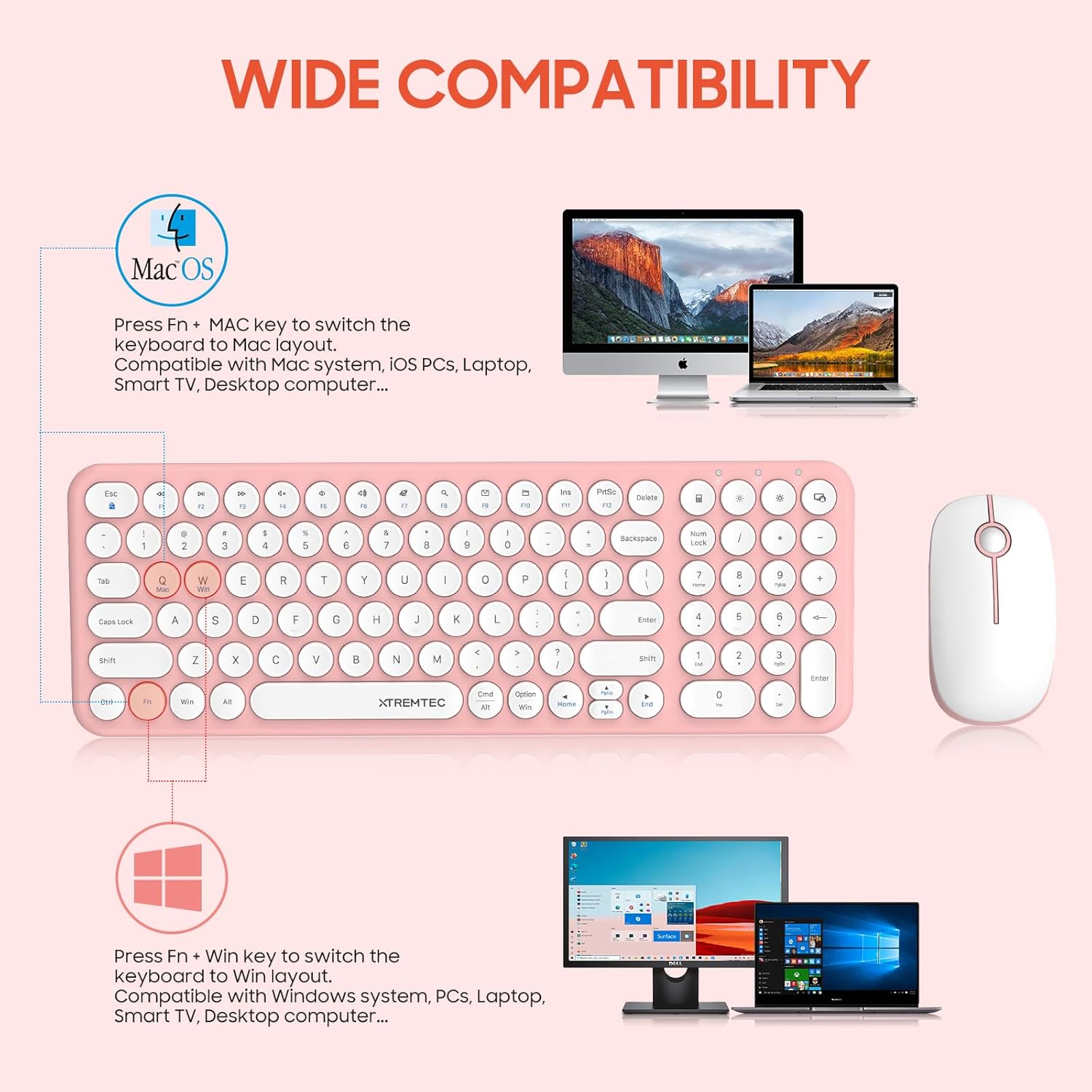
- Operating System Switch: Use 'Fn + Mac' to switch to Mac layout or 'Fn + Win' to switch to Windows layout.
- Indicators: Power Indicator (low battery), Number Lock Indicator, Caps Lock Indicator are located at the top right of the keyboard.
4.2 Mouse Functions
- Left/Right Click: Standard left and right click buttons.
- Scroll Wheel: For scrolling through documents and web pages.
- DPI Adjustment: The mouse may have a DPI button (often near the scroll wheel) to adjust cursor sensitivity.
5. Key Features
- Retro Round Keycap Design: Vintage typewriter-inspired rounded keycaps provide a unique aesthetic and comfortable typing experience.
- Ultra-Slim Design: The keyboard's thinnest part is 0.4cm, making it lightweight and portable.
- Quiet Operation: Noise-reduced scissor-cross keys and a smooth optical mouse ensure a quiet working environment.
- Durable Keys: Keys are tested for up to 3 million presses and feature UV coating for anti-scratch and anti-fading properties.
- Long Battery Life: Both devices feature an auto-sleeping mode (after 5 seconds of inactivity for keyboard, 3 seconds for mouse) to conserve energy. Click any key to wake them up.
- Plug and Play: Simple setup with a single Nano USB receiver for both keyboard and mouse.
- Wide Compatibility: Compatible with Windows XP/Vista/7/8/10, Mac iOS, PCs, Laptops, Smart TVs, and desktop computers.


6. Specifications
| Feature | Detail |
|---|---|
| Model Number | KB-K101 |
| Product Dimensions | 1.96 x 15.31 x 5.3 inches |
| Item Weight | 15.8 ounces |
| Color | Sakura Pink |
| Connectivity Technology | 2.4GHz USB Wireless |
| Keyboard Battery | 2 x AAA batteries (not included) |
| Mouse Battery | 1 x AA battery (not included) |
| Special Feature | Retro Round Keycaps, Ultra-Thin, Quiet Operation, Ergonomic Design |
| Compatible Devices | Mac OS, Windows, PC, Desktop Computer, Laptop, Smart TV |
7. Maintenance and Care
- Cleaning: Use the provided keyboard cleaning brush to remove dust and debris from between the keys. For deeper cleaning, gently wipe the surfaces with a soft, damp cloth. Ensure devices are powered off before cleaning.
- Silicone Cover: Use the included silicone keyboard cover to protect against dust, spills, and wear. It can be easily removed and washed.
- Battery Replacement: Replace batteries when the low battery indicator lights up. Always use new, high-quality batteries of the correct type (AAA for keyboard, AA for mouse).
- Storage: When not in use for extended periods, turn off the devices and store them in a dry, cool place. Consider removing batteries if storing for several months.
8. Troubleshooting
| Problem | Solution |
|---|---|
| Devices not connecting | 1. Ensure batteries are correctly installed and charged. 2. Check if the devices are powered ON. 3. Re-insert the USB receiver into a different USB port. 4. Ensure the receiver is not too far from the devices (max 10 meters). |
| Keyboard/Mouse lag or intermittent connection | 1. Move the devices closer to the USB receiver. 2. Avoid placing the receiver near strong interference sources (e.g., other wireless devices, large metal objects). 3. Replace batteries if they are low. |
| Keys not responding | 1. Check battery level. 2. Ensure the keyboard is powered ON. 3. Clean under the keycap if debris is suspected. |
| Mouse cursor not moving smoothly | 1. Ensure the mouse is on a clean, flat surface. 2. Check battery level. 3. Clean the optical sensor on the underside of the mouse. |
9. Warranty and Support
XTREMTEC products come with a standard manufacturer's warranty. For specific warranty details, please refer to the warranty card included in your package or visit the official XTREMTEC website. If you encounter any issues not covered in this troubleshooting guide, please contact XTREMTEC customer support for assistance.
Contact Information: Please refer to the product packaging or the official XTREMTEC website for the most up-to-date customer support contact details.
10. Safety Information
- Do not expose the devices to extreme temperatures, humidity, or direct sunlight.
- Avoid dropping or subjecting the devices to strong impacts.
- Keep out of reach of children.
- Dispose of batteries according to local regulations.
- Do not attempt to disassemble or repair the devices yourself. This may void the warranty.


