
TOTU TT-DC006C
TOTU Thunderbolt 3 Dock User Manual
Model: TT-DC006C
Brand: TOTU
Introduction
The TOTU 18-in-1 Thunderbolt 3 USB C Docking Station is designed to expand the connectivity of your laptop, transforming it into a powerful workstation. This docking station provides a wide array of ports, including multiple USB ports, DisplayPort, Thunderbolt 3, Gigabit Ethernet, SD/Micro SD card readers, and audio output, enabling seamless connection to various peripherals and external displays. It is compatible with laptops featuring Thunderbolt 3 or 4 ports, offering high-speed data transfer, versatile display options, and power delivery.
Key Features
- Universal Compatibility: Compatible with laptops equipped with Thunderbolt 3 or 4 ports, including MacBook Pro (2016 and later), MacBook Air (2018 and later), and Windows laptops (Dell, Lenovo, HP, Asus, Acer, etc.). Note: MacBook Pro with M1 chip supports only one monitor.
- High-Resolution Display Output: Supports single 8K@30Hz or dual 4K@60Hz extended displays via Thunderbolt 3 and DisplayPort.
- High-Speed Data Transmission: Features 2x USB 3.1 (10Gbps), 1x USB 3.0 (5Gbps), 1x USB-C (10Gbps), and 1x USB-C (5Gbps) for rapid file transfers. Includes 4x USB 2.0 ports for connecting wireless peripherals.
- Integrated Card Reader: Built-in SD/Micro SD card reader for convenient photo and video transfer.
- Gigabit Ethernet: Provides a stable and fast wired network connection via the RJ-45 LAN port.
- Power Delivery: The Thunderbolt 3 host port delivers up to 60W to charge your laptop, while the secondary Thunderbolt 3 port provides 15W for downstream devices.
- Comprehensive Connectivity: Equipped with 18 ports including 2x Thunderbolt 3, 1x DisplayPort, 2x USB 3.1, 1x USB 3.0, 2x USB-C, 4x USB 2.0, Gigabit Ethernet, SD/Micro SD, 3.5mm Audio/Microphone, and S/PDIF (Audio output).
Package Contents
Please verify that all items are present in the package:
- TOTU Thunderbolt 3 Docking Station (Model: TT-DC006C)
- 60W Power Adapter
- Thunderbolt 3 Cable (1.6 ft)
- User Manual
Setup Guide
1. Connecting the Dock
Follow these steps to set up your TOTU Thunderbolt 3 Docking Station:
- Power Connection: Connect the included 60W power adapter to the DC-IN port on the back of the docking station and then to a power outlet.
- Host Connection: Use the provided Thunderbolt 3 cable to connect the "Thunderbolt 3 Host" port on the docking station to a Thunderbolt 3 or Thunderbolt 4 port on your laptop. This connection also provides up to 60W of power delivery to your laptop.
- Display Connection (DisplayPort): For a single external display, connect a DisplayPort cable from your monitor to the DisplayPort on the docking station. For dual displays, use this port for one monitor.
- Display Connection (Thunderbolt 3 Port): For a second external display (in a dual monitor setup), connect a Thunderbolt 3 compatible display or an adapter (e.g., Thunderbolt 3 to DisplayPort/HDMI) to the secondary Thunderbolt 3 port on the docking station.
- Peripheral Connections: Connect your USB devices (keyboards, mice, external drives), Ethernet cable, SD/Micro SD cards, and audio devices to the corresponding ports on the docking station.
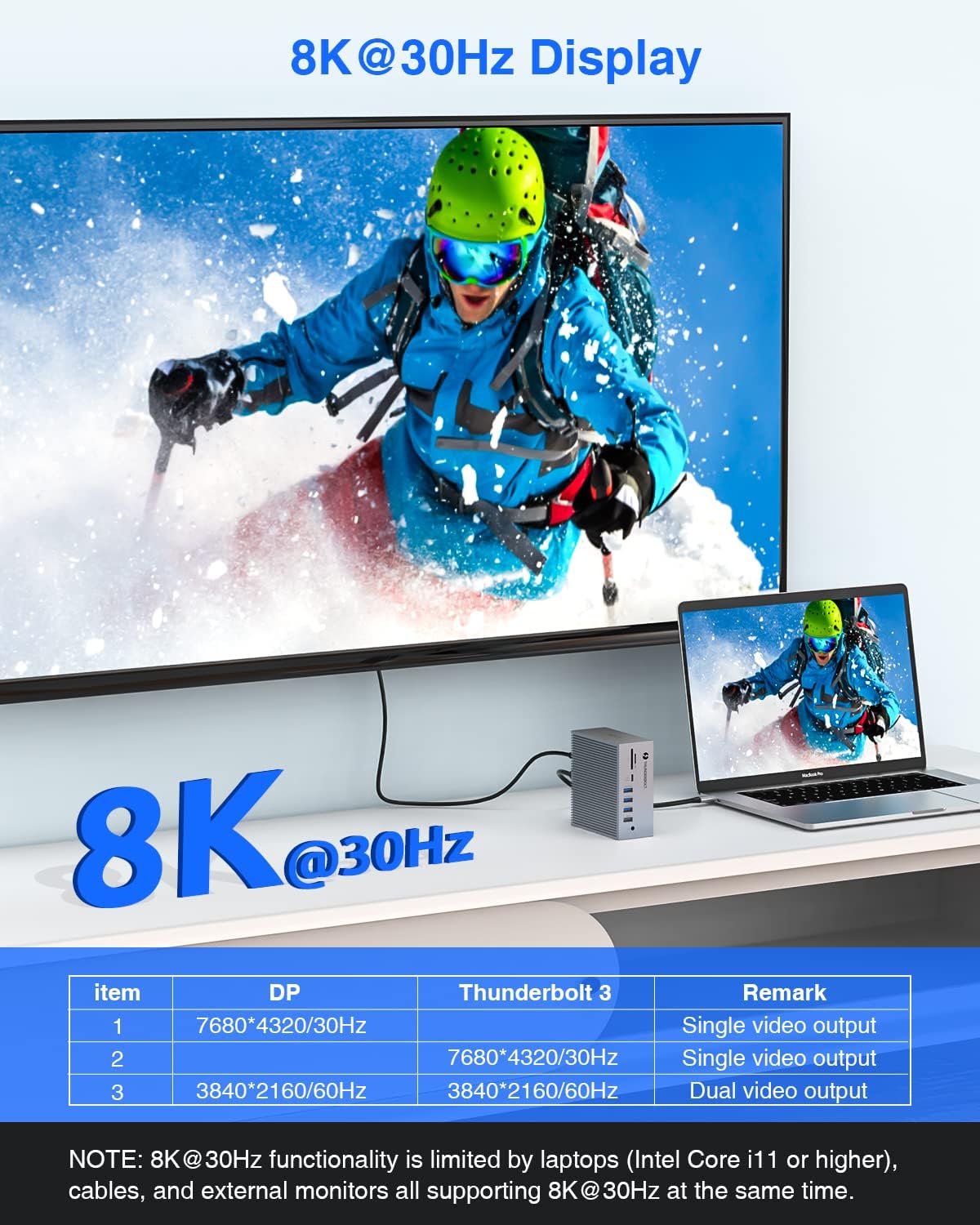
Figure 1: Rear and front view of the TOTU Thunderbolt 3 Docking Station with all 18 ports clearly labeled, including USB 2.0, Optical Out, DisplayPort, USB-C, Thunderbolt 3, LAN, DC-IN, SD/Micro SD card reader, and 3.5mm Audio/Mic jack.
Operating Instructions
Display Configuration
The TOTU Thunderbolt 3 Dock supports various display configurations:
- Single 8K@30Hz Display: Connect a single 8K-capable monitor to either the DisplayPort or the secondary Thunderbolt 3 port. Ensure your laptop (Intel Core i11 or higher), DP cables, and external monitor support 8K@30Hz.
- Dual 4K@60Hz Extended Displays: Connect two 4K-capable monitors, one to the DisplayPort and one to the secondary Thunderbolt 3 port. This allows for an extended desktop experience.
- Mirror Mode: Duplicate your laptop's display on external monitors. For macOS, do not click "Mirror Displays" in settings when you desire an extended display.
- Extend Mode: Extend your desktop across multiple screens, providing more workspace. For Windows, press the hotkey Windows Key + P to choose your display mode.
Note: MacBook Pro with M1 chip can only support ONE monitor (does not support dual monitors) due to the limitations of the M1 chipset.

Figure 2: Illustration of a laptop connected to a single 8K@30Hz display through the TOTU Thunderbolt 3 Dock, demonstrating high-resolution video output.
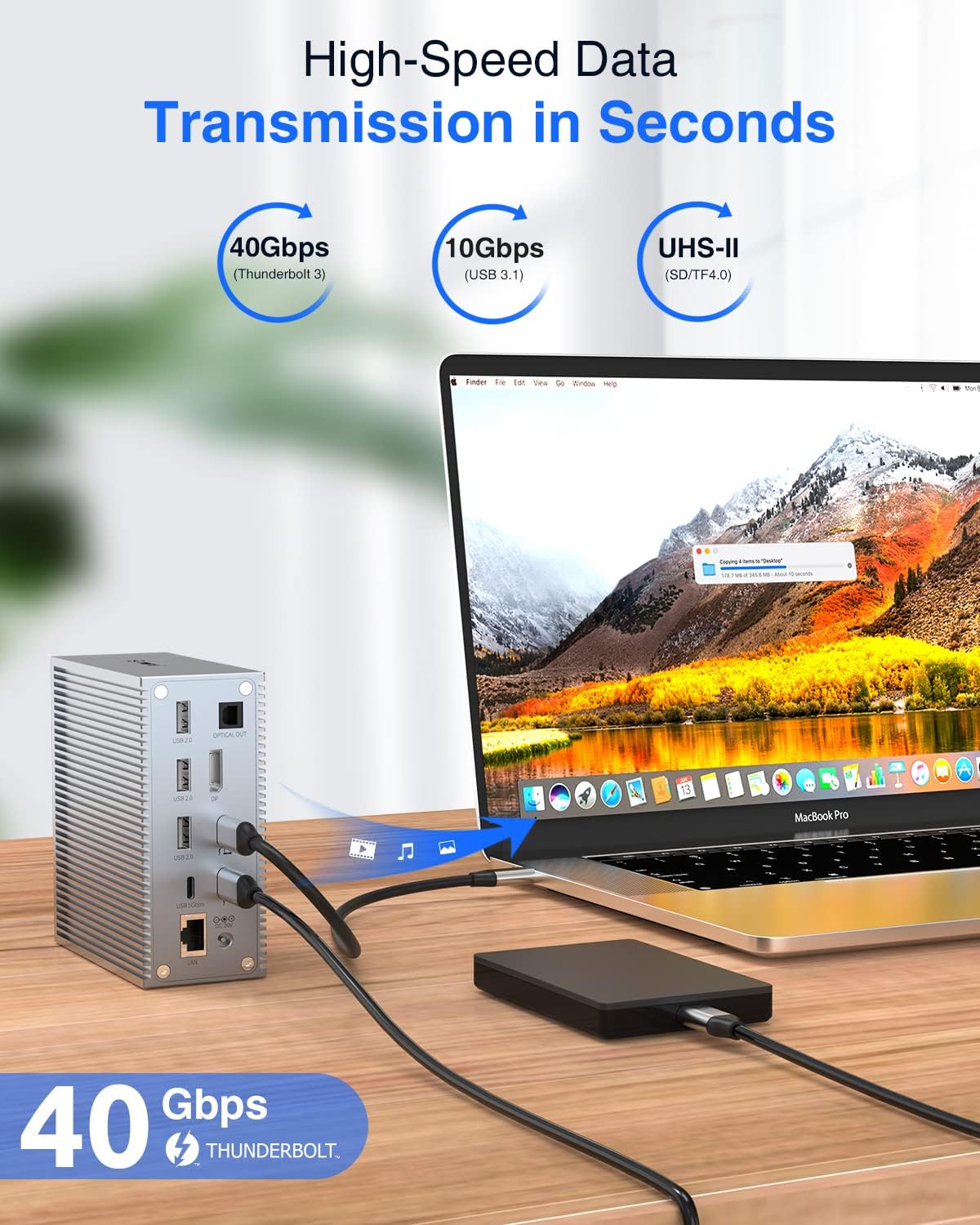
Figure 3: A user working with a laptop connected to two external 4K displays in extended mode, showcasing the multi-monitor capabilities of the docking station for enhanced productivity.

Figure 4: Visual representation of Mirror Mode and Extend Mode display configurations, illustrating how the docking station supports different multi-display setups for both macOS and Windows operating systems.
Data Transfer
Utilize the various USB ports for high-speed data transfer:
- USB 3.1 (10Gbps) & USB-C (10Gbps): Ideal for transferring large files quickly, such as videos, photos, and documents.
- USB 3.0 (5Gbps) & USB-C (5Gbps): Suitable for general data transfer and connecting moderately fast peripherals.
- USB 2.0 (480Mbps): Best for connecting wireless keyboard/mouse receivers, printers, and other low-bandwidth devices to avoid lag.
- SD/Micro SD Card Reader: Insert your memory cards directly into the dedicated slots to access and transfer files.

Figure 5: A laptop connected to the TOTU Thunderbolt 3 Dock, demonstrating the high-speed 40Gbps data transfer capability when connecting an external hard drive, allowing for rapid file synchronization.
Network Connection
Connect to a stable wired network using the Gigabit Ethernet port:
- Plug an Ethernet cable into the RJ-45 LAN port on the docking station and connect the other end to your router or network switch.
- This provides a reliable 1 Gbps wired connection, which is often faster and more stable than Wi-Fi, especially for large downloads, online gaming, or video conferencing.

Figure 6: The TOTU Thunderbolt 3 Dock connected to a laptop and an Ethernet cable, illustrating the 1Gbps wired network expansion capability for stable and fast internet access.
Power Delivery
The docking station provides power to your connected devices:
- The Thunderbolt 3 host port delivers up to 60W of power to charge your connected laptop.
- The secondary Thunderbolt 3 port provides 15W for charging downstream devices, such as smartphones or other accessories.
Video 1: A short demonstration showcasing the key features of the TOTU Thunderbolt 3 Dock, including 8K single display, dual 4K display, 40Gbps data transfer, and power delivery to connected devices and the host laptop.
Maintenance
- Keep the docking station in a dry environment and away from extreme temperatures.
- Avoid dropping or subjecting the device to strong impacts.
- Clean the exterior with a soft, dry cloth. Do not use liquid cleaners or aerosols.
- Ensure proper ventilation around the dock to prevent overheating.
- Disconnect all cables before cleaning or when not in use for extended periods.
Troubleshooting
| Problem | Possible Solution |
|---|---|
| No display output or flickering screen. |
|
| USB devices not recognized or slow data transfer. |
|
| Ethernet connection issues. |
|
| Laptop not charging via the dock. |
|
Specifications
| Feature | Detail |
|---|---|
| Model Number | TT-DC006C |
| Product Dimensions | 4.33 x 4.33 x 0.2 inches (11 x 11 x 0.5 cm) |
| Item Weight | 1.1 pounds (0.5 Kilograms) |
| Color | Grey |
| Total USB Ports | 11 (2x USB 3.1 10Gbps, 1x USB 3.0 5Gbps, 2x USB-C 10Gbps/5Gbps, 4x USB 2.0) |
| Number of Ports | 18-in-1 |
| Hardware Interface | MicroSD, DisplayPort, Ethernet, USB 3.0, Thunderbolt 3, USB 2.0, USB 3.2 Gen 2 |
| Display Output | Single 8K@30Hz (DP/Thunderbolt 3), Dual 4K@60Hz (DP + Thunderbolt 3) |
| Ethernet | 1 Gbps (RJ-45) |
| Power Delivery (Host) | Up to 60W via Thunderbolt 3 host port |
| Power Delivery (Downstream) | 15W via secondary Thunderbolt 3 port |
| Manufacturer | TOTU |
| Country of Origin | China |
| UPC | 760701381364 |
Warranty and Support
The TOTU Thunderbolt 3 Docking Station comes with lifetime technical support. For any issues, questions, or technical assistance, please contact TOTU customer support through the official channels provided with your product or on the manufacturer's website.
Please retain your proof of purchase for warranty claims.
Related documentsTT-DC006C


Ask a question about this manual
Ask about setup, troubleshooting, compatibility, parts, safety, or missing instructions. Manuals+ will review the question and use this page’s manual context to help answer it.