
Introduction
This instruction manual provides essential information for the safe and efficient use of your Walfront Smart Plug Socket WiFi Outlet, Model A6. This smart plug allows you to control household appliances remotely, set timers, and integrate with smart home systems using a 2.4GHz WiFi connection.

Image: Overview of the Walfront Smart Plug Socket, highlighting its compact design and compatibility with Smart Life, Alexa, Google Home, and SmartThings.
Safety Information
- For indoor use only. Do not expose to moisture or extreme temperatures.
- Do not exceed the maximum load of 10A. Overloading may cause damage to the device or connected appliances and poses a fire hazard.
- Ensure the smart plug is fully inserted into the wall outlet.
- Do not disassemble or modify the device. Refer all servicing to qualified personnel.
- Keep out of reach of children.
- Unplug the device from the power outlet before cleaning. Clean only with a dry cloth.

Image: Exploded view of the smart plug, illustrating its internal components and built-in overload protection for enhanced safety.
Package Contents
Please check the package contents upon opening:
- 1 x Walfront Smart Plug Socket (Model A6)
- 1 x User Manual
Product Overview
The Walfront Smart Plug Socket is a compact device designed to fit into standard US wall outlets. It features a power button for manual control and connects to your home WiFi network for smart functionalities.
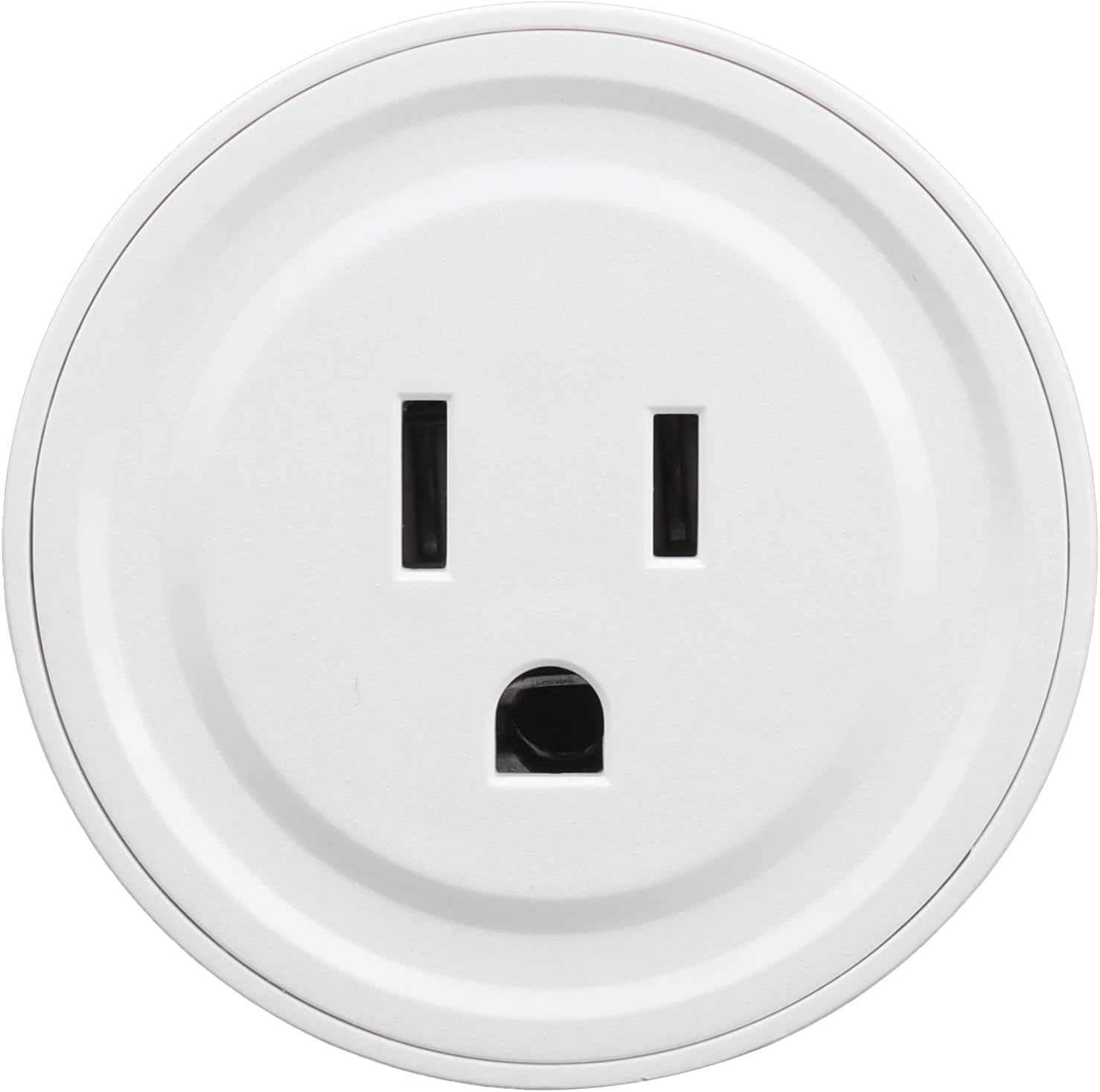
Image: Front view of the Walfront Smart Plug Socket, showing the US-standard three-prong outlet.

Image: Back view of the smart plug, displaying the US plug prongs and printed electrical specifications including Model: LSPA6, Input/Output: AC100-240V, 10A(Max), and Wireless type: WIFI 2.4GHZ.
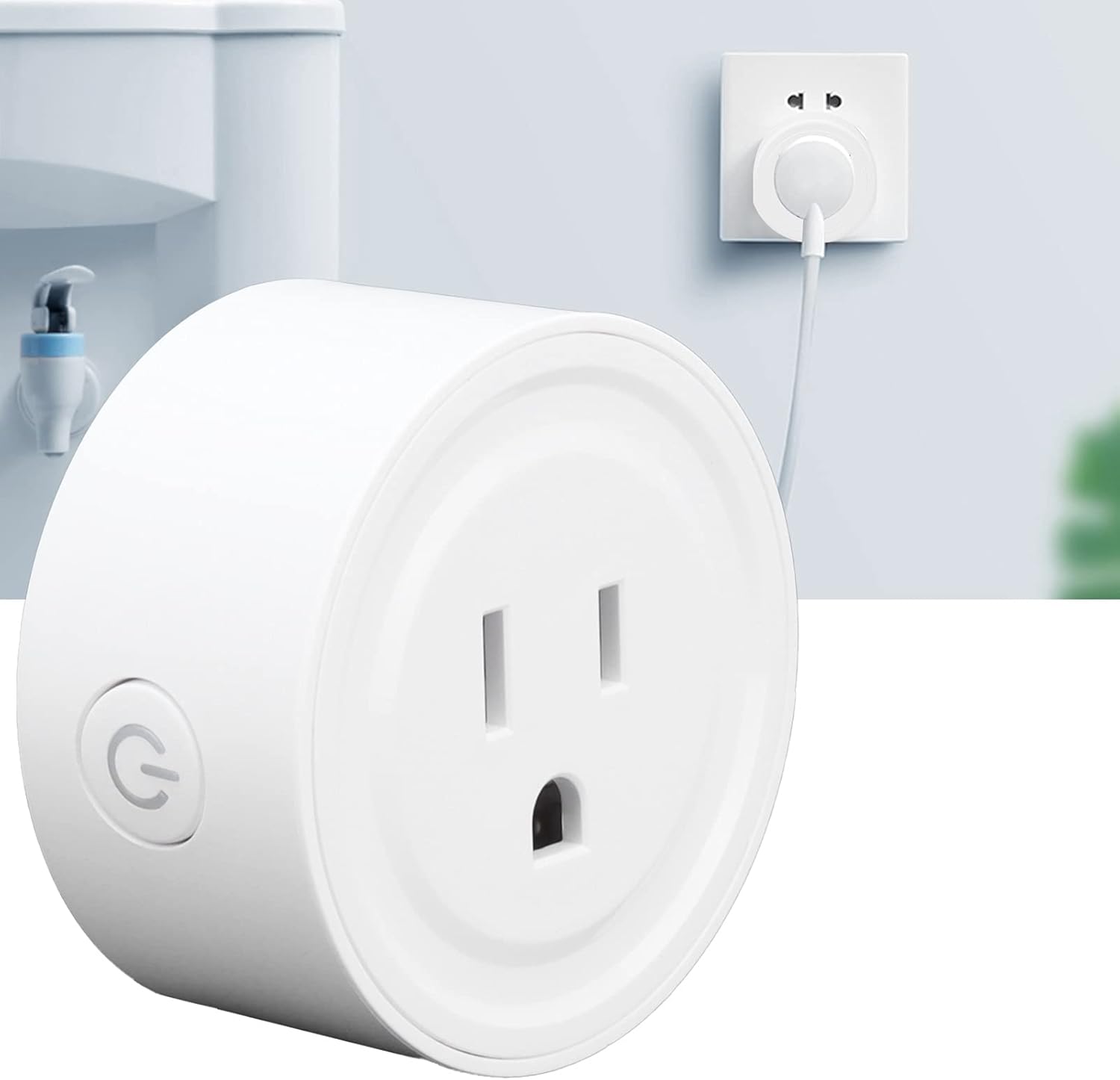
Image: The Walfront Smart Plug Socket, showing the integrated power button on its side for manual control.
Setup
1. Physical Installation
- Unpack the Walfront Smart Plug Socket from its packaging.
- Plug the smart plug into a standard US 100-240V wall outlet. Ensure it is securely seated.
- The indicator light on the plug should begin to flash, indicating it is ready for pairing.
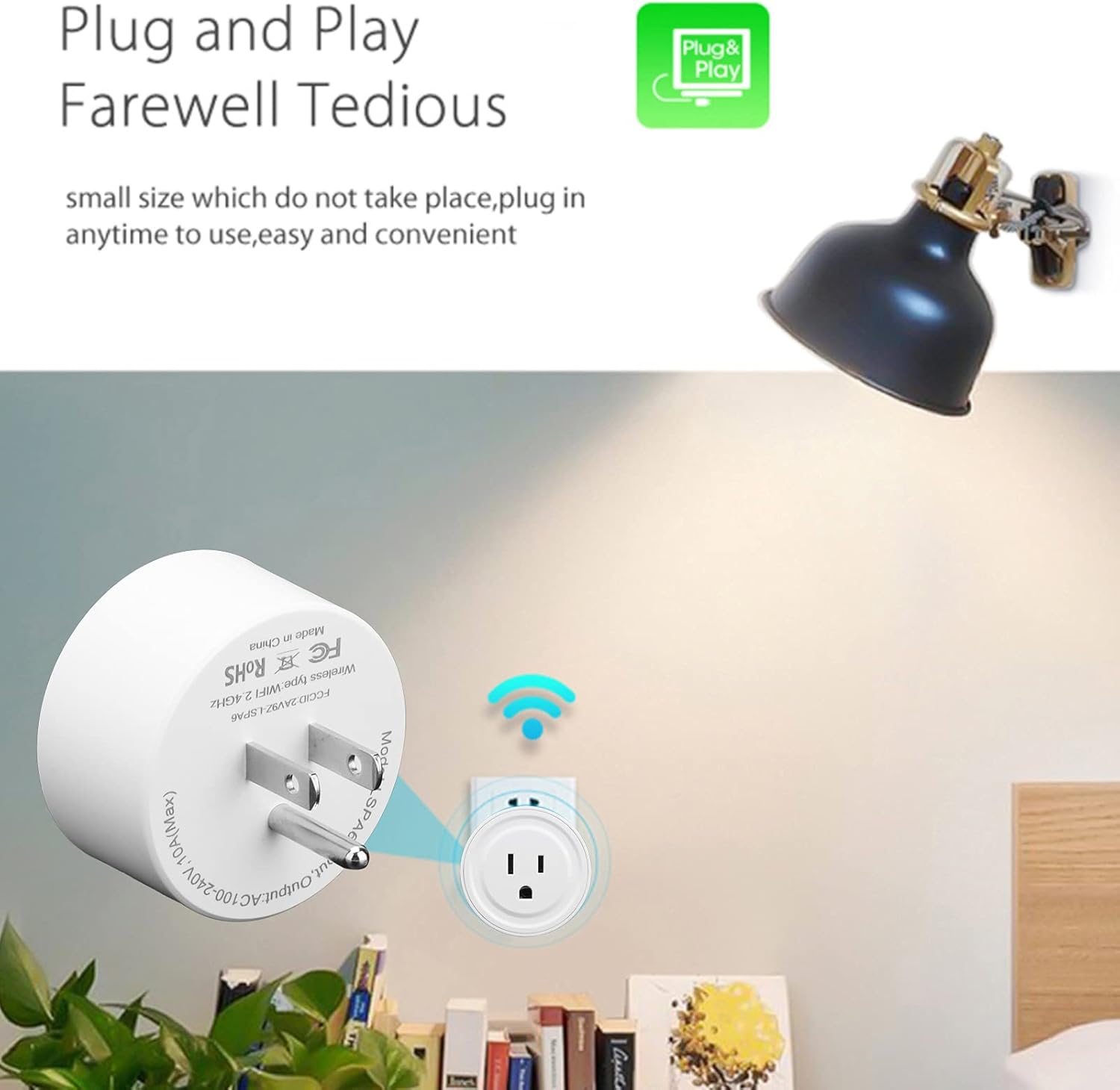
Image: The Walfront Smart Plug Socket securely plugged into a standard wall outlet, ready for configuration.
2. App Download and Connection
- Download the compatible smart home application (e.g., "Smart Life" app) from your smartphone's app store (iOS or Android).
- Register or log in to your account within the app.
- Ensure your smartphone is connected to a 2.4GHz WiFi network. The smart plug only supports 2.4GHz WiFi.
- In the app, tap "Add Device" or the "+" icon to add a new device.
- Follow the on-screen instructions to connect the smart plug to your WiFi network. This typically involves selecting your WiFi network and entering the password.
- Once successfully connected, the indicator light on the smart plug will stop flashing and remain solid. You can now rename your device in the app for easier identification.

Image: Diagram illustrating the connection process: the smart socket communicates with the mobile phone via a WiFi router, enabling remote control through the intelligent app.
Operating Instructions
1. Remote Control
After successful setup, you can control the smart plug from anywhere using the app on your smartphone, as long as your phone has an internet connection. Simply tap the on/off switch within the app to power connected devices.

Image: A woman using her smartphone to remotely control a smart plug, demonstrating the convenience of managing appliances from any location with network access.
2. Timer and Countdown Functions
The app allows you to set schedules, timers, and countdowns for your connected devices. This enables automation, such as turning lights on at sunset or turning off a coffee maker after a set period.
- Timing: Set specific times for the plug to turn on or off daily or on selected days.
- Countdown: Set a duration after which the plug will automatically turn off.
- Cycle: Configure the plug to cycle on and off at regular intervals.

Image: Screenshot of the smart schedule interface, showing options for timing, cycle, and countdown settings to automate device operation.
3. Voice Control
The Walfront Smart Plug is compatible with popular voice assistants like Amazon Alexa and Google Home. Link your smart home app account to your voice assistant app, then use simple voice commands to control your devices.
- Example commands: "Alexa, turn on the living room lamp," or "Hey Google, turn off the fan."

Image: A person in a kitchen using voice commands to control a smart plug, illustrating hands-free operation with Alexa or Google Home.
4. Sharing Function
You can share control of your smart plug with family members. Through the app, grant access to other users, allowing multiple smartphones to control the same smart plug or multiple smart plugs.

Image: Diagram illustrating the sharing function, where one smartphone can control multiple WiFi controllers, and multiple smartphones can control one WiFi controller, enabling family access.
Maintenance
- Ensure the smart plug is unplugged from the wall outlet before cleaning.
- Wipe the exterior of the smart plug with a soft, dry cloth. Do not use liquid cleaners or abrasive materials.
- Store the smart plug in a cool, dry place when not in use for extended periods.
Troubleshooting
Common Issues and Solutions:
- Device not connecting to WiFi:
- Ensure your WiFi network is 2.4GHz. The smart plug does not support 5GHz networks.
- Check your WiFi password for accuracy.
- Move the smart plug closer to your WiFi router.
- Reset the smart plug by pressing and holding the power button for 5-10 seconds until the indicator light flashes rapidly, then attempt pairing again.
- Device not responding to app commands:
- Check if the smart plug is powered on and the indicator light is solid.
- Ensure your smartphone has an active internet connection.
- Verify that the smart plug is still connected to your WiFi network.
- Restart the app or your smartphone.
- Overload Protection Triggered:
- If the smart plug stops working unexpectedly, it might be due to an overload. Unplug the connected appliance and the smart plug.
- Ensure the connected appliance's power consumption does not exceed 10A.
- Plug the smart plug back in and try connecting a lower-power appliance.
Specifications

Image: Detailed specifications of the Walfront Smart Plug, including model, material, uses, rated current, wireless type, working temperature, humidity, functions, and physical dimensions.
| Model | A6 (Walfrontztig1g5q2u95) |
| Material | ABS + PC |
| Input/Output Voltage | AC100-240V |
| Rated Current | 10A (Maximum) |
| Wireless Type | WiFi 2.4GHz 802.11b/g/n |
| Working Temperature | -20°C ~ 50°C |
| Working Humidity | ≤80% |
| Functions | Timer, Countdown, Statistics |
| Item Weight | 2.29 ounces |
| Package Dimensions | 4.02 x 2.52 x 2.17 inches |
Note: Do not input current greater than 10A.
Warranty and Support
For warranty information, please refer to the documentation provided with your purchase or contact the retailer. For technical support or further assistance, please reach out to Walfront customer service through their official channels.