
1. Introduction
This manual provides detailed instructions for the installation, operation, and maintenance of your ESLYYDS Double Din Car Stereo. This advanced multimedia system offers a wide range of features including Apple CarPlay, Android Auto, Bluetooth connectivity, a high-definition touchscreen, and support for a backup camera, enhancing your in-car entertainment and navigation experience.

Figure 1.1: ESLYYDS Double Din Car Stereo Overview
2. Package Contents
Please verify that all items listed below are included in your package:
- ESLYYDS Double Din Car Stereo Unit
- Mounting Bracket Set
- Camera Wire A
- Camera Wire B
- Steering Wheel Control Unit
- Wire Harness A
- Wire Harness B
- Rear-view Camera
- Remote Control
- User Manual (this document)

Figure 2.1: Stereo Dimensions and Included Accessories
3. Product Features
The ESLYYDS Double Din Car Stereo is equipped with a variety of features designed for convenience and enhanced driving experience:
- Apple CarPlay & Android Auto Compatibility: Seamlessly integrate your smartphone for navigation, music, calls, and messages using voice control.
- 7-inch HD Capacitive Touch Screen: A responsive and accurate display supporting 1080P video playback.
- Bluetooth 5.2: For stable and clear hands-free calling and audio streaming.
- Phone Mirror Link: Display your smartphone's screen directly on the stereo.
- Dual USB Interface: One port for media playback and another with 2.1A fast charging capability.
- Rear View Camera Input: Supports the included 12 HD LED light, night vision, 170° viewing angle waterproof backup camera for safer reversing.
- Steering Wheel Control (SWC): Compatible with existing steering wheel controls for convenient operation.
- AM/FM Audio Receiver: Access to radio stations with user-friendly digital control.
- AUX IN Connectivity: For external audio devices.
- 7 Color LED Buttons: Customizable button illumination.
3.1 Apple CarPlay & Android Auto
Connect your smartphone via USB to access navigation, phone contacts, email, notifications, and music directly on the stereo display. This feature utilizes voice control technology for safe operation while driving.
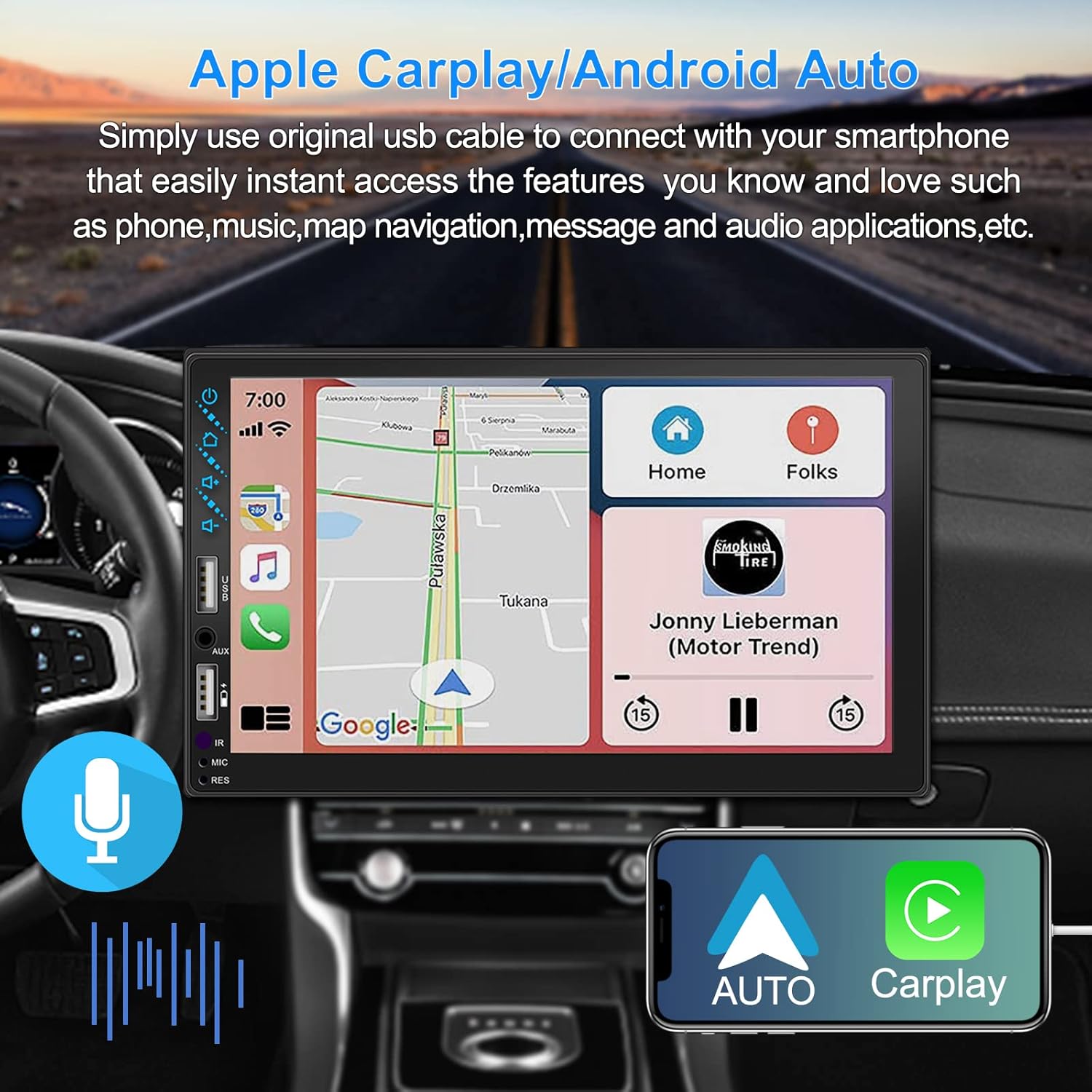
Figure 3.1: Apple CarPlay and Android Auto Interface
3.2 Voice Control
Utilize voice commands to control various functions such as making calls, playing music, and navigating, allowing you to keep your hands on the wheel and eyes on the road.

Figure 3.2: Voice Control Functionality
3.3 Phone Mirror Link
The Mirror Link function allows you to display your smartphone's screen directly onto the stereo's touchscreen. This supports Android devices (version 10.1 and below) and iPhone devices (version 14.5 and below, including iPhone 12, 11, XR, and 8 series and below) with resolutions up to 1920x1080 pixels.
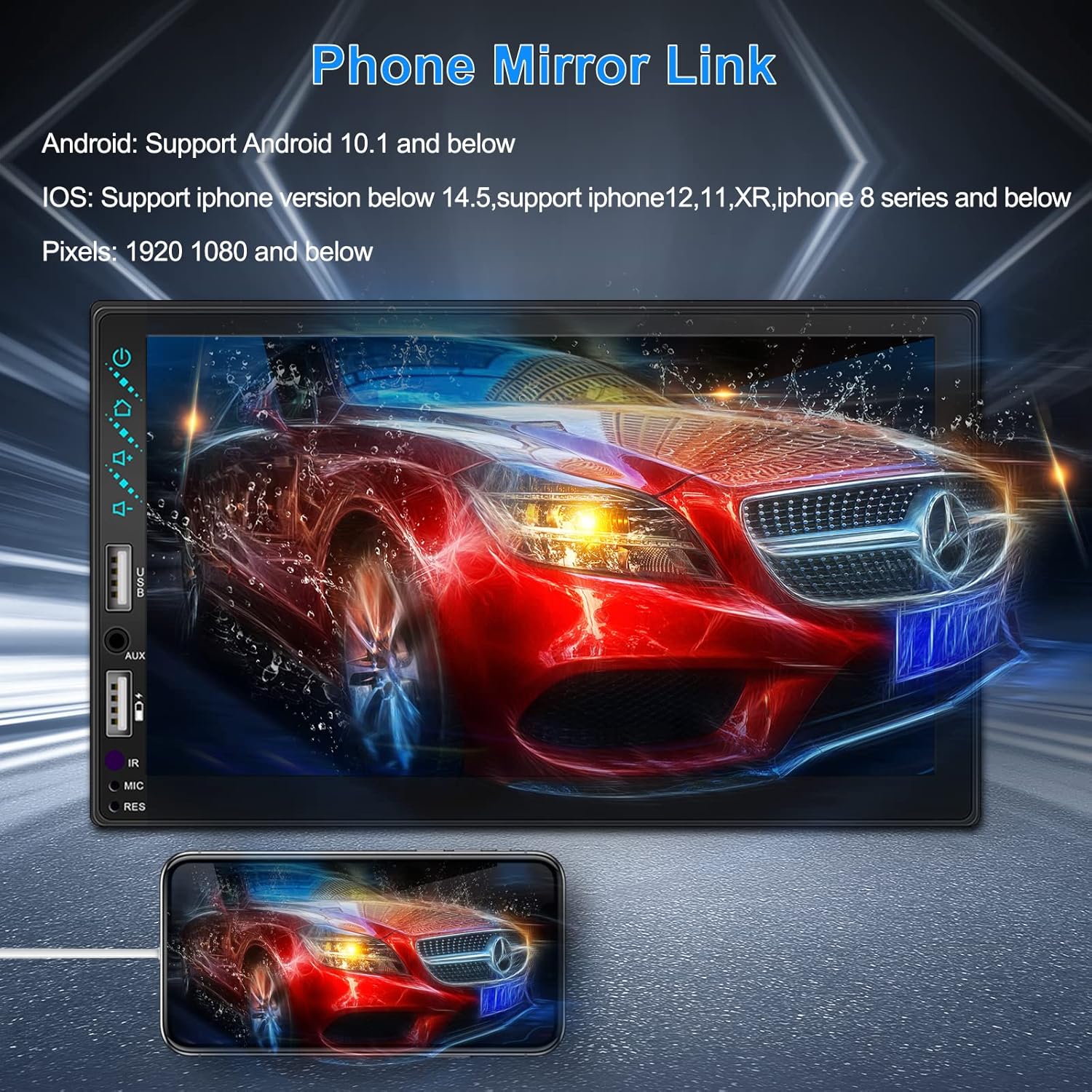
Figure 3.3: Phone Mirror Link
3.4 Rear View Camera
The included waterproof backup camera features 12 HD LED lights for night vision and a 170° viewing angle. When you shift into reverse, the system automatically displays the camera feed on the screen, providing optimal visibility in various weather conditions.
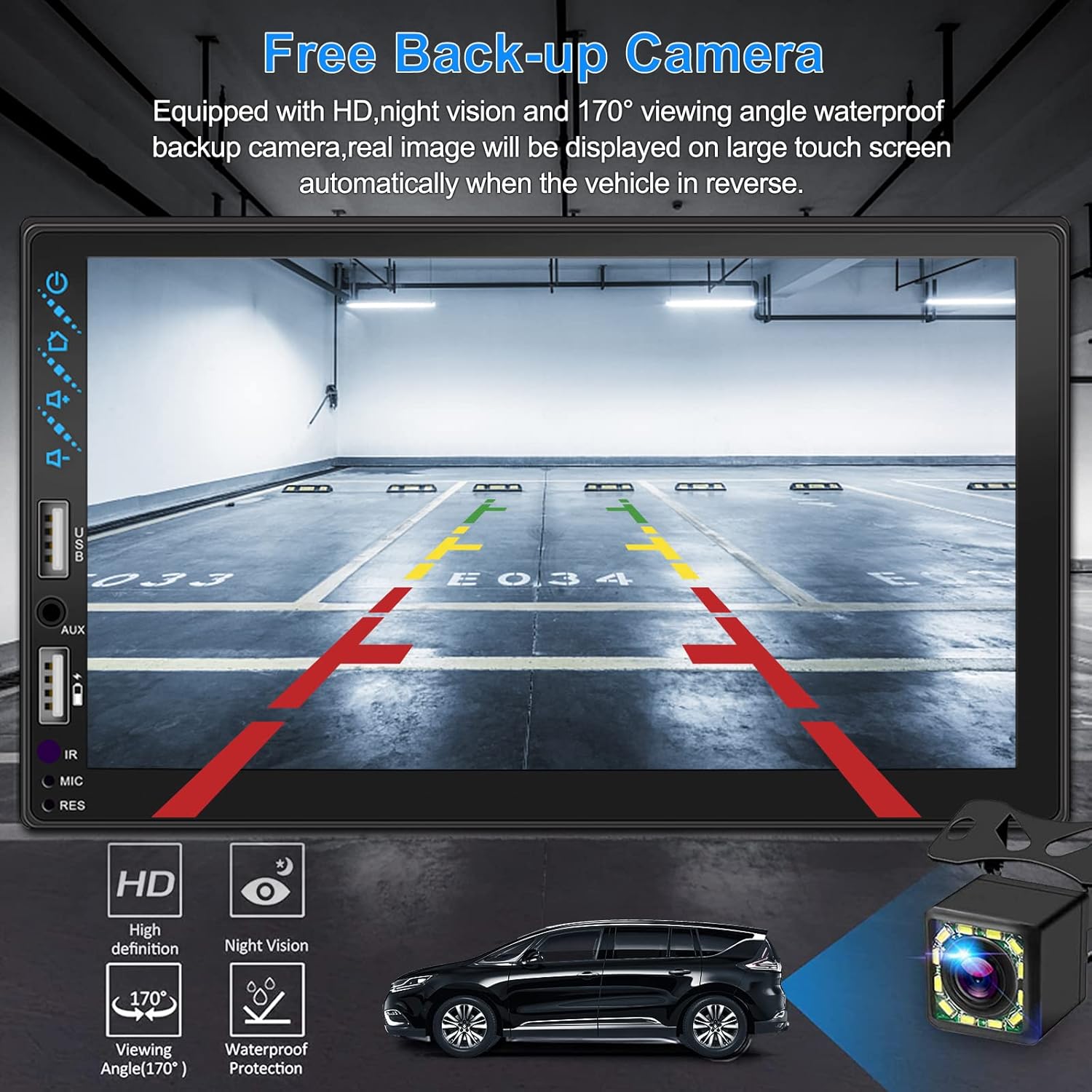
Figure 3.4: Rear View Camera Display
4. Installation Guide
Proper installation is crucial for optimal performance. It is recommended to have the unit installed by a professional if you are unfamiliar with car audio wiring.
4.1 Dimensions
The stereo unit has a standard double din size. Refer to Figure 2.1 for detailed dimensions.
- Width: 178mm (7 inches)
- Height: 102mm (4 inches)
- Depth: 60mm (2.6 inches)
4.2 Wiring Diagram
Carefully follow the wiring diagram below to connect the stereo to your vehicle's electrical system. Ensure all connections are secure to prevent malfunctions.
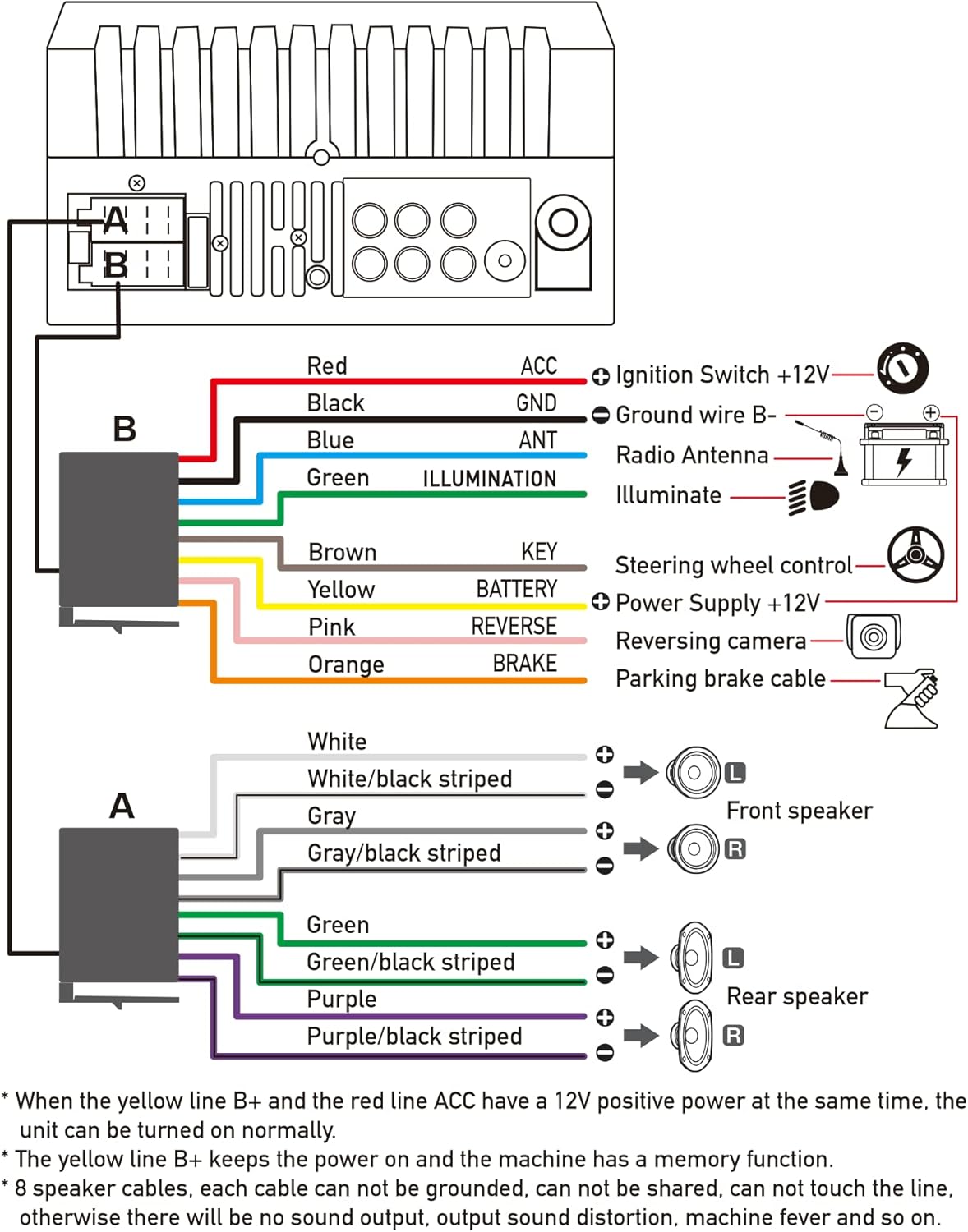
Figure 4.1: Main Wiring Diagram
- Red (ACC): Connect to Ignition Switch +12V.
- Black (GND): Connect to Ground wire B-.
- Blue (ANT): Connect to Radio Antenna (if applicable).
- Green (ILLUMINATION): Connect to Illuminate wire.
- Brown (KEY): Connect to Steering wheel control.
- Yellow (BATTERY): Connect to Power Supply +12V.
- Pink (REVERSE): Connect to Reversing camera input.
- Orange (BRAKE): Connect to Parking brake cable.
Speaker Connections (8 speakers supported):
- White / White/black striped: Front Left Speaker
- Gray / Gray/black striped: Front Right Speaker
- Green / Green/black striped: Rear Left Speaker
- Purple / Purple/black striped: Rear Right Speaker
Important Notes:
- The unit requires both the Yellow (BATTERY) and Red (ACC) wires to have a 12V positive power supply simultaneously for normal operation.
- The Yellow (BATTERY) wire keeps the power on and maintains memory functions.
- For speaker connections, each cable must not be grounded or shared with other cables. Incorrect wiring can lead to no sound output, sound distortion, or damage to the machine.
5. Operating Instructions
5.1 Basic Operations
- Power On/Off: Press the power button on the front panel or remote control.
- Volume Control: Use the volume buttons on the front panel, steering wheel controls, or remote control.
- Source Selection: Tap the 'Source' or 'Mode' icon on the touchscreen to switch between Radio, Bluetooth, USB, AUX, CarPlay, and Android Auto.
5.2 Apple CarPlay / Android Auto Usage
- Connect your compatible iPhone or Android smartphone to the stereo's USB port using a certified USB cable.
- The stereo will automatically detect the connection and prompt you to launch CarPlay or Android Auto.
- Follow the on-screen instructions to complete the setup.
- Once connected, you can access supported apps like Maps, Phone, Messages, and Music directly from the stereo's touchscreen or via voice commands.
5.3 Bluetooth Pairing
- Turn on Bluetooth on your smartphone.
- On the stereo, navigate to the Bluetooth menu.
- Search for available devices on your smartphone. The stereo's Bluetooth name will typically be 'ESLYYDS' or similar.
- Select the stereo from your smartphone's list and confirm the pairing code if prompted.
- Once paired, you can make/receive calls and stream audio wirelessly.
5.4 Phone Mirror Link Usage
- Connect your smartphone to the stereo's USB port.
- Select the 'Mirror Link' option on the stereo's screen.
- Follow the specific instructions displayed on the stereo for your phone's operating system (Android or iOS) to enable screen mirroring. This may involve enabling USB debugging for Android or trusting the device for iOS.
5.5 Radio Operation
- Select the 'Radio' source.
- Use the 'Scan' function to automatically search and save stations, or manually tune using the frequency controls.
- Save your favorite stations to preset buttons for quick access.
5.6 USB Playback
- Insert a USB drive containing audio or video files into the designated USB playback port.
- The stereo will automatically switch to USB mode or prompt you to select it.
- Browse and play your media files using the touchscreen controls.
6. Maintenance
To ensure the longevity and optimal performance of your car stereo, follow these maintenance guidelines:
- Cleaning: Use a soft, dry cloth to clean the screen and exterior. For stubborn smudges on the screen, use a screen cleaner specifically designed for electronic displays. Avoid abrasive cleaners or solvents.
- Temperature: Avoid exposing the unit to extreme temperatures, both hot and cold, for extended periods.
- Moisture: Keep the unit dry. Do not expose it to water or excessive humidity.
- Firmware Updates: Check the manufacturer's website periodically for any available firmware updates to improve performance and add new features.
7. Troubleshooting
If you encounter issues with your ESLYYDS car stereo, please refer to the following common problems and solutions. If the problem persists, contact customer support.
| Problem | Possible Cause | Solution |
|---|---|---|
| No power | Incorrect wiring; Blown fuse; Vehicle battery issue. | Check power (Yellow and Red) and ground (Black) wire connections. Inspect vehicle fuses. Ensure vehicle battery is charged. |
| No sound | Speaker wires incorrectly connected; Volume too low; Mute function active. | Verify all speaker wire connections (ensure no shorts or grounds). Increase volume. Check if mute is enabled. |
| Bluetooth not connecting | Bluetooth not enabled on phone/stereo; Incorrect pairing process. | Ensure Bluetooth is active on both devices. Delete previous pairings and re-attempt pairing process. |
| CarPlay/Android Auto not launching | Faulty USB cable; Phone not compatible; Software issue. | Use a high-quality, certified USB cable. Ensure your phone's OS version is compatible. Restart both phone and stereo. |
| Rear camera not displaying | Camera wire disconnected; Reverse trigger wire not connected. | Check the camera's video input and power connections. Ensure the Pink (REVERSE) wire is correctly connected to the vehicle's reverse light trigger. |
| USB not reading media | Unsupported file format; Corrupted USB drive; USB port issue. | Ensure media files are in supported formats (e.g., MP3, MP4, MKV). Try a different USB drive. |
8. Specifications
| Feature | Specification |
|---|---|
| Product Dimensions | 7 x 2.6 x 3.94 inches |
| Item Weight | 2.33 pounds |
| Model Number | L3 |
| Display Size | 7 inches (18 cm) |
| Display Type | HD Capacitive Touchscreen |
| Connectivity Technology | Carplay, Android Auto, Mirror-Link, Bluetooth 5.2, USB, AUX |
| Controller Type | Google Assistant, iOS, Android |
| Special Features | Touchscreen, RDS, Steering Wheel Control (SWC), Fast Charging USB (2.1A) |
| Compatible Devices | Smartphone |
| Connector Type | USB |
| Audio Output Mode | Surround |
| Surround Sound Channel Configuration | 5.1 |
| Video Encoding Support | MKV |
| Color | Black |
| Date First Available | September 25, 2021 |
9. Warranty and Support
ESLYYDS is committed to providing excellent customer service and technical support. For any inquiries or assistance, please contact our professional technical team.
- Money-Back Guarantee: 30-day period from purchase.
- Replacement Warranty: 12-month period for product replacement.
- Technical Support: Life-time technical support is provided.
Please refer to your purchase documentation for specific contact details or visit the official ESLYYDS website for support information.