
HTC HTC TWS3
HTC True Wireless Earbuds 2 User Manual
Model: HTC TWS3
Introduction
The HTC True Wireless Earbuds 2 offer a seamless audio experience with advanced features designed for comfort and convenience. These earbuds utilize the latest Bluetooth 5.1 technology for instant pairing and stable connections across various devices. Enjoy extended listening times, intuitive touch controls, and a comfortable, ergonomic fit for all-day use.

Image: HTC True Wireless Earbuds 2 in their pink charging case, showcasing the compact design.

Image: A display of HTC True Wireless Earbuds 2 in three available colors: white, black, and pink.
Video: An official overview of the HTC True Wireless Bluetooth Earbuds, highlighting key features and design.
What's in the Box
Your HTC True Wireless Earbuds 2 package includes the following items:
- HTC True Wireless Earbuds 2 (Left and Right)
- USB-C Charging Cable
- Rubber Eartips (Two pairs: Large and Small sizes, in addition to the pre-installed medium size)
- Charging Case
Video: An unboxing video for the HTC True Wireless Earbuds 2, showing the contents of the package.
Setup
1. Charging the Earbuds and Case
Before first use, ensure both the earbuds and the charging case are fully charged. Connect the provided USB-C cable to the charging port on the case and plug the other end into a compatible USB power source. The indicator light on the case will show charging status. A full charge provides up to 8 hours of listening time for the earbuds and up to 32 hours total with the charging case.

Image: Pink HTC True Wireless Earbuds 2 and their charging case, illustrating the 30-hour combined battery life.
2. Pairing with Your Device
- Open the charging case. The earbuds will automatically enter pairing mode.
- On your device (smartphone, tablet, laptop), go to Bluetooth settings.
- Select "HTC True Wireless Earbuds 2" from the list of available devices.
- Once connected, you will hear an audio prompt, and the indicator light on the earbuds will change.
The earbuds utilize Bluetooth 5.1 for quick and stable connections. They are compatible with iOS, Android, and Windows devices.

Image: A diagram illustrating the quick pairing process and wide compatibility of the HTC True Wireless Earbuds 2 with various devices.
3. Achieving Optimal Comfort
The earbuds are ergonomically crafted for a secure and comfortable in-ear fit. Experiment with the included rubber eartips (small, medium, large) to find the size that provides the best seal and comfort for your ears. A proper fit enhances sound quality and noise isolation.

Image: A woman wearing pink HTC True Wireless Earbuds 2 while working on a laptop, emphasizing the ultra-lightweight comfort and ergonomic design.
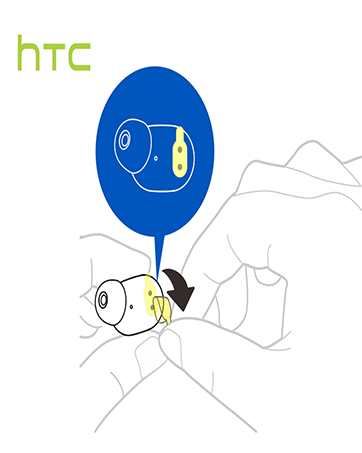
Image: A diagram illustrating the correct method for inserting an earbud to ensure a secure and comfortable fit.
Operating Instructions
Touch Controls
The HTC True Wireless Earbuds 2 feature intuitive touch controls on each earbud for easy management of your audio and calls:
- Play/Pause: Tap left/right earbud once.
- Answer Call: Tap left earbud once.
- Hang Up Call: Tap right earbud once.
- Reject Call: Tap and hold left/right earbud for 2 seconds.
- Previous Track: Tap and hold left earbud for 2 seconds.
- Next Track: Tap and hold right earbud for 2 seconds.
- Volume Up: Tap left earbud twice.
- Volume Down: Tap right earbud twice.
- Activate Voice Assistant: Tap left/right earbud three times.

Image: A visual guide detailing the simple touch controls for the pink HTC True Wireless Earbuds 2.

Image: A visual guide detailing the simple touch controls for the black HTC True Wireless Earbuds 2.
Single Earbud Use
You can use either earbud independently for mono audio or calls. Simply take one earbud out of the case, and it will automatically connect to your device. This feature allows for versatility depending on your listening needs.

Image: Two smartphones connected to individual pink HTC True Wireless Earbuds 2, showcasing the versatility of using one or both earbuds.

Image: A diagram illustrating the versatility of using one or both black HTC True Wireless Earbuds 2 with different devices.
Maintenance
Cleaning and Care
- Regularly clean the earbuds and charging case with a soft, dry cloth.
- Remove eartips and clean them with mild soap and water if necessary, ensuring they are completely dry before reattaching.
- Avoid using abrasive materials or harsh chemicals.
Water Resistance
The HTC True Wireless Earbuds 2 are IPX5 waterproof, meaning they are protected against low-pressure water jets from any direction. This makes them suitable for workouts and light rain. However, they are not designed for submersion in water.
Troubleshooting
If you encounter any issues with your HTC True Wireless Earbuds 2, please refer to the following common solutions:
| Problem | Solution |
|---|---|
| Earbuds not pairing | Ensure earbuds are charged. Place them back in the case, close, then reopen to re-enter pairing mode. Check your device's Bluetooth settings and forget/remove previous connections if necessary. |
| No sound from one earbud | Ensure both earbuds are charged. Try placing both back in the case and taking them out again. Re-pair with your device. |
| Touch controls unresponsive | Ensure earbuds are clean and dry. Restart your device and re-pair the earbuds. |
| Poor sound quality | Adjust the eartips for a better seal. Ensure your device is within the 10m Bluetooth range. Check for interference from other wireless devices. |
Specifications
| Feature | Detail |
|---|---|
| Model Name | HTC True Wireless Earbuds 2 |
| Item Model Number | HTC TWS3 |
| Connectivity Technology | Wireless (Bluetooth 5.1) |
| Battery Life (Earbuds) | Up to 8 hours on a single charge |
| Battery Life (with Charging Case) | Up to 32 hours |
| Charging Case Battery Capacity | 500 mAh |
| Water Resistance Level | IPX5 (Water Resistant) |
| Control Type | Touch Control (Volume, Play/Pause, Call Management, Voice Assistant) |
| Ear Placement | In Ear |
| Frequency Range | 20-20,000 Hz |
| Item Weight | 2.82 ounces |
| Product Dimensions | 1.71 x 1.71 x 1.36 inches |
Warranty and Support
HTC provides a 12-month warranty for the True Wireless Earbuds 2. For any support inquiries or warranty claims, please contact HTC customer service through their official website or the retailer where the product was purchased.
For more information, visit the official HTC Store on Amazon.
Ask a question about this manual
Ask about setup, troubleshooting, compatibility, parts, safety, or missing instructions. Manuals+ will review the question and use this page’s manual context to help answer it.