
USHINING M2302
USHINING 2g Senior Mobile Phone User Manual
Model: M2302
1. Introduction
Thank you for choosing the USHINING 2g Senior Mobile Phone. This device is specifically designed with ease of use in mind, featuring large buttons, a clear display, and essential functions to provide reliable communication for seniors. This manual will guide you through the setup, operation, and maintenance of your new phone.

The USHINING senior phone is designed for straightforward use by the elderly.
2. Safety Information
Please read this section carefully before using your phone to ensure safe and proper operation. Keep this manual for future reference.
- Do not attempt to disassemble or modify the phone. This can cause damage and void the warranty.
- Use only original or approved batteries and chargers. Unapproved accessories may cause fire, explosion, or other hazards.
- Keep the phone away from water and moisture.
- Avoid exposing the phone to extreme temperatures.
- Do not use the phone while driving or in situations where it could distract you.
- Dispose of the phone and battery responsibly according to local regulations.
3. Package Contents
Please check the package for the following items:
- USHINING 2g Senior Mobile Phone
- Charging Dock
- Power Adapter
- USB Cable
- Rechargeable Lithium-Polymer Battery
- Lanyard
- User Manual

The package includes the USHINING senior phone, a charging adapter, a USB cable, a charging dock, a lanyard, a battery, and the user manual.
4. Product Overview
Familiarize yourself with the phone's physical features and design.

The USHINING 2g Senior Mobile Phone, shown here in its dedicated charging dock, features a large display and clearly visible buttons, designed for ease of use.

Designed specifically for the elderly, the phone features large, easy-to-press buttons and large, clear fonts on the display for effortless dialing and navigation.
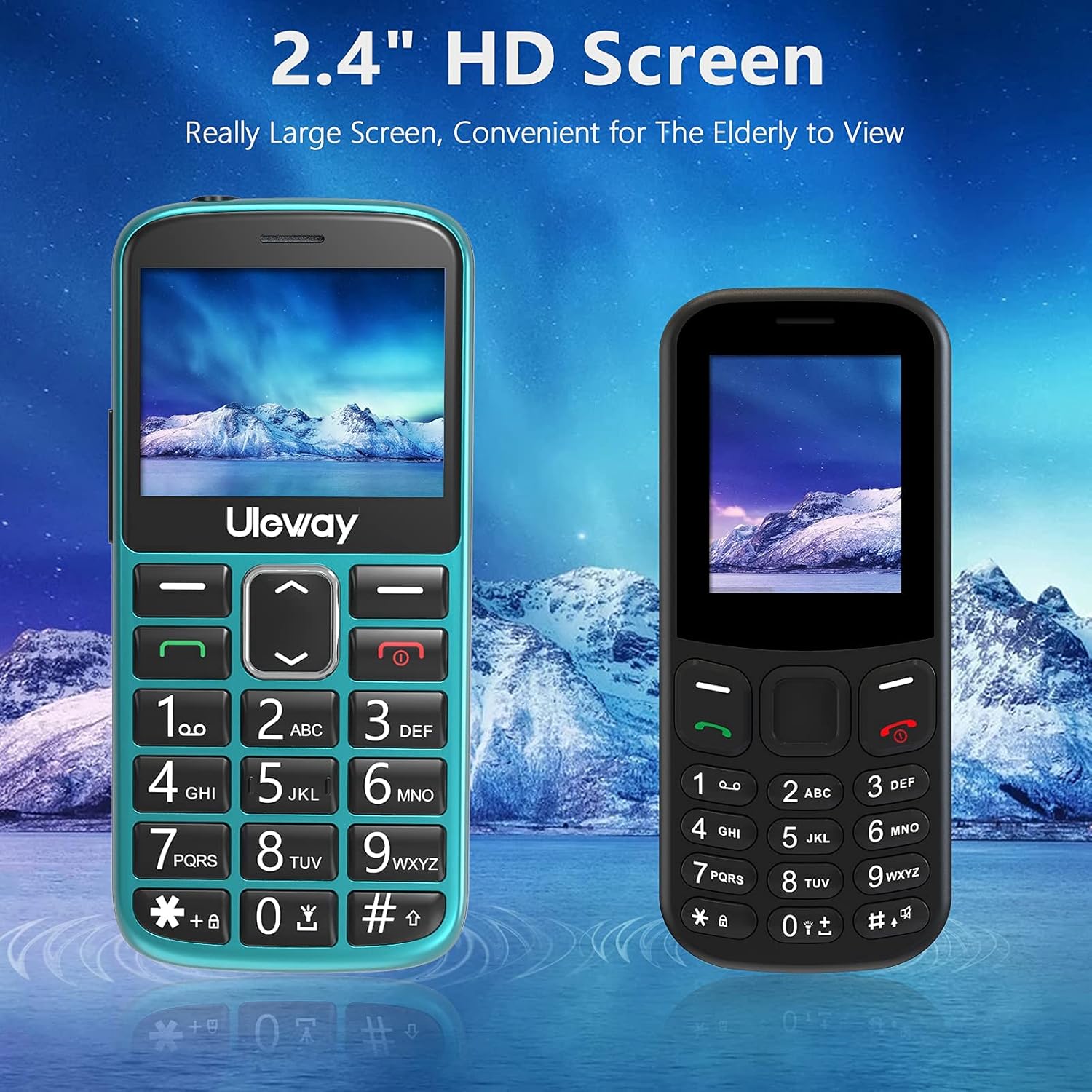
Equipped with a 2.4-inch HD screen, this phone offers a significantly larger and clearer display compared to standard smaller screens, enhancing readability for elderly users.

The phone offers high volume output and is Hearing Aid Compatible (HAC), ensuring clear communication for users with hearing aids.
5. Setup
5.1. Inserting SIM Cards and Micro SD Card
The phone supports dual standard SIM cards and one Micro SD card (up to 32GB). Ensure the phone is powered off before inserting or removing cards.
- Remove the back cover of the phone.
- Carefully remove the battery.
- Insert the SIM cards into the designated SIM card slots (Card Slot 1 and Card Slot 2) with the gold contacts facing down.
- If desired, insert a Micro SD card into the Micro SD card slot.
- Reinsert the battery and replace the back cover.

The phone supports dual standard SIM cards and a Micro SD card (up to 32GB) for expanded storage. SIM and SD cards are not included.
5.2. Battery Installation and Initial Charging
Your phone comes with a rechargeable Lithium-Polymer battery. For optimal performance, fully charge the battery before first use.
- Ensure the battery is correctly installed as described in section 5.1.
- Connect the USB cable to the power adapter and then to the charging dock.
- Plug the power adapter into a wall outlet.
- Place the phone into the charging dock. The phone will indicate that it is charging.
- Allow the phone to charge until the battery indicator shows a full charge. This may take several hours for the first charge.
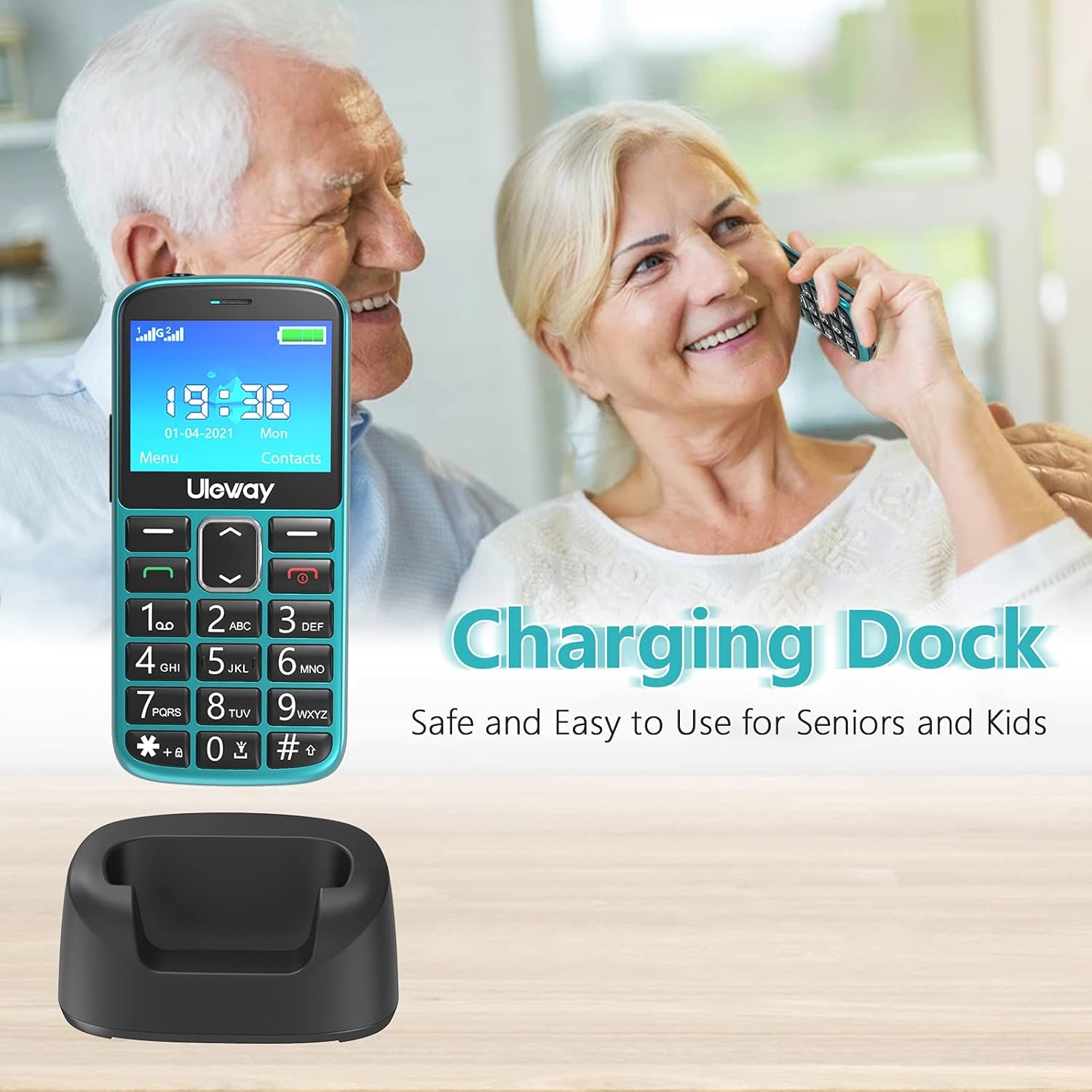
The included charging dock provides a stable and convenient way to charge the phone, making it easy for seniors to keep their device powered.

The USHINING senior phone is powered by a 1000 mAh large capacity battery, providing extended standby time and reliable performance.
6. Operating Instructions
6.1. Powering On/Off
- To Power On: Press and hold the red End Call/Power button (✖) until the screen lights up.
- To Power Off: Press and hold the red End Call/Power button (✖) until the power off options appear, then confirm.
6.2. Making and Receiving Calls
- To Make a Call: Dial the number using the large keypad buttons and press the green Call button (✓).
- To Answer a Call: Press the green Call button (✓) when the phone rings.
- To End a Call: Press the red End Call/Power button (✖).
- Speed Dial: Long press a number key (2-9) to dial a pre-set contact.
6.3. SOS Emergency Function
The SOS button is located on the back of the phone and is designed for quick access to emergency contacts.
- Setting SOS Contacts: Navigate to Settings > SOS Settings to add up to 5 emergency contact numbers.
- Using SOS: In an emergency, press and hold the SOS button on the back of the phone for 3-5 seconds. The phone will automatically dial the pre-set emergency numbers in sequence until one is answered. It will also send an emergency SMS to these contacts.

The dedicated SOS button on the back of the phone allows for quick emergency calls to up to five pre-set contacts, including family members or medical professionals.
6.4. Flashlight
The phone features a built-in flashlight for convenience.
- To Turn On/Off: Long press the '0' key on the keypad to activate or deactivate the flashlight.

A built-in highlight flashlight provides convenient illumination, activated by a dedicated button for easy access in low-light conditions.
6.5. Menu Navigation and Functions
Use the navigation keys (up, down, left, right) and the OK/Select button to navigate through the phone's menu.

The phone's user interface is designed for simplicity, featuring large icons for Contacts, Multimedia, Camera, My Files, Call Logs, Settings, Tools, and Alarm.
Key functions include:
- Contacts: Store and manage phone numbers.
- Call Logs: View missed, dialed, and received calls.
- Messages: Send and receive SMS text messages.
- Camera: Capture photos.
- Multimedia: Access FM radio, MP3 player, and video player.
- Tools: Includes features like Calculator, Calendar, and Alarm.
- Settings: Customize phone settings such as display, sound, and network.

Beyond basic calling, the phone includes useful features such as a camera, FM radio, calculator, Bluetooth connectivity, calendar, and an alarm clock.
6.6. Adjusting Volume
During a call, use the dedicated volume buttons on the side of the phone to adjust the earpiece volume. Ringer volume can be adjusted in the Sound settings menu.
7. Maintenance
- Cleaning: Use a soft, dry cloth to clean the phone's surface. Avoid using liquid cleaners or aerosols.
- Battery Care: To prolong battery life, avoid fully discharging the battery frequently. Charge the phone regularly, especially if it will not be used for an extended period.
- Storage: Store the phone in a cool, dry place away from direct sunlight and extreme temperatures.
8. Troubleshooting
If you encounter issues with your phone, please refer to the following common problems and solutions:
| Problem | Possible Solution |
|---|---|
| Phone does not power on | Ensure the battery is correctly installed and charged. Try charging the phone for at least 30 minutes. |
| Cannot make or receive calls | Check if SIM card(s) are properly inserted. Ensure you have network signal. Contact your mobile carrier if the issue persists. |
| Poor call quality | Move to an area with better network coverage. Ensure the earpiece/speaker is not obstructed. Adjust call volume. |
| Battery drains quickly | Reduce screen brightness. Close unused applications. Limit background data usage. |
| SOS function not working | Verify that SOS contacts are correctly set up in the settings. Ensure the phone has network signal. |
9. Specifications
| Feature | Detail |
|---|---|
| Model Number | M2302 |
| Operating System | Nucleus OS |
| Display Size | 2.4 inches (6.1 cm) |
| Battery Capacity | 1000 mAh Lithium-Polymer |
| Talk Time | Approximately 5 hours |
| Standby Time | Approximately 240 hours |
| Internal Storage | 32 GB (likely refers to max SD card support, as internal storage for feature phones is minimal) |
| Expandable Storage | Micro SD card up to 32 GB |
| Network Technology | 2G (GSM) |
| SIM Card Slots | Dual-SIM (Standard SIM) |
| Dimensions | 12 x 5.5 x 1.5 cm |
| Weight | 260 grams |
| Color | Green |
10. Warranty and Support
Your USHINING 2g Senior Mobile Phone is covered by a manufacturer's warranty. Please refer to the warranty card included in your package for specific terms and conditions. For technical support, troubleshooting assistance, or warranty claims, please contact USHINING customer service through the retailer where you purchased the product or visit the official USHINING website for contact information.
Ask a question about this manual
Ask about setup, troubleshooting, compatibility, parts, safety, or missing instructions. Manuals+ will review the question and use this page’s manual context to help answer it.