
Introduction
The Innova FixAssist 3215RS transforms your smartphone into an advanced OBD2 diagnostic scan tool. This dongle allows you to wirelessly monitor vehicle performance, diagnostic trouble codes, and maintenance needs directly from your mobile device. It integrates seamlessly with the free RepairSolutions2 diagnostic app, providing access to a comprehensive automotive repair database with verified fixes from ASE Master Technicians.
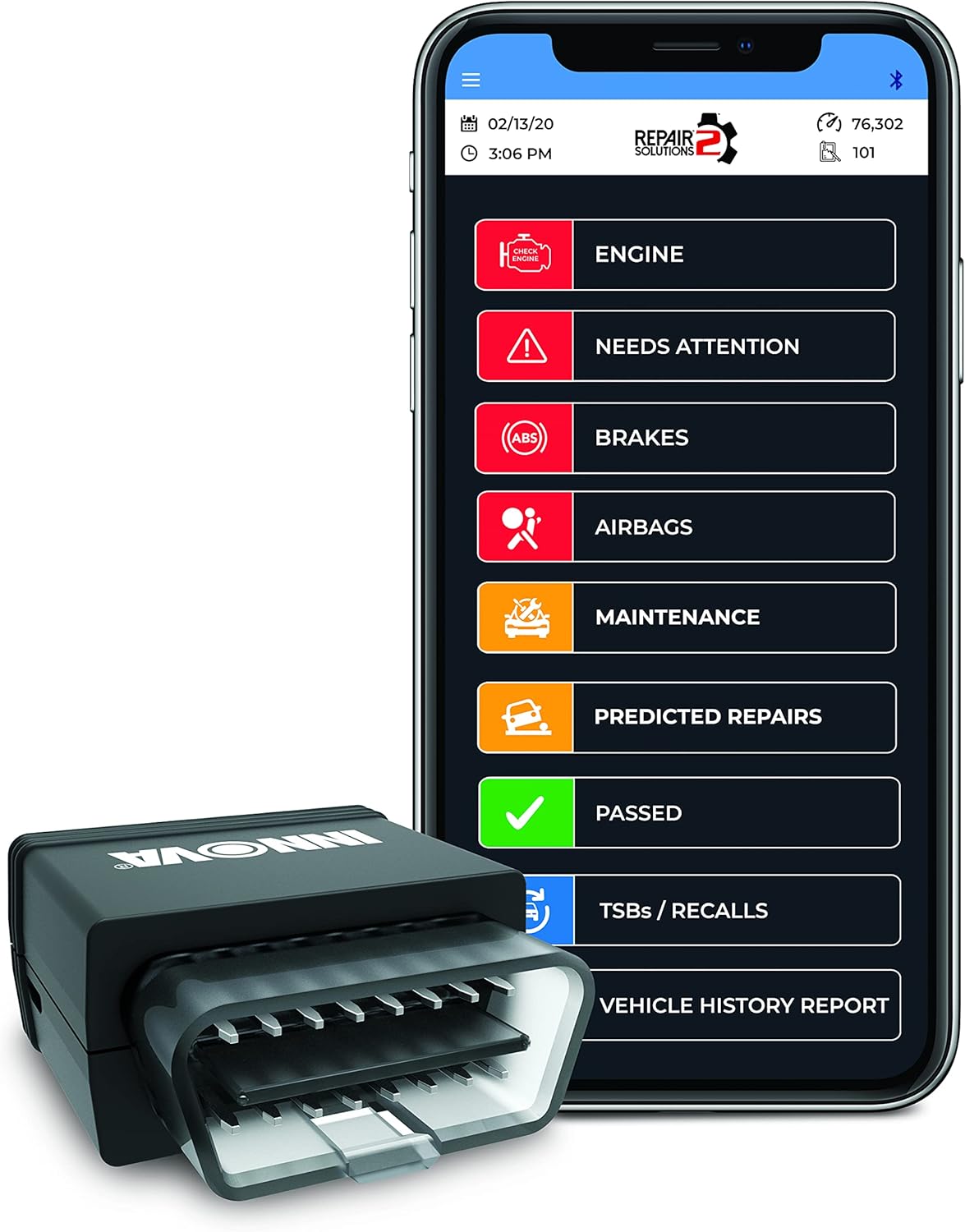
Image: The Innova 3215RS dongle is shown next to a smartphone displaying the RepairSolutions2 app. The app interface presents a clear menu for various diagnostic functions, including engine checks, brake system status, airbag diagnostics, maintenance schedules, predicted repairs, and technical service bulletins/recalls.
Setup
- Download the RepairSolutions2 App: Search for "RepairSolutions2" in your smartphone's app store (available for iPhone and Android) and download it for free.
- Locate Your Vehicle's OBD2 Port: The OBD2 port is typically located under the dashboard on the driver's side, often near the steering column.
- Plug in the Innova 3215RS Dongle: Firmly insert the dongle into your vehicle's OBD2 port. Ensure a secure connection.
- Turn On Vehicle Ignition: Turn your vehicle's ignition to the "ON" position (engine does not need to be running unless specified by a test). The dongle's indicator light should illuminate, often turning blue when connected.
- Pair with the App via Bluetooth: Open the RepairSolutions2 app on your smartphone. The app should automatically detect the Innova 3215RS dongle via Bluetooth. Follow the on-screen prompts to pair the device.

Image: A person is shown plugging the Innova 3215RS dongle into the OBD2 port, which is typically found beneath the steering wheel in most vehicles.

Image: A user is seated in a vehicle, holding the Innova 3215RS dongle and a smartphone. The smartphone screen displays the RepairSolutions2 app, indicating readiness for vehicle diagnostics.
Operating the RepairSolutions2 App
The RepairSolutions2 app provides a user-friendly interface to access various diagnostic and maintenance features:
- Read Codes: Retrieve Diagnostic Trouble Codes (DTCs) from your vehicle's computer. This helps identify the cause of a "Check Engine" light or other warning indicators.
- Clear Codes: Erase DTCs from your vehicle's computer. Note: Clearing codes does not fix the underlying problem. Ensure repairs are made before clearing codes to prevent them from reappearing.
- Saved Reports: Access previously saved diagnostic reports for historical data and comparison.
- Freeze Frame: View a snapshot of sensor data recorded at the moment a DTC was set, providing valuable context for diagnosis.
- Smog Check: Determine if your vehicle is ready for an emissions test by checking the status of various emission-related monitors.
- Mode 6: Access advanced test results for specific emission-related components that are not continuously monitored.
- MIL Status: Check the status of the Malfunction Indicator Lamp (MIL), commonly known as the "Check Engine" light.
- Vehicle Info: Retrieve detailed information about your vehicle, such as VIN, calibration IDs, and other relevant data.
- Service: Access various service functions, including oil reset, battery reset, and other maintenance-related procedures.
- Live Data: Monitor essential vehicle information in real-time. This includes parameters like Engine RPM, oil temperature, coolant temperature, and more, which can be crucial for diagnosing intermittent issues.
Code Interpretation and Fixes
The RepairSolutions2 app provides detailed definitions for retrieved codes, including:
- Code Frequency: Indicates how common a particular code is for your specific vehicle make and model.
- Possible Causes: Lists potential reasons for the diagnostic trouble code, helping narrow down the troubleshooting process.
- Frequently Reported Fixes: Suggests common repairs that have resolved the issue for other users.
- Video Repair Instructions: For certain issues, the app may provide instructional videos to guide you through the repair process.
Maintenance
The RepairSolutions2 app assists with vehicle maintenance by providing:
- Maintenance Schedules: Access recommended maintenance schedules for your vehicle.
- Technical Service Bulletins (TSBs): View official manufacturer communications regarding known issues and recommended repairs.
- Recalls: Stay informed about any safety recalls issued for your vehicle.
Troubleshooting
If you encounter issues with your Innova 3215RS dongle or the RepairSolutions2 app, refer to the app's built-in troubleshooting tips. The app provides detailed explanations for diagnostic codes and often includes video repair instructions to guide you through potential fixes.
Video: Official product video demonstrating the features and functionality of the Innova 3215RS OBD2 Bluetooth Dongle and its accompanying RepairSolutions2 app.
Vehicle Compatibility
Product features and compatibility may vary across different vehicle makes, models, and years. For exact feature availability for your vehicle, use Innova's online Coverage Checker tool.
Video: This video explains how to check vehicle compatibility for Innova OBD2 scanners using their online tool, emphasizing that features may vary by vehicle year, make, and model.
Specifications
- Model: 3215RS
- Brand: Innova
- Item Weight: 3.17 ounces
- Package Dimensions: 7.8 x 3.46 x 2.36 inches
- Power Source: Battery Powered (via OBD2 port)
- Operating System Compatibility: Android, iOS (via RepairSolutions2 App)
- UPC: 042173032150
- Manufacturer: Innova Electronics Corp.
- Date First Available: September 23, 2021
Warranty
The Innova 3215RS comes with a 1-Year Warranty. Support is provided in the U.S.A. by ASE Certified Technicians.
Customer Support
For any questions or assistance, please contact Innova customer support:
- Phone: (800) 544-4124
- Website: innova.com/support
- Customer Service Hours: Monday through Friday from 6 AM to 6 PM Pacific Standard Time.


