1. Introduction and Overview
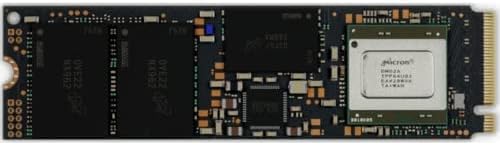
This manual provides essential information for the installation, operation, and maintenance of your Micron 3400 512GB M.2 2280 NVMe PCIe Gen4 Solid State Drive. The Micron 3400 SSD is engineered for high-performance computing, offering advanced storage capabilities for demanding applications.
Key Features:
- Capacity: 512 GB for extensive data storage.
- Interface: PCI Express NVMe 4.0 for rapid data transfer.
- Form Factor: M.2 2280, suitable for a wide range of compatible systems.
- Performance: Up to 6600 MB/s sequential read and 3600 MB/s sequential write speeds.
- NAND Technology: Industry-leading 176-layer NAND for enhanced speed and efficiency.
- Security: 256-bit encryption to protect your data.
- Power Efficiency: Optimized for low power consumption, supporting modern standby features.
The Micron 3400 SSD is designed to meet the storage needs of workstations, gaming PCs, and corporate environments, supporting high-resolution content creation, complex data processing, and fast application loading.

2. Setup and Installation
Proper installation is crucial for optimal performance and system stability. Please follow these instructions carefully.
2.1 Pre-installation Checklist:
- Compatibility: Ensure your motherboard or laptop has an available M.2 2280 slot that supports NVMe PCIe Gen4. Refer to your system's documentation.
- Tools: A Phillips head screwdriver and possibly a small standoff screw for securing the M.2 drive.
- Safety: Power off your computer completely and disconnect it from the power source. Discharge any static electricity by touching a grounded metal object before handling components.
2.2 Installation Steps:
- Open Computer Case: Carefully open your desktop computer case or laptop chassis to access the motherboard.
- Locate M.2 Slot: Identify the M.2 slot on your motherboard. It is typically labeled and may have a pre-installed standoff screw.
- Insert SSD: Gently align the Micron 3400 SSD with the M.2 slot (the notched end should match the slot key). Insert the SSD at a slight angle (approximately 30 degrees) until the gold contacts are fully seated.
- Secure SSD: Push the SSD down towards the motherboard until it is parallel. Secure it with the M.2 screw into the standoff. Do not overtighten.
- Close Case: Reassemble your computer case or laptop chassis.
- Power On: Reconnect the power cable and power on your system.
2.3 Post-installation Configuration:
- BIOS/UEFI Settings: Access your system's BIOS/UEFI settings to ensure the M.2 slot is enabled and configured for NVMe.
- Initialize Disk: For new installations, you may need to initialize the SSD in your operating system's Disk Management utility (Windows) or Disk Utility (macOS).
- Format Drive: Format the drive with a suitable file system (e.g., NTFS for Windows, APFS for macOS) before use.
- Operating System Installation: If installing an operating system on the SSD, follow the OS installation instructions.
3. Operating Your Micron 3400 SSD
Once installed and configured, your Micron 3400 SSD functions as a high-speed storage device for your operating system, applications, and data.
3.1 General Usage:
- The SSD will appear as a standard storage drive in your operating system.
- Utilize it for installing your operating system and frequently used applications to benefit from faster boot times and quicker application loading.
- Store large files, such as 4K/8K video projects, CAD files, and high-resolution images, to leverage the high read/write speeds.
3.2 Performance Considerations:
- Ensure your system's M.2 slot supports PCIe Gen4 to achieve the advertised maximum speeds. If installed in a PCIe Gen3 slot, performance will be limited to Gen3 speeds.
- Keep your operating system and drivers updated for optimal compatibility and performance.
3.3 Data Security:
The Micron 3400 SSD supports 256-bit encryption. To enable and manage this feature, refer to your operating system's security settings or specific encryption software documentation.
4. Maintenance
Regular maintenance helps ensure the longevity and consistent performance of your SSD.
4.1 Firmware Updates:
Periodically check the Micron official website for any available firmware updates for your SSD model. Firmware updates can improve performance, stability, and address potential issues. Follow the instructions provided by Micron for safe firmware updates.
4.2 TRIM Command:
Modern operating systems automatically manage the TRIM command, which helps maintain SSD performance over time by allowing the SSD to efficiently manage data blocks. Ensure your operating system is configured to support TRIM.
4.3 Monitoring SSD Health:
Utilize SSD monitoring tools (often provided by your operating system or third-party software) to check the drive's S.M.A.R.T. (Self-Monitoring, Analysis, and Reporting Technology) data. This can provide insights into the drive's health and remaining lifespan.
4.4 Data Backup:
Regularly back up important data from your SSD to another storage device. While SSDs are reliable, no storage device is immune to failure.
5. Troubleshooting
If you encounter issues with your Micron 3400 SSD, refer to the following common troubleshooting steps.
5.1 SSD Not Detected:
- Check Physical Connection: Ensure the SSD is correctly seated in the M.2 slot and the securing screw is in place.
- BIOS/UEFI Settings: Verify that the M.2 slot is enabled in your system's BIOS/UEFI settings and that NVMe support is active.
- Drivers: Ensure your operating system has the necessary NVMe drivers installed. Windows 10/11 typically includes native NVMe support.
- Disk Management: In Windows, check Disk Management to see if the drive is detected but uninitialized or unformatted.
5.2 Slow Performance:
- PCIe Generation: Confirm that the M.2 slot supports PCIe Gen4. If it's a Gen3 slot, the SSD will operate at Gen3 speeds.
- System Resources: Ensure your system has sufficient RAM and CPU resources, as these can impact overall storage performance.
- Drivers: Update your motherboard chipset drivers and NVMe drivers.
- Thermal Throttling: In some compact systems, excessive heat can cause the SSD to reduce performance. Ensure adequate airflow or consider a heatsink if your system allows.
5.3 Data Corruption or Errors:
- Run Disk Checks: Use your operating system's built-in disk checking tools (e.g.,
chkdskin Windows) to scan for and repair errors. - Backup Data: Immediately back up any critical data if you suspect data corruption.
- Reformat: As a last resort, reformatting the drive may resolve persistent issues, but this will erase all data.
If problems persist after attempting these steps, contact Micron customer support for further assistance.
6. Specifications
| Feature | Specification |
|---|---|
| Brand | Micron |
| Series | 3400 |
| Model Number | MTFDKBA512TFH-1BC1AABYY |
| Digital Storage Capacity | 512 GB |
| Hard Disk Interface | NVMe |
| Connectivity Technology | USB (Note: This refers to external enclosure compatibility, the drive itself is M.2 NVMe) |
| Form Factor | M.2 2280 |
| Read Speed (Max) | 6600 MB/s |
| Write Speed (Max) | 3600 MB/s |
| Encryption | 256-bit |
| Hardware Platform | PC |
| Item Weight | 0.317 ounces |
| Product Dimensions (LxWxH) | 0.9 x 0.9 x 0.31 inches |
| Color | Black |
| Manufacturer | Micron Technology, Inc |
7. Warranty and Support
7.1 Warranty Information:
For detailed warranty terms and conditions, please refer to the official Micron website or the warranty documentation included with your purchase. Warranty periods and coverage may vary by region and retailer.
7.2 Technical Support:
If you require technical assistance, have questions about your Micron 3400 SSD, or need to initiate a warranty claim, please contact Micron customer support through their official website. Have your product model number (MTFDKBA512TFH-1BC1AABYY) and proof of purchase ready when contacting support.


