
1. Introduction
This manual provides essential information for setting up, operating, maintaining, and troubleshooting your Dell 16 Plus 2-in-1 Laptop. This device combines the functionality of a laptop with the versatility of a tablet, featuring a 16-inch WUXGA touchscreen and powered by an Intel Core Ultra 7 processor with AI capabilities.
Please read this manual thoroughly to ensure proper use and to maximize the performance and longevity of your device.
2. Setup
2.1 Unboxing and Initial Inspection
Carefully remove all components from the packaging. Ensure the following items are present:
- Dell 16 Plus 2-in-1 Laptop
- Power Adapter/Charger
- 128GB External SSD (if included in your package)
- Cuertns Stylus (if included in your package)
Inspect the laptop and accessories for any signs of damage. If any components are missing or damaged, contact Dell support immediately.
2.2 Connecting the Power Adapter
Connect the power adapter to the laptop's charging port (USB-C or dedicated power port) and then plug it into a wall outlet. It is recommended to fully charge the laptop before initial use.
2.3 Initial Power On and Windows Setup
Press the power button to turn on the laptop. Follow the on-screen instructions to complete the Windows 11 Pro setup process. This includes selecting your language, region, connecting to a Wi-Fi network, and creating a user account.
2.4 Using the 360-degree Hinge
The Dell 16 Plus features a 360-degree hinge, allowing it to transform into various modes:
- Laptop Mode: Traditional laptop configuration for productivity.
- Tent Mode: Ideal for presentations or watching media in confined spaces.
- Stand Mode: Positions the screen for viewing without the keyboard.
- Tablet Mode: Folds the keyboard completely behind the screen for a tablet experience.

Image: The Dell 16 Plus 2-in-1 Laptop demonstrating its four versatile modes: Laptop, Display, Tent, and Tablet. This illustrates the flexibility of the 360-degree hinge design.
3. Operating Your Laptop
3.1 Touchscreen and Stylus Usage
The 16-inch WUXGA (1920 x 1200) touchscreen supports multi-touch gestures. Use the included Cuertns Stylus for precise input, drawing, or note-taking directly on the screen.
3.2 Keyboard and Backlight
The laptop features a full-sized keyboard with a backlight. To adjust the keyboard backlight brightness or turn it on/off, use the designated function keys (usually Fn + F10 or similar, refer to your specific model's key layout).
3.3 Windows Copilot (AI Assistant)
Your Dell 16 Plus is an AI-ready laptop with an Intel AI Boost NPU. Access Windows Copilot, your personal AI assistant, with a single click. Copilot can assist with various tasks, provide information, and offer solutions.
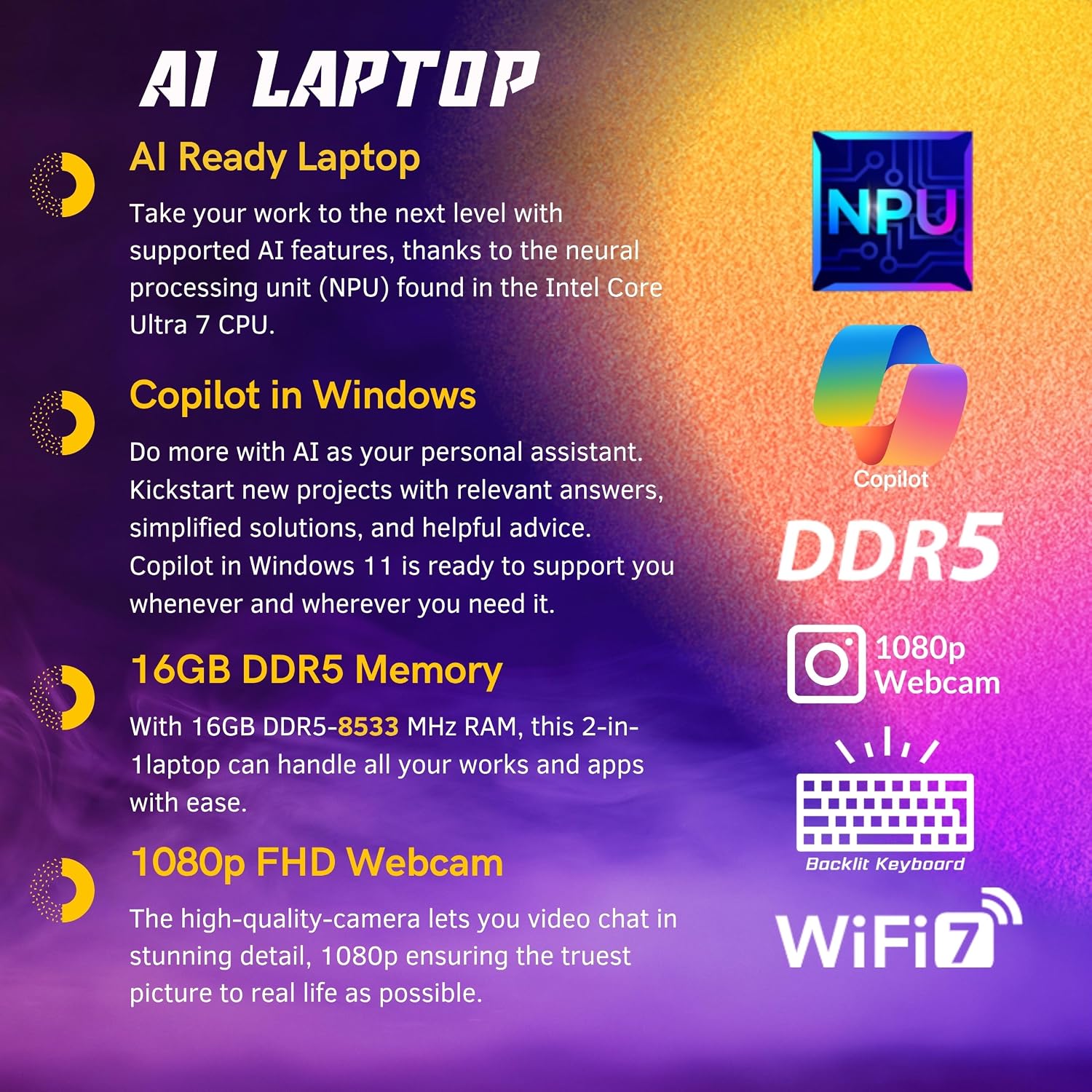
Image: This graphic highlights key AI and hardware features such as the Intel AI Boost NPU, Windows Copilot, 16GB DDR5 Memory, 1080p FHD Webcam, Backlit Keyboard, and Wi-Fi 7 connectivity.
3.4 Ports and Connectivity
The laptop is equipped with various ports for connecting external devices:
- 1x USB-A 3.2 Gen 1: For standard USB devices.
- 1x USB-C 3.2 Gen 2: Versatile port for data transfer and charging.
- 1x HDMI 2.1: For connecting to external displays.
- 1x Audio Jack: For headphones or external speakers.
- 1x Thunderbolt 4: High-speed port for data, video, and power delivery.
For wireless connectivity, the laptop supports Wi-Fi 7 and Bluetooth 5.3.

Image: A detailed view of the Dell 16 Plus 2-in-1 Laptop's side profile, illustrating the placement of its various ports including the Audio Jack, USB-A 3.2 Gen 1, USB-C 3.2 Gen 2, HDMI 2.1, and Thunderbolt 4.
3.5 Webcam
The integrated 1080p webcam allows for high-quality video calls and conferencing.
4. Maintenance
4.1 Cleaning Your Laptop
- Screen: Use a soft, lint-free cloth lightly dampened with water or a screen-cleaning solution. Avoid harsh chemicals.
- Chassis: Wipe with a soft, dry cloth. For stubborn marks, use a slightly damp cloth.
- Keyboard: Use compressed air to remove dust and debris from between keys.
Always power off and unplug the laptop before cleaning.
4.2 Battery Care
To prolong battery life:
- Avoid extreme temperatures.
- Do not leave the laptop constantly plugged in at 100% charge for extended periods.
- Periodically discharge the battery to around 20% and then fully recharge it.
4.3 Software Updates
Regularly check for and install Windows updates and Dell driver updates to ensure optimal performance, security, and compatibility.
4.4 Storage Management
The laptop comes with a 2TB PCIe SSD. Regularly back up important data and manage your storage to maintain performance. Consider using the included 128GB External SSD for additional storage or backups.
5. Troubleshooting
This section addresses common issues you might encounter. For more complex problems, refer to Dell's official support resources.
5.1 Power Issues
- Laptop not turning on: Ensure the power adapter is securely connected and the outlet is functional. Try a different outlet. If the battery is completely drained, it may take a few minutes of charging before the laptop powers on.
- Battery not charging: Check the power adapter and cable for damage. Ensure the charging port is clean.
5.2 Display Issues
- No display: Connect an external monitor via HDMI to check if the issue is with the laptop's internal display. Restart the laptop.
- Touchscreen unresponsive: Restart the laptop. Ensure no physical obstructions are on the screen.
5.3 Connectivity Issues
- Wi-Fi not connecting: Ensure Wi-Fi is enabled in Windows settings. Restart your router and the laptop. Check for updated Wi-Fi drivers.
- Bluetooth device not pairing: Ensure Bluetooth is enabled on both devices. Place devices close to each other. Remove and re-add the device in Bluetooth settings.
5.4 Performance Issues
- Slow performance: Close unnecessary applications. Check Task Manager for high CPU/RAM usage. Ensure sufficient free space on the SSD. Run a virus scan.
6. Specifications
Below are the detailed technical specifications for the Dell 16 Plus 2-in-1 Laptop (Model: Plus).

Image: This image highlights the Dell 16 Plus 2-in-1 Laptop's 16-inch WUXGA (1920 x 1200) touchscreen display, featuring 300 nits brightness, a 16:10 aspect ratio, and an anti-glare IPS panel.

Image: A visual representation of the Intel Core Ultra 7 256V processor, detailing its 8 cores, 8 threads, 12MB L3 Cache, and 4.8 GHz Turbo Clock speed, along with the integrated NPU for AI capabilities.
| Feature | Detail |
|---|---|
| Brand | Dell |
| Model Name | Plus |
| Screen Size | 16.0 inches |
| Display Resolution | WUXGA (1920 x 1200) IPS, Anti-Glare |
| Brightness | 300 nits |
| Aspect Ratio | 16:10 |
| Processor | Intel Core Ultra 7 256V (8 cores, 8 threads, up to 4.8 GHz) |
| Graphics | Integrated Intel Arc Graphics |
| RAM | 16GB DDR5 8533 MHz |
| Storage | 2TB PCIe SSD |
| Operating System | Windows 11 Pro |
| Webcam | 1080p |
| Wireless Connectivity | Wi-Fi 7, Bluetooth 5.3 |
| Ports | 1x USB-A 3.2 Gen 1, 1x USB-C 3.2 Gen 2, 1x HDMI 2.1, 1x Audio Jack, 1x Thunderbolt 4 |
| Keyboard | Backlit Keyboard |
| Dimensions (WxDxH) | 14.05 x 9.87 x 0.67 inches (35.7L x 25.1W x 1.7Th cm) |
| Weight | 4.52 lbs |
| Form Factor | Convertible (2-in-1) |
| Included in Box | Dell 2-in-1 Laptop, Charger, 128GB External SSD, Cuertns Stylus |
7. Warranty and Support
7.1 Product Warranty
Your Dell 16 Plus 2-in-1 Laptop is covered by Dell's standard limited warranty. The specific terms and duration of your warranty may vary based on your region and purchase agreement. Please refer to the warranty documentation included with your product or visit the official Dell support website for detailed information.
Note: The product description mentions that the original factory box is opened and resealed for upgrades. This process is performed by the seller to achieve advertised specifications. Any defects or blemishes are significantly reduced by professional inspection and testing. Warranty coverage for issues arising from this process should be clarified with your seller or Dell support.
7.2 Dell Support
For technical assistance, driver downloads, troubleshooting guides, and warranty claims, please visit the official Dell Support website. You will typically need your laptop's Service Tag (located on the bottom of the device) to access specific support resources.
You can find more information and contact options on the Dell Store on Amazon or Dell's global support website.
7.3 Returns Policy
For information regarding product returns, please refer to the retailer's returns policy where you purchased the Dell 16 Plus 2-in-1 Laptop. Specific return conditions and timelines will apply.


