Introduction
The Logickeyboard ASTRA2 Backlit Keyboard for Ableton Live on Mac is designed to enhance your productivity by placing essential shortcuts, utility keys, and mapped controls directly at your fingertips. This specialized keyboard eliminates the need to memorize complex key combinations, allowing you to focus on your creative workflow within Ableton Live.
Featuring a robust USB connection, the ASTRA2 keyboard offers plug-and-play functionality, requiring no additional drivers or complicated setup. Its ergonomic design with angled legs ensures comfortable use during long sessions. The integrated backlighting further improves visibility in various lighting conditions, making it an indispensable tool for any Ableton Live user on a Mac system.

Figure 1: Top-down view of the Logickeyboard ASTRA2 Backlit Keyboard, showcasing its full layout and dedicated shortcut keys.
Key Features
- Dedicated Ableton Live Shortcuts: Keys are color-coded and labeled with specific functions for Ableton Live, streamlining your editing process.
- Backlit Keys: Adjustable backlighting ensures clear visibility of all keys and labels, even in low-light environments.
- Scissor-Switch Mechanism: Provides a low-profile design with a responsive and comfortable typing experience.
- USB Connectivity: Simple plug-and-play setup via a standard USB connection, compatible with MacOS systems.
- Ergonomic Design: Features angled legs for comfortable positioning during extended use.

Figure 2: Angled view of the keyboard highlighting the backlit keys and color-coded shortcuts for Ableton Live.

Figure 3: Side profile of the keyboard, illustrating the angled legs for improved ergonomics.
Setup Guide
- Unpack the Keyboard: Carefully remove the Logickeyboard ASTRA2 from its packaging.
- Connect the USB Cable: Locate the USB cable attached to the keyboard. Insert the USB-A connector into an available USB port on your Mac computer.
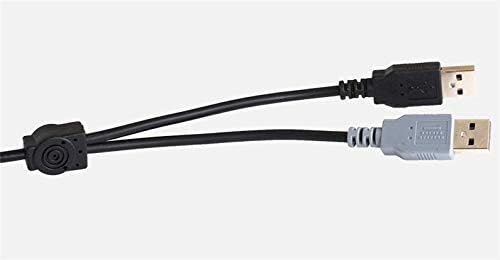
Figure 4: The included USB cable for connecting the keyboard to your computer.
- System Recognition: Your Mac operating system should automatically detect and install the necessary drivers for the keyboard. No manual driver installation is typically required.
- Adjust Backlighting (Optional): Use the dedicated keys on the keyboard (refer to the key labels) to adjust the brightness of the backlighting to your preference.
- Launch Ableton Live: Open Ableton Live. The keyboard's shortcuts are pre-mapped and ready for use within the software.
Operating Instructions
The Logickeyboard ASTRA2 is designed for intuitive use within Ableton Live. The keys feature clear labels and color-coding to indicate their specific functions and associated modifier keys (Shift, Control, Alt/Option, Command).
Understanding Key Labels:
- Primary Function: The main label on each key indicates its standard alphanumeric function or primary shortcut.
- Color-Coded Shortcuts: Different colors on the keys correspond to specific categories of shortcuts within Ableton Live (e.g., transport controls, editing functions, navigation).
- Modifier Key Indicators: Small icons or text near the main label indicate functions accessible by holding down modifier keys like Shift, Control, Alt/Option, or Command.
Using Shortcuts:
To activate a shortcut, simply press the labeled key. For functions requiring a modifier key, hold down the indicated modifier (e.g., Shift, Command) and then press the corresponding function key.
Video 1: An official video from Logickeyboard demonstrating the use of shortcuts on a similar keyboard designed for Ableton Live. This video provides visual examples of how the color-coded keys and labels facilitate a faster workflow.
Example Shortcuts (Illustrative):
- Spacebar: Play/Pause (indicated by play/pause symbols).
- 'E' Key: Edit Org / Edit Playhead (indicated by labels).
- 'G' Key: Group / Audio Gain (indicated by labels and color separation for different software functions, though this model is specific to Ableton Live, the principle of multiple functions per key applies).
- 'M' Key: Render (indicated by label).
Familiarize yourself with the key layout and color scheme to maximize your efficiency in Ableton Live.
Maintenance
To ensure the longevity and optimal performance of your Logickeyboard ASTRA2, follow these simple maintenance guidelines:
- Regular Cleaning: Use a soft, lint-free cloth slightly dampened with water or a mild, non-abrasive cleaning solution to wipe down the keycaps and keyboard surface. Avoid excessive moisture.
- Dust Removal: Use compressed air to remove dust and debris from between the keys.
- Avoid Harsh Chemicals: Do not use strong solvents, alcohol, or abrasive cleaners, as these can damage the keycap labels or the keyboard's finish.
- Protect from Spills: Keep liquids away from the keyboard to prevent damage to internal components.
- Storage: When not in use for extended periods, store the keyboard in a clean, dry place away from direct sunlight or extreme temperatures.
Troubleshooting
Keyboard Not Responding:
- Check USB Connection: Ensure the USB cable is securely plugged into both the keyboard and your Mac. Try a different USB port.
- Restart Computer: A simple restart can often resolve connectivity issues.
- Test on Another Computer: If possible, connect the keyboard to another computer to determine if the issue is with the keyboard or your original system.
Backlighting Not Working:
- Check Brightness Settings: Ensure the backlighting is not turned off or set to the lowest brightness level using the dedicated brightness control keys on the keyboard.
- USB Power: Verify that the USB port provides sufficient power. Try connecting directly to a computer port rather than a USB hub.
Shortcuts Not Functioning Correctly:
- Verify Ableton Live is Active: Ensure Ableton Live is the active application when attempting to use the shortcuts.
- Software Updates: Ensure your Ableton Live software is up to date.
- Keyboard Layout: Confirm your Mac's keyboard layout settings match the physical keyboard (e.g., US layout).
Specifications
| Feature | Detail |
|---|---|
| Product Dimensions | 18 x 6 x 1.5 inches |
| Item Weight | 2.71 pounds |
| Model Number | LKB-ABLT-A2M-US |
| Connectivity Technology | USB, USB-A |
| Compatible Devices | MacOS systems (also compatible with Adobe Premiere Pro CC, Adobe After Effects CC, though this model is optimized for Ableton Live) |
| Keyboard Description | Multimedia |
| Special Feature | Ergonomic, Backlit |
| Color | Black |
| Number of Keys | 104 |
| Keyboard Backlighting Color Support | Single Color |
What's in the Box
- Logickeyboard ASTRA2 Backlit Keyboard for Ableton Live - Mac
- Integrated USB Cable
Warranty and Support
For warranty information and technical support, please refer to the official Logickeyboard website or contact their customer service directly. Keep your purchase receipt for warranty claims.
Online resources, FAQs, and contact details can typically be found on the manufacturer's support page: www.logickeyboard.com/support


