
1. Introduction
The DOBE TY-1793 Wireless Controller is a versatile gaming accessory designed for multi-platform compatibility. It offers seamless connectivity with Nintendo Switch, Android phones, Android TV boxes, and personal computers (PC). This controller integrates advanced features such as Bluetooth wireless technology, a wired USB connection option, Turbo function keys, a dedicated camera button, 6-axis motion sensing, and immersive motor vibration feedback. Its ergonomic design ensures a comfortable and responsive gaming experience.
2. Safety Information
- Keep the controller away from water, moisture, and extreme temperatures.
- Avoid dropping or subjecting the controller to strong impacts.
- Do not attempt to disassemble or modify the controller. This may void the warranty and cause damage.
- Use only the provided or recommended charging cable.
- Store the controller in a clean, dry place when not in use.
3. Package Contents
Please check the package contents upon opening. If any items are missing or damaged, contact your retailer.
- DOBE TY-1793 Wireless Controller
- USB Charging Cable
- User Manual
4. Controller Layout
Familiarize yourself with the buttons and features of your DOBE TY-1793 Wireless Controller.
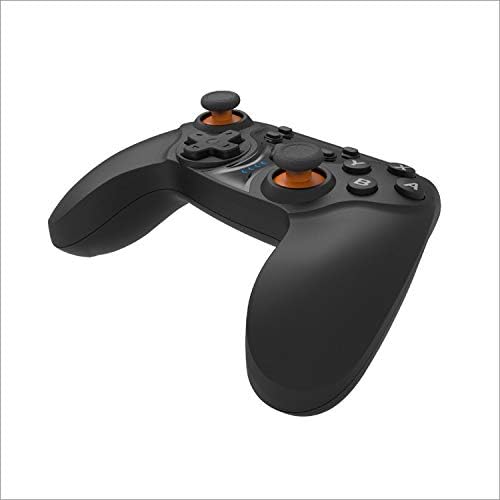
Figure 4.1: Front view of the DOBE TY-1793 Wireless Controller, showing the dual analog sticks, D-pad, action buttons (A, B, X, Y), and central function buttons.

Figure 4.2: Side view of the DOBE TY-1793 Wireless Controller, highlighting the USB charging/connection port located at the front edge.

Figure 4.3: Back view of the DOBE TY-1793 Wireless Controller, showing the ergonomic grips and battery compartment area.
Button Descriptions:
- Left/Right Analog Sticks: For precise 360-degree movement.
- D-Pad (Directional Pad): For directional input.
- Action Buttons (A, B, X, Y): Primary game interaction buttons.
- L1/R1 (Shoulder Buttons): Top trigger buttons.
- L2/R2 (Trigger Buttons): Bottom trigger buttons.
- HOME Button: Returns to the system home screen.
- SELECT/MINUS Button: Typically used for menu navigation or specific in-game functions.
- START/PLUS Button: Typically used for pausing or menu access.
- TURBO Button: Activates/deactivates turbo function for assigned buttons.
- CAMERA Button: Captures screenshots or video clips (functionality may vary by platform).
- USB-C Port: For charging and wired connection.
5. Setup
5.1 Charging the Controller
- Connect the small end of the USB charging cable to the USB-C port on the controller.
- Connect the large end of the USB charging cable to a USB power source (e.g., PC, USB wall adapter, game console).
- The LED indicator on the controller will show charging status. It will typically turn off or change color once fully charged.
- A full charge takes approximately 2-3 hours.
5.2 Connecting to Nintendo Switch (Bluetooth)
- On your Nintendo Switch, go to the HOME Menu.
- Select 'Controllers' > 'Change Grip/Order'.
- Press and hold the HOME button on the DOBE TY-1793 controller for 3-5 seconds until the LED indicators start flashing rapidly.
- The Switch will detect the controller. Once connected, the corresponding player LED on the controller will light up solid.
5.3 Connecting to Android Devices (Bluetooth)
- Ensure Bluetooth is enabled on your Android phone or TV box.
- Go to Bluetooth settings and search for new devices.
- Press and hold the HOME button on the DOBE TY-1793 controller for 3-5 seconds until the LED indicators start flashing rapidly.
- Select 'TY-1793' or a similar name from the list of available devices to pair.
- Once paired, the LED indicator will become solid.
5.4 Connecting to PC (Wired USB & Bluetooth)
Wired Connection:
- Connect the USB charging cable to the controller's USB-C port.
- Connect the other end of the USB cable to an available USB port on your PC.
- The PC should automatically detect and install the necessary drivers. The controller will be ready for use.
Bluetooth Connection:
- Ensure your PC has Bluetooth enabled.
- Go to 'Settings' > 'Devices' > 'Bluetooth & other devices' and click 'Add Bluetooth or other device'.
- Select 'Bluetooth'.
- Press and hold the HOME button on the DOBE TY-1793 controller for 3-5 seconds until the LED indicators start flashing rapidly.
- Select 'TY-1793' or a similar name from the list of available devices to pair.
- Once paired, the LED indicator will become solid.
6. Operating Instructions
6.1 Power On/Off
- Power On: Press the HOME button once. The controller will attempt to connect to the last paired device.
- Power Off: Press and hold the HOME button for approximately 5 seconds until the LED indicators turn off. The controller will also power off automatically after a period of inactivity.
6.2 Turbo Function
The Turbo function allows a button to be pressed repeatedly as long as it is held down, which can be useful in certain games.
- To Set Turbo: Press and hold the button you wish to assign Turbo to (e.g., A button), then press the TURBO button once. Release both buttons. The assigned button will now have Turbo functionality.
- To Clear Turbo: Press and hold the button with Turbo assigned, then press the TURBO button once. Release both buttons. The Turbo function will be removed from that button.
- To Clear All Turbo: Press and hold the TURBO button for 3 seconds. All Turbo settings will be cleared.
6.3 Vibration Feedback
The controller features built-in motor vibrators to provide immersive haptic feedback during gameplay. Vibration intensity is typically controlled by the game or system settings.
6.4 6-Axis Gyroscope
The integrated 6-axis gyroscope provides precise motion control, enhancing gameplay in titles that support motion sensing. This feature is automatically active when connected to compatible platforms like the Nintendo Switch.
6.5 Camera Button
The dedicated camera button allows for quick capture of screenshots or video clips during gameplay on supported platforms. Functionality may vary depending on the connected device and game.
7. Maintenance
- Cleaning: Use a soft, dry cloth to clean the controller. Do not use harsh chemicals or abrasive materials.
- Storage: Store the controller in a cool, dry place, away from direct sunlight and extreme temperatures.
- Battery Care: To prolong battery life, avoid fully discharging the controller frequently. Charge it regularly, even if not in constant use.
8. Troubleshooting
8.1 Controller Will Not Power On
- Ensure the controller is charged. Connect it to a power source using the USB cable and allow it to charge for at least 30 minutes.
- Try pressing the HOME button firmly.
8.2 Controller Will Not Connect/Pair
- Ensure the controller is fully charged.
- Verify that Bluetooth is enabled on your device (Switch, Android, PC).
- Make sure the controller is in pairing mode (LEDs flashing rapidly).
- Move the controller closer to the device.
- Remove any previous pairings of the controller from your device's Bluetooth settings and try pairing again.
- Restart both the controller and the device you are trying to connect to.
- For PC, try a wired USB connection to confirm functionality.
8.3 Buttons or Joysticks Are Unresponsive
- Ensure the controller is properly connected and paired.
- Test the controller with another game or application to determine if the issue is specific to one title.
- Restart the controller and the connected device.
- If using a wired connection, try a different USB port or cable.
9. Specifications
| Model: | TY-1793 |
| Connectivity: | Bluetooth, Wired USB |
| Compatibility: | Nintendo Switch, Android (Phones, TV Boxes), PC |
| Battery Type: | Rechargeable Polymer Lithium Battery |
| Battery Capacity: | 400mAh, 3.7V |
| Special Features: | Turbo Function, Camera Button, 6-Axis Gyroscope, Motor Vibration |
10. Warranty and Support
This product comes with a standard manufacturer's warranty. Please refer to the warranty card included in your package or contact your retailer for specific warranty terms and conditions. For technical support or further assistance, please reach out to the customer service provided by your point of purchase.


