
1. Introduction
This manual provides essential instructions for setting up, operating, and maintaining your Fossil Bronson HR Hybrid Smartwatch (Model FTW7059). This device combines the classic aesthetics of a traditional watch with modern smartwatch functionalities, including heart rate monitoring, activity tracking, and smartphone notifications. Please read this manual thoroughly before using your watch.
2. Setup
2.1 Unboxing and Initial Charge
Upon unboxing, ensure all components are present: the Fossil Bronson HR Hybrid Smartwatch and its charging cable. Before first use, fully charge your watch. Connect the charging cable to the watch's charging points and a USB power source. A full charge typically takes approximately 2 hours.
2.2 App Installation and Pairing
- Download the Fossil Smartwatches app from your smartphone's app store (available for iOS and Android).
- Open the app and create an account or log in.
- Follow the on-screen instructions to add a new device. Select your Bronson HR Hybrid Smartwatch from the list.
- The app will guide you through the Bluetooth pairing process. Ensure your watch is sufficiently charged and your phone's Bluetooth is enabled.
- Once paired, the app will synchronize with your watch, allowing you to customize settings and view data.
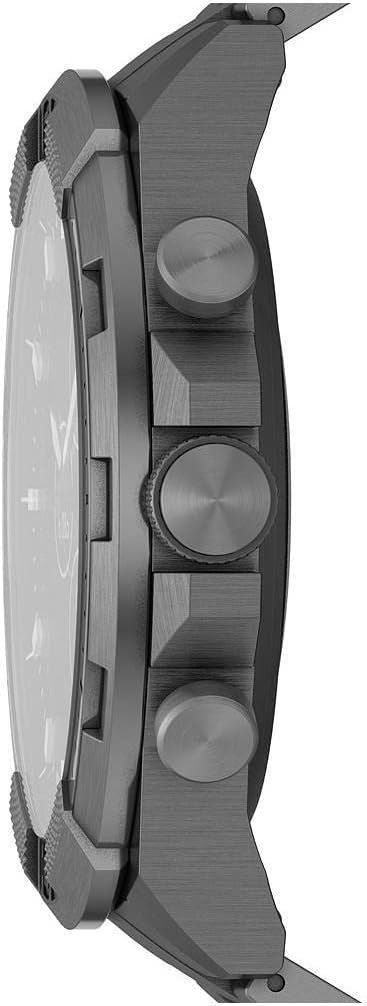
Image: Side view of the Fossil Bronson HR Hybrid Smartwatch, highlighting the functional buttons and crown.
3. Operating Instructions
3.1 Basic Navigation
Your Bronson HR Hybrid Smartwatch features a traditional watch face with physical hands and a discreet digital display. It is operated primarily through its three side buttons and the crown.
- Top Pusher: Customizable function (e.g., view date, control music).
- Middle Crown: Used for navigating menus on the digital display and confirming selections.
- Bottom Pusher: Customizable function (e.g., start workout, check heart rate).
3.2 Activity and Health Tracking
The watch continuously tracks your heart rate, steps, and sleep patterns. This data is synchronized with the Fossil Smartwatches app, where you can view detailed statistics and progress over time.
- Heart Rate: The watch monitors your heart rate throughout the day and during workouts.
- Steps: Tracks your daily step count and estimated distance.
- Sleep: Automatically detects sleep and tracks sleep stages (light, deep, awake) and duration.
3.3 Notifications and Smart Features
Once paired with your smartphone, the watch can display notifications for calls, messages, and app alerts. You can customize which notifications appear via the Fossil Smartwatches app.
- Smartphone Notifications: Receive discreet vibrations and text previews on your watch.
- Music Control: Control music playback on your smartphone directly from your watch.
- Weather: View current weather conditions and forecasts.
- Calendar: See upcoming events from your synced calendar.

Image: The hybrid display of the Fossil Bronson HR Smartwatch, illustrating various data points like heart rate, steps, and weather.
4. Maintenance
4.1 Cleaning Your Watch
Regularly clean your watch to maintain its appearance and functionality. Use a soft, damp cloth to wipe the case and band. For stainless steel bands, a mild soap solution can be used, followed by thorough rinsing and drying. Avoid harsh chemicals or abrasive materials.
4.2 Water Resistance
The Fossil Bronson HR Hybrid Smartwatch is water-resistant. It is suitable for everyday use, including splashes, rain, and showering. However, it is not recommended for diving or high-pressure water activities. Avoid pressing buttons underwater.
4.3 Battery Care
To maximize battery life, avoid extreme temperatures. Charge the watch fully when the battery is low. The watch offers over 2 weeks of battery life on a single charge, depending on usage.
4.4 Software Updates
Ensure your Fossil Smartwatches app is up to date, as it delivers firmware updates to your watch. These updates can improve performance, add new features, and fix bugs.
5. Troubleshooting
5.1 Watch Not Connecting to Phone
- Ensure Bluetooth is enabled on your smartphone.
- Check if the watch is sufficiently charged.
- Restart both your watch and your smartphone.
- Try unpairing and re-pairing the watch through the Fossil Smartwatches app.
5.2 Inaccurate Tracking Data
- Ensure the watch is worn snugly on your wrist, not too loose or too tight.
- Clean the heart rate sensor on the back of the watch.
- Update the watch firmware via the app.

Image: Back view of the Fossil Bronson HR Hybrid Smartwatch, displaying the heart rate sensor and Fossil logo.
5.3 Short Battery Life
- Reduce the frequency of notifications.
- Ensure the watch is fully charged each time.
- Avoid using the watch in extreme temperatures.
5.4 Display Not Responding
- Perform a soft reset by holding down the middle crown for approximately 10-15 seconds until the watch restarts.
- Ensure the watch is charged.
6. Specifications
| Model Number | FTW7059 |
| Brand | Fossil |
| Display Type | Analog with Digital Screen |
| Case Material | Stainless Steel |
| Band Material | Stainless Steel |
| Band Color | Grey |
| Case Shape | Round |
| Screen Size | 44 Millimeters |
| Band Width | 22 Millimeters |
| Water Resistance Level | Waterproof |
| Operating System | AsteroidOS |
| Connectivity Technology | Bluetooth |
| Compatible Devices | Smartphone (iPhone and Android) |
| Battery Cell Type | Silver Oxide |
7. Warranty
This product is covered by a manufacturer's warranty. For detailed information regarding warranty terms, conditions, and duration, please refer to the official Fossil website or the warranty card included with your purchase. Keep your proof of purchase for warranty claims.
8. Support
For further assistance, technical support, or to view frequently asked questions, please visit the official Fossil support website. You can typically find contact information for customer service there as well.