
1. Introduction
This manual provides essential information for the installation, operation, and maintenance of your Peplink SD Switch 48-Port Rugged (Model: PSW-48-800W). This enterprise-grade switch is designed for high capacity uplinks, PoE+ output, and out-of-band management, offering carrier-grade reliability and simplified LAN management.
Key features include:
- 48x 802.3at PoE GE Ports
- 4x Fiber 10 Gbps SFP+ Ports
- USB Port for Out-Of-Band Management
- Simplified LAN Management for monitoring, troubleshooting, and configuration
- Fanless Design for operation in extreme temperatures (-40°F to 149°F) and high-particle environments
- Certified for Vibration Resistance (E-Mark, EN61373, EN50155, EN61000)
2. Setup
2.1 Package Contents
Verify that all items are present in the package:
- SD Switch 48-Port Enterprise (PSW-48-800W)
- 2x Power Cords
- 2x L-Mounts for switch back side
- Screw set for rack mounting
- Rubber Foot Pad set
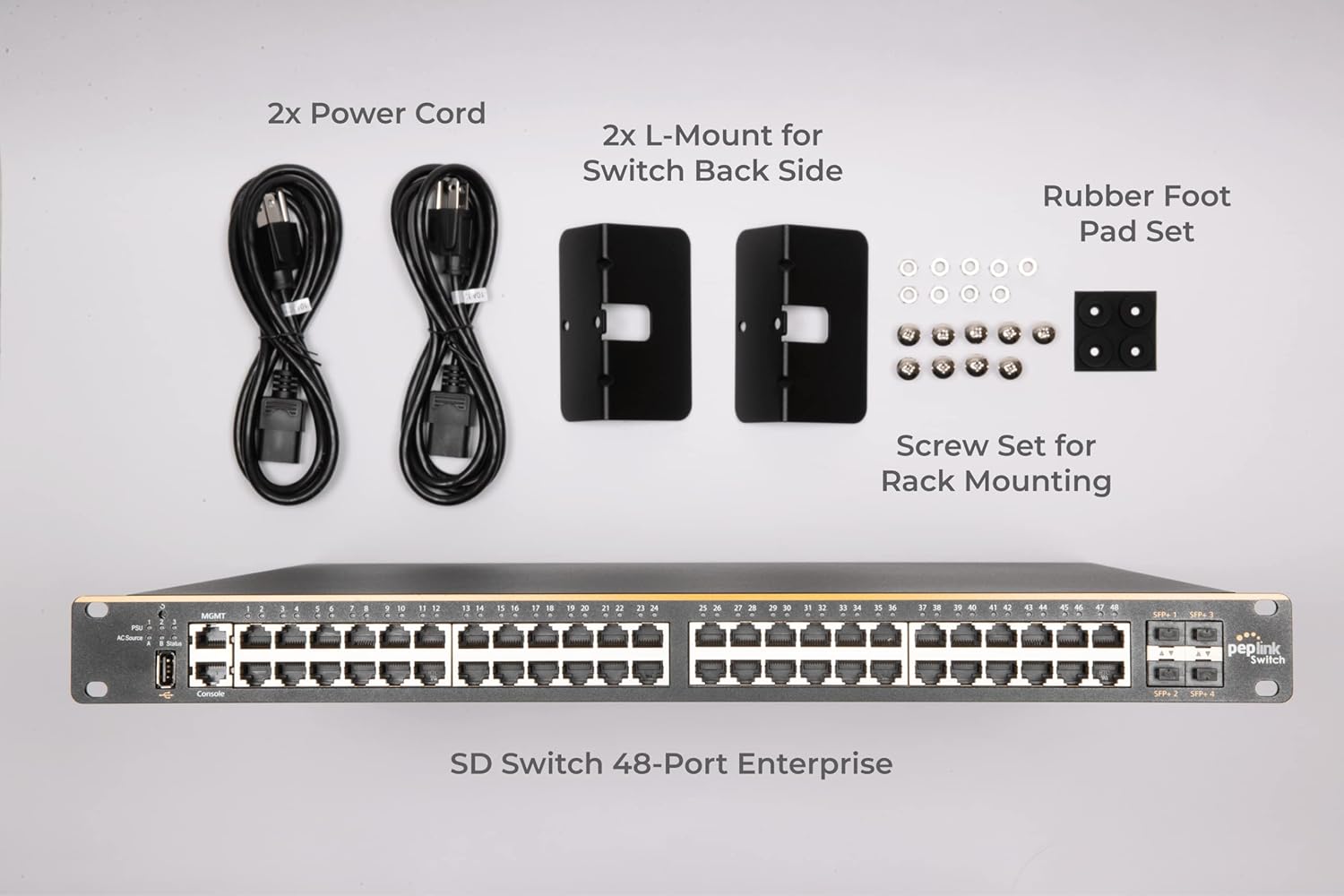
Figure 2.1: Package contents including the SD Switch, power cords, L-mounts, screw set, and rubber foot pads.
2.2 Physical Installation
The SD Switch 48-Port Rugged can be installed in a standard equipment rack using the provided L-mounts and screws, or placed on a flat surface using the rubber foot pads.
- Rack Mounting: Attach the L-mounts to the sides of the switch using the provided screws. Secure the switch into a standard 19-inch equipment rack.
- Desktop Placement: Affix the rubber foot pads to the bottom corners of the switch to prevent slipping and ensure proper ventilation.
2.3 Power Connection
Connect the provided power cords to the power inlets on the rear panel of the switch and then to a suitable power source. The switch supports redundant power inputs for enhanced reliability.

Figure 2.2: Rear panel of the Peplink SD Switch showing the dual power inlets for redundant power supply.
3. Operating Instructions
3.1 Port Connectivity
The SD Switch features 48 Gigabit Ethernet ports with 802.3at Power over Ethernet (PoE+) capabilities and 4 Fiber 10 Gbps SFP+ ports for high-speed uplinks.
- PoE+ Ports: Connect PoE-compatible devices such as IP cameras, wireless access points, or VoIP phones to the GE ports. These ports provide both data and power over a single Ethernet cable.
- SFP+ Ports: Use SFP+ transceivers and fiber optic cables for high-bandwidth connections to other network devices or core switches.

Figure 3.1: Front panel of the 48-Port SD-Switch showing GE and SFP+ ports, and a USB port for backup access.
3.2 LAN Management
The SD Switch offers simplified LAN management features to monitor, troubleshoot, and configure your network.
- Monitoring: View port status, connectivity, and firmware versions for all connected devices.
- Troubleshooting: Identify and resolve network issues by viewing all connected clients and searching by MAC address.
- Configuration: Centralize VLAN settings, firmware updates, and other configurations across your network.

Figure 3.2: Network cables connected to the switch, illustrating enterprise functionality for VLAN, STP, DHCP snooping, and LACP configuration.
3.3 Cloud Management (InControl)
Utilize Peplink's InControl platform for remote monitoring and management of ports, clients, and power delivery from any web browser. This provides a centralized interface for network oversight.

Figure 3.3: The InControl cloud management interface displayed on a monitor, showing remote monitoring capabilities for the SD Switch.
3.4 Out-of-Band Management
The integrated USB port allows for out-of-band management. If the primary network connection is lost, you can plug in a USB cellular device to regain management access to the switch.

Figure 3.4: Illustration of backup USB access, demonstrating how a USB cellular device can be used to manage the switch if the network connection is lost.
4. Maintenance
The Peplink SD Switch 48-Port Rugged is designed for minimal maintenance due to its robust construction and fanless design.
- Fanless Design: The absence of internal fans reduces moving parts and prevents dust accumulation, making it suitable for high-particle environments and reducing the need for regular cleaning.
- Firmware Updates: Regularly check for and apply firmware updates through the LAN management interface or InControl to ensure optimal performance, security, and access to new features.
- Environmental Considerations: Ensure the switch operates within its specified temperature range (-40°F to 149°F) and maintain adequate airflow around the unit, even with its fanless design, to prevent heat buildup.
5. Troubleshooting
If you encounter issues with your SD Switch, consider the following troubleshooting steps:
- No Power: Verify that the power cords are securely connected to both the switch and the power source. Check the power indicators on the switch. If using redundant power, ensure both sources are active.
- Port Connectivity Issues: Check the status LEDs on the affected ports. Ensure cables are properly seated and undamaged. Use the LAN management interface to monitor port status and connectivity.
- Network Access Loss: If the primary network connection to the switch is lost, utilize the out-of-band management feature by connecting a USB cellular device to the USB port to regain access.
- Device Not Receiving PoE: Confirm that the connected device is PoE-compatible and within the power budget of the switch. Check port settings via the management interface.
- Slow Performance: Monitor port utilization and network traffic through the LAN management interface. Ensure firmware is up to date.
6. Specifications
| Feature | Specification |
|---|---|
| Model Number | PSW-48-800W |
| Brand | Peplink |
| Number of Ports | 48 |
| Interface Type | PoE |
| Product Dimensions (LxWxH) | 19 x 16 x 2 inches |
| Item Weight | 15.4 pounds (7 Kilograms) |
| Operating Temperature | -40°F (-40°C) to 149°F (65°C) |
| Vibration Resistance Certifications | E-Mark, EN61373, EN50155, EN61000 |
| UPC | 607376090552 |
7. Warranty and Support
7.1 Product Warranty
All sales-registered Peplink devices come with a limited warranty. To activate and reflect the start date for your warranty, it is essential to register your device. Please refer to the 'FAQ' (PDF) document available under 'product and documents' on the product page for detailed information on how to register your device and for full warranty terms and conditions.
7.2 Technical Support
For technical assistance, troubleshooting beyond this manual, or further inquiries, please visit the official Peplink support website or contact their customer service. Ensure you have your device's model number and serial number ready when seeking support.


