
1. Introduction
Thank you for choosing the Earbay BT782G-JL Bluetooth Headset. This manual provides detailed instructions for setting up, operating, maintaining, and troubleshooting your new wireless headset. Designed for clear communication and comfort, this headset features Bluetooth 5.0 technology, dual device connectivity, and a noise-cancelling microphone, making it ideal for various applications including online meetings, calls, and multimedia consumption.

Figure 1: Earbay BT782G-JL Bluetooth Headset
2. Package Contents
Please verify that all items are present in your package:
- Earbay BT782G-JL Bluetooth Headset
- USB Charging Cable
- User Manual (this document)
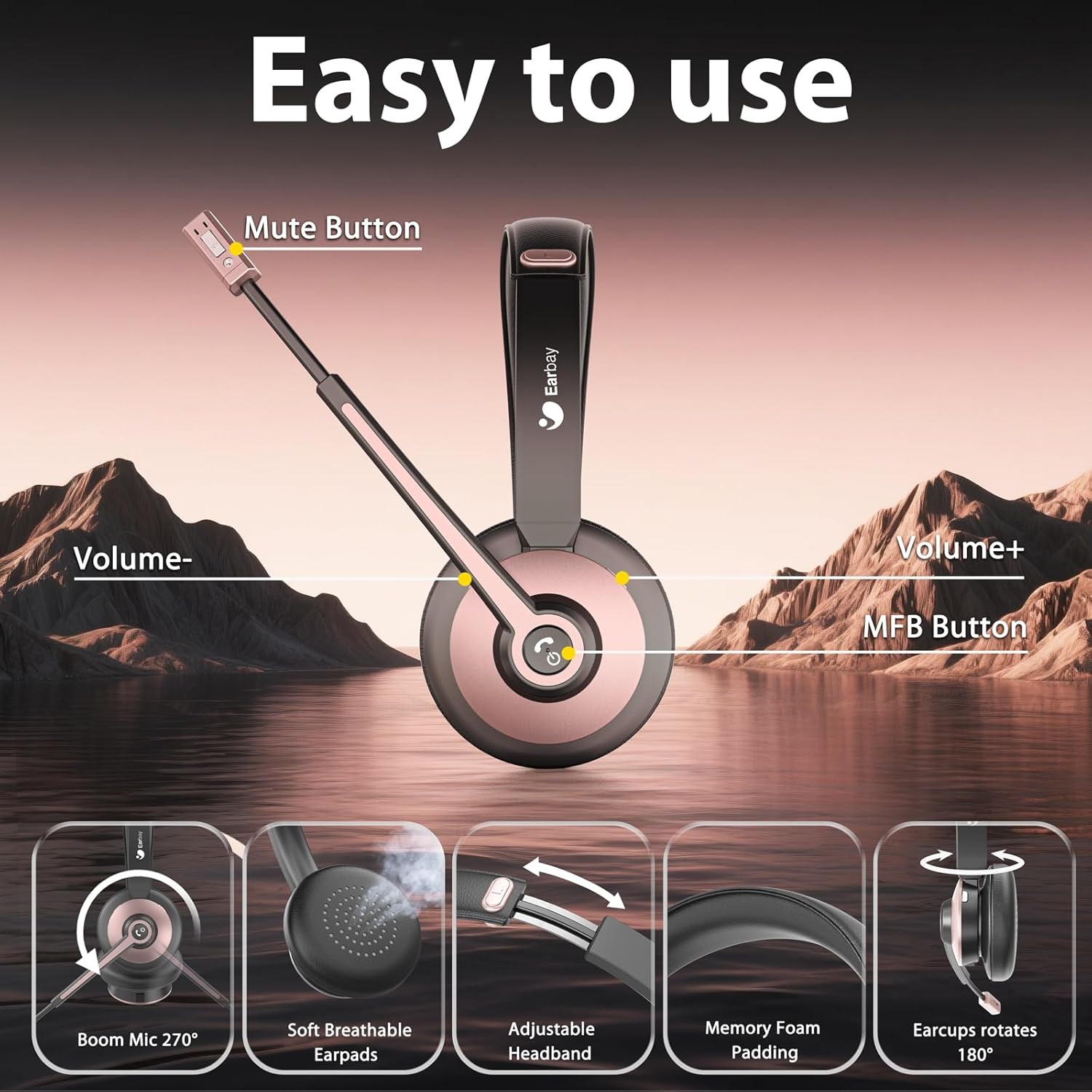
Figure 2: Package Contents
3. Setup
3.1 Charging the Headset
Before initial use, fully charge the headset. Connect the provided USB charging cable to the headset's charging port and a compatible USB power source. A full charge takes approximately 2 hours and provides up to 26 hours of talk time or over 200 hours of standby time.

Figure 3: Battery Life and Charging Information
3.2 Bluetooth Pairing
The Earbay BT782G-JL headset utilizes Bluetooth 5.0 for stable and efficient wireless connection. It supports dual connection, allowing you to pair with two devices simultaneously.
- Ensure the headset is powered off.
- Press and hold the Multi-Function Button (MFB) until the LED indicator flashes blue and red alternately, indicating pairing mode.
- On your device (smartphone, tablet, laptop), enable Bluetooth and search for available devices.
- Select "BT782G-JL" from the list of found devices.
- Once connected, the LED indicator will flash blue slowly.
To connect a second device, disable Bluetooth on the first device temporarily, put the headset back into pairing mode, and connect to the second device. Then re-enable Bluetooth on the first device; the headset should automatically reconnect to both.

Figure 4: Dual Bluetooth Connection
3.3 Connecting to PC/Meeting Applications
For optimal performance with PC and meeting applications (e.g., Zoom, Microsoft Teams, Skype), follow these steps:

Figure 5: PC and Meeting Application Connection Guide
Note: If connection issues arise, ensure your computer's Bluetooth drivers are updated or consider using a Bluetooth adapter.
4. Operating Instructions
4.1 Headset Controls and Microphone
The headset features intuitive controls located on the earcup and a 270° rotatable boom microphone with noise-cancelling capabilities. Adjust the microphone position for optimal voice pickup, ensuring it is close to your mouth.
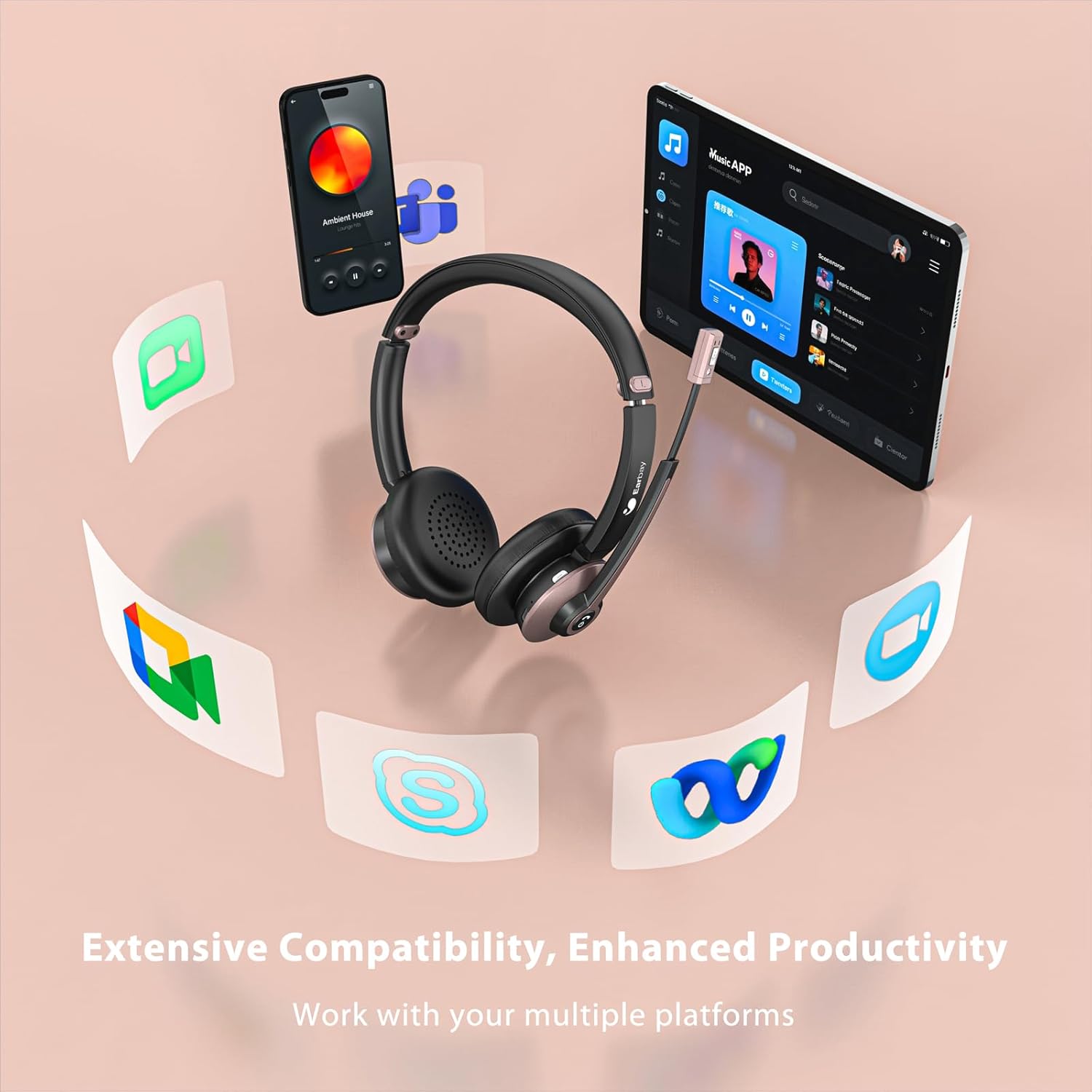
Figure 6: Headset Control Layout and Microphone Features
- Multi-Function Button (MFB):
- Press and hold for Power On/Off.
- Short press for Play/Pause audio.
- Short press to Answer/End calls.
- Long press to Reject calls.
- Double press to activate Voice Assistant (Siri, Google Assistant).
- Volume + Button: Short press to increase volume. Long press for next track.
- Volume - Button: Short press to decrease volume. Long press for previous track.
- Mute Button: Located on the microphone boom. Press to mute/unmute the microphone during a call.

Figure 7: Microphone Mute Function in Use
4.2 Comfort and Fit
The headset is designed for all-day comfort with soft, breathable earpads and an adjustable headband. Adjust the headband to fit your head comfortably, ensuring the earpads sit gently over your ears.

Figure 8: Comfort Features
5. Maintenance
Proper care and maintenance will extend the lifespan of your Earbay BT782G-JL headset.
- Cleaning: Use a soft, dry cloth to clean the headset. For earpads, a slightly damp cloth can be used, but ensure no moisture enters the speaker grilles. Avoid harsh chemicals or abrasive materials.
- Storage: When not in use, store the headset in a cool, dry place away from direct sunlight and extreme temperatures.
- Battery Care: To maintain battery health, avoid fully discharging the headset frequently. Charge it regularly, even if not in constant use.
- Water Resistance: This headset is not water-resistant. Avoid exposure to liquids.
6. Troubleshooting
If you encounter issues with your headset, refer to the following common solutions:
| Problem | Possible Cause | Solution |
|---|---|---|
| Headset does not power on. | Low battery. | Charge the headset for at least 30 minutes. |
| Cannot pair with a device. | Headset not in pairing mode; device Bluetooth off; out of range. | Ensure headset is in pairing mode (flashing blue/red). Turn on device Bluetooth. Move headset closer to device. |
| No audio or poor audio quality. | Volume too low; incorrect audio output selected; interference. | Increase headset and device volume. Check device's audio settings to ensure "BT782G-JL" is selected as output. Move away from other wireless devices. |
| Microphone not working or unclear. | Microphone muted; incorrect input device selected; microphone position. | Press the mute button to unmute. Check device's audio settings to ensure "BT782G-JL" is selected as input. Adjust microphone boom closer to your mouth. |
| Headset disconnects frequently. | Out of range; interference; low battery. | Stay within 15 meters (49 feet) of the connected device. Avoid strong Wi-Fi signals or other Bluetooth devices. Charge the headset. |
7. Specifications
| Feature | Detail |
|---|---|
| Model Name | BT782G-JL |
| Connectivity Technology | Bluetooth |
| Bluetooth Version | 5.0 |
| Bluetooth Range | 15 meters (49 feet) |
| Battery Life (Talk Time) | Up to 26 hours |
| Charging Time | Approximately 2 hours |
| Standby Time | Over 200 hours |
| Audio Driver Type | Dynamic Driver (40mm NdFeB) |
| Frequency Range | 20-20000Hz |
| Impedance | 32 Ohm |
| Microphone | 270° Rotatable Boom Mic with Noise Cancelling |
| Control Type | Physical Buttons (Volume, MFB, Mute) |
| Ear Placement | On Ear |
| Material | Aluminum, Faux Leather, Plastic, Stainless Steel |
| Item Weight | 120 Grams (4.2 ounces) |
| Product Dimensions | 7 x 6 x 2 inches |
| Water Resistance Level | Not Water Resistant |
| UPC | 726193602615 |

Figure 9: High Fidelity Audio Driver
8. Warranty and Support
Earbay guarantees a 24-MONTH Warranty for this product. For any inquiries, technical assistance, or warranty claims, please refer to the contact information provided in your product packaging or visit the official Earbay support website. Our 24/7 online service team is available to assist you.
