
1. Introduction
Thank you for choosing the ORICO USB 3.0 4-Port Portable Hub. This device expands a single USB port into four USB 3.0 ports, allowing you to connect multiple USB peripherals simultaneously. Its compact design makes it ideal for both desktop and portable use. This manual provides essential information for proper setup, operation, and maintenance of your hub.
2. Safety Information
- Do not expose the device to water, moisture, or extreme temperatures.
- Avoid dropping or subjecting the device to strong impacts.
- Do not attempt to disassemble or repair the device yourself. Refer to qualified service personnel.
- Ensure proper ventilation around the hub during operation.
- Use only compatible power adapters if utilizing the USB-C power input (adapter sold separately).
3. Package Contents
- ORICO USB 3.0 4-Port Portable Hub
- Integrated USB-A Cable
4. Product Features
- 4-Port USB 3.0 Expansion: Converts one USB port into four USB 3.0 ports for connecting multiple peripherals.
- High-Speed Data Transfer: Supports data synchronization speeds up to 5 Gbps, significantly faster than USB 2.0.
- Optional External Power: Features an additional 5V/3A USB-C power input for enhanced stability when connecting high-power devices like HDDs or SSDs. (Note: Power adapter sold separately. This hub is not designed for fast charging and provides a maximum output of 900mA per port.)
- Wide Compatibility: Compatible with Windows 10, 8, 7, Vista, XP, Mac OS x 10.6-10.12 or later, and Linux 2.6.14 or later.
- Plug and Play: No drivers or software installation required. Supports hot-swapping.
- Built-in Protection: Integrated overload protection safeguards connected devices and data.
- Compact and Portable Design: Lightweight and easy to carry, featuring a finned design for improved grip.
5. Setup Instructions
- Connect to Host Device: Plug the integrated USB-A cable of the ORICO hub into an available USB-A port on your computer (PC, Mac, or laptop).

Image: The ORICO USB 3.0 4-Port Hub connected to a laptop, demonstrating its compact and portable nature.
- Optional External Power (for high-power devices): If you are connecting power-intensive devices such as external hard drives or SSDs, connect a 5V/3A USB-C power adapter (sold separately) to the USB-C power input port on the hub.

Image: The ORICO USB 3.0 4-Port Hub connected to a laptop, with its USB-C power input port connected to an external power source for stable operation with high-power devices.
- System Recognition: Your operating system will automatically detect and install the necessary drivers. The hub is ready for use once recognized.
6. Operating Instructions
- Connecting Peripherals: Plug your USB devices (e.g., flash drives, mouse, keyboard, printer, external hard drives) into any of the four available USB 3.0 ports on the hub.

Image: A top-down view of the ORICO USB 3.0 4-Port Hub, clearly showing its four USB 3.0 expansion ports ready for connecting peripherals.
- Data Transfer: When transferring data, ensure your connected devices support USB 3.0 for optimal speeds up to 5 Gbps.
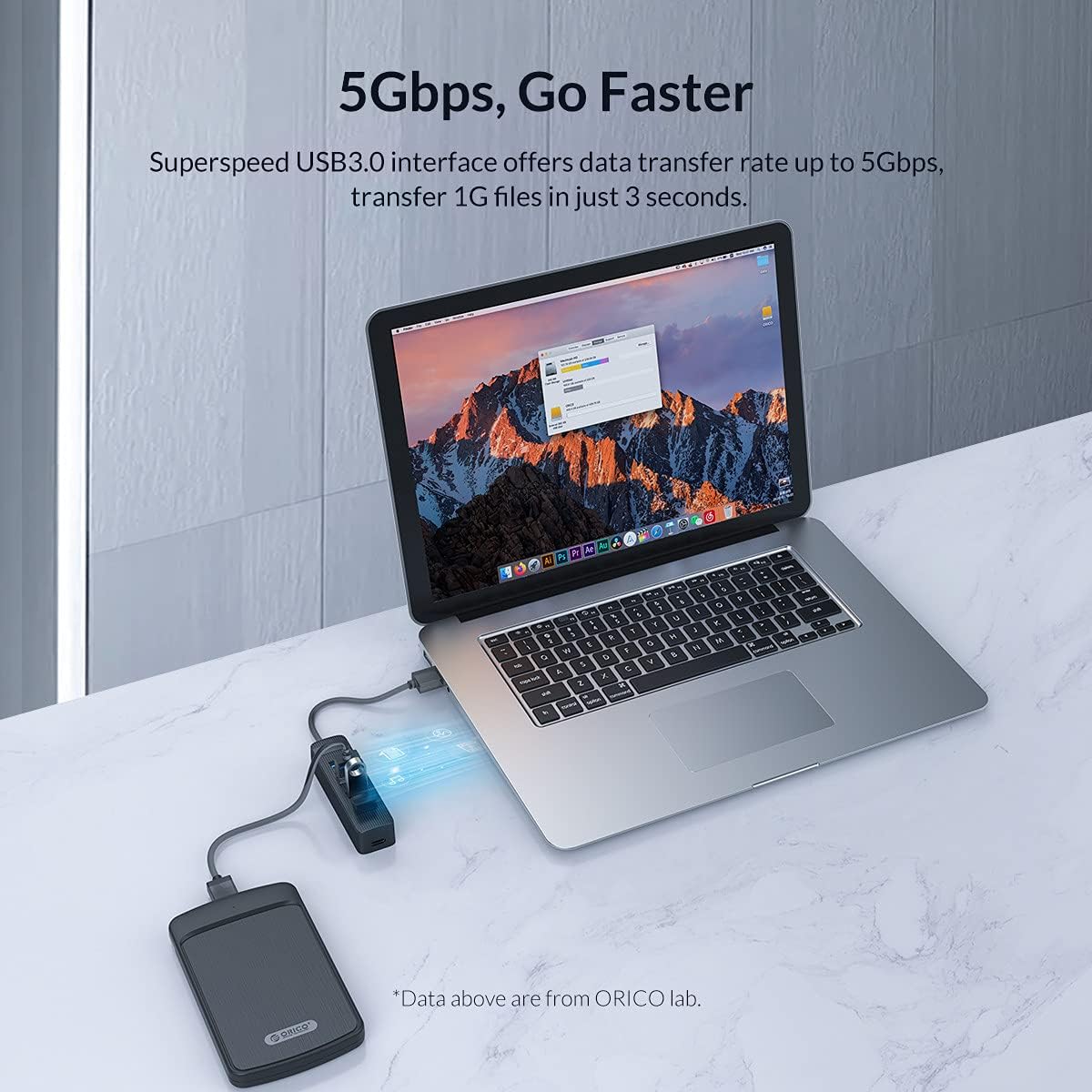
Image: The ORICO USB 3.0 4-Port Hub connected to a laptop, with an external hard drive also connected to the hub, demonstrating high-speed 5Gbps data transfer capabilities.
- Hot-Swapping: You can connect or disconnect USB devices from the hub without needing to restart your computer or the hub itself.
7. Maintenance
- Clean the hub with a soft, dry cloth. Do not use liquid cleaners or aerosols.
- Store the hub in a cool, dry place when not in use.
- Avoid bending or twisting the integrated USB cable excessively.
8. Troubleshooting
- Device not recognized:
- Ensure the hub's USB cable is securely connected to your computer.
- Try connecting the hub to a different USB port on your computer.
- If connecting a high-power device, ensure the optional external USB-C power adapter is connected and functioning.
- Test the peripheral directly on your computer's USB port to rule out a device issue.
- Slow data transfer speed:
- Ensure both the hub and your connected device support USB 3.0. If either is USB 2.0, speeds will be limited to USB 2.0.
- Connect the hub to a USB 3.0 port on your computer.
- Avoid connecting too many high-bandwidth devices simultaneously.
- Hub feels warm:
- It is normal for the hub to feel slightly warm during operation, especially when multiple devices are connected or during heavy data transfer. If it becomes excessively hot, disconnect it and contact support.
9. Specifications
| Brand | ORICO |
| Model | USB 3.0 4-Port Hub |
| Dimensions | 9.1 x 2.5 x 1.9 cm Image: The ORICO USB 3.0 4-Port Hub with its dimensions clearly marked: 90mm length, 25mm width, and 19mm height. |
| Weight | 40 grams |
| Hardware Interface | USB |
| USB Ports | 4 x USB 3.0 |
| Data Transfer Speed | Up to 5 Gbps |
| Power Input | Optional 5V/3A USB-C (adapter sold separately) |
| Compatible OS | Windows 10/8/7/Vista/XP, Mac OS x 10.6-10.12+, Linux 2.6.14+ |
| Color | Black |
10. Warranty and Support
ORICO products typically come with a standard manufacturer's warranty. Please refer to the warranty card included with your purchase or visit the official ORICO website for detailed warranty terms and conditions.
For technical support, troubleshooting assistance, or any inquiries regarding your ORICO USB 3.0 4-Port Portable Hub, please contact ORICO customer service through their official website or the contact information provided with your product.
Official ORICO Website: www.oricotech.com


