
Rapoo V16
Rapoo V16 Optical Gaming Mouse User Manual
Model: V16
Introduction
Thank you for choosing the Rapoo V16 Optical Gaming Mouse. This manual provides detailed instructions on how to set up, operate, and maintain your new gaming mouse. The V16 is designed for optimal gaming performance, featuring an ergonomic design, programmable buttons, and customizable DPI settings.
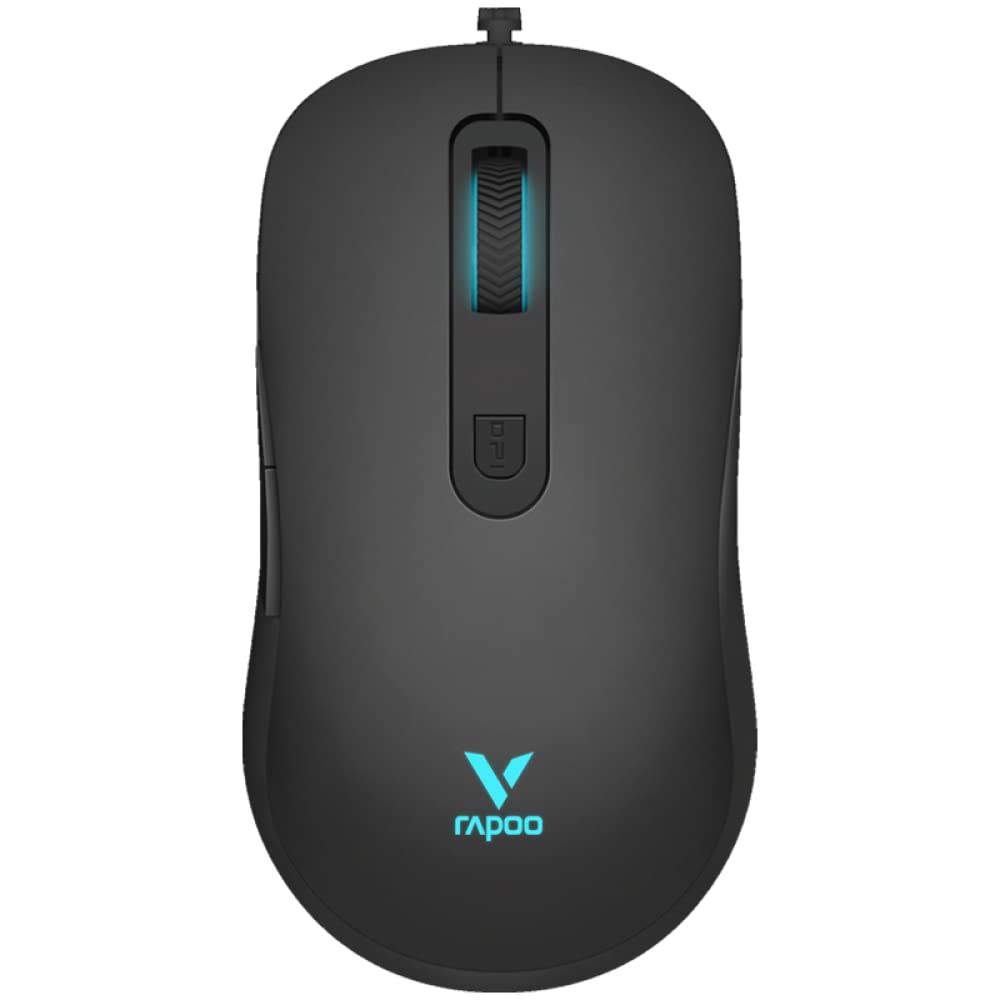
Figure 1: Top view of the Rapoo V16 Optical Gaming Mouse, highlighting its sleek black design and illuminated elements.
Key Features
- Ergonomic Design: Perfectly designed for gaming, ensuring comfort during extended use.
- Lightweight Design: Allows users to move and control the mouse with better ergonomics, enabling faster shooting and flicking.
- 6 Programmable Buttons: Assign macros and functions through software to each button.
- Braided Cable: Protects the wire from tangling and ensures a hassle-free experience.
- Single RGB Lighting: Features breathing modes with cyclical changes to enlighten and brighten your gaming setup.
- Adjustable Real-time DPI: Up to 2000 DPI with 3 sensitivity modes for precise tracking.
- Onboard Memory: Store your custom settings directly on the mouse.
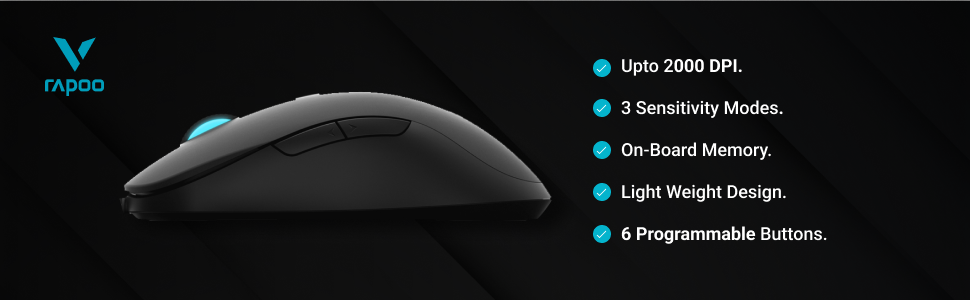
Figure 2: Overview of the Rapoo V16's main features, including its DPI range and programmable buttons.

Figure 3: The ergonomic design of the Rapoo V16, crafted for comfortable and extended gaming sessions.
Setup Guide
System Requirements
- Operating System: Windows 8, Windows XP
- Hardware Platform: PC
- Available USB Port
Connecting the Mouse
- Locate an available USB port on your computer.
- Insert the USB connector of the Rapoo V16 mouse into the USB port.
- The mouse is plug-and-play. Your operating system will automatically detect and install the necessary drivers.
- Once installed, the mouse's RGB lighting will illuminate, indicating it is ready for use.
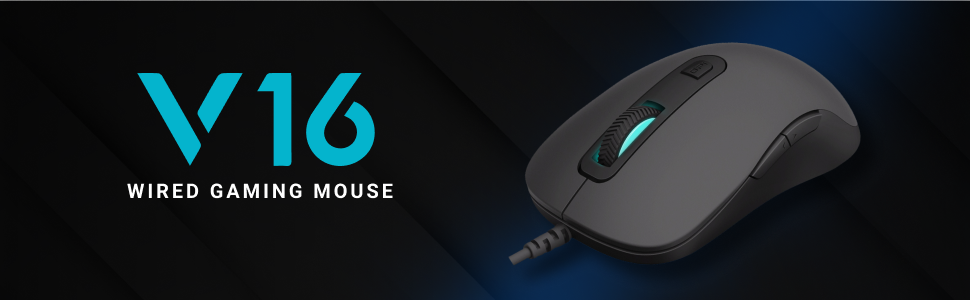
Figure 4: The Rapoo V16 is a wired gaming mouse, ensuring stable and reliable connectivity.
Operating Instructions
Basic Operation
The Rapoo V16 functions as a standard optical mouse for everyday use. Move the mouse to control the cursor on your screen. The left and right click buttons perform primary and secondary actions, respectively. The scroll wheel allows for vertical scrolling through documents and web pages.
Programmable Buttons
The V16 features 6 programmable buttons, allowing you to assign custom functions, macros, or key combinations for gaming or productivity. To utilize this feature, you will need to install the customisable drivers from the official Rapoo website. Once installed, open the driver software to configure each button.

Figure 5: The 6 programmable buttons on the Rapoo V16 mouse. These include the left click (1), right click (2), scroll wheel click (3), DPI button (4), and two side buttons (5, 6).
- Button 1: Left Click
- Button 2: Right Click
- Button 3: Scroll Wheel Click
- Button 4: DPI Cycle Button
- Button 5: Side Button (Forward/Backward by default)
- Button 6: Side Button (Forward/Backward by default)
Adjusting DPI Settings
The Rapoo V16 allows for real-time DPI adjustment with 3 sensitivity modes, up to 2000 DPI. The DPI button (Button 4) located behind the scroll wheel allows you to cycle through these sensitivity settings on the fly, enabling quick adjustments for different gaming scenarios or tasks.

Figure 6: The dedicated DPI button on the Rapoo V16 for quick sensitivity adjustments.
Maintenance
Proper maintenance ensures the longevity and optimal performance of your Rapoo V16 gaming mouse.
- Cleaning: Use a soft, dry cloth to wipe the surface of the mouse. For stubborn dirt, slightly dampen the cloth with water or a mild cleaning solution. Avoid using harsh chemicals or abrasive materials.
- Optical Sensor: Keep the optical sensor on the underside of the mouse clean and free from dust or debris to ensure accurate tracking.
- Cable Care: The braided cable is designed for durability, but avoid sharp bends or excessive pulling to prevent internal damage.
- Storage: When not in use, store the mouse in a clean, dry environment away from extreme temperatures.
Troubleshooting
| Problem | Possible Cause | Solution |
|---|---|---|
| Mouse not responding | USB cable not properly connected; Faulty USB port; Driver issue. | Ensure the USB cable is securely plugged in. Try a different USB port. Restart your computer. Reinstall mouse drivers from the Rapoo website. |
| Inaccurate tracking or erratic cursor movement | Dirty optical sensor; Uneven or reflective surface; Software interference. | Clean the optical sensor. Use a mouse pad or a non-reflective, even surface. Close other applications that might interfere. |
| Programmable buttons not working | Drivers not installed or corrupted; Software not configured correctly. | Install or reinstall the latest drivers from the Rapoo website. Open the driver software and ensure buttons are assigned correctly. |
| RGB lighting not working | Driver issue; Hardware malfunction. | Ensure drivers are up to date. If the issue persists, contact Rapoo customer support. |
Specifications
| Feature | Detail |
|---|---|
| Brand | Rapoo |
| Model | V16 |
| Connectivity Technology | Wired (USB) |
| Movement Detection Technology | Optical |
| DPI Sensitivity | Up to 2000 DPI (3 sensitivity modes) |
| Programmable Buttons | 6 |
| Hand Orientation | Ambidextrous |
| Special Features | Lightweight, Ergonomic Design, Onboard Memory, Braided Cable, Single RGB Lighting |
| Operating System Compatibility | Windows 8, Windows XP |
| Power Source | USB Powered |
| Dimensions (Approx.) | 125.3mm (L) x 68.2mm (W) x 38.6mm (H) |

Figure 7: Approximate dimensions of the Rapoo V16 mouse.
Warranty and Support
The Rapoo V16 Optical Gaming Mouse comes with a 2 Year Warranty. For warranty claims, technical support, or further assistance, please contact Rapoo customer service or visit their official website.
Importer: Supertron Electronics Ltd
For more information, visit the official Rapoo store: Rapoo Store on Amazon.in
Related documentsV16


Ask a question about this manual
Ask about setup, troubleshooting, compatibility, parts, safety, or missing instructions. Manuals+ will review the question and use this page’s manual context to help answer it.