
1. Introduction
This manual provides essential information for setting up, operating, and maintaining your BENEVE M7152 7-inch Kids Tablet. Please read this guide thoroughly to ensure proper use and to maximize your child's learning and entertainment experience.
The BENEVE M7152 is designed with children in mind, featuring a durable case, parental control options, and access to educational content. It operates on Android 10 and includes Wi-Fi and Bluetooth connectivity.

Image 1.1: BENEVE M7152 Kids Tablet with its protective case.
2. Safety Information
- Choking Hazard: Keep small parts away from young children.
- Water Exposure: This tablet is not waterproof. Avoid exposure to liquids.
- Temperature: Operate the tablet within a temperature range of 0°C to 35°C (32°F to 95°F).
- Charging: Use only the provided charger or a certified compatible charger. Do not leave charging unattended for extended periods.
- Screen Time: Monitor children's screen time to promote healthy development.
- Cleaning: Disconnect the tablet from power before cleaning. Use a soft, dry cloth.
3. Setup
3.1 Initial Power On
- Press and hold the power button located on the side of the tablet until the screen lights up.
- Follow the on-screen prompts to select your language and region.
3.2 Connecting to Wi-Fi
- From the home screen, tap the 'Settings' icon.
- Select 'Network & internet' then 'Wi-Fi'.
- Toggle Wi-Fi to 'On'.
- Select your desired Wi-Fi network from the list.
- Enter the network password if prompted and tap 'Connect'.
3.3 Setting Up Parental Controls
The BENEVE M7152 includes a dedicated Kids Mode and parental control features to manage content and screen time.
- Access the pre-installed 'Beneve Kids' application.
- Follow the instructions to create a child profile.
- Within the parental control settings, you can:
- Filter websites to ensure child-safe browsing.
- Select specific games and applications for access.
- Customize accessible content.
- Set daily time limits for tablet usage.
- Set a password for the parental control section to prevent children from altering settings.

Image 3.1: Parental control interface for managing child access and settings.
3.4 Google Play Store Setup
The tablet comes with Google Play Store pre-installed, allowing you to download additional applications.
- Open the 'Play Store' app.
- Sign in with an existing Google account or create a new one.
- Follow the prompts to complete the setup.
4. Operating the Tablet
4.1 Basic Navigation
- Touchscreen: Navigate by tapping, swiping, and pinching on the screen.
- Home Button: Returns to the main home screen.
- Back Button: Returns to the previous screen.
- Recent Apps Button: Displays recently used applications.
4.2 Kids Mode and Normal Mode
The tablet supports two distinct modes:
- Kids Mode: A restricted environment managed by parental controls, offering a curated selection of educational apps and games.
- Normal Mode: Functions as a standard Android tablet, allowing access to all installed applications and the Google Play Store.
Switching between modes typically requires a parental password or PIN set during the parental control setup.
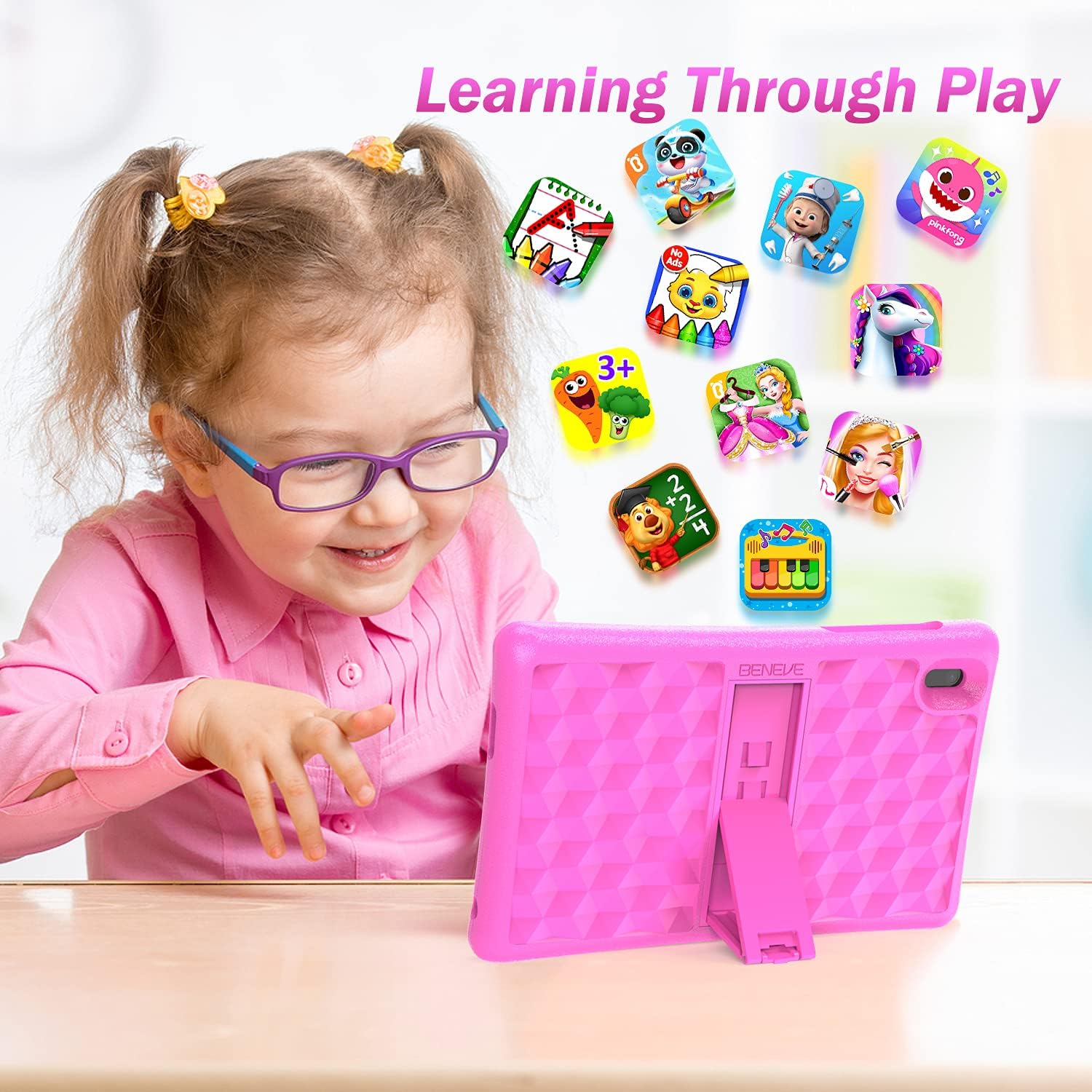
Image 4.1: Child engaging with educational content on the tablet.
4.3 Using Pre-installed Apps and Downloading More
The tablet comes with the 'Beneve Kids' app, which includes many educational applications and games. You can also download more apps from the Google Play Store (see Section 3.4).
4.4 Camera Usage
The tablet features dual cameras. To use the camera:
- Tap the 'Camera' icon on the home screen or app drawer.
- Tap the shutter button to take photos or switch to video mode to record.
- Use the switch icon to toggle between the front and rear cameras.
4.5 Battery Management
The tablet has a powerful battery providing approximately 3.5 hours of usage. To charge:
- Connect the charging cable to the tablet's charging port.
- Plug the other end into a power adapter and then into a wall outlet.
- A charging indicator will appear on the screen.
5. Maintenance
5.1 Cleaning the Tablet and Case
- Always power off the tablet and disconnect it from any power source before cleaning.
- Use a soft, lint-free cloth slightly dampened with water to clean the screen and tablet body. Avoid harsh chemicals or abrasive materials.
- The EVA protective case can be wiped clean with a damp cloth and mild soap if necessary. Ensure it is completely dry before reattaching it to the tablet.
5.2 Kids-Proof Case Care
The durable EVA anti-dirty case is designed to protect against drops and impacts. While robust, proper care extends its lifespan:
- Avoid excessive force when installing or removing the tablet from the case.
- Ensure the adjustable stand is used gently and not forced beyond its intended range of motion.

Image 5.1: Features of the Kid-Proof protective case.
6. Troubleshooting
If you encounter issues with your BENEVE M7152 tablet, please refer to the following common solutions:
- Tablet not turning on: Ensure the tablet is charged. Connect it to the charger and wait a few minutes before attempting to power it on again.
- Apps crashing or freezing: Close the problematic app and reopen it. If the issue persists, restart the tablet. Ensure you have sufficient storage space.
- Wi-Fi connection issues: Check if Wi-Fi is enabled in settings. Restart your Wi-Fi router. Forget the network and reconnect.
- Slow performance: Close unused applications. Clear cache data for apps. Consider performing a factory reset if performance issues are severe (back up data first).
- Screen not responding: Restart the tablet by holding the power button for about 10-15 seconds.
For persistent issues, please contact customer support.
7. Specifications
| Feature | Specification |
|---|---|
| Brand | BENEVE |
| Model Name | BENEVE M7152 |
| Item Model Number | M7152 |
| Color | Pink |
| Operating System | Android 10 |
| Hardware Platform | Android |
| Processor Brand | SC (Quad-Core) |
| Installed RAM Size | 2 GB |
| Memory Storage Capacity | 16 GB |
| Maximum Memory (Expandable) | Up to 64 GB (Micro SD card not included) |
| Screen Size | 7 inches |
| Screen Resolution | 1024 x 600 pixels |
| Maximum Display Resolution | 720p HD Ready Pixels |
| Connectivity Type | Wi-Fi |
| Wireless Technology Type | 802.11ac |
| Hardware Interface | Bluetooth |
| Connector Type | Wi-Fi |
| Device Compatibility | Keyboard, Stylus (not included) |
| Special Features | Kids-Proof Case, Educational Content, Parental Control |
| Battery(ies) | 1 Lithium-polymer battery required |
| Approximate Battery Life | 3.5 Hours |
| Package Dimensions | 25.8 x 16.1 x 5.85 cm; 650 grams |
| Manufacturer | sungworld |
| Model Year | 2022 |
| Spare Parts Availability | Information unavailable |
| Software Updates Guaranteed Until | Information not available |
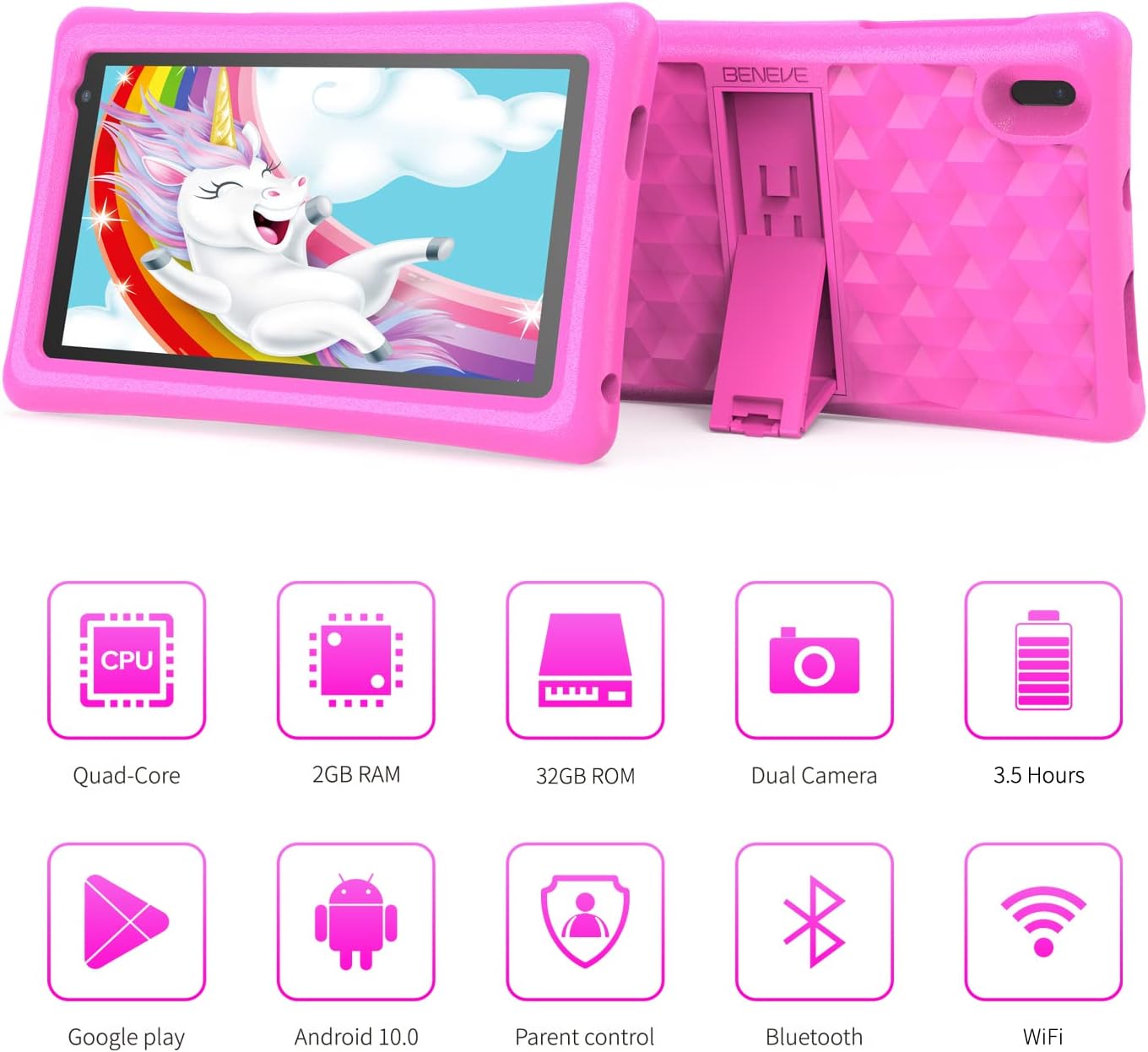
Image 7.1: Overview of key tablet specifications and features.
8. Warranty and Support
8.1 Warranty Information
The BENEVE M7152 tablet comes with a 30-day refund policy and a 12-month worry-free warranty from the date of purchase. This warranty covers manufacturing defects and ensures product quality.
8.2 Customer Support
For any questions, technical assistance, or warranty claims, please contact BENEVE customer service. Support is typically provided within 24 hours on business days.
Please refer to your purchase documentation or the retailer's website for specific contact details.