
DOBE TY-1793
Wireless Controller User Manual
Model: TY-1793
Introduction
Thank you for purchasing the DOBE Wireless Controller. This manual provides detailed instructions on how to set up, operate, and maintain your controller. Please read this manual carefully before use and keep it for future reference.
This controller is designed for use with Nintendo Switch, Android mobile devices, Android TV boxes, and personal computers. It offers both wireless Bluetooth and wired USB connectivity.
Package Contents
- 1 x Wireless Controller (TY-1793)
- 1 x USB-C Charging Cable
- 1 x User Manual (English)

Image: The product packaging, clearly indicating the wireless controller, USB-C cable, and compatibility with N-S / Android / PC.
Product Overview
Familiarize yourself with the various components of your wireless controller.

Image: Front view of the TY-1793 wireless controller, showing the dual analog sticks with orange accents, D-pad, ABXY buttons, Turbo button, and other function buttons.

Image: Side view of the TY-1793 wireless controller, highlighting the ergonomic grip and trigger buttons.
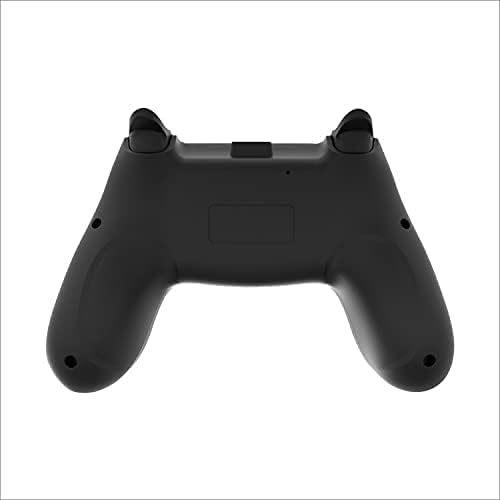
Image: Rear view of the TY-1793 wireless controller, showing the battery compartment or charging port area.
Setup
Charging the Controller
Before first use, fully charge the controller. Connect the supplied USB-C cable to the controller's charging port and the other end to a USB power source (e.g., computer USB port, USB wall adapter). The indicator lights will show charging status and turn off when fully charged.
- Working Voltage: DC 3.7V
- Charging Input Voltage: DC 5V
- Charging Input Current: 300mA
- Battery Capacity: 400mAh
Connecting to Devices
Bluetooth Connection (Wireless)
- Ensure the controller is charged.
- Turn on the controller by pressing the Home button.
- On your device (Nintendo Switch, Android mobile/TV box), go to Bluetooth settings or controller pairing menu.
- Select "TY-1793" or similar from the list of available devices to pair.
- Once paired, the indicator lights on the controller will stabilize.
Bluetooth transmission distance: <10m
Wired USB Connection (PC/Android)
- Connect the USB-C cable to the controller.
- Connect the other end of the USB-C cable to a USB port on your PC or Android device.
- The controller should be automatically recognized by your device. Drivers may be installed automatically.
Operating Instructions
Basic Controls
- Analog Sticks: Used for movement and camera control.
- D-Pad: Directional input for menus and certain games.
- ABXY Buttons: Standard action buttons.
- Shoulder Buttons (L/R, ZL/ZR): Additional action buttons, often for triggers or special abilities.
- Home Button: Returns to the system home screen.
- +/- Buttons: System-specific functions (e.g., Start/Select, Plus/Minus).
Special Functions
Turbo Function
The controller features a Turbo function for rapid firing of buttons. To activate Turbo for a button:
- Press and hold the desired action button (e.g., A, B, X, Y, L1, R1).
- While holding the action button, press the TURBO button.
- Release both buttons. The Turbo function is now active for that button.
To deactivate Turbo for a button, repeat the steps above.
Vibration Feedback
The controller supports motor vibration feedback for an immersive gaming experience. This function is automatically enabled when supported by the game and connected device.
6-Axis Gyroscope (Motion Control)
The controller is equipped with a 6-axis gyroscope, enabling motion control in compatible games, particularly on Nintendo Switch.
Maintenance
- Keep the controller dry. Avoid exposure to moisture or liquids.
- Do not expose the controller to extreme temperatures.
- Clean the controller with a soft, dry cloth. Do not use harsh chemicals or abrasive materials.
- Store the controller in a clean, dust-free environment when not in use.
- Avoid dropping or subjecting the controller to strong impacts.
Troubleshooting
- Controller does not turn on:
- Ensure the controller is fully charged. Connect it to a power source using the USB-C cable and allow it to charge for at least 30 minutes before attempting to turn it on again.
- Controller does not connect via Bluetooth:
- Ensure the controller is in pairing mode.
- Check that Bluetooth is enabled on your device.
- Move the controller closer to the device (within 10m).
- Remove any previous pairings of the controller from your device's Bluetooth list and try pairing again.
- Restart both the controller and your device.
- Buttons or analog sticks are unresponsive:
- Ensure the controller is properly connected (wired or wireless).
- Try restarting the controller and the game/device.
- If using a wired connection, try a different USB port or cable.
- Clean around the buttons and sticks to remove any debris.
Specifications
| Feature | Detail |
|---|---|
| Model No. | TY-1793 |
| Connectivity | Bluetooth (Wireless), USB (Wired) |
| Compatibility | Nintendo Switch, Android Mobile, Android TV Box, PC |
| Battery Type | Built-in Lithium Polymer |
| Battery Capacity | 400mAh |
| Working Voltage | DC 3.7V |
| Charging Input | DC 5V / 300mA |
| Bluetooth Range | <10 meters |
| Dimensions (Package) | 17.50 x 11.50 x 6.80 cm (6.89 x 4.53 x 2.68 inches) |
| Weight (Package) | 0.372 kg |
| UPC | 6972520252617 |
Warranty and Support
For warranty information and technical support, please refer to the contact details provided on the product packaging or the official DOBE website. Keep your purchase receipt as proof of purchase.
For further assistance, please contact customer support.
Related documentsTY-1793


Ask a question about this manual
Ask about setup, troubleshooting, compatibility, parts, safety, or missing instructions. Manuals+ will review the question and use this page’s manual context to help answer it.