
1. Introduction
The Logitech G435 LIGHTSPEED Wireless Gaming Headset is designed for versatility and comfort, offering both LIGHTSPEED wireless and low-latency Bluetooth connectivity. This manual provides essential information for setting up, operating, maintaining, and troubleshooting your headset.
2. Package Contents
Upon unboxing your Logitech G435 headset, verify that all components are present:
- G435 Headset
- LIGHTSPEED wireless USB-A receiver
- USB-C to USB-A charging cable
- User Documentation

Image: The Logitech G435 headset, LIGHTSPEED USB-A receiver, and USB-C charging cable, as found in the product packaging.
3. Setup and Connectivity
3.1 Initial Charging
Before first use, it is recommended to fully charge your G435 headset. Connect the supplied USB-C to USB-A charging cable to the USB-C port on the headset and the USB-A end to a powered USB port (e.g., on a computer or wall adapter). The LED indicator on the headset will show charging status.
3.2 LIGHTSPEED Wireless Connection (PC, PlayStation)
For a low-latency, high-performance connection, use the LIGHTSPEED wireless USB-A receiver:
- Insert the LIGHTSPEED USB-A receiver into an available USB-A port on your PC or PlayStation console.
- Power on the G435 headset by pressing and holding the Power button until the LED illuminates.
- The headset should automatically connect to the receiver. The LED on the headset will turn cyan when connected via LIGHTSPEED.
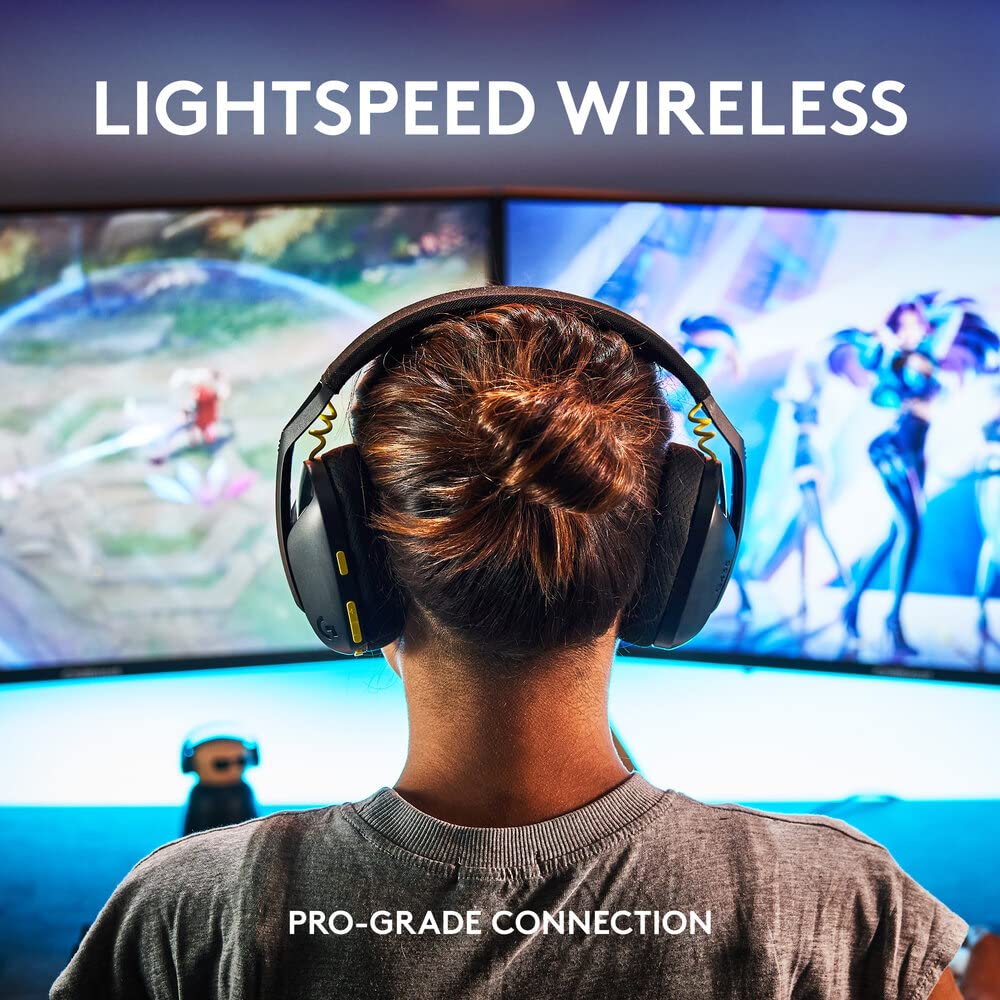
Image: A user wearing the Logitech G435 headset, demonstrating the LIGHTSPEED wireless connection for gaming.
3.3 Bluetooth Connection (Mobile, Tablets, Smart TVs, etc.)
The G435 headset also supports low-latency Bluetooth for mobile devices and other compatible platforms:
- To initiate Bluetooth pairing, press and hold the Power button and the Mute button simultaneously for 3 seconds. The LED on the headset will rapidly flash blue.
- On your device (e.g., smartphone), navigate to Bluetooth settings and select "G435" from the list of available devices.
- Once paired, the LED on the headset will turn solid blue.

Image: Close-up of the Logitech G435 earcup showing the power and mute buttons, with visual cues for Bluetooth pairing and device switching.
4. Operating the Headset
4.1 Controls Overview
The G435 headset features intuitive controls located on the left earcup:
- Volume Controls: Buttons for increasing and decreasing audio volume.
- Mute/Wireless Mode Switch: A multi-function button used for muting the microphone and switching between LIGHTSPEED and Bluetooth modes.
- USB-C Charging Port: For connecting the charging cable.
- L/R Braille Indicator: Tactile indicators for left and right earcups.

Image: An annotated diagram highlighting the various controls and features of the Logitech G435 headset, including memory foam earpads, adjustable earcups, volume controls, mute/wireless mode switch, USB-C port, and L/R braille indicators.
4.2 Switching Between Devices
To switch between LIGHTSPEED wireless and Bluetooth connections, press and hold the Mute button for 3 seconds. The headset will toggle between the last connected LIGHTSPEED device and the last connected Bluetooth device.
4.3 Audio Features
The G435 headset is equipped with 40mm audio drivers for balanced, high-fidelity sound. It supports spatial audio technologies such as Dolby Atmos, Tempest 3D AudioTech, and Windows Sonic for an immersive experience.

Image: A detailed view of the powerful 40mm audio driver inside the Logitech G435 headset, emphasizing its high-fidelity sound capabilities.
4.4 Microphone Usage
The headset features built-in dual beamforming microphones, eliminating the need for a traditional mic arm. These microphones are designed to reduce background noise and ensure clear voice communication.

Image: A close-up of the Logitech G435 earcup, highlighting the integrated dual beamforming microphones for clear audio capture.
4.5 Battery Life
The G435 headset provides up to 18 hours of continuous play time on a single charge, allowing for extended use without frequent recharging.

Image: Hands holding the lightweight Logitech G435 headset, with an overlay indicating its 18-hour battery life and 165g weight.
5. Maintenance and Care
To ensure the longevity and optimal performance of your Logitech G435 headset, follow these care guidelines:
- Cleaning: Use a soft, dry cloth to wipe down the headset. For fabric earcups, a slightly damp cloth can be used, but ensure they are completely dry before use. Avoid harsh chemicals or abrasive materials.
- Storage: Store the headset in a cool, dry place away from direct sunlight and extreme temperatures.
- Battery Care: For best battery health, avoid fully discharging the headset frequently. Charge it regularly, especially if it will be stored for an extended period.
- Environmental Responsibility: The G435 headset is made with a minimum of 22% recycled plastic. Please dispose of the product responsibly at the end of its life cycle according to local regulations.
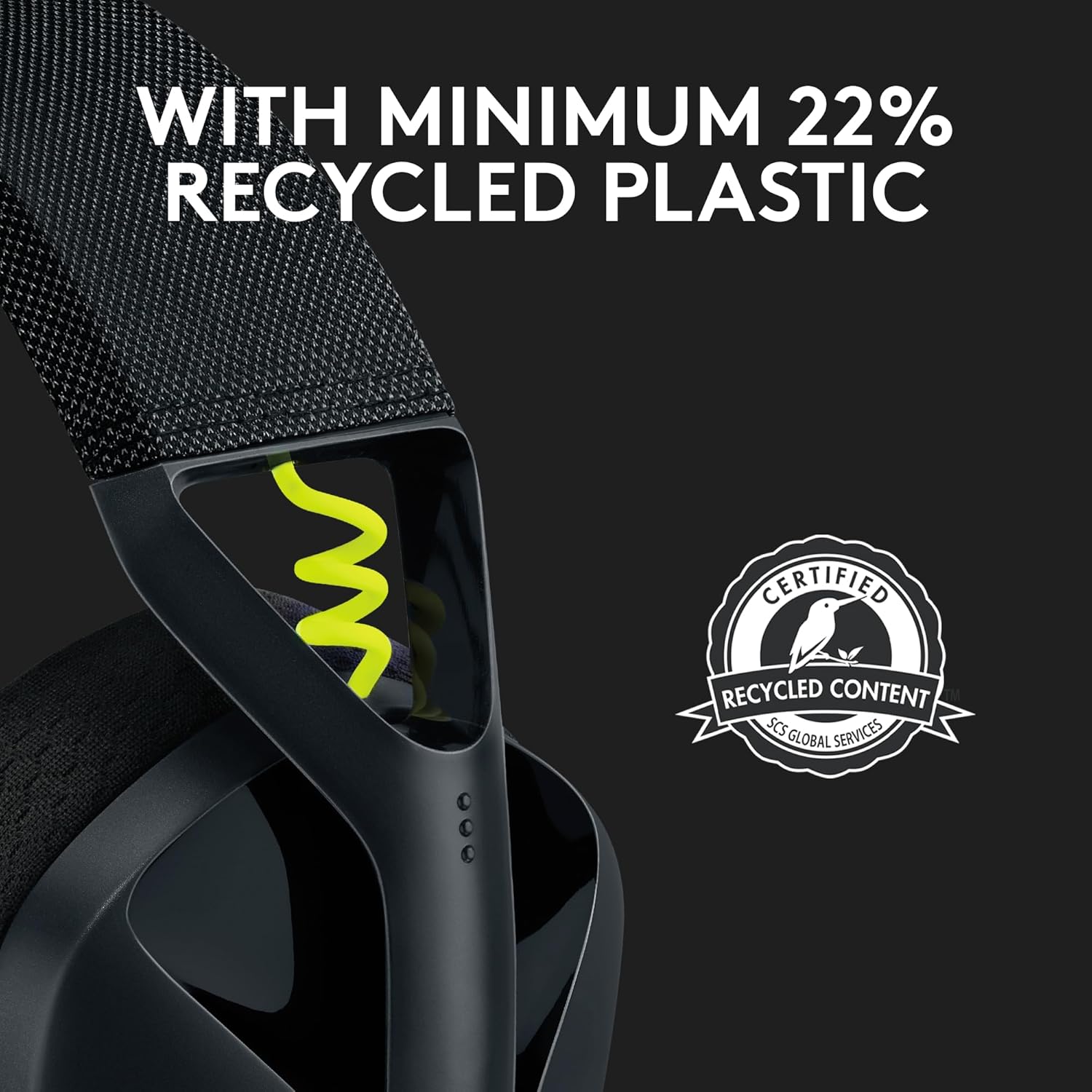
Image: A close-up of the Logitech G435 headset headband, featuring the 'Certified Recycled Content' seal, indicating its construction with recycled plastic.
6. Troubleshooting
If you encounter issues with your G435 headset, try the following troubleshooting steps:
- No Sound/Connectivity Issues:
- Ensure the headset is powered on and fully charged.
- Verify the correct connection mode (LIGHTSPEED or Bluetooth) is active. Press the Mute button for 3 seconds to switch modes.
- For LIGHTSPEED, ensure the USB-A receiver is securely plugged into a working USB port. Try a different USB port.
- For Bluetooth, ensure Bluetooth is enabled on your device and the headset is paired. Try unpairing and re-pairing the headset.
- Check your device's audio output settings to ensure the G435 is selected as the default output device.
- Microphone Not Working:
- Ensure the microphone is not muted (press the Mute button briefly to toggle mute).
- Check your device's audio input settings to ensure the G435 is selected as the default input device.
- Ensure no other applications are monopolizing the microphone.
- Low Volume:
- Increase the volume using the headset's volume controls.
- Increase the volume on your connected device (PC, console, mobile).
- Ensure no volume limits are set on your operating system or applications.
- Headset Not Responding:
- Perform a soft reset by holding down the Power button for 10-15 seconds until the headset powers off and then power it back on.
7. Specifications
| Feature | Detail |
|---|---|
| Model Number | 981-001051 |
| Product Dimensions | 16.3 x 17 x 7.1 cm |
| Item Weight | 165 g |
| Batteries | 1 Lithium Ion battery (required) |
| Colour | Black |
| Compatible Devices | Laptops, Mobile Phones, Tablets, PC, Smart TVs, All Bluetooth Devices, iOS, Android |
| Connectivity | LIGHTSPEED Wireless, Bluetooth |
| Material | Plastic |
| Battery Life | Up to 18 Hours |
| Hardware Platform | PC, Smartphone |
| Manufacturer | Logitech G |
| Country of Origin | China |
8. Warranty and Support
For warranty information and technical support, please refer to the official Logitech G website or the documentation included with your product. You can also visit the Logitech G Store on Amazon for additional resources and contact options.
Manufacturer: Logitech G, Logitech Asia Pacific Ltd, Unit no. 1003, Tower 1, Cheung Sha Wan Plaza, Cheung Sha Wan Road, Kowloon, Hong Kong.
Importer: Rashi Peripherals Pvt Ltd, Rashi Complex, Survey 186, Dongari Pada, Poman, Vasai (E) Thane, Maharashtra -401208, Registered Address - Rashi Peripherals Pvt Ltd, Aristo House, 5th Floor, Corner of Telli Galli, Andheri (E), Mumbai 400069, India.


