
1. Introduction
This manual provides essential instructions for the safe and efficient operation, maintenance, and troubleshooting of your Acekool CI1 Robot Vacuum Cleaner. The CI1 model features 2200Pa strong suction, FreeMove technology with 40 sensors, multiple cleaning modes, and control via Wi-Fi app, remote, or voice commands.
Please read this manual thoroughly before using the product and retain it for future reference.
2. Package Contents
Verify that all components are present in the package:
- 1PC Robot Vacuum Cleaner (including 1PC 550ML Dust Bin)
- 1PC Remote Control (batteries not included)
- 4PC Side Brushes
- 1PC Power Adapter
- 1PC Charging Dock
- 1PC User Manual
- 1PC HEPA Filter
- 1PC Cleaning Brush

Image: All components included in the Acekool CI1 Robot Vacuum Cleaner package, including the robot, charging base, remote control, side brushes, power adapter, HEPA filter, and cleaning brush.
3. Setup
3.1 Initial Preparation
- Remove Packaging: Carefully remove the robot vacuum cleaner and all accessories from the packaging. Remove any protective films or stickers from the robot.
- Install Side Brushes: Snap the two side brushes onto the posts located on the bottom of the robot until they click into place.
3.2 Charging Base Placement and Initial Charge
- Place Charging Base: Position the charging base against a wall in an open, uncluttered area. Ensure there is at least 1 meter (3 feet) of clear space in front of the base and 0.5 meters (1.5 feet) on either side. Connect the power adapter to the charging base and plug it into a wall outlet.
- Initial Charge: Place the robot onto the charging base, ensuring the charging contacts on the robot align with those on the base. The robot will begin charging. For optimal battery life, fully charge the robot before its first use. Ensure the power switch on the robot is in the 'ON' position for charging to occur.

Image: The robot vacuum cleaner automatically returning to its charging base, illustrating proper placement for effective self-charging.
3.3 App and Voice Assistant Connection
- Download Tuya App: Download the 'Tuya Smart' app from your smartphone's app store. Register an account and log in.
- Connect to Wi-Fi: Follow the in-app instructions to add your Acekool CI1 robot vacuum cleaner. Ensure your home Wi-Fi network is 2.4GHz, as the robot only supports this frequency.
- Voice Assistant Integration: Once connected to the Tuya app, you can link your account to Amazon Alexa or Google Assistant through their respective apps to enable voice control.
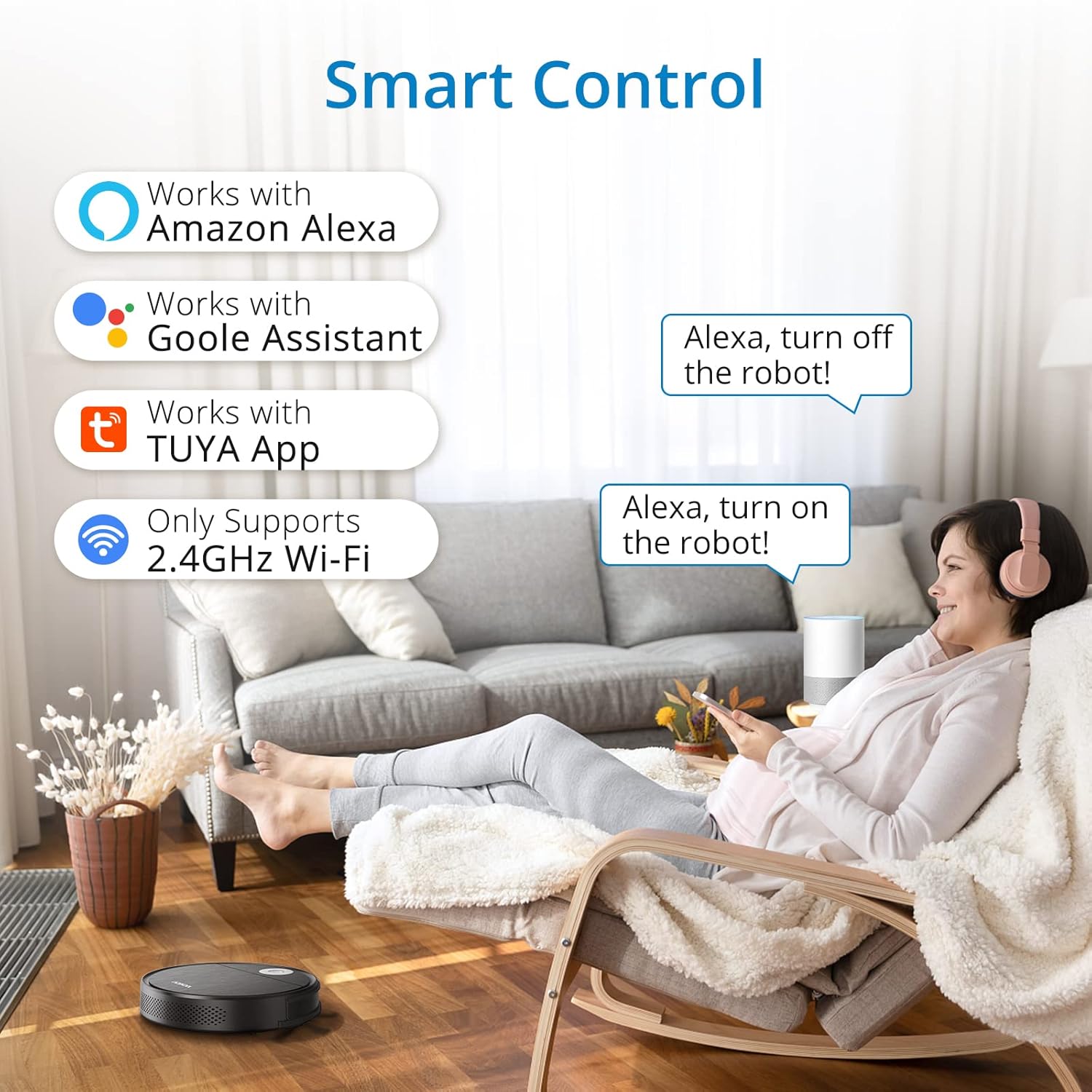
Image: The Acekool CI1 robot vacuum cleaner can be controlled via the Tuya app, Amazon Alexa, and Google Assistant, requiring a 2.4GHz Wi-Fi connection.
4. Operation
4.1 Starting and Stopping Cleaning
- Manual Start/Stop: Press the power button on the robot or the 'Start/Stop' button on the remote control.
- App Control: Use the Tuya Smart app to start, pause, or stop cleaning, and to set cleaning schedules.
- Voice Control: Use voice commands with Amazon Alexa or Google Assistant (e.g., "Alexa, turn on the robot vacuum").
4.2 Cleaning Modes
The Acekool CI1 offers four distinct cleaning modes to suit various needs:
- Zigzag Mode: Cleans in an efficient S-shaped pattern, ideal for large, open areas.
- Spot Mode: Concentrates cleaning on a specific area by spiraling outwards and then inwards.
- Random Mode: Cleans randomly, suitable for complex environments.
- Edge Mode: Cleans along walls and furniture edges to ensure thorough coverage.

Image: Visual representation of the four cleaning modes: Zigzag, Spot, Random, and Edge, demonstrating their distinct cleaning paths.
4.3 Navigation and Features
- FreeMove Technology: Equipped with 40 sensors, the robot can detect its surroundings in 360 degrees, helping it navigate around obstacles and avoid getting stuck.
- Anti-Dropping Sensors: Sensors on the bottom prevent the robot from falling down stairs or off ledges.
- Automatic Recharging: When the battery level is low, the robot will automatically return to its charging base to recharge.
- Powerful Suction: The 2200Pa suction power effectively cleans dust and debris from various floor types, including tiles, hardwood, and carpets.
- Ultra-Thin Design: With a height of 2.7 inches, the robot can easily clean under furniture such as sofas and beds.

Image: Illustration of the robot vacuum's Omni-Directional Sensing Technology, highlighting its 40 sensors for navigation and obstacle avoidance on carpets and hard floors.

Image: Diagram showing the Acekool CI1's 2200Pa suction power, driven by a quad drive motor and a dedicated suction motor, effectively cleaning debris from the floor.
5. Maintenance
Regular maintenance ensures optimal performance and extends the lifespan of your robot vacuum cleaner.
5.1 Dustbin and Filter Maintenance
- Empty Dustbin: Press the dustbin release button and pull out the dustbin. Open the dustbin cover and empty its contents into a trash bin.
- Clean Filter: Remove the HEPA filter from the dustbin. Tap the filter to remove loose dirt. The HEPA filter is washable; rinse it under running water. Ensure it is completely dry before reinserting it into the dustbin.
- Clean Dustbin: Rinse the dustbin with water. Allow it to air dry completely before reassembling.

Image: The dustbin and washable HEPA filter, demonstrating the airflow for efficient dust capture and the components for regular cleaning.
5.2 Brush and Sensor Maintenance
- Clean Side Brushes: Periodically remove the side brushes and use the provided cleaning tool or a soft cloth to remove any hair or debris tangled around them.
- Clean Sensors: Wipe the anti-drop sensors and other navigation sensors on the bottom and sides of the robot with a clean, dry cloth to ensure proper functionality.
- Brushless Suction Port: The unique brushless suction port is designed to prevent hair tangles. If blockages occur, use the cleaning brush to clear the port.

Image: The brushless suction port design, which allows pet hair and dirt to be easily collected into the dustbin without tangling, reducing maintenance.
6. Troubleshooting
Refer to this section for solutions to common issues.
| Problem | Possible Cause | Solution |
|---|---|---|
| Robot does not charge | Power switch is off; charging contacts are dirty; charging base is not powered. | Ensure the power switch is ON. Clean charging contacts on both robot and base. Verify charging base is plugged in and receiving power. |
| Robot gets stuck frequently | Too many obstacles; dirty sensors; robot stuck on high pile carpet or threshold. | Clear obstacles from the cleaning path. Clean all sensors. The robot can cross obstacles up to 0.6 inches; remove thicker obstacles. |
| Poor cleaning performance | Dustbin is full; filter is clogged; side brushes are worn or tangled. | Empty the dustbin. Clean or replace the HEPA filter. Clean or replace side brushes. |
| App connection issues | Incorrect Wi-Fi frequency; wrong password; network interference. | Ensure your Wi-Fi is 2.4GHz. Double-check Wi-Fi password. Try restarting your router and the robot. |
| Robot falls down stairs | Anti-drop sensors are dirty or obstructed. | Clean the anti-drop sensors located on the bottom of the robot with a dry cloth. Ensure no debris is blocking them. |
7. Specifications
- Model: CI1
- Brand: Acekool
- Product Dimensions: 10.7"L x 10.7"W x 2.7"H
- Weight: 6 Pounds
- Suction Power: 2200Pa
- Battery: 2600mAh Lithium-Ion (up to 120 minutes runtime)
- Dustbin Capacity: 500ML
- Filter Type: Washable HEPA
- Navigation: FreeMove Technology with 40 sensors
- Connectivity: 2.4GHz Wi-Fi (Tuya App), Remote Control, Amazon Alexa, Google Assistant
- Obstacle Climbing Ability: Up to 0.6 inches
8. Warranty and Support
The Acekool CI1 Robot Vacuum Cleaner comes with a 12-month worry-free warranty from the date of purchase.
For any questions regarding accessories, operation, maintenance, or warranty claims, please contact Acekool customer support. Refer to the contact information provided on the product packaging or the official Acekool website for assistance.