
1. Introduction
This manual provides detailed instructions for the installation, operation, and maintenance of your XO Vision X358 7-inch In-Dash Touch Screen DVD Receiver. Please read this manual thoroughly before using the product to ensure proper functionality and to prevent damage.
1.1. Package Contents
The package should contain the following items:
- XO Vision X358 Receiver Unit
- Remote Control
- Wiring Harness
- Instruction Manual (this document)
- Warranty Card
2. Safety Information
To ensure safe operation and prevent injury or damage, please observe the following precautions:
- Do not operate the unit in a manner that distracts you from driving. Always prioritize road safety.
- Ensure proper installation by a qualified professional to prevent electrical shorts or malfunctions.
- Do not expose the unit to moisture or extreme temperatures.
- Only use accessories and parts specified by the manufacturer.
- Keep the volume at a level that allows you to hear outside traffic sounds.
3. Product Overview
3.1. Key Features
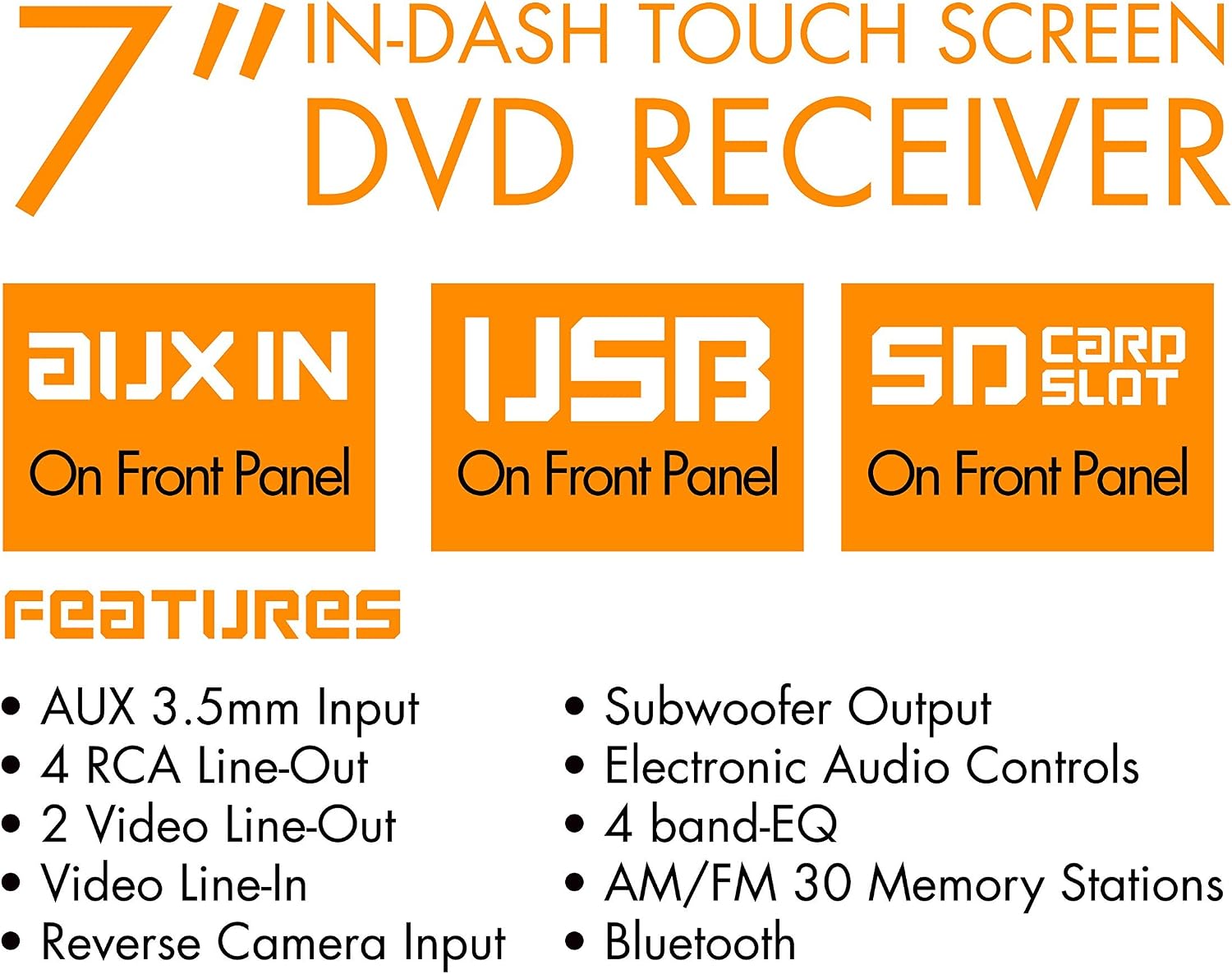
Figure 3.1.1: Overview graphic highlighting key features such as front panel AUX, USB, and SD card inputs, along with advanced features like Bluetooth, Subwoofer Output, and 4-band EQ.
The XO Vision X358 receiver offers a comprehensive set of features for in-car entertainment and connectivity:
- 7-inch In-Dash Touch Screen Display
- DVD/CD Playback
- Front USB Input
- Front AUX 3.5mm Input
- SD Card Slot (on Front Panel)
- Bluetooth Connectivity for hands-free calling and audio streaming
- AM/FM Tuner with 30 Memory Stations
- 4 RCA Line-Outs for external amplifiers
- 2 Video Line-Outs for additional screens
- Video Line-In for external video sources
- Reverse Camera Input for enhanced safety
- Subwoofer Output
- Electronic Audio Controls with 4-band Equalizer (EQ)
3.2. Front Panel Controls and Connections
The front panel features the primary controls and accessible ports for media playback.

Figure 3.2.1: Front view of the XO Vision X358 receiver with the 7-inch touch screen extended. Shows the main control knob, buttons for playback and source selection, and front USB/AUX inputs.

Figure 3.2.2: The detachable front panel of the XO Vision X358 receiver shown within its protective storage case. This panel contains the primary user interface.
3.3. Rear Panel Connections
The rear panel provides connections for power, speakers, antennas, and various audio/video inputs and outputs.

Figure 3.3.1: Top image shows the front panel of the XO Vision X358 receiver. Bottom image displays the rear panel with various RCA connections for audio/video, antenna input, and the main power harness connector.
4. Installation
Professional installation is recommended for this product. Incorrect wiring can cause damage to the unit or your vehicle's electrical system.
4.1. Wiring Connections
Refer to the wiring diagram provided with your unit and the included wiring harness for specific connections. Ensure all connections are secure and properly insulated.

Figure 4.1.1: The wiring harness for the XO Vision X358 receiver, showing multiple color-coded wires for power, ground, speakers, and other functions. Each wire must be connected correctly.
Key Wiring Points:
- Yellow Wire: Constant 12V (Battery)
- Red Wire: Switched 12V (Accessory/Ignition)
- Black Wire: Ground
- Blue Wire: Power Antenna/Amplifier Remote Turn-On
- Orange Wire: Illumination
- Speaker Wires: Typically color-coded (e.g., White/White-Black for Front Left, Gray/Gray-Black for Front Right, Green/Green-Black for Rear Left, Purple/Purple-Black for Rear Right). Ensure correct polarity.
- Parking Brake Wire: Connect to the vehicle's parking brake circuit. This safety feature prevents video playback while the vehicle is in motion.
4.2. Mounting the Unit
Install the receiver into the vehicle's dashboard using the provided mounting hardware. Ensure the unit is securely fastened and does not obstruct any vehicle controls or airbags.
5. Operation
5.1. Basic Functions
- Power On/Off: Press the SRC button briefly to turn the unit on. Press and hold to turn off.
- Volume Control: Rotate the main knob to adjust the volume level.
- Source Selection: Press the SRC button repeatedly to cycle through available sources (Radio, DVD, USB, SD, AUX, Bluetooth).
- Menu/Settings: Press the MENU button to access system settings and audio adjustments.
5.2. DVD/CD Playback
- Insert a DVD or CD into the disc slot. The unit will automatically switch to DVD/CD mode and begin playback.
- Use the touch screen or front panel buttons (PLAY/PAUSE, SKIP) to control playback.
- Ensure the parking brake is engaged for video playback.
5.3. USB/SD Card Playback
- Insert a USB drive into the front USB port or an SD card into the SD card slot.
- Select USB or SD as the source.
- Browse and select media files using the touch screen interface.
5.4. Bluetooth Operation
Pairing a Device:
- Select Bluetooth as the source.
- On your mobile device, enable Bluetooth and search for available devices.
- Select X358 (or similar name) from the list. Enter PIN 0000 if prompted.
- Once paired, you can stream audio or make/receive calls through the receiver.
Bluetooth Audio (A2DP): Play music from your paired device. Use the receiver's controls for track navigation.
Bluetooth Hands-Free (HFP): Answer, end, or reject calls using the touch screen or designated buttons.
5.5. Radio Operation
- Select Radio as the source.
- Press BAND to switch between FM1, FM2, FM3, AM1, and AM2 bands.
- Use the SEEK buttons to automatically search for stations.
- To manually tune, use the touch screen controls.
- To save a station, tune to the desired frequency, then press and hold one of the preset buttons (1-6) until you hear a beep.
6. Maintenance
6.1. Cleaning the Unit
- Use a soft, dry cloth to wipe the exterior of the unit.
- For the touch screen, use a soft, lint-free cloth specifically designed for electronics screens. Do not use abrasive cleaners or solvents.
- Ensure the unit is powered off before cleaning.
6.2. Disc Care
- Handle discs by their edges to avoid fingerprints.
- Keep discs clean and free from scratches. Use a soft cloth to wipe from the center outwards if cleaning is necessary.
- Store discs in their cases when not in use.
7. Troubleshooting
| Problem | Possible Cause | Solution |
|---|---|---|
| No power | Incorrect wiring; Blown fuse; Vehicle battery low | Check power and ground connections; Replace fuse; Check vehicle battery. |
| No sound | Volume too low; Mute activated; Speaker wires disconnected; Incorrect audio settings | Increase volume; Deactivate mute; Check speaker connections; Adjust audio settings. |
| Disc not playing | Disc dirty or scratched; Incorrect disc format; Parking brake not engaged (for video) | Clean or replace disc; Ensure disc is compatible; Engage parking brake. |
| Bluetooth not connecting | Bluetooth off on device; Device not in pairing mode; Interference | Ensure Bluetooth is on and discoverable; Re-pair device; Move closer to unit. |
| Screen not displaying video | Parking brake safety feature; Incorrect video source selected | Ensure parking brake is fully engaged; Select correct video input source. |
8. Specifications
| Feature | Specification |
|---|---|
| Brand | XOvision |
| Model Number | X358 |
| Screen Size | 7 Inches |
| Display Type | LCD |
| Media Type | CD, DVD |
| Connectivity Technology | USB, Bluetooth |
| Item Weight | 5.4 pounds (approx. 2.45 kg) |
| Product Dimensions (L x W x H) | 4.13 x 8.97 x 12 inches (approx. 10.5 x 22.8 x 30.5 cm) |
| Manufacturer | Shaghai LTD |
9. Warranty and Support
9.1. Warranty Information
This product is offered as an Amazon Renewed item. Amazon Renewed products are inspected and tested by Amazon-qualified suppliers to work and look like new. They are eligible for replacement or refund under the Amazon Renewed Guarantee if you are not satisfied with your purchase.
Please refer to the warranty card included in your package for specific terms and conditions.
9.2. Customer Support
For technical assistance or support, please refer to the contact information provided on your warranty card or visit the official XOvision website. For issues related to your Amazon Renewed purchase, please contact Amazon Customer Service.
