
1. Introduction
The Athom Homekit Mini DIY WiFi Relay Module is a compact and versatile smart home automation device designed for seamless integration with Apple Homekit. This 3-way relay switch allows for Siri voice control and remote operation without the need for an additional hub. It is suitable for various household equipment with a maximum current of 16A.
Key features include:
- Voice control via Apple Homekit APP and Siri.
- Wireless remote control via 2.4GHz WiFi.
- Support for two-way control, allowing manual operation alongside smart control.
- Timing on/off functionality for automated appliance control.
- Compact design (40x40x20mm) for easy installation in most mounting boxes.
2. Safety Information
Please read and understand all safety instructions before installation and operation. Failure to follow these instructions may result in electric shock, fire, or other hazards.
- Electrical Safety: Installation should only be performed by a qualified electrician or a person with a thorough understanding of electrical wiring. Always turn off power at the circuit breaker before installing or servicing the device.
- Voltage and Current: Ensure the device's voltage (100-240V 50/60Hz) and maximum current (16A) are compatible with your electrical system and connected appliances.
- Indoor Use Only: This device is designed for indoor use in dry locations. Do not expose to moisture or extreme temperatures.
- Overload Protection: Do not exceed the maximum load rating of 16A (1800-3450W). Overloading can cause overheating and fire.
- Children and Pets: Keep the device out of reach of children and pets.
3. Package Contents
Verify that all components are present in the package:
- 1 x Athom Homekit Mini DIY WiFi Relay Module
- 1 x User Manual (this document)

Figure 3.1: Athom Homekit Mini DIY WiFi Relay Module. This image shows the compact white module with screw terminals for wiring.
4. Product Overview and Dimensions
The module is designed to be small enough to fit into standard electrical boxes.

Figure 4.1: Module Dimensions. The image illustrates the module's dimensions as 4cm x 4cm x 2cm, highlighting its compact size.

Figure 4.2: Top View. This image shows the top surface of the module, featuring a stylized light bulb icon and ventilation holes.

Figure 4.3: Protection Features. This graphic highlights the module's safety features: Dry Contacts, Device Temperature Protection, Shortage Protection, and Overload Protection.
5. Setup and Installation
Before proceeding with installation, ensure the main power supply is turned off at the circuit breaker to prevent electric shock.
5.1 Wiring Diagrams
The module supports various wiring configurations. Below are common examples:

Figure 5.1: Basic Wiring Diagram. This diagram shows the module connected to a light bulb and a wall switch, illustrating how it integrates into a lighting circuit.

Figure 5.2: Single Switch Wiring. This diagram details the connections for a single-pole switch setup, showing AC IN, AC OUT, and switch connections (S1, S2).
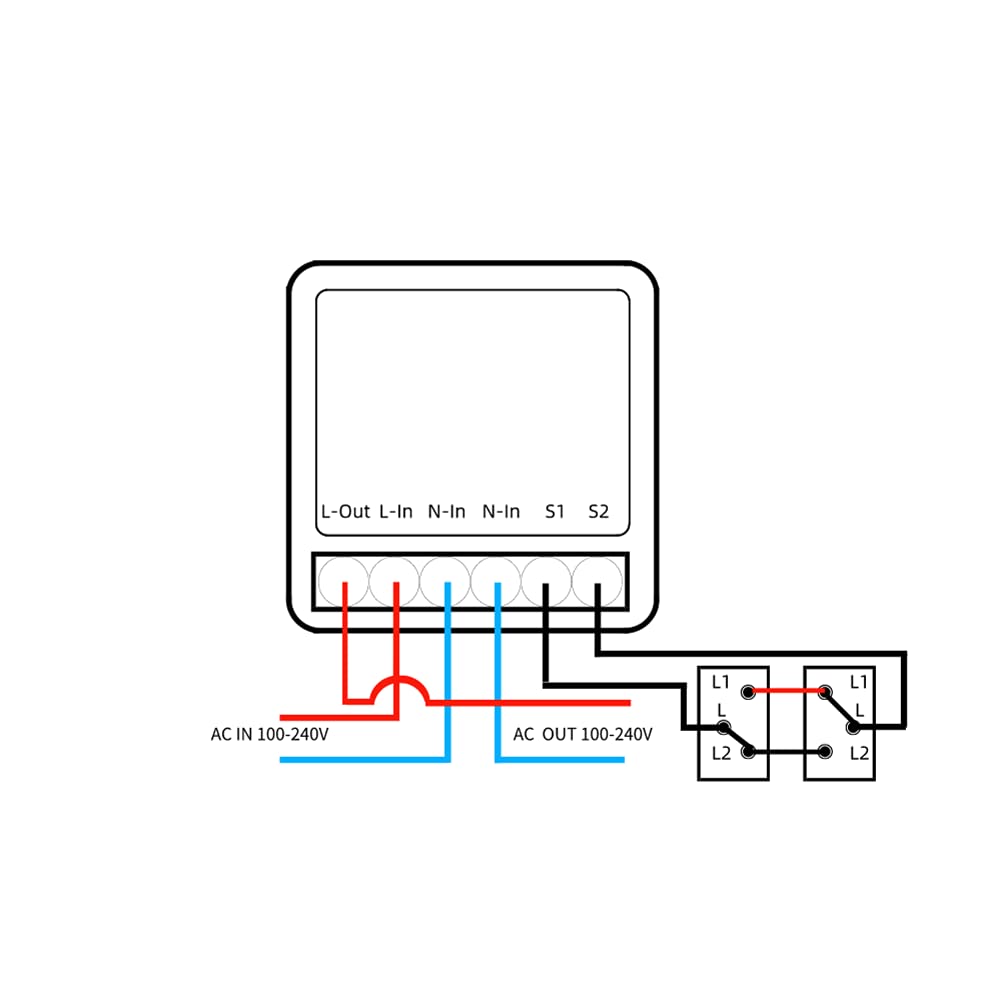
Figure 5.3: Two-Way Switch Wiring. This diagram illustrates the wiring for a two-way switch configuration, allowing control from two different physical switch locations.
The module is designed to fit inside a standard wall box behind your existing switch.

Figure 5.4: Module Installation in Wall Box. This image demonstrates how the compact module can be installed within a standard electrical wall box, alongside a traditional wall switch.
5.2 Homekit Scan Code Connection
After physical installation and power restoration, connect the module to your Apple Homekit system:
- Reset the Module: Press and hold the button on the module for more than 8 seconds. The indicator light will flash, and the device will restart, indicating it's ready for pairing.
- Connect to WiFi: Ensure your iPhone/iPad is connected to the same 2.4GHz WiFi network that the module will use.
- Open Home App: Launch the Apple Home app on your iOS device.
- Add Accessory: Tap the "+" icon (or "Add Accessory") and select "Add Accessory".
- Scan Setup Code: Scan the Homekit setup code located on the module or its packaging. Each device has a unique code.
- Follow Prompts: Follow the on-screen prompts to name the switch, assign it to a room, and categorize it (e.g., Light, Fan, Outlet).
- Completion: Once added, the switch will appear in your Home app, ready for control.
Video 5.1: Homekit Setup and Connection Guide. This video demonstrates the step-by-step process of connecting the Athom Mini DIY WiFi Relay Module to Apple Homekit, including resetting the device, scanning the setup code, and adding it to the Home app.
6. Operating Instructions
Once successfully set up, the Athom Mini DIY WiFi Relay Module offers multiple control methods:
6.1 Apple Home App Control
Control your connected appliance directly from the Apple Home app on your iPhone, iPad, or Apple Watch. Simply tap the accessory tile to toggle it on or off.
6.2 Siri Voice Control
Use Siri to control your device hands-free. Activate Siri and use commands such as:
- "Hey Siri, turn on [Device Name]." (e.g., "Hey Siri, turn on the living room light.")
- "Hey Siri, turn off [Device Name]."
- "Hey Siri, is the [Device Name] on?"

Figure 6.1: Siri Voice Control. This image shows a phone screen with the Siri interface and the command "Hey Siri, turn on my lamp," demonstrating voice control capabilities.
6.3 Manual Control
The module supports two-way control, meaning your existing physical wall switch will continue to function normally, allowing you to control the connected appliance manually.
6.4 Automation and Scenes
Within the Apple Home app, you can create automations and scenes to control your device based on time, location, or other accessory states. For example, set a scene to turn off all lights when you leave home, or schedule a light to turn on at sunset.
You can also share control of your Homekit accessories with family and friends through the Home app.
7. Maintenance
The Athom Mini DIY WiFi Relay Module requires minimal maintenance. Follow these guidelines:
- Cleaning: Disconnect power before cleaning. Wipe the device with a soft, dry cloth. Do not use harsh chemicals or abrasive cleaners.
- Firmware Updates: Periodically check the Apple Home app for any available firmware updates for the module to ensure optimal performance and security.
- Environmental Conditions: Ensure the operating environment remains within the specified temperature range (-20℃~50℃) and avoid excessive humidity.
8. Troubleshooting
If you encounter issues with your Athom Mini DIY WiFi Relay Module, try the following troubleshooting steps:
| Problem | Possible Cause | Solution |
|---|---|---|
| Device not responding in Home app. | No power, WiFi disconnected, Homekit pairing issue. |
|
| Siri voice control not working. | Incorrect device name, Siri not enabled, network issue. |
|
| Physical switch not working after installation. | Incorrect wiring. |
|
9. Specifications
| Attribute | Value |
|---|---|
| Material | ABS+PC |
| Voltage | 100-240V 50/60Hz |
| Max. Current | 16A |
| Max. Power | 1800-3450W |
| Working Temperature | -20℃~50℃ |
| Wireless Standard | WiFi 2.4GHz 802.11b/g/n |
| Product Dimensions | 1.57 x 1.57 x 0.79 inches (40 x 40 x 20 mm) |
| Weight | 1.62 ounces |
10. Warranty and Support
Athom products are designed for reliability and performance. For warranty information and technical support, please refer to the official Athom website or contact their customer service. Keep your purchase receipt as proof of purchase for warranty claims.
For further assistance, visit: www.athom.com