
Getting Started
Package Contents
Upon opening the MAXTOP Smart Watch T5 package, you should find the following items:
- MAXTOP Smart Watch T5 device
- Silicone watch strap (black)
- USB charging cable
- User Manual

Image: MAXTOP Smart Watch T5 package contents, showing the watch, a black silicone strap, a USB charging cable, and the user manual.
Charging the Device
Before first use, fully charge your smart watch. Connect the magnetic charging cable to the charging points on the back of the watch and plug the USB end into a standard USB power adapter (not included) or a computer's USB port. The watch display will indicate charging status.
Note:
- Ensure the charging contacts are clean and dry.
- Use a 5V/1A charger for optimal charging.
Powering On/Off
- To Power On: Press and hold the side button for a few seconds until the MAXTOP logo appears.
- To Power Off: From the watch face, swipe down to access quick settings, or navigate to the "Settings" menu. Select the power icon and confirm to shut down the device.
App Installation and Pairing
To unlock the full functionality of your MAXTOP Smart Watch T5, you need to install the companion app on your smartphone.
- Download the App: Search for the "MAXTOP" app (or specified companion app in the included manual) in the Apple App Store (for iOS) or Google Play Store (for Android).
- Create Account: Open the app and follow the on-screen instructions to create an account and set up your profile.
- Pair the Watch:
- Ensure Bluetooth is enabled on your smartphone.
- Open the app and navigate to the device pairing section.
- Select "Add Device" or similar option. The app will search for nearby devices.
- Select "MAXTOP T5" from the list of found devices.
- Confirm the pairing request on both your phone and the watch if prompted.
Important:
- Keep the watch close to your phone during the pairing process.
- Allow all requested permissions for the app to function correctly.
Features and Operation
Navigating the Interface
The MAXTOP Smart Watch T5 features a 1.54-inch full touch screen for easy navigation.
- Swipe Up/Down: Scroll through menus or notifications.
- Swipe Left/Right: Access different feature screens or quick views.
- Tap: Select an item or confirm an action.
- Side Button: Press to return to the main watch face or wake the screen.

Image: The MAXTOP Smart Watch T5 display showcasing multiple functions including heart rate, blood pressure, music control, and various sports modes.
Daily Activity Tracking
Your smart watch automatically tracks your daily activities, including steps, distance, and calories burned. You can view detailed summaries in the companion app.

Image: The MAXTOP Smart Watch T5 tracking daily activities such as steps, calories, and distance, alongside icons representing various sports modes like hiking, cycling, and running.
Sport Modes
The watch supports 10 different sport modes to accurately track your workouts. To start a sport mode:
- Swipe on the watch face to find the "Sport" icon or menu.
- Tap to select your desired activity (e.g., Outdoor Run, Indoor Walk, Cycling).
- The watch will begin tracking your activity. Tap to pause or end the workout.

Image: The MAXTOP Smart Watch T5 interface showing 10 distinct sport modes, such as hiking, outdoor cycling, indoor running, and elliptical training.
Heart Rate and Blood Pressure Monitoring
The watch can monitor your heart rate (HR) and blood pressure (BP). For accurate readings:
- Wear the watch snugly on your wrist, about one finger's width from your wrist bone.
- Remain still during measurement.
- To measure: Navigate to the HR or BP icon on the watch and tap to start.

Image: The MAXTOP Smart Watch T5 displaying heart rate in beats per minute (BPM) and illustrating different sleep stages (awake, light, deep sleep).
Sleep Monitoring
The watch automatically tracks your sleep patterns, including awake time, light sleep, and deep sleep. View your sleep quality report in the companion app.

Image: The MAXTOP Smart Watch T5's sleep monitoring feature, displaying sleep duration and a detailed sleep quality analysis within the companion application.
Message Notifications
Receive notifications from your smartphone directly on your watch. Ensure the watch is paired and app notifications are enabled in your phone's settings and the companion app.
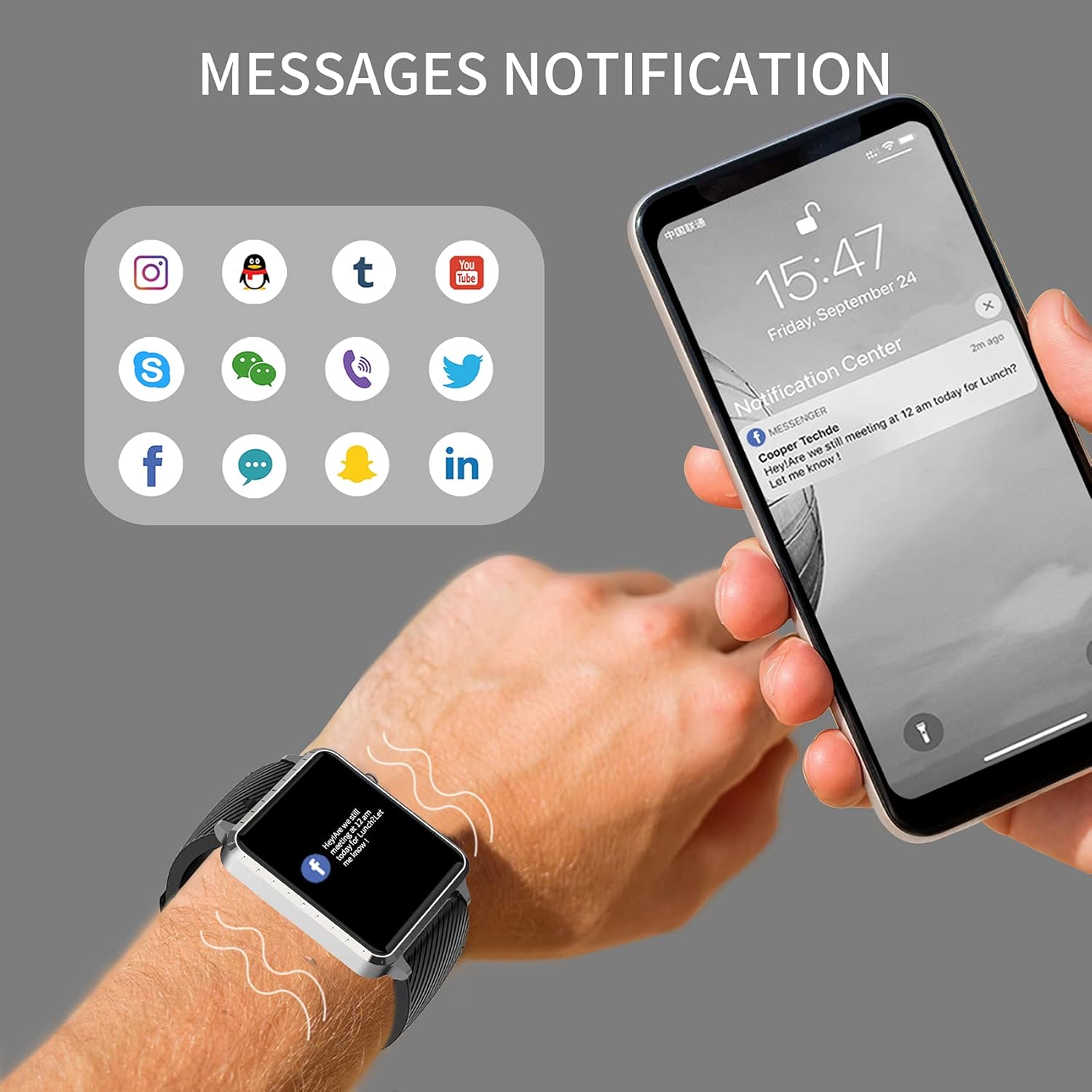
Image: The MAXTOP Smart Watch T5 showing incoming message notifications from popular social media and communication applications on its screen.
Music Control
Control music playback on your smartphone directly from your watch. This feature allows you to play, pause, skip tracks, and adjust volume without taking out your phone.

Image: The MAXTOP Smart Watch T5 demonstrating various features including music control, message notifications, sedentary reminders, and the 'find phone' function.
Other Functions
- Sedentary Reminders: Set reminders in the app to encourage movement after periods of inactivity.
- Find Phone: Use this feature on your watch to make your paired phone ring, helping you locate it.
- Stopwatch & Countdown: Access these tools from the watch's menu for timing activities.
Maintenance and Care
Water Resistance
The MAXTOP Smart Watch T5 is rated IP67 waterproof. This means it is resistant to splashes, rain, and brief immersion in water. It is suitable for daily use and can withstand hand washing or light rain.
Caution:
- Do not use the watch for swimming, diving, or showering with hot water.
- Avoid exposing the watch to high-pressure water or steam.
- Water resistance is not a permanent condition and may decrease over time with normal wear.
Cleaning
Regularly clean your watch and strap to maintain hygiene and prevent skin irritation.
- Wipe the watch screen and body with a soft, damp, lint-free cloth.
- For the silicone strap, you can wash it with mild soap and water, then rinse thoroughly and dry completely before reattaching to your wrist.
- Avoid using harsh chemicals or abrasive materials.
Battery Care
To prolong battery life:
- Charge the watch fully before first use.
- Avoid extreme temperatures.
- If not using the watch for an extended period, charge it to about 50% before storing.
Troubleshooting
Watch Not Turning On
- Ensure the watch is fully charged. Connect it to the charger for at least 30 minutes.
- Press and hold the side button for 10-15 seconds to force a restart.
Cannot Pair with Phone
- Make sure Bluetooth is enabled on your phone and the watch is within range.
- Restart both your phone and the watch.
- Ensure the companion app is installed and updated to the latest version.
- Forget the device from your phone's Bluetooth settings and try pairing again through the app.
- Check if the watch is already paired with another device.
Inaccurate Readings (HR/BP/Sleep)
- Ensure the watch is worn correctly: snug on the wrist, not too tight or too loose.
- Remain still during measurements.
- Note that smart watch readings are for reference only and should not be used for medical diagnosis.
Notifications Not Appearing
- Verify that the watch is successfully paired with your phone.
- Check app notification settings on your phone and within the companion app.
- Ensure the app is running in the background and not being closed by your phone's power-saving features.
Specifications
| Feature | Detail |
|---|---|
| Brand | MAXTOP |
| Model | T5 |
| Screen Size | 1.54 Inches |
| Product Dimensions | 1.46 x 1.57 x 0.28 inches |
| Item Weight | 1.87 ounces (53 Grams) |
| Operating System | Android, iOS compatible |
| Wireless Communication | Bluetooth |
| Battery Type | Lithium Polymer (1 included) |
| Battery Life | Up to 10 days |
| Water Resistance Level | Waterproof (IP67) |
| First Available Date | July 6, 2022 |

Image: Detailed physical dimensions of the MAXTOP Smart Watch T5, including the watch face width, height, and the adjustable strap length.
Warranty and Support
For warranty information and customer support, please refer to the official MAXTOP website or contact their customer service directly. Details are typically provided in the packaging or on the manufacturer's website.
Keep your purchase receipt as proof of purchase for any warranty claims.


