
Introduction
Thank you for choosing the beFree Sound 5.1 Channel Bluetooth Surround Sound Speaker System. This manual provides essential information for the proper setup, operation, and maintenance of your new audio system. Please read it thoroughly before use to ensure optimal performance and longevity of the product.
This system is designed to deliver an immersive audio experience for movies, games, and music, featuring 5.1 positional audio, enhanced bass response, and multiple connectivity options.
What's Included
Carefully unpack all components and ensure you have received the following items:
- One 4" Amplifier (Subwoofer Unit)
- Five 2.5" Satellite Speakers
- One Remote Control (requires 2 AAA batteries, not included)
- 1 Audio Cable (RCA to 3.5mm)
- 1 FM Antenna
- 3 DVD Connection Cables (RCA to RCA)
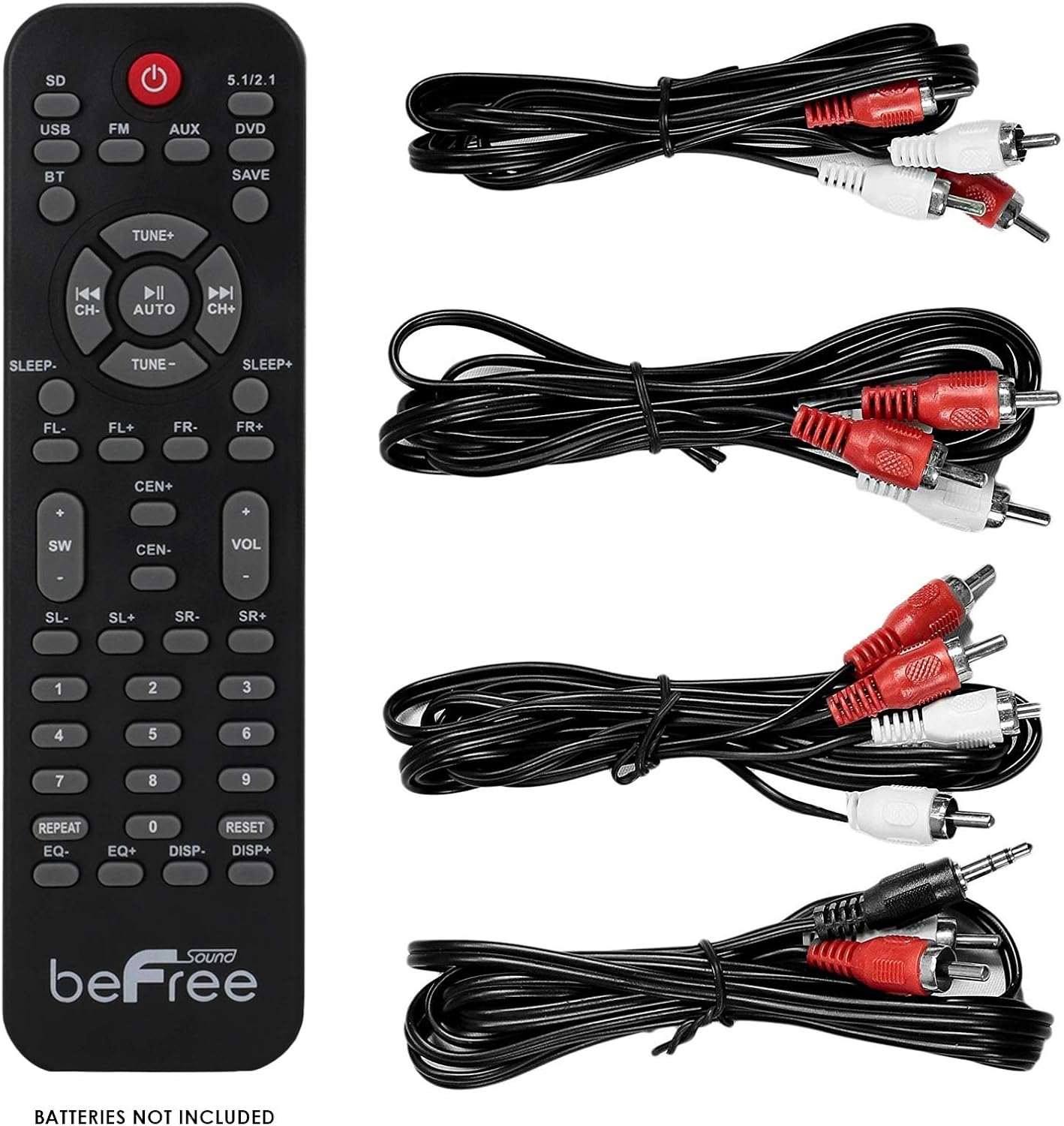
Image: Remote control and included audio cables for connecting the system to various devices.
Setup Instructions
1. Speaker Placement
For optimal 5.1 surround sound experience, position the speakers as follows:
- Center Speaker: Place directly in front of the listening position, typically above or below your display.
- Front Left & Front Right Speakers: Position to the left and right of your display, equidistant from the center speaker and the listening position.
- Surround Left & Surround Right Speakers: Place to the sides or slightly behind the main listening position, facing inwards.
- Subwoofer: Can be placed anywhere in the room, but often performs well in a corner or near the front speakers to enhance bass.

Image: An example setup of the 5.1 speaker system, illustrating the placement of the subwoofer and satellite speakers.
2. Connecting the Speakers
Connect each of the five satellite speakers to the corresponding output ports on the rear panel of the subwoofer unit. Ensure the correct speaker (Front Left, Front Right, Center, Surround Left, Surround Right) is connected to its designated port.
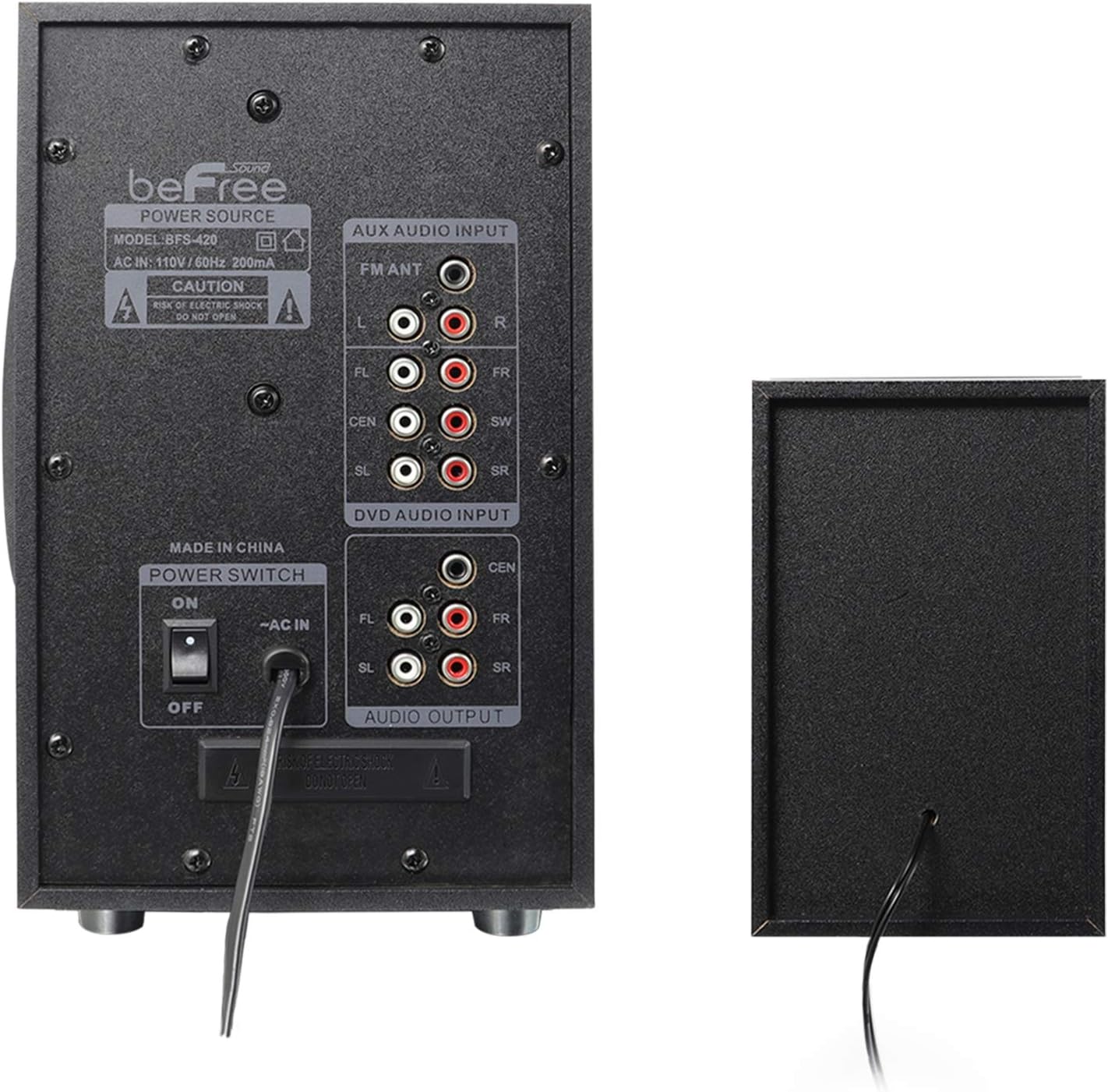
Image: Rear view of the subwoofer unit, highlighting the speaker output terminals and various input options.
3. Connecting Audio Sources
Your system supports multiple audio input methods:
- AUX Audio Input: Use the provided RCA to 3.5mm audio cable to connect devices like smartphones, MP3 players, or laptops to the "AUX AUDIO INPUT" ports.
- DVD Audio Input: Use the provided RCA cables to connect a DVD player or other compatible devices to the "DVD AUDIO INPUT" ports for 5.1 channel audio.
- FM Antenna: Connect the FM antenna to the "FM ANT" port for radio reception. Extend the antenna for better signal.
- USB/SD Card: Insert a USB drive or SD memory card into the respective slots on the front panel for direct media playback.
4. Power Connection
Connect the power cord to the AC power outlet. Ensure the power switch on the rear panel is in the "OFF" position before plugging in. Once all connections are secure, switch the power to "ON".
Operating Instructions
1. Power On/Off
Use the power switch on the rear of the subwoofer unit to turn the system on or off. The remote control also has a power button (red circle) for standby mode.
2. Input Selection
Press the "INPUT" button on the front panel of the subwoofer or the corresponding buttons on the remote control (e.g., "BT" for Bluetooth, "AUX", "DVD", "USB", "SD", "FM") to select your desired audio source.
3. Bluetooth Pairing
- Select "BT" input mode on the speaker system. The display will show "BT" and an audible prompt may indicate pairing mode.
- On your Bluetooth-enabled device (smartphone, tablet, etc.), search for available Bluetooth devices.
- Select "beFree Sound" (or similar name) from the list to pair.
- Once paired, an audible confirmation will sound, and you can play audio from your device through the speaker system.
4. FM Radio Operation
- Select "FM" input mode.
- Press the "AUTO" button on the remote control to automatically scan and save available radio stations.
- Use the "TUNE+" or "TUNE-" buttons to manually adjust the frequency or navigate through saved stations.
- The "SAVE" button can be used to manually store a station to a preset number.
5. USB/SD Card Playback
Insert a USB flash drive or SD card into the respective slot. The system will automatically switch to USB/SD mode and begin playing compatible audio files. Use the remote control for playback functions (Play/Pause, Next/Previous Track).
6. Volume and Sound Adjustment
- Master Volume: Use the "VOL+" and "VOL-" buttons on the remote or the main knob on the subwoofer to adjust the overall volume.
- Individual Channel Volume: The remote control allows adjustment of individual speaker levels (FL, FR, CEN, SL, SR, SW) for fine-tuning the surround sound experience.
- EQ: Use the "EQ" button on the remote to cycle through preset equalizer modes.
Maintenance
- Cleaning: Use a soft, dry cloth to clean the surfaces of the speakers and subwoofer. Do not use liquid cleaners or abrasive materials.
- Ventilation: Ensure adequate ventilation around the subwoofer unit to prevent overheating. Do not block any vents.
- Environment: Avoid exposing the system to extreme temperatures, humidity, direct sunlight, or dusty environments.
- Remote Control: Replace AAA batteries in the remote control when its range or responsiveness decreases.
Troubleshooting
| Problem | Possible Cause | Solution |
|---|---|---|
| No power | Power cord not connected; Power switch off; No power from outlet. | Ensure power cord is securely plugged in. Turn power switch to ON. Check power outlet with another device. |
| No sound | Incorrect input selected; Volume too low; Audio cables not connected properly; Device not playing audio. | Select correct input source. Increase master volume. Check all audio cable connections. Ensure source device is playing audio. |
| Bluetooth pairing fails | Speaker not in BT mode; Device too far; Interference; Device already paired to another speaker. | Ensure speaker is in BT mode. Move device closer. Turn off other Bluetooth devices. Forget "beFree Sound" on your device and try pairing again. |
| Poor FM reception | Antenna not extended; Weak signal. | Fully extend the FM antenna. Reposition the antenna for better signal reception. |
| Remote control not working | Batteries depleted or incorrectly inserted; Obstruction between remote and sensor. | Replace remote control batteries (2x AAA). Ensure batteries are inserted with correct polarity. Remove any obstructions. |
Specifications
- Model Name: BFS-5.1 Surround Sound Speaker System
- Speaker Type: 5.1 Channel Surround Sound
- Output Power: 75 Watts Total (25W Subwoofer, 10W x 5 Satellite Speakers)
- Frequency Response: 40Hz-20KHz
- Separation: >50dB
- Connectivity: Bluetooth, USB, SD Card, FM Radio, AUX (RCA), DVD (RCA 5.1)
- Compatible Devices: Laptop, MP3 Player, Smartphone, Tablet, Television
- Control Method: Remote Control
- Power Source: AC 110V/60Hz (Plug Mount)
- Product Dimensions: 22 x 17.5 x 11.5 inches (Overall package dimensions, individual components vary)
- Item Weight: Approximately 15.08 pounds (6.85 Kilograms)
Warranty and Support
This beFree Sound product comes with a Limited Warranty. Please refer to the warranty card included in your packaging for specific terms and conditions. For technical support or service inquiries, please contact beFree Sound customer service through their official website or the retailer where the product was purchased.
Keep your purchase receipt as proof of purchase for warranty claims.